Creating a bootable USB flash drive in Windows 7 using UltraISO
Articles Free

Creating a bootable USB flash drive in Windows 7 using UltraISO

5.0 (2 ratings) Hover and click a star to rate
Downloads
0
Size
Rating
5.0 / 5
License
Freeware

Description

The operating system installed on a computer or laptop, alas, is not eternal, so users periodically face the need to reinstall the system.

The reason may be Windows failure, virus activity, or simply clutter and slow performance. Be that as it may, installing the operating system from a DVD disc is not very convenient.

Why?

  • First: you don't always have a blank disc on hand to burn the OS image.
  • Second: the installation speed is significantly lower than with installing Windows from a bootable flash drive.
  • And third: most modern laptops simply lack DVD drives, and not all computer drives are functional.

Therefore, the ideal option remains installing Windows 7, Windows 8 using a bootable flash drive.

How to create a bootable flash drive?

There are many ways to create a bootable flash drive, but the easiest is to create a bootable flash drive using the UltraISO program.

For example, we will create a bootable Windows 7 flash drive, but in the same way you can burn (burn an ISO image) disk images of other operating systems. To create a bootable flash drive, we need the UltraISO program (download UltraISO program for free in Russian), an operating system image, and a flash drive with a capacity of at least 4 GB. So, launch the installed UltraISO program.

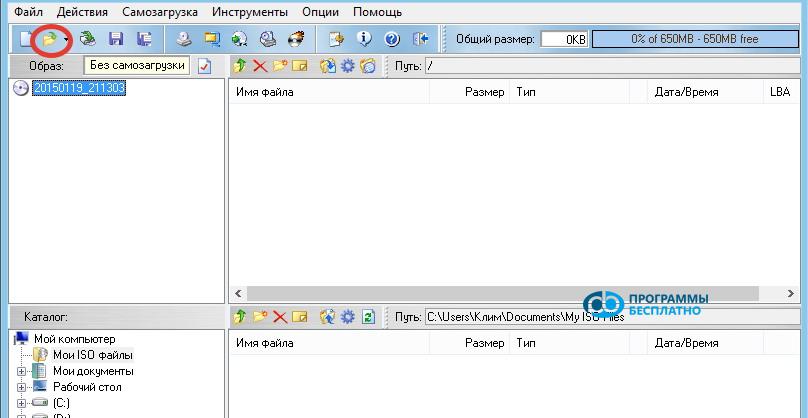
In the window that opens, click on the icon of the "Open" tool:
sozdanie-zagruzochnoy-fleshki-v-windows-7-1

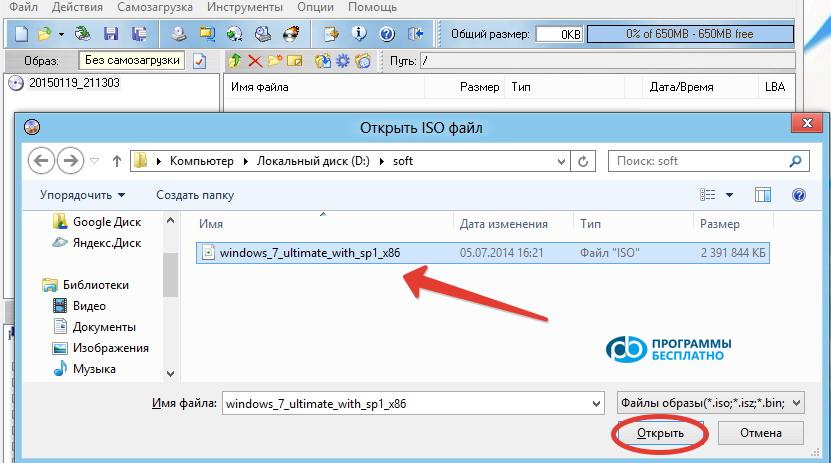
You can also perform this action by clicking on the "File" tab and selecting the "Open" item, or simply by pressing the Ctrl+O key combination. In the explorer window that opens, go to the folder where the prepared Windows 7 image is located, click on it, and press the "Open" button:
sozdanie-zagruzochnoy-fleshki-v-windows-7-2

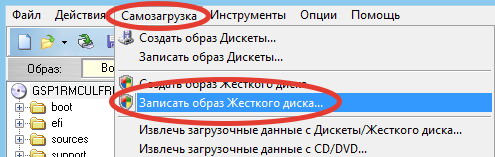
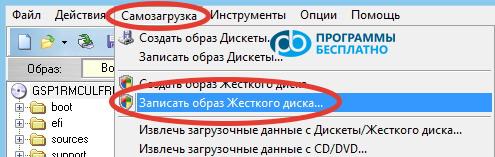
The program will open the image, and all that remains is to burn it. To do this, click on the "Bootable" tab and select the "Write Disk Image..." item:
sozdanie-zagruzochnoy-fleshki-v-windows-7-3

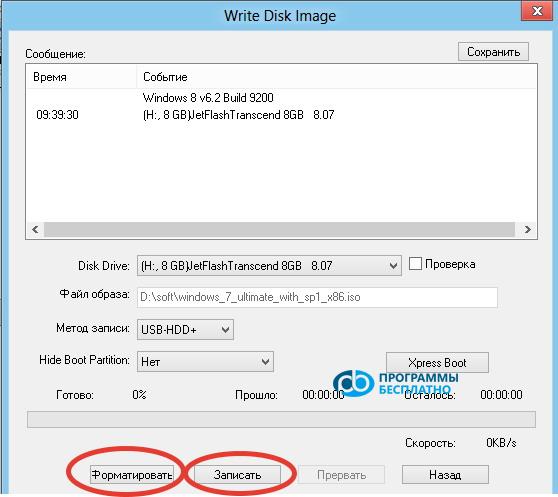
A new window will open:

sozdanie-zagruzochnoy-fleshki-v-windows-7-4

Now it's worth reminding that when creating a bootable flash drive, all information on it will be lost, so save all important data on another medium. It is highly recommended to use a formatted flash drive and the FAT32 file system.

This can be done using standard Windows tools, or you can use the built-in formatting tool of the program.

Preparing the flash drive for writing the image

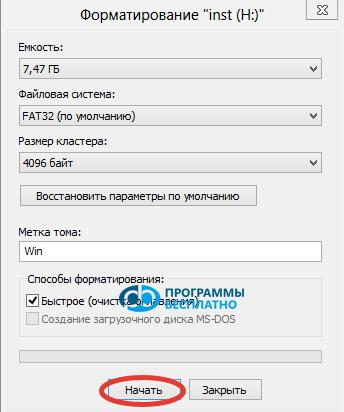
To format the flash drive in the program, click on the "Format" button. A formatting window will appear indicating the flash drive capacity, the file system to format to, and the flash drive name:
sozdanie-zagruzochnoy-fleshki-v-windows-7-5

Click on the "Start" button and in the window that appears, confirm the selection by clicking the "OK" button. The formatting process will begin, after which a window will appear:
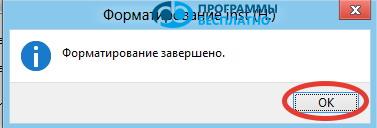
sozdanie-zagruzochnoy-fleshki-v-windows-7-6

Click the "OK" button and then "Close". The flash drive is ready, and you can proceed directly to creating a bootable flash drive from an ISO image. If your flash drive is already formatted, you can skip the formatting step.

Now click on the "Write" button. The program will warn again that all information on the flash drive will be deleted:
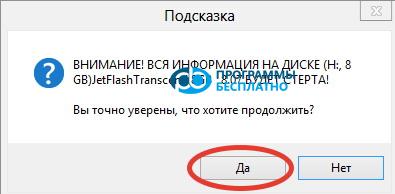
sozdanie-zagruzochnoy-fleshki-v-windows-7-7

Press the "Yes" button and the writing process starts. In the window, you can see the time elapsed, how much time is left, as well as the writing speed and what percentage is already done:
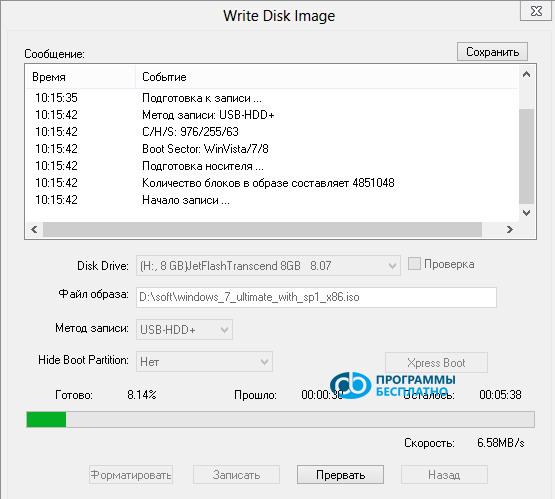
sozdanie-zagruzochnoy-fleshki-v-windows-7-8

After a few minutes, the writing will be completed:
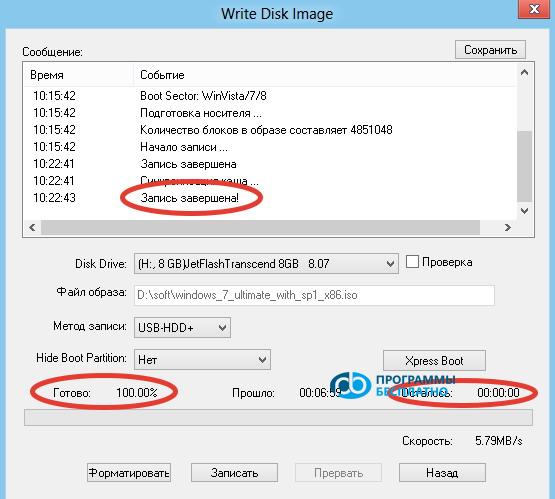
sozdanie-zagruzochnoy-fleshki-v-windows-7-9

Now the bootable flash drive is created and ready to use, and you can close the UltraISO program.

Articles that may help:

Specifications

Size
LicenseFreeware
Views1 171

Reviews

3 reviews

  • Bolshoj Janno 08.01.2018

    Кроме ОБРАЗА на флешку уже ничего другого писать нельзя?

  • Андрей 19.11.2015

    По умолчанию делать этого не нужно, если вы из обычного ISO записываете флешку. А так, пункт записать новый MBR в общем случае подходит.

  • Gost 28.04.2015

    Вопрос. А с образом Live CD, такой же метод подойдёт? Или надо выставлять соответствующие настройки (Самозагрузка \\ Генерировать таблицу загрузки). Или при создании нового Файл \\ Новый \\ Загружаемый образ CD\DVD И в окне записи образа, есть ещё дополнительные настройки (XPress Boot). Там про MBR, загрузочный сектор, редактор разделов, Xpress Write. Если можно, то тут, пожалуйста, поподробнее. Какие Вы посоветуете настройки в Xpress Boot?

Popular downloads

Show more
Windows Movie Maker

Windows Movie Maker

Video Editors
3.9

Windows Movie Maker - quickly and conveniently creates and edits videos by adding various effects. Included in Microsoft Windows, the alternative Windows Movie Maker is part of the free Windows Live software package from Microsoft. Features of Windows Movie Maker: Capture video from various sources (camcorders, mobile phones, digital video cameras, digital cameras, etc.). When creating videos in Windows Movie Maker, you can add a background audio track, use between

1 061 824 7.02 Мб
Download
Starus File Recovery

Starus File Recovery

Recovery Programs
5.0

Starus File Recovery is a program that allows you to recover deleted data from various media. With this program, you can restore files that have been lost in various ways. For example, they were deleted bypassing the Recycle Bin, hidden by malicious software, lost due to software failures, complete emptying of the Recycle Bin, formatting, or deletion of the hard drive. The program effectively works with various devices, such as hard drives, SS

190 009 14.08 Мб
Download
PROMT

PROMT

English to Russian translators
3.3

PROMT - leader in offline and online translation, with the most powerful collection of dictionaries and translated language pairs, 60 language pairs. LLC "PROMT" - a leading Russian company, developer of translation systems for private users and corporations. PROMT software provides translation of any text using built-in dictionaries, including both common and specialized terms. Instructions for any devices, in necessary software lacking a Russian interface, or emails from a foreign company

46 864 794.00 Мб
Download
Pascal ABC

Pascal ABC

Programming
4.1

Pascal ABC.NET is written in the Delphi language (Object Pascal) on the Microsoft.NET platform. It includes the PT4 problem book, and tools for the Draftsman and Robot performers, which are used in school computer science when learning programming. The main purpose of the Pascal ABC.NET programming system is the study and teaching of modern programming languages. Features This program is a complete programming system using the Pascal language. Development takes place on the well-known platform Micros

41 458 67.70 Мб
Download