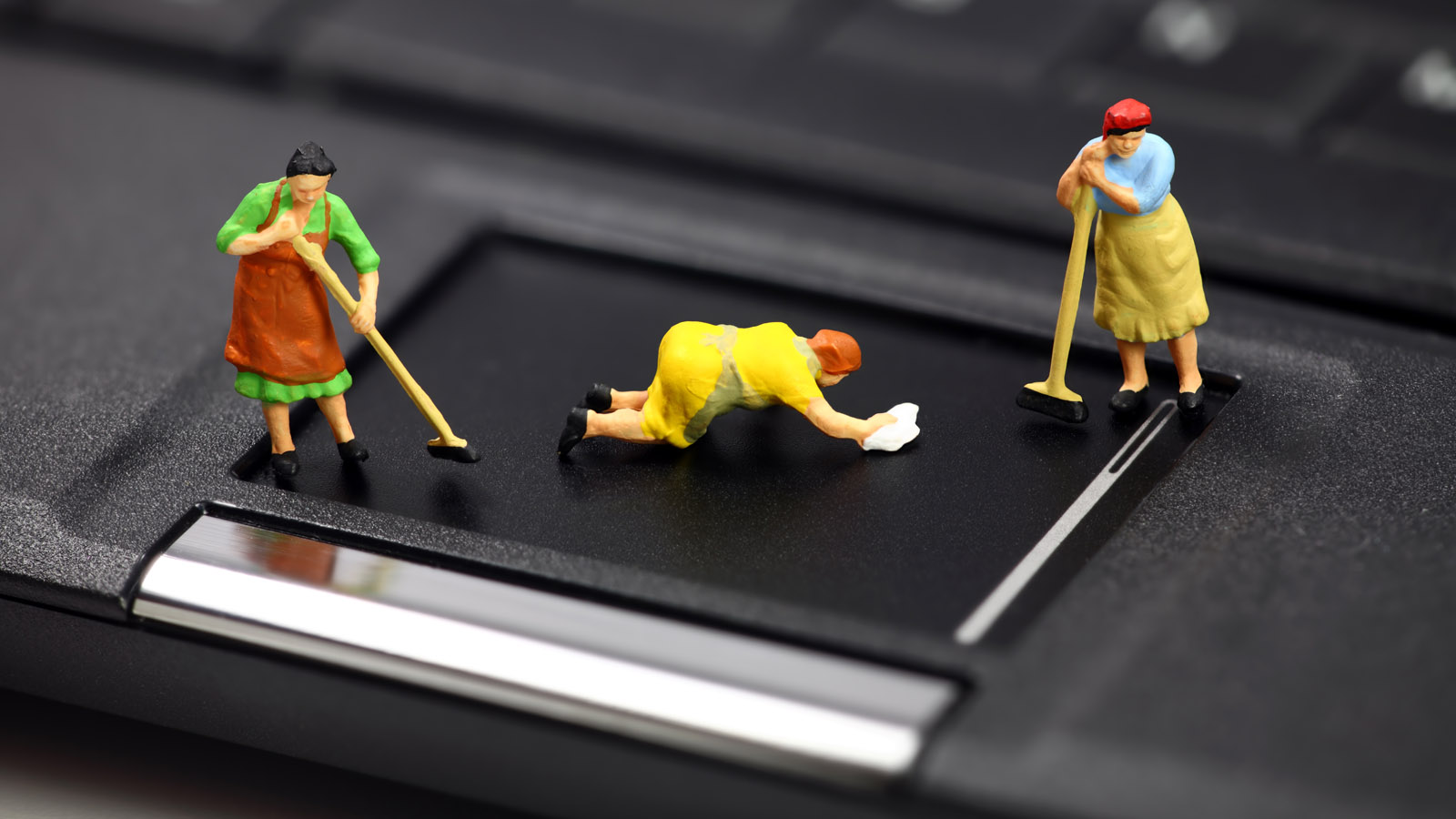
Buying a laptop is an expensive pleasure. But even an expensive model can quickly become unusable. Cleaning a laptop from dust increases its service life, minimizes breakdowns and system problems.
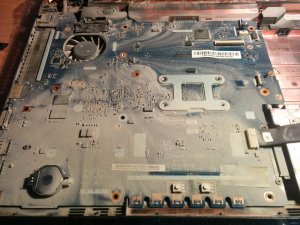
When should you clean your laptop?
You should remove dust from visible areas as it gets dirty. Usually, this needs to be done once every three days. As for deep cleaning, it is difficult to determine the condition of the laptop when it is assembled.
It would be more logical to determine the time interval between procedures. The following tips will help with this:
- No one takes care of the laptop. It often sits dirty. It works on soft surfaces. – Interval between cleanings is 6 months.
- Dust is wiped off frequently, but the computer travels a lot (school, work). – Interval is 9 months.
- There are children or pets at home. – Interval is 9 months.
- There are many residents in the house who use the laptop. – Interval is 12 months.
- The laptop is in good condition, but the external environment is dusty. – Interval is 18 months.
- In principle, everything is done for normal functioning. – Interval is 24 months.
- Strict adherence to everything specified in the instructions. – Interval is 36 months.
Now all that remains is to determine your category. In any case, the procedure should be done infrequently. It does not take much time and significantly saves money on repairs.
How to clean your laptop yourself: step by step
 Not everyone wants to do the cleaning. And the issue is not even about time or laziness, but about abilities. All stages are described in detail here. They are designed for beginners who have never done anything like this before.
STEP 1: Preparing tools
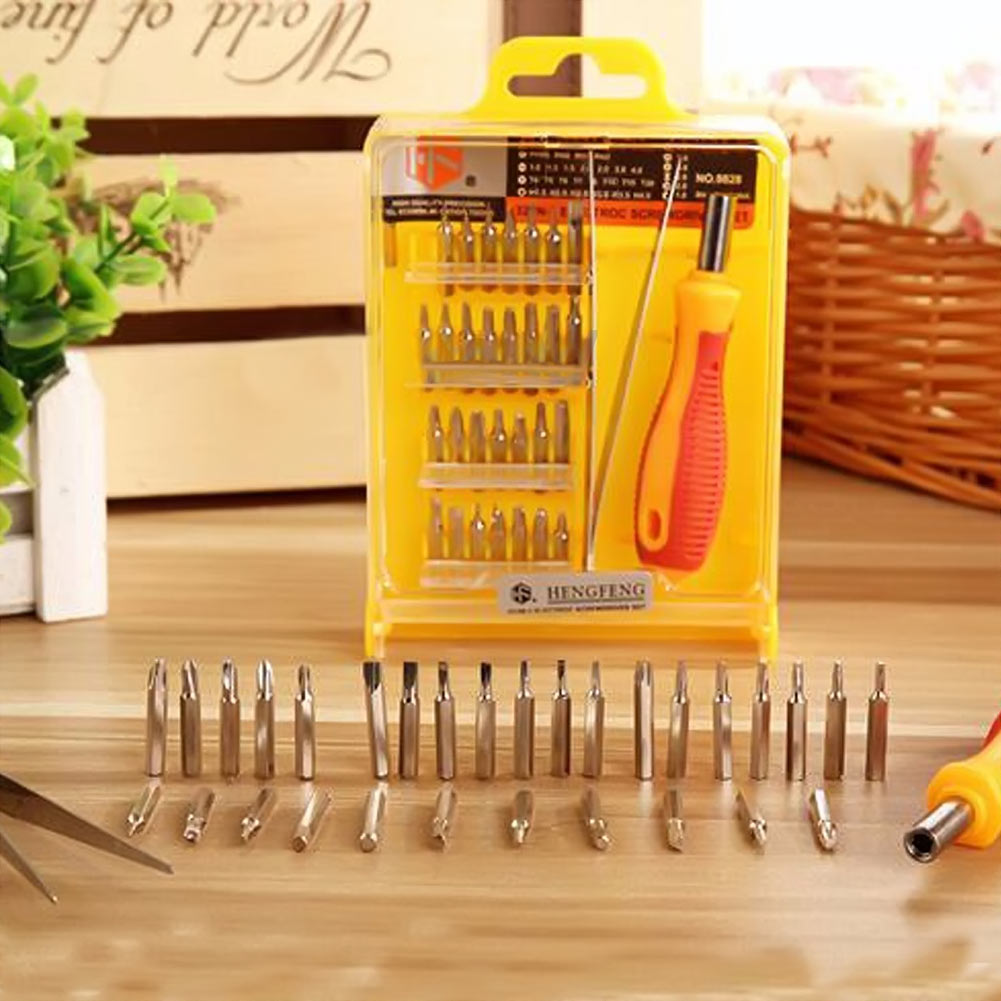 Cleaning a laptop from dust requires the following tools: a vacuum cleaner, a small cloth (not a sponge), a brush, a screwdriver or a screwdriver. The vacuum cleaner should operate in dry mode, the cloth should always be thoroughly wrung out, and it is better to take several brushes (different sizes).
STEP 2: Case and keyboard
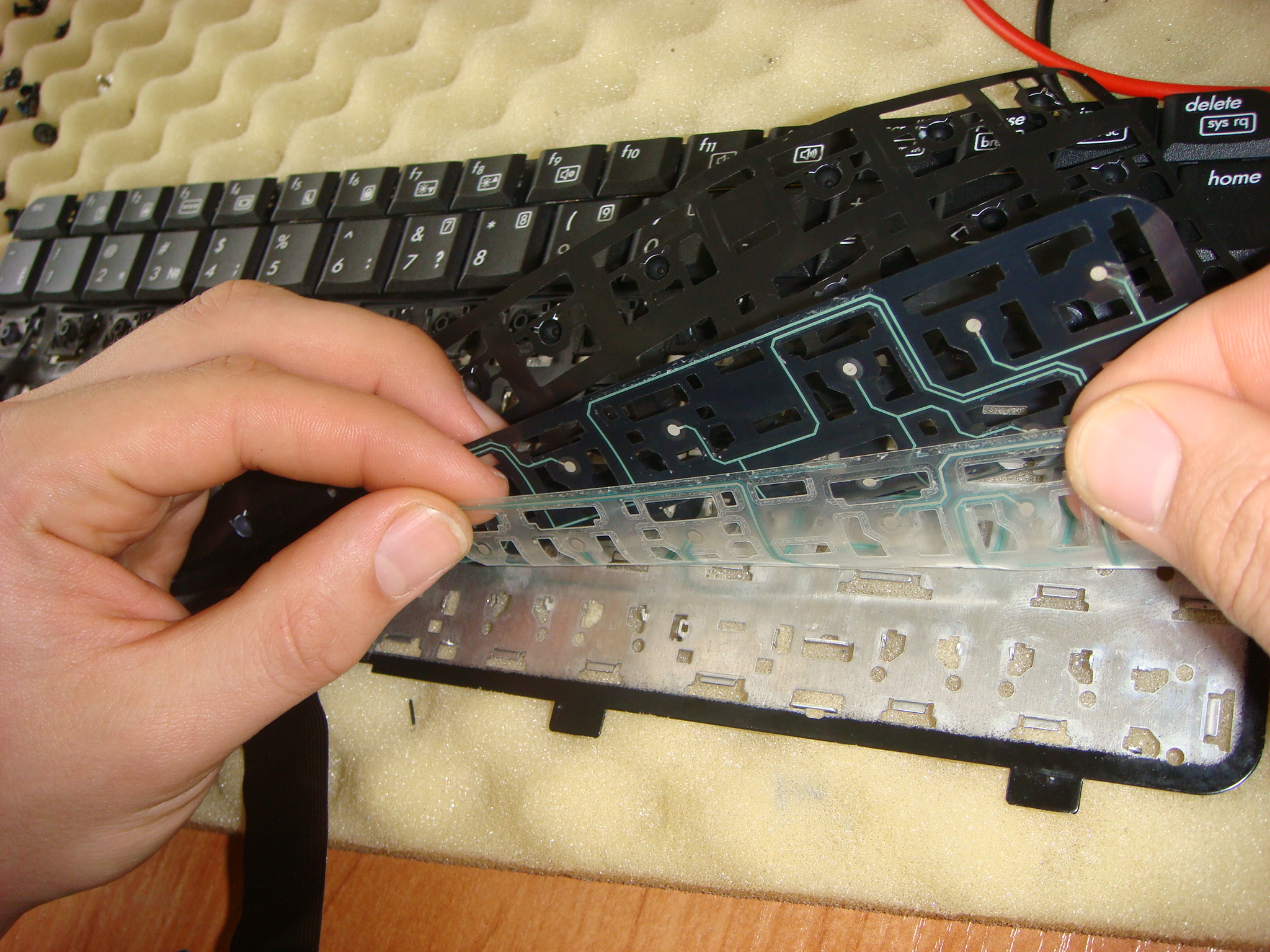 To remove excess dirt, you need to thoroughly go over the cooler and keys with a vacuum cleaner. If you just move the hose around, you won't achieve the perfect effect. Dirt and dust still remain under the buttons.
Additionally, gently move the keyboard with a brush. This stage takes a lot of time, but it is worth it. You no longer have to put up with sticky keys.
STEP 3: Ports
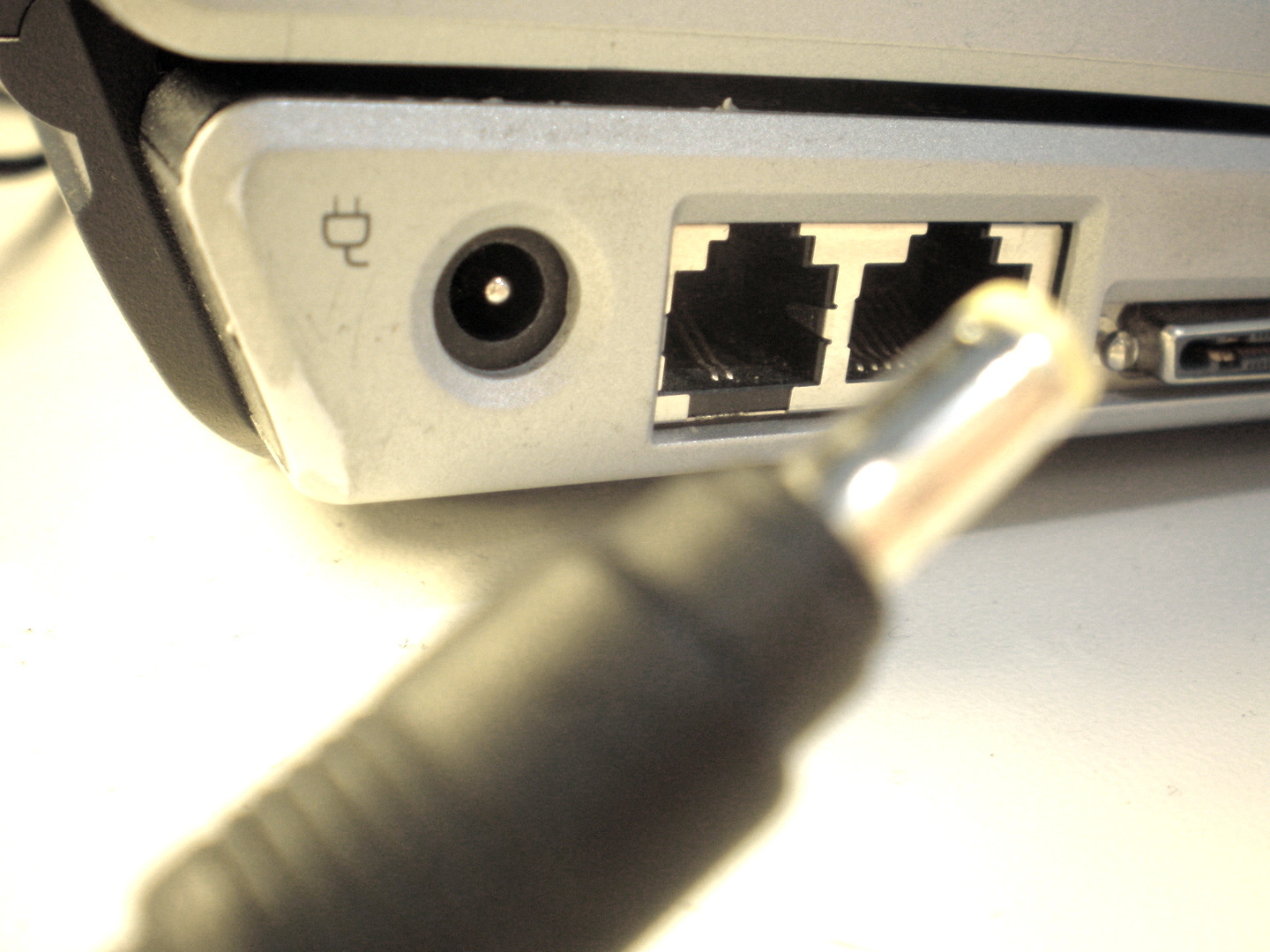
Cleaning laptops from dust at home cannot be done without this step. After all, a lot depends on the condition of the ports. It is worth checking if there are any foreign objects that could become an obstacle for flash drives, cables, etc. Once everything is ready, you need to wipe the case with a damp cloth.
STEP 4: Disassembling the laptop
 Refreshing the external parts is not as difficult as disassembling the laptop for dust cleaning. Here it is important to follow the rules and not make sudden movements. Typically, disassembly involves removing the cover.
A screwdriver will quickly do its job. If you don't have one on hand, you can fiddle with a (Phillips) screwdriver. Be careful! It is very easy to lose screws as they are small. Immediately put them in a specific place.
Some models have special latches. The cover must be lifted carefully, as they break easily. A good idea would be to watch a video tutorial on disassembling the computer of the desired model. Then there will be no doubts about whether everything can be done independently.
STEP 5: Cooler
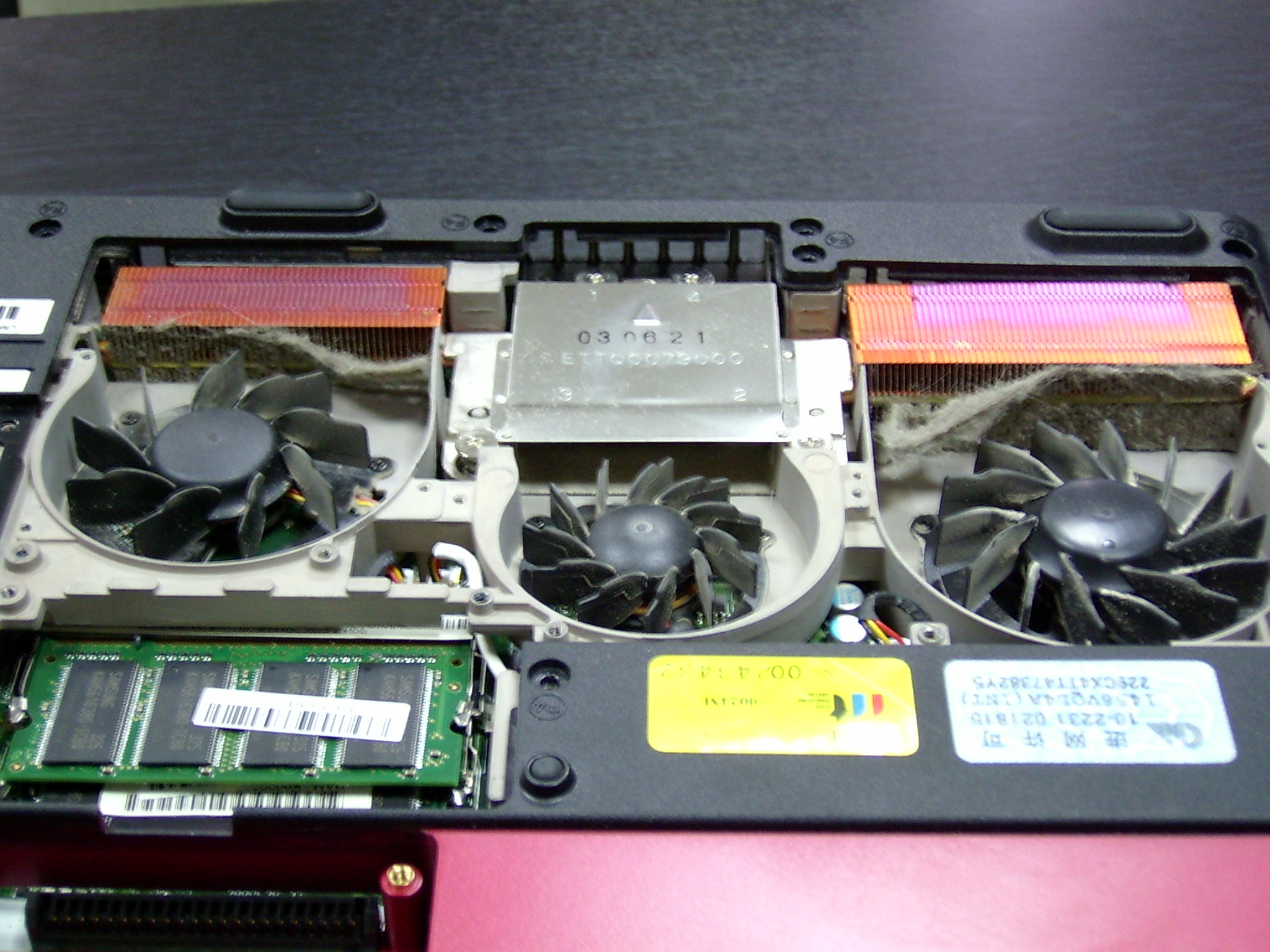
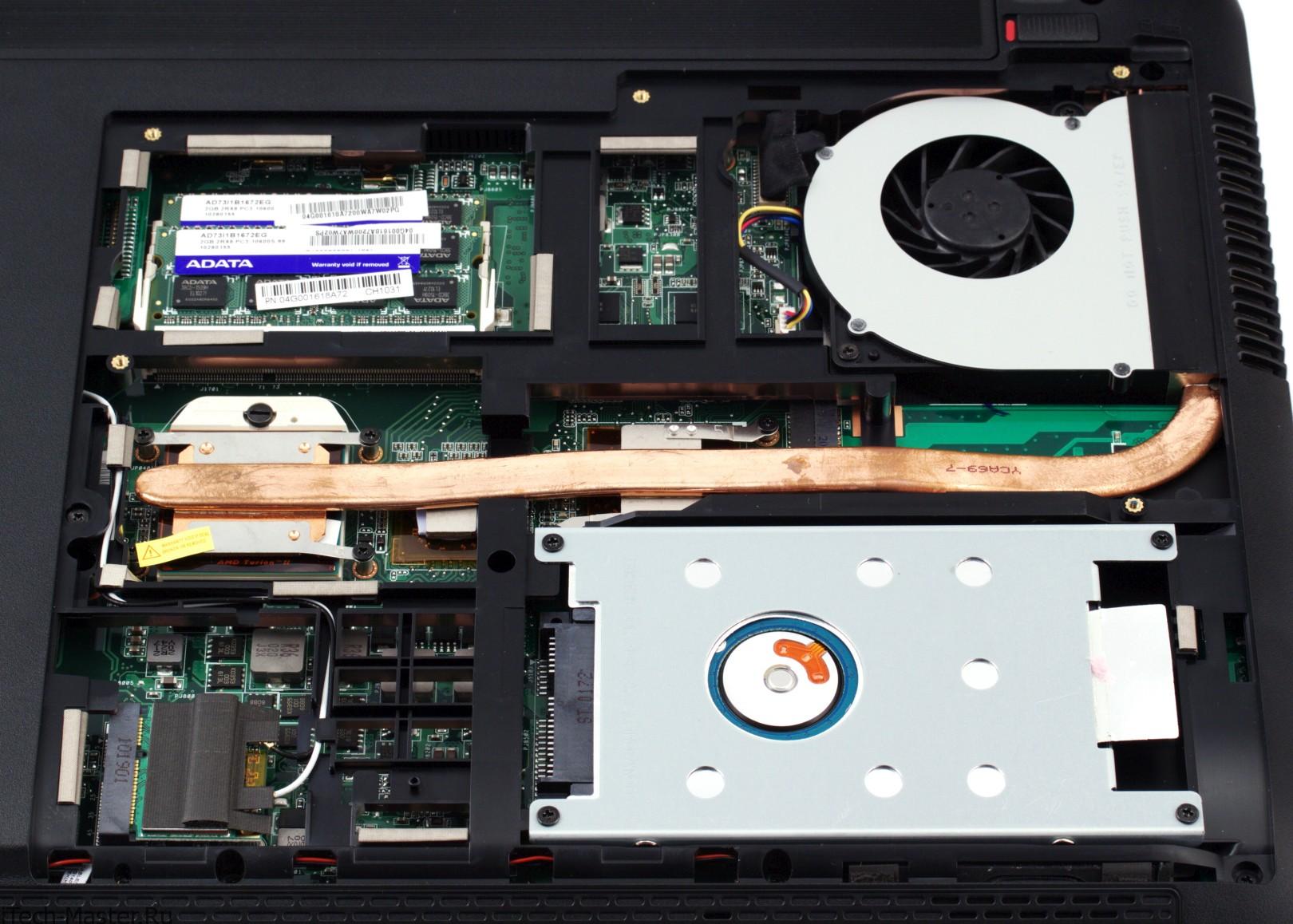
 Once the cover is open, take the time to photograph all the contents. Let's move on. Internal cleaning of the laptop from dust starts with the cooler. It gets the dirtiest and then spreads dirt to other parts.
Remove the cooler and carefully wipe it with a damp cloth until it is perfectly clean. There will be a radiator underneath. You don't need to wipe it. Use a vacuum cleaner. The power should be at maximum.
STEP 6: Internal inspection
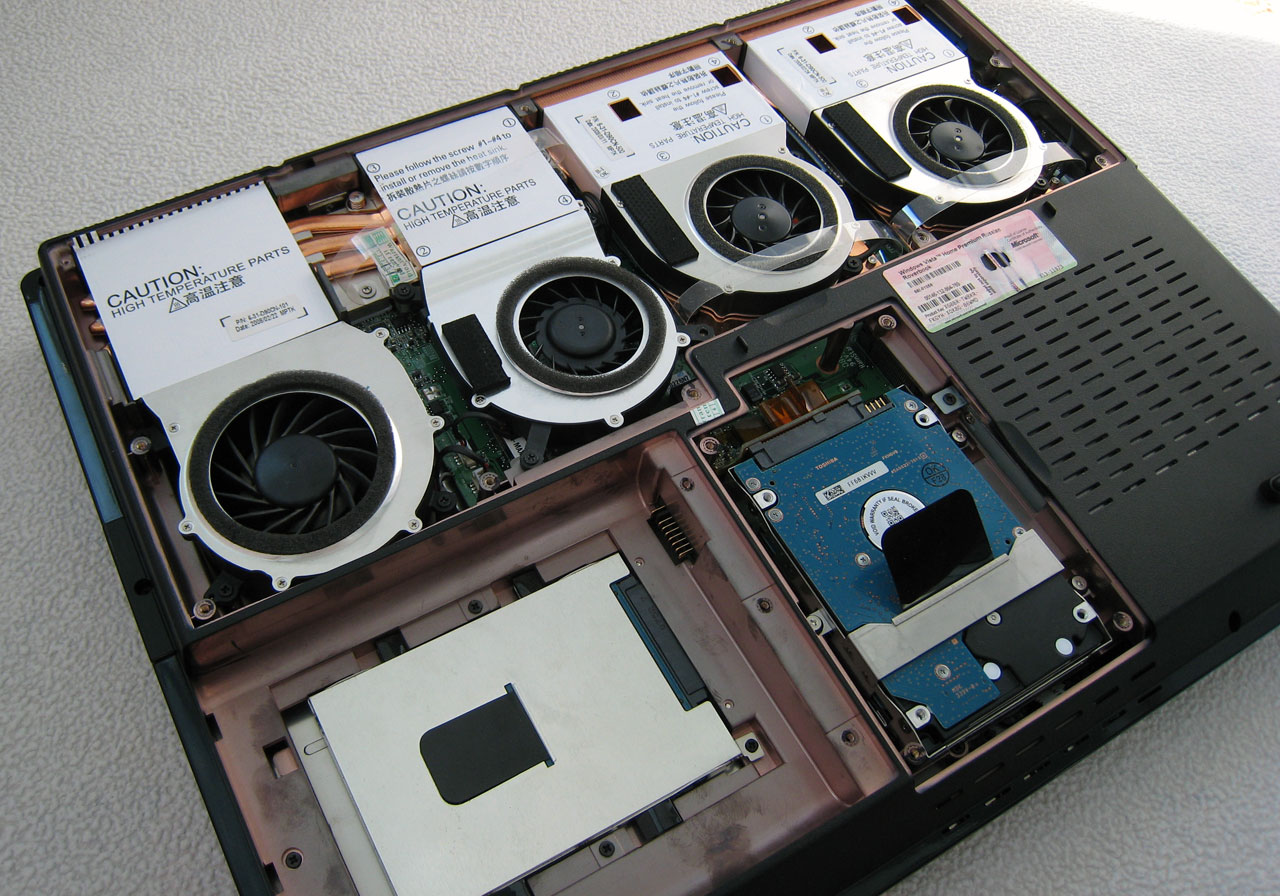 You shouldn't try to remove the other parts. You can simply clean them with a vacuum cleaner. A thoroughly cleaned cooler is already a guarantee of good system performance. In second place in importance is the RAM module. It is clearly visible. Dust must not be left on it.
Specialists also do not forget about thermal paste. Cleaning a laptop from dust and replacing thermal paste are integral parts for those who value their equipment. It allows you to regulate the temperature inside the computer.
STEP 7: Assembly
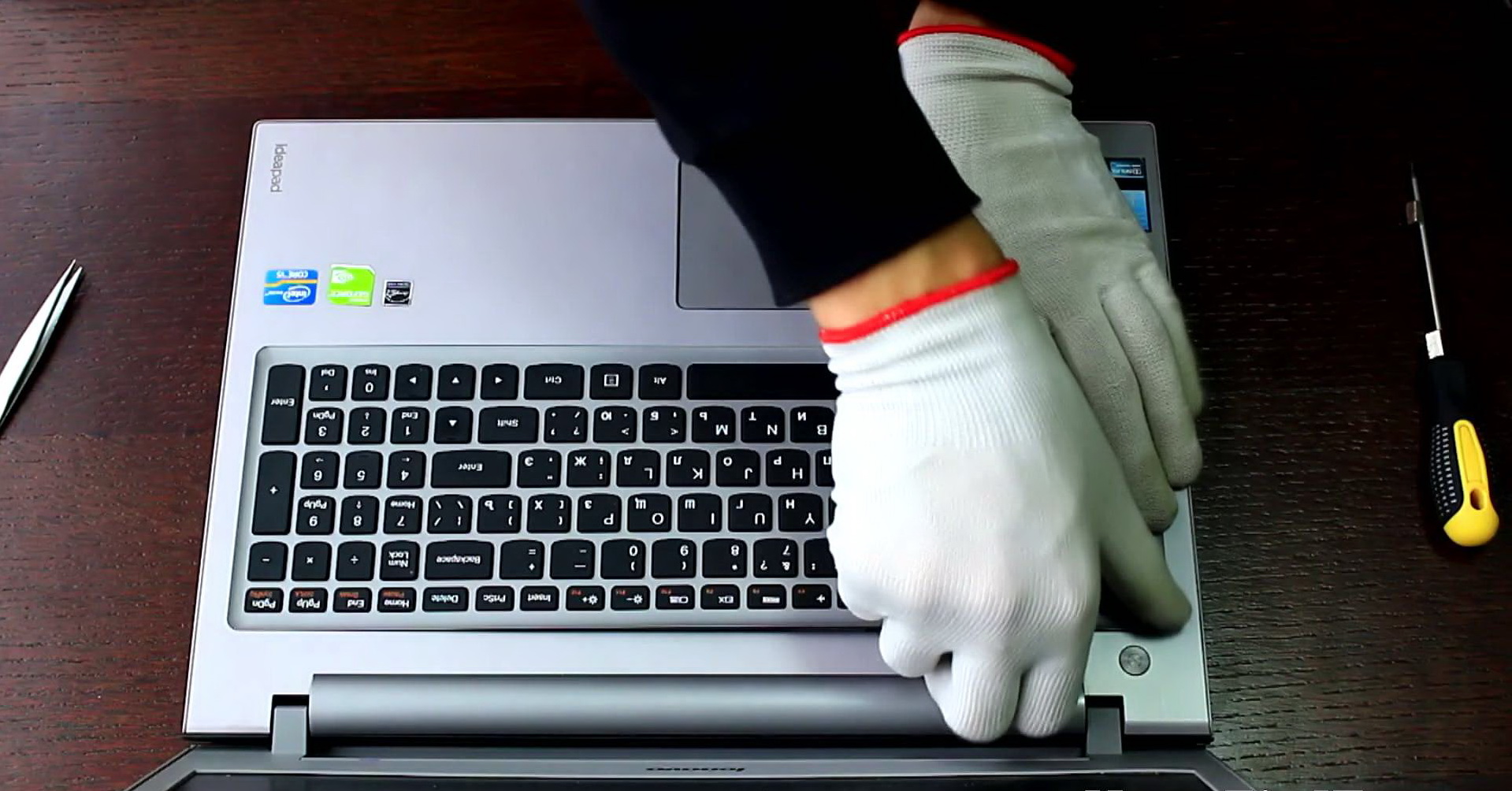 Before installing the cover, you need to put the cooler back in place. It must be perfectly dry. Then put the cover on and tighten the screws. It is important not to overdo it, so as not to strip them, or you will have to work hard during the next cleaning. There is no need to move the screwdriver unnecessarily. Try not to scratch the case.
Cleaning a laptop from dust at home ends after the computer successfully turns on. Checking is mandatory, because there is always a chance of messing something up. Don't be afraid if the device does not turn on. In 99% of cases, the problem is poor contact. You need to disassemble and reassemble everything again.
How to clean the laptop screen?
During such a thorough inspection, you cannot ignore the screen. After all, it also gets very dirty. We touch it with our hands when we show something, sneeze, and cough.
If you still believe in the sterility of your screen, just hold it up to daylight. As practice shows, the picture turns out to be terrible.
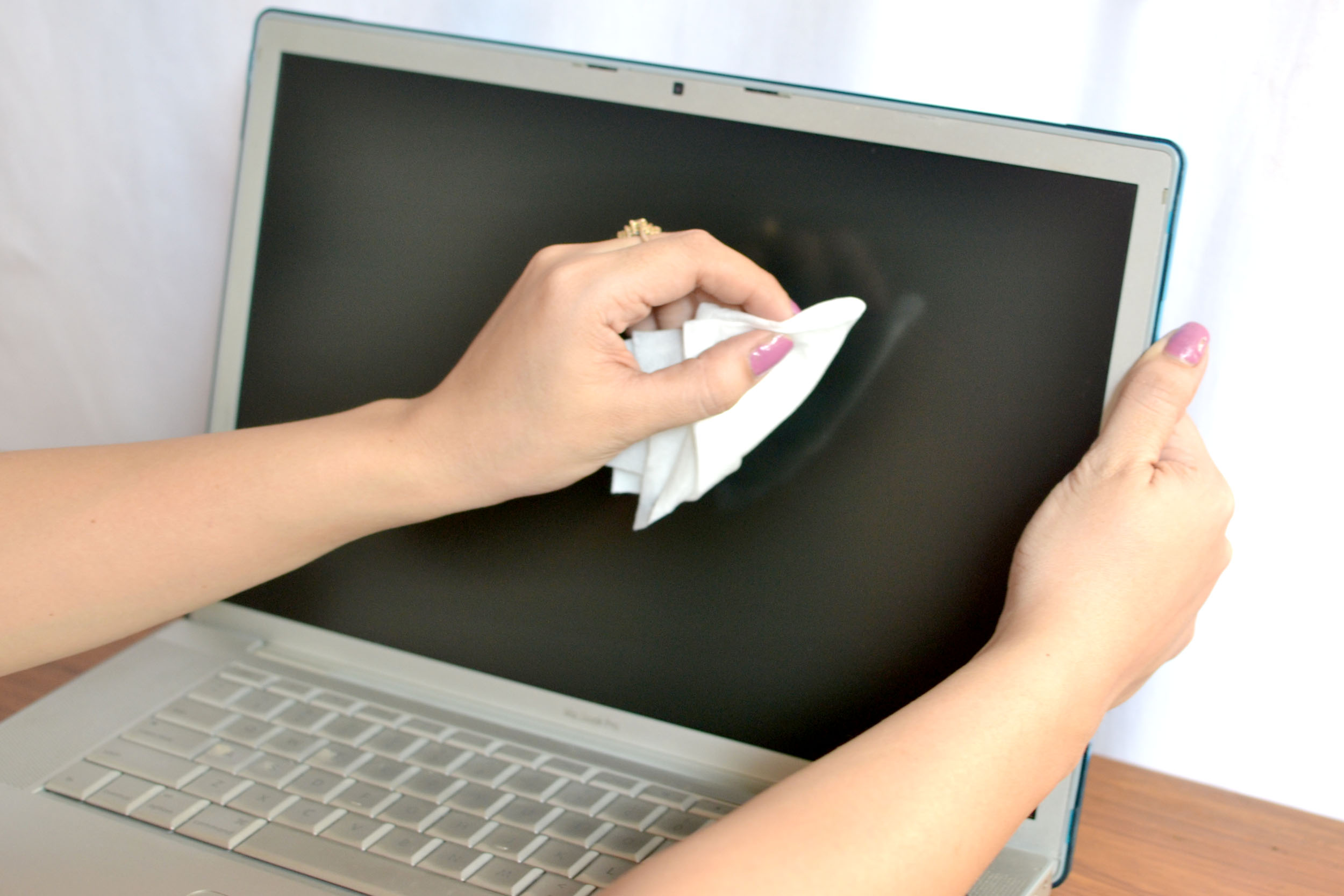
According to the instructions, cleaning the laptop screen from dust can be done in two ways:
- Use special wipes. They can be bought in stores that sell electronics, computers, or phones.
- Take a simple damp sponge. But you need to wipe everything while the device is turned on. Then immediately wipe the screen with a dry towel. Both methods work perfectly. No streaks or stains remain. It is worth doing this procedure more often. It takes only two minutes.
What to do to keep your laptop clean: tips
Cleaning a laptop from dust at home is not something particularly difficult. But you shouldn't let the equipment get into a sorry state.
It is better to follow useful tips:
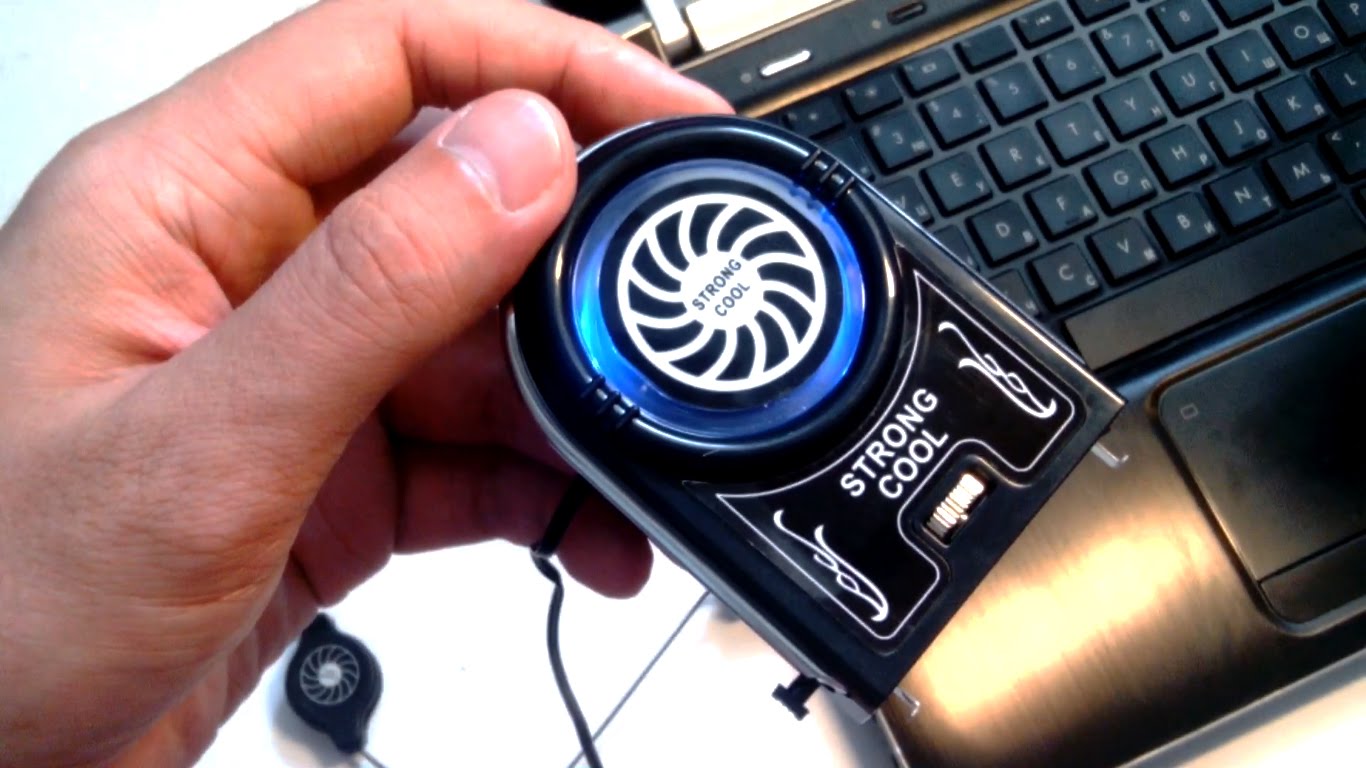
- A USB cooler as a stand. Prevents overheating and failures. A convenient thing. Especially if the laptop is always on the table.
- Do not place the computer on pillows, blankets, or soft sofas. Not only do they heat up, but they also absorb dust, fluff, and feathers. With poor heat exchange, the level of contamination is much higher.
- Do not eat in front of the keyboard. It gets clogged with crumbs that are impossible to shake out later. Even if you think you are eating carefully, small crumbs can remain out of sight.
- After using the computer, you need to turn it off. After all, it is not a stationary device that can work for a long time. The laptop heats up, reducing its service life. Use sleep mode.
Cleaning a laptop from dust at home is a pressing issue that cannot be put off. Every day, more and more dirt accumulates in the keyboard, cooler, and internal parts. Dust begins to stick to the parts, forcing them to work at full capacity.Set aside at least one day a year when you will carefully disassemble all parts and clean them. Then trips to the service center will be reduced, the laptop will work perfectly for days, and it will be able to handle large programs. Only such care will protect the equipment from breakdowns.