The standard welcome page of the Google Chrome browser looks, perhaps, empty and unclear. Now we will figure out what a welcome page is and what it is for.
When you launch the browser, the first thing you see is the start page! It is also called the quick access page, or welcome page.
Welcome page - what is it?
Actually, these are slightly different concepts, especially when it comes to the standard welcome page of the Google Chrome browser.
So, now we know what it is. Let's figure out what it is needed for?
If you have the standard welcome page in your browser, namely, the "Quick Access Page", and you haven't changed anything in it and haven't installed extensions to change the "Quick Access Page", then it will look something like this:
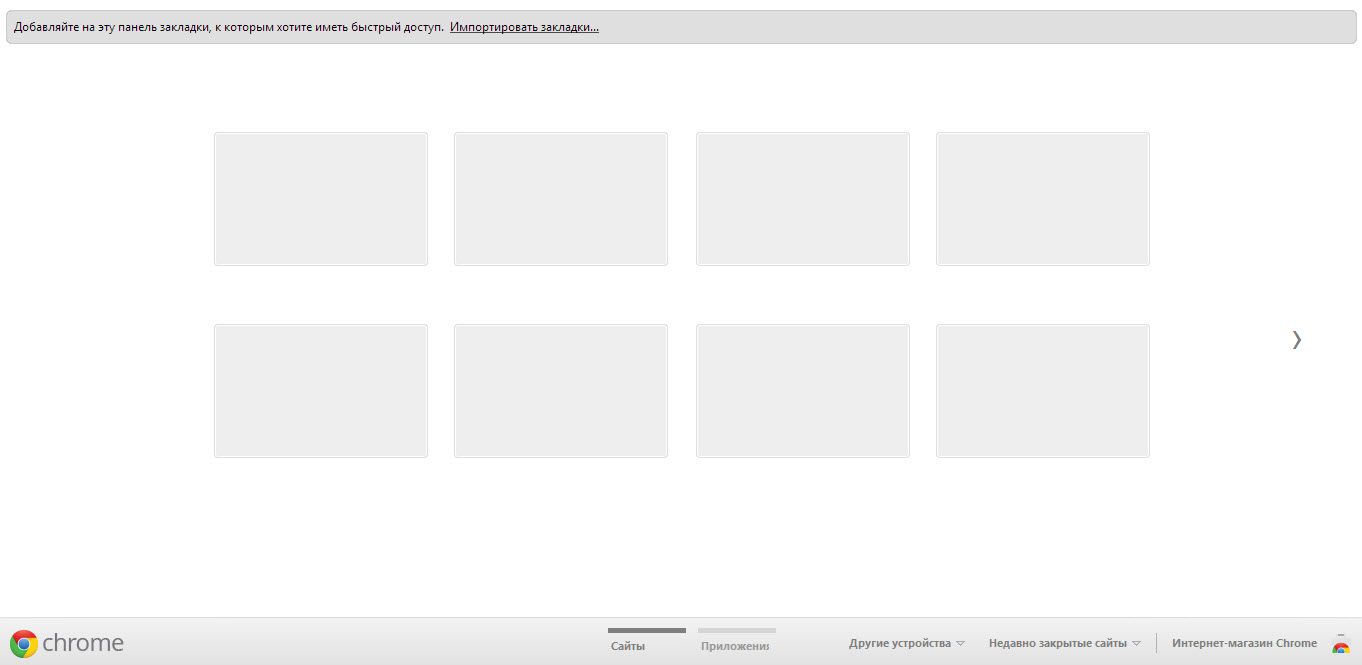
Let's start, perhaps, with these little squares that are unclear at first glance. What are they?
These are "tabs" that display your most visited sites. That is why this page is called the "Quick Access Page" (Eng. Speed Dials).
A little above these tabs, we see the bookmarks bar, which displays sites that you have added "To bookmarks". Below the quick access tabs, you can see the menu bar of the Google Chrome browser. As a rule, this bar displays "Sites" and "Installed applications".
How to configure the welcome page?
In order to go to the welcome page settings menu of the Google Chrome browser, you must open the "Customize and Control Google Chrome" panel. To do this - launch the Google Chrome browser, move your mouse to the upper right sector of the program and click on the corresponding item:
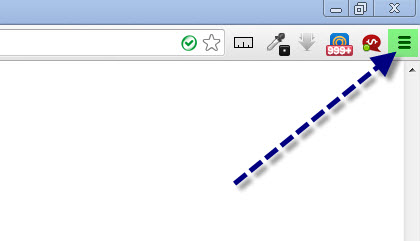
Next... In the context menu that appears, select the "Settings" item. After that, go to the "Settings" tab and in the "On startup" section you will be able to configure the Google Chrome welcome page.
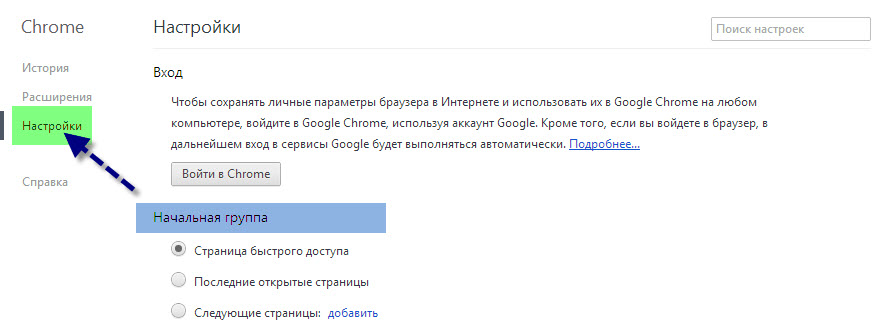
Here we see 3 menu items, namely:
- Quick Access Page - This is the page where your most visited sites and your bookmarks are located.
- Last opened pages - When you start the browser, the last opened pages will automatically open. That is, those pages that remained open before you closed the browser last time.
- Following pages - Here you can set up a list of pages that automatically open when the browser starts.
Custom welcome page option in Google Chrome
As we can see, we have no ability to manage the tabs located on the quick access page, and this is inconvenient. Most people are used to having these tabs be manageable, and being able to use them to create their own list of sites for quick access.
As was already mentioned, such a capability exists and it is achieved by installing a special "Google Chrome Extension". That is, there are special extensions, or rather, installable add-ons for the Google Chrome browser that allow you to completely change the quick access page. We will now talk about one of these extensions.
FVD Speed Dials extension for Google Chrome
Thanks to the "FVD Quick Access Tabs" extension, you can customize the Google Chrome welcome page to your liking. For example, a quick access page using FVD Speed Dials may look like this:
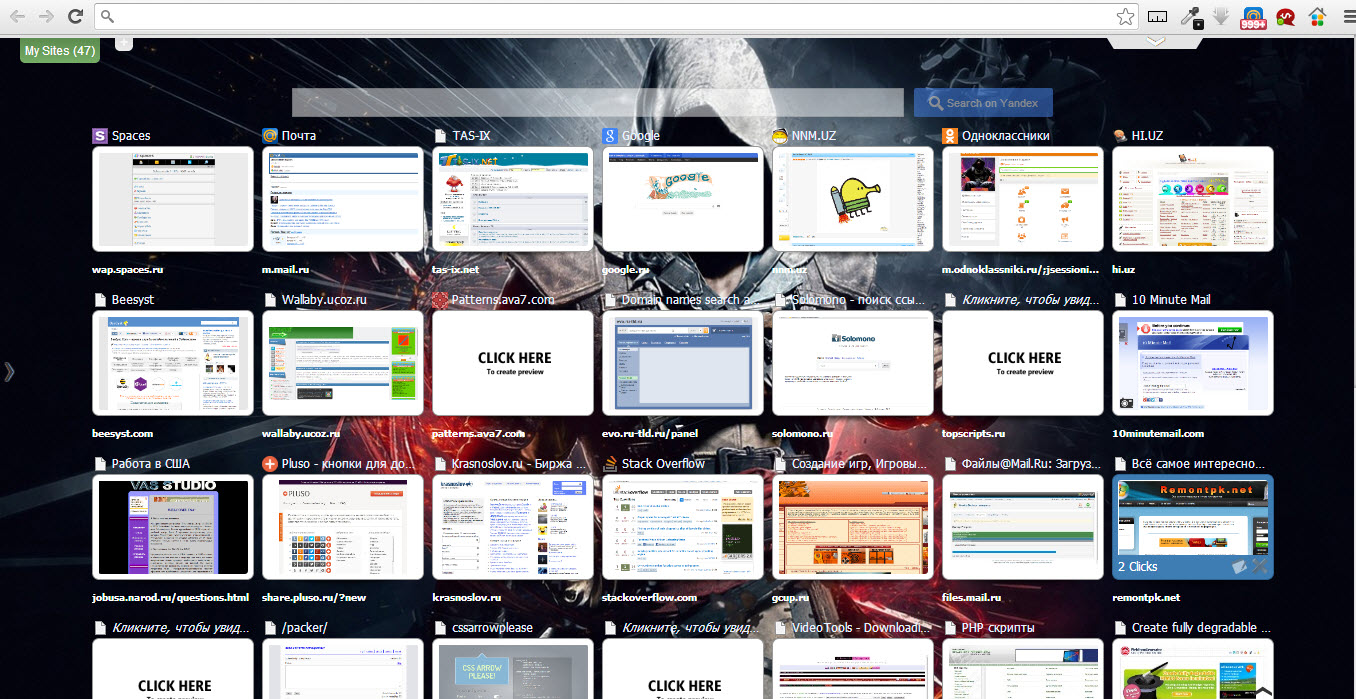
Isn't it beautiful? :)
In addition, using the FVD quick access tabs, you can divide your tabs into "Groups" or, in other words, "Categories". Thanks to this, you can arrange the tabs just the way you want. You are limited only by your own imagination.
Manage your tabs, delete, create, edit, do whatever you want. All of this is possible with the FVD Speed Dials extension.
You can download and automatically install this extension from the Google Web Store.
Summary
As we can see, configuring the Google Chrome browser's welcome page is extremely easy and absolutely everyone can handle this task! Those who haven't yet downloaded the Google Chrome browser, download it here.
Good luck with your endeavors!