
Many users have repeatedly heard about the system registry in Windows 7, Windows 8, Windows 10 operating systems and that its "clutter" can negatively affect computer performance, speed, and reliability. Essentially, the registry in Windows is a database of the operating system that stores information about software and system changes.
Over time, this database becomes filled with all sorts of junk that needs to be periodically cleaned from the registry. This can include residual entries from already uninstalled programs, records of detected and removed viruses, and others, which is why cleaning the registry in Windows is a very important process.
How to manually clean the registry using Reg Organizer?
You can clean the registry in two ways:
- Manually clean the registry
- Programs for cleaning the registry in Windows
To view and clean the registry, you need to open it. To do this, open the "Run" window (press the Win+R key combination), in the window that appears, enter "regedit" and click the "OK" button:
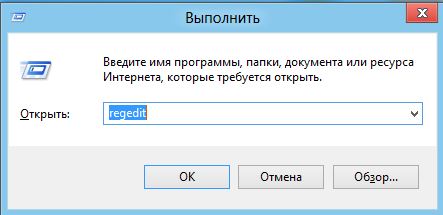
After entering the command, the "Registry Editor" window will open, with a tree structure of the system registry on the left side, and registry files displayed in the window on the right side:
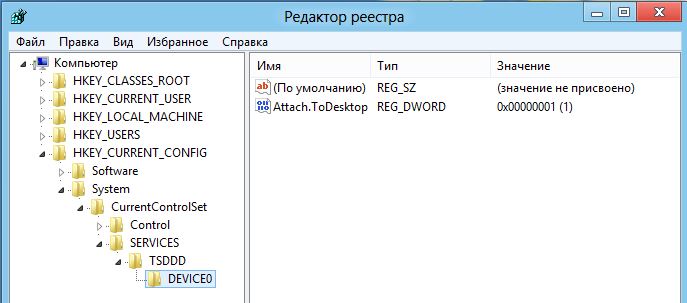
There are 5 main sections in the registry, each responsible for its own part of the system:
- The HKEY_CLASSES_ROOT section contains information about file extensions "associated" with specific programs.
- The HKEY_CURRENT_USER section provides information about PC users.
- The HKEY_LOCAL_MACHINE section provides information about the PC's hardware.
- The HKEY_USERS section contains information about user profiles.
- The HKEY_CURRENT_CONFIG section contains information about the system configuration.
How to delete a program from the registry?
The majority of junk in the registry that you can easily delete yourself is located in the HKEY_CURRENT_USER section in the "Software" folder, where records from installed and uninstalled programs are stored. To clean the registry of unnecessary entries, select the file, right-click on it, and choose the "Delete" option from the context menu.
Before manually cleaning the registry, it is strongly recommended to create a backup copy of the registry. To do this, in the Registry Editor, click on the "File" menu, select "Export...", specify the location to save the backup, its name, and click the "Save" button, and a file with the .reg extension will be saved.
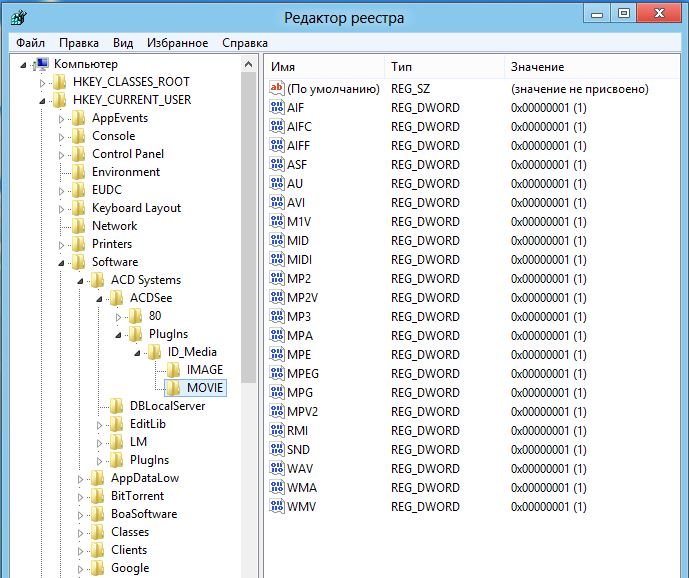
Only experienced users can manually clean the registry on their own, as beginners will find it difficult to understand which files need to be deleted (cleaned) and which ones should absolutely not be touched.
If you have a vague understanding of the registry structure or do not want to spend time learning all the intricacies of the registry, it is better to use the help of the multifunctional program Reg Organizer. This program has proven itself well, takes up minimal space, and is very easy to use, making it suitable for all users.
Install the program on your computer and run it to clean the registry:
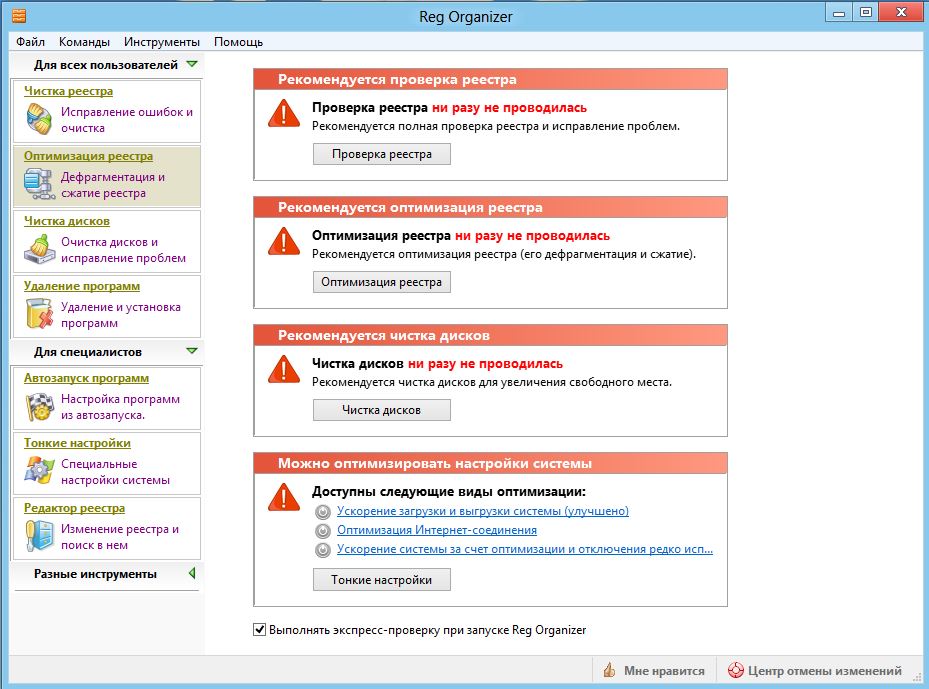
As you can see, the program can not only clean the system database – the registry – but also optimize the system as a whole. To clean the registry of junk, click the "Registry Cleaner" button on the left side of the program window or "Registry Check" on the right side. The "Registry Cleaner" window will appear:
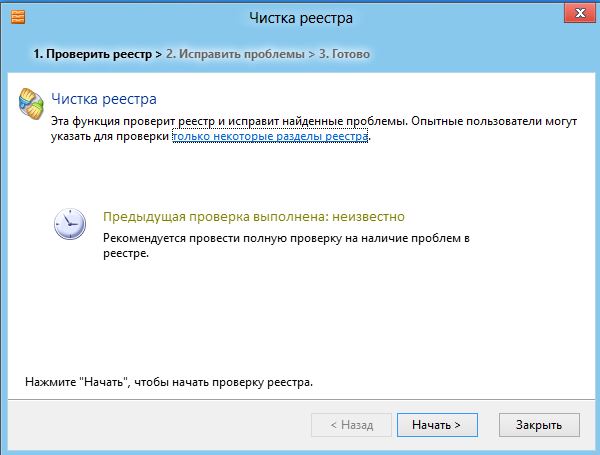
If you are an experienced user, you can click on the link "only some registry sections", selecting in the window that opens only those directories that need checking and error correction:
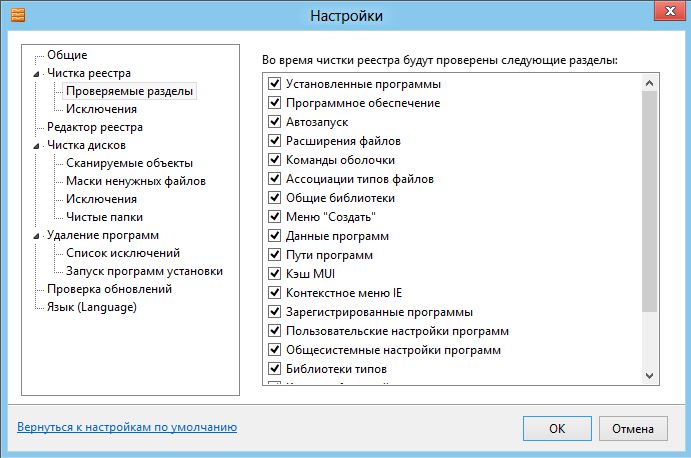
Next, click the "Start >" button to begin the process or click the "Close" button to cancel the procedure. When you click the "Start >" button, a system registry analysis window will open, and after a couple of minutes, the program will display the scan results:
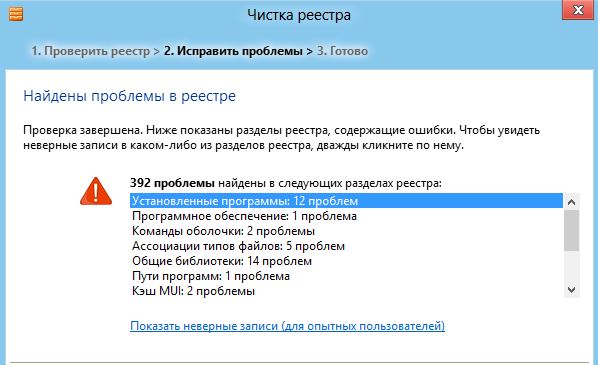
Double-clicking on one of the items in the list will open a window with a more detailed description of the identified problems. If you have reviewed the items of interest or if you do not need this, click the "Fix >" button, and the program will automatically "clean up all loose ends" in the registry as safely and gently as possible.
Download registry cleaning programs for Windows 7, Windows 8, Windows 10:
- CCleaner free download for Windows
- RegCleaner
- Reg Organizer