 Small flash drives have become the most common niche in this segment, thanks to the balance of price, quality, and offered features.
However, even with the most expensive device, a problem can arise at the most inopportune moment: after connecting to a USB port, the flash drive is not visible on the computer, which can be caused by many factors, the solutions for which you will find in this material.
Small flash drives have become the most common niche in this segment, thanks to the balance of price, quality, and offered features.
However, even with the most expensive device, a problem can arise at the most inopportune moment: after connecting to a USB port, the flash drive is not visible on the computer, which can be caused by many factors, the solutions for which you will find in this material.
Why doesn't the computer see the flash drive?
 A malfunction of USB and SD flash drives can be related either to the flash drive's non-functionality or to problems with the computer or the reading device. To understand why the computer doesn't see the flash drive, you need to understand the main reasons causing this problem.
There are many such reasons:
- Malfunction of the USB or SD flash drive
- Faulty operation or lack of power to the USB port of the reading device
- Virus infection of the flash drive or computer
- Incorrect operation or lack of necessary drivers
- Problems with the partition, file system type, or formatting of the drive
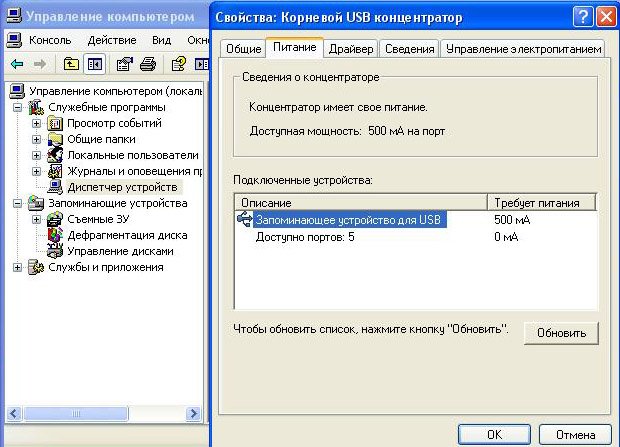 If nothing happens when connecting the flash drive to the device, and the indicator does not light up if present, the problem lies in a faulty flash drive or lack of power to the USB port. Power availability and functionality
What to do if the computer doesn't see the flash drive?
of the USB port can be checked in the following way:
- Disconnect the flash drive
- Find a working device that connects via a USB port. This could be a computer mouse, keyboard, speaker power, etc.
- Connect the device to the same port where the drive was located. If the device works, the problem is with the flash drive itself
What to do if the flash drive has stopped working and the computer doesn't see the flash drive via USB?
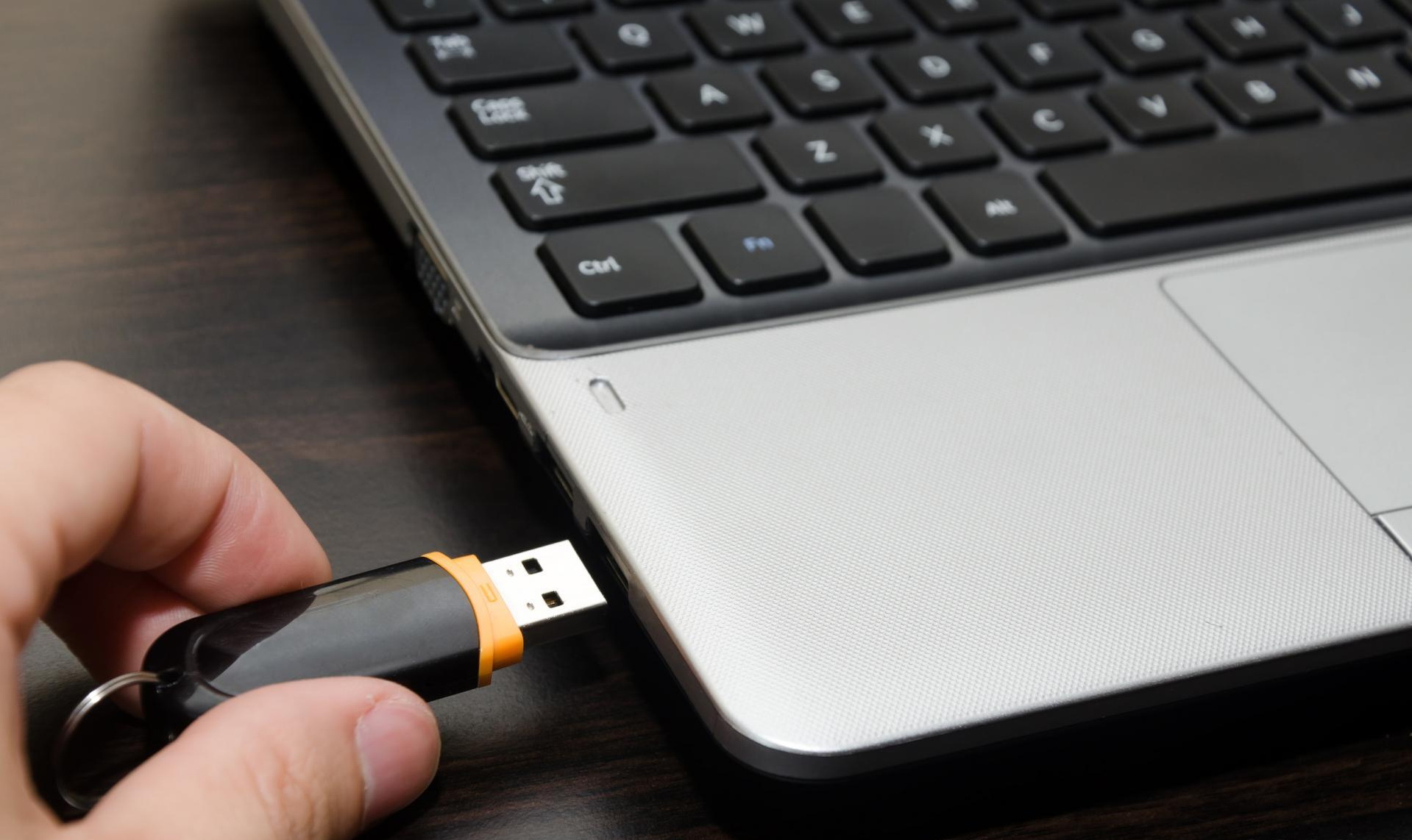 A flash drive failure can be related to mechanical damage or flooding. Device repair can be done at a service center, but its cost will be comparable to buying a new flash drive.
This solution does not guarantee a 100% fix and is used if the drive contains important documents that have no backup copies. Repair is done by cleaning the contacts and resoldering them.
Check the USB port of the flash drive for clogging and foreign objects, as this can damage the device. Clean the drive and reconnect it to the computer.
A flash drive failure can be related to mechanical damage or flooding. Device repair can be done at a service center, but its cost will be comparable to buying a new flash drive.
This solution does not guarantee a 100% fix and is used if the drive contains important documents that have no backup copies. Repair is done by cleaning the contacts and resoldering them.
Check the USB port of the flash drive for clogging and foreign objects, as this can damage the device. Clean the drive and reconnect it to the computer.
The device is detected, but the flash drive is not visible on the computer
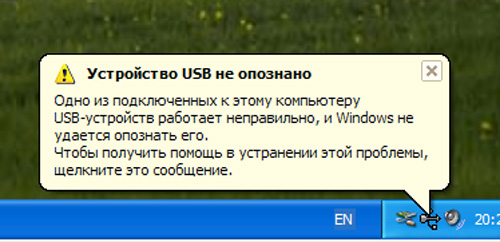 If, when connecting the flash drive to the computer, a characteristic sound is heard, the light indicator turns on, or the connection appears in the control panel, the problem lies in the software part of the device. The main reason when the computer doesn't see the USB flash drive is the presence of viruses on one of the devices.
For prevention, you need to perform the following actions:
- In the computer's operating system control panel, enable access to hidden files. Check the USB drive for extra shortcuts, documents, and applications - delete them if found
- Scan the flash drive and computer with antivirus software for malicious files. It is recommended to use the free Dr.Web CureIt! utility, designed to quickly cure the device from the most common viruses
- If these actions did not help, you can find out what to do if the computer doesn't see the flash drive in the next section.
Driver and file system conflict
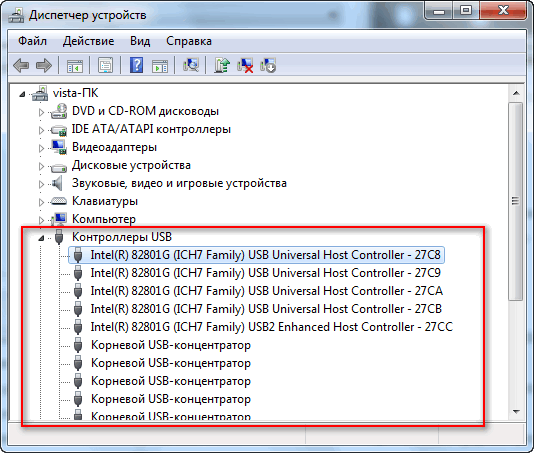
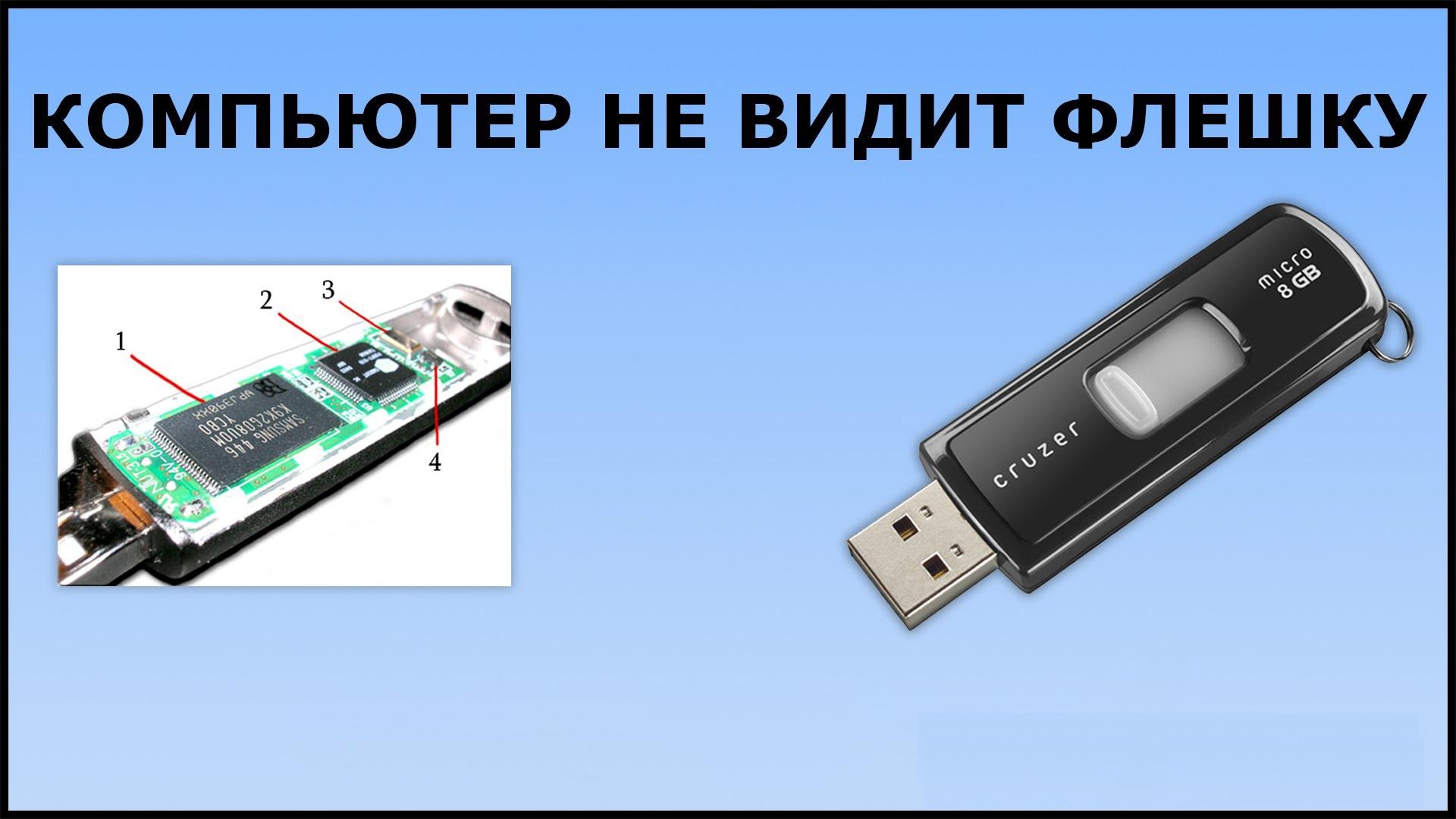 If the computer doesn't see the USB flash drive after a successful connection, the problem may lie in incorrect driver installation. The USB controller of a personal computer or laptop has its own drivers, which need to be updated periodically.
You can do this by downloading drivers from the manufacturer's official website manually, or by searching for driver updates in the device manager. If this procedure does not lead to the desired result, the problem may lie in the drivers of the drive itself.
If the computer doesn't see the USB flash drive after a successful connection, the problem may lie in incorrect driver installation. The USB controller of a personal computer or laptop has its own drivers, which need to be updated periodically.
You can do this by downloading drivers from the manufacturer's official website manually, or by searching for driver updates in the device manager. If this procedure does not lead to the desired result, the problem may lie in the drivers of the drive itself.
If the computer doesn't see the flash drive in Windows 7, or other versions of the OS from Microsoft, perform the following actions:
- Insert the USB drive into the port
- Wait for driver verification or installation
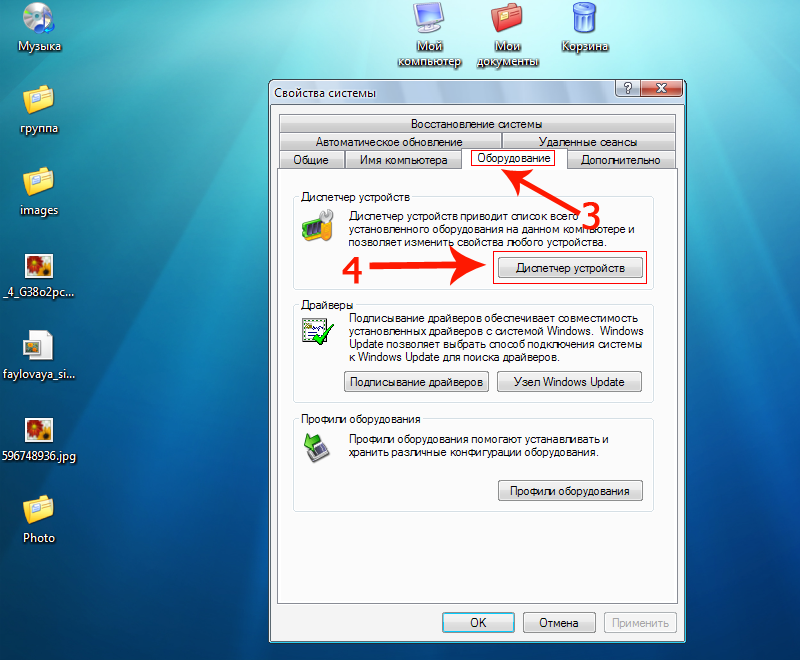
- Open the device manager and remove the storage device in the "USB Controllers" menu
- Reconnect the flash drive
The computer doesn't see the micro flash drive
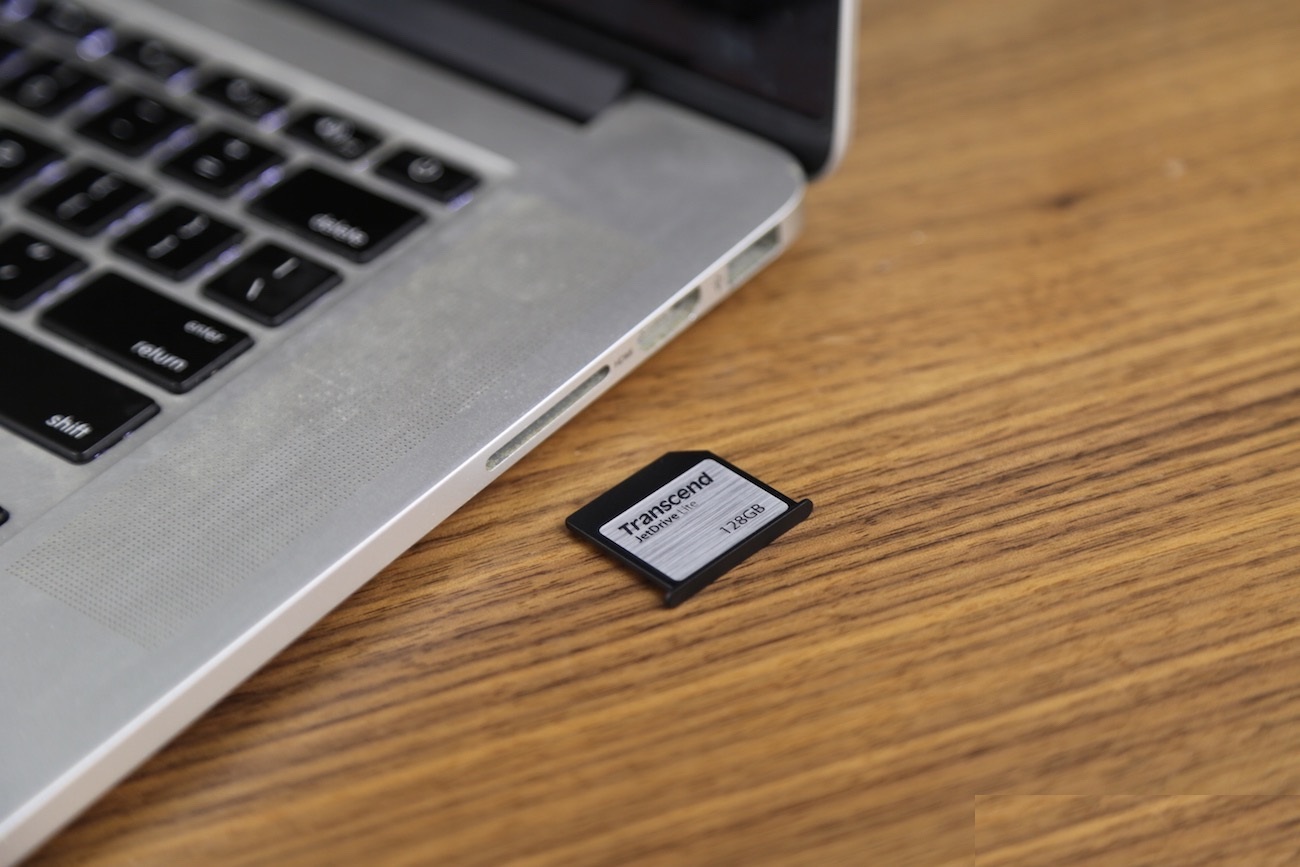 The popularization of mobile devices, photo and video equipment, navigators, and other gadgets with MicroSD and SD drives has created a need to work with them on a personal computer or laptop. Drives are connected via USB or a built-in card reader. The problem that occurs when the computer doesn't see the SD flash drive is directly related to USB drives.
Check for installed drivers for the card reader or storage device. The file system of miniature drives must also match the system of the personal computer or laptop. The card reader should be detected as a separate device in the control panel.
The popularization of mobile devices, photo and video equipment, navigators, and other gadgets with MicroSD and SD drives has created a need to work with them on a personal computer or laptop. Drives are connected via USB or a built-in card reader. The problem that occurs when the computer doesn't see the SD flash drive is directly related to USB drives.
Check for installed drivers for the card reader or storage device. The file system of miniature drives must also match the system of the personal computer or laptop. The card reader should be detected as a separate device in the control panel.
Problem with the partition
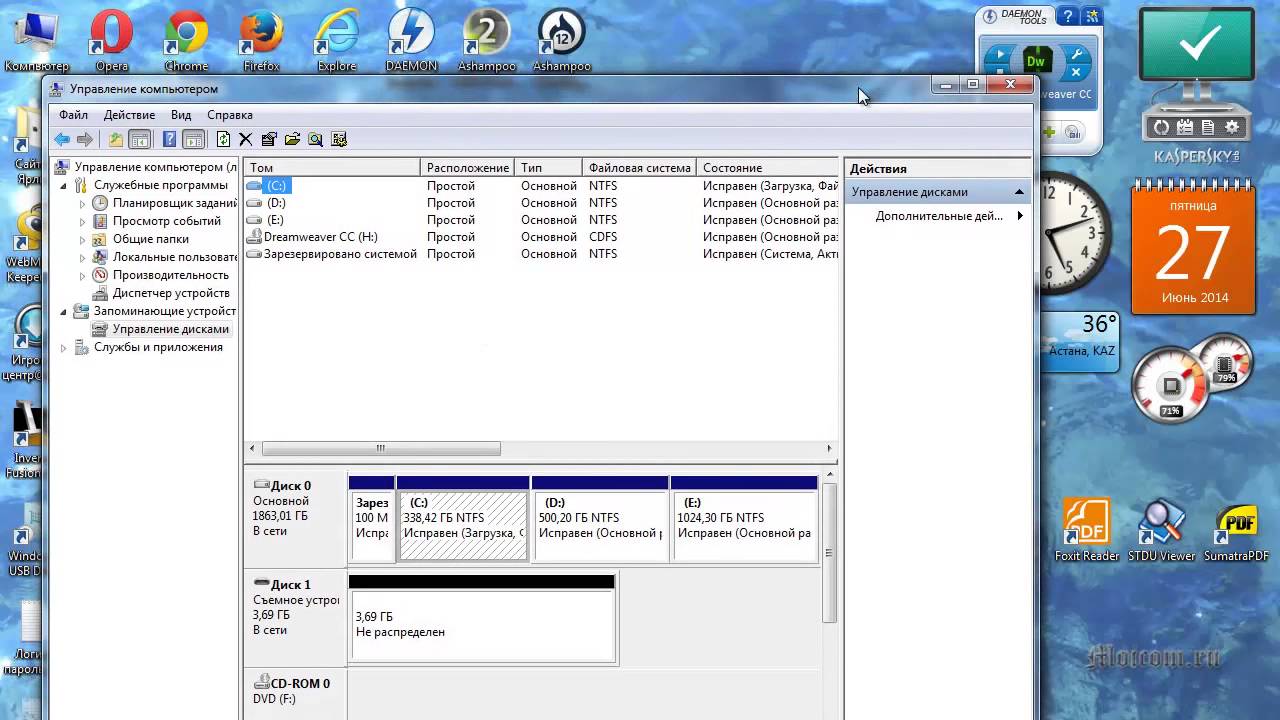 The flash drive may assign itself an existing partition on the computer, causing a conflict and limiting access to the data on the device. To fix this error, find the "diskmgmt.msc" utility in the Windows operating system control panel, which is the disk management menu.
Try changing the partition letter to another one that is not used in your system. After applying the changes, a system reboot may be required.
The flash drive may assign itself an existing partition on the computer, causing a conflict and limiting access to the data on the device. To fix this error, find the "diskmgmt.msc" utility in the Windows operating system control panel, which is the disk management menu.
Try changing the partition letter to another one that is not used in your system. After applying the changes, a system reboot may be required.
Summing up
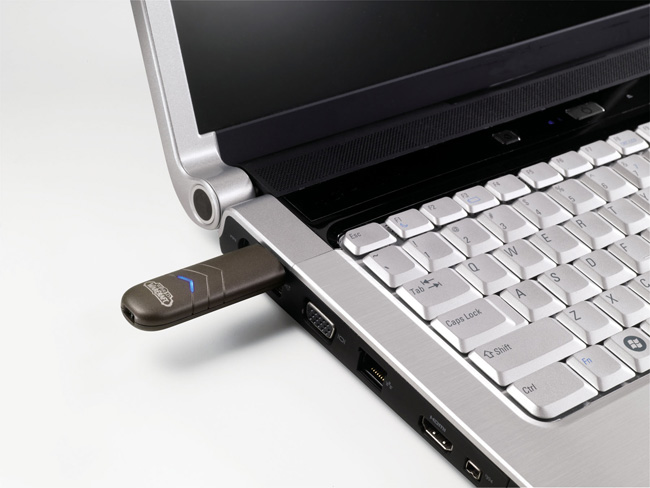 There are many problems when the computer doesn't see the flash drive via USB. You can fix many of them yourself by performing a few simple operations.
To be sure of the problem that has arisen, perform an initial diagnosis of the flash drive and personal computer:
- Check the flash drive for external mechanical damage or dirty contacts
- Ensure the USB ports on the personal computer or laptop are working
- Update the USB controller drivers
- Periodically scan the system for viruses
- Use mainly the Latin alphabet in the drive name