Computer virtualization is the process of creating a virtual machine based on a real computer. That is, essentially, on one computer there will be a real operating system and a virtual one, with its own settings, hard drive, installed programs, etc.
Thanks to virtualization, users can get acquainted with the process of installing new operating systems, see what they look like, evaluate their performance and the operation of programs under the new system. At the same time, all experiments on the virtual machine will not affect the operation of the real computer in any way, so you can "do" whatever you want with the virtual computer.
A virtual computer consists of two files – one file contains information about the virtual computer and its configuration, and the second, larger file represents the hard drive of the virtual computer.
There are several programs for computer virtualization, the most popular of which is VirtualBox. To virtualize a computer using this program, download the distribution and install it on your computer. The installation process of the emulator program is quite simple, so you can easily handle this task. After installation, launch the program:
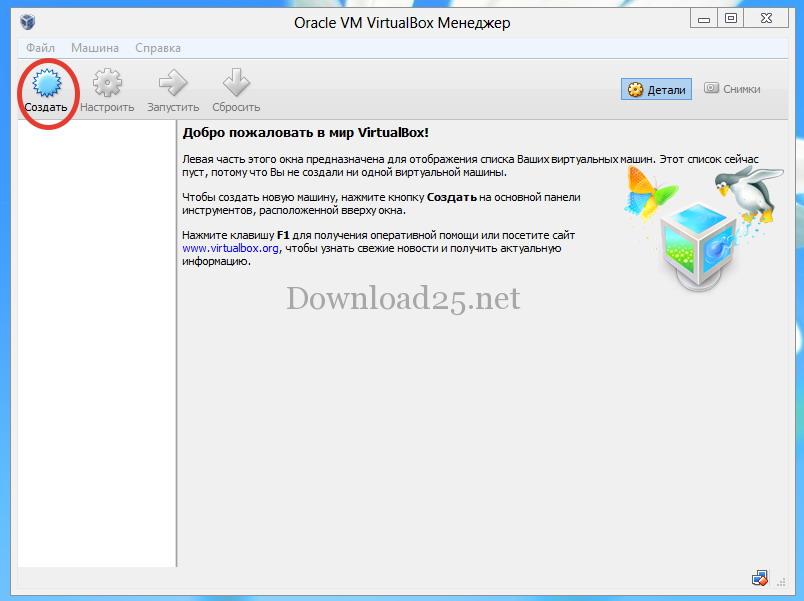
In the left part of the window, the created virtual computers will be listed. You can create several such virtual computers. To create a virtual computer, click on the "Create" button. The following window will open:
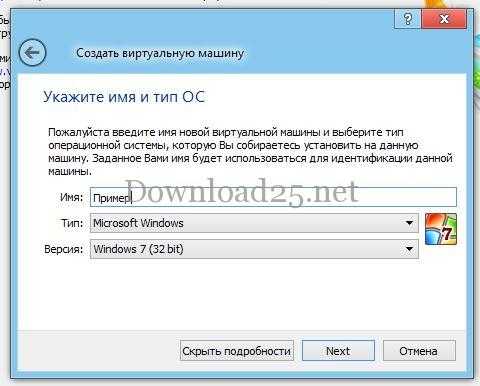
In this window, enter the name of the virtual computer being created, and select the desired operating system type and its version from the drop-down lists. After entering this information, click on the "Next" button. A new window will open where you can use a slider to specify the amount of RAM that will be allocated for the needs of the virtual computer being created:
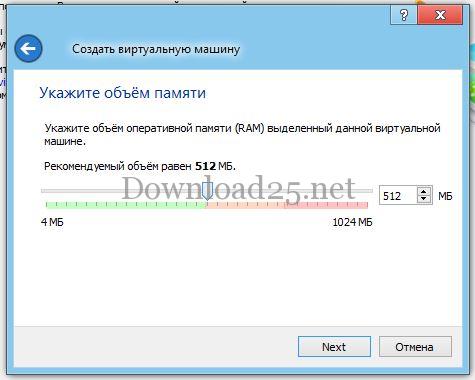
After specifying the amount of RAM, click on the "Next" button. In the new window, you can select the parameter of the hard drive being created for the new virtual computer:
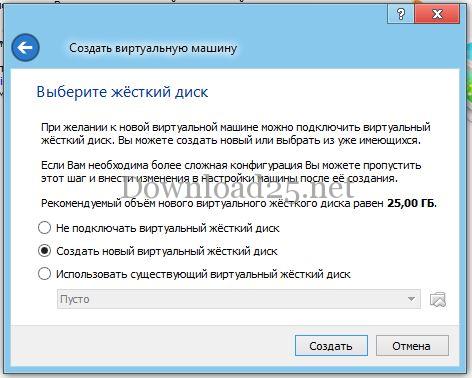
Having selected the desired item, click the "Create" button. A new window will appear:
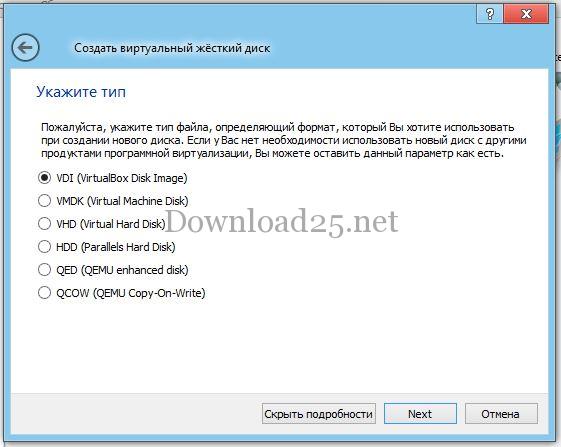
Select the specified item and click the "Next" button. Next, you need to specify the type of hard drive being created and click on the "Next" button:
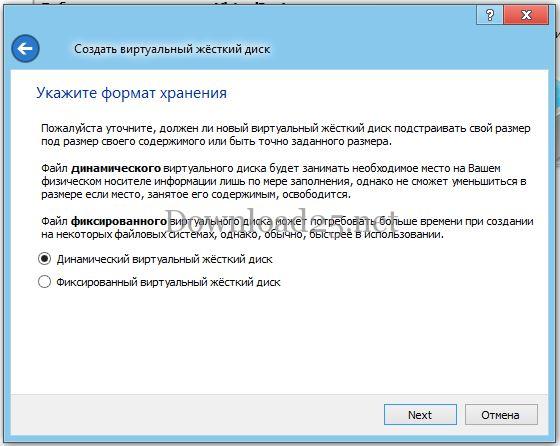
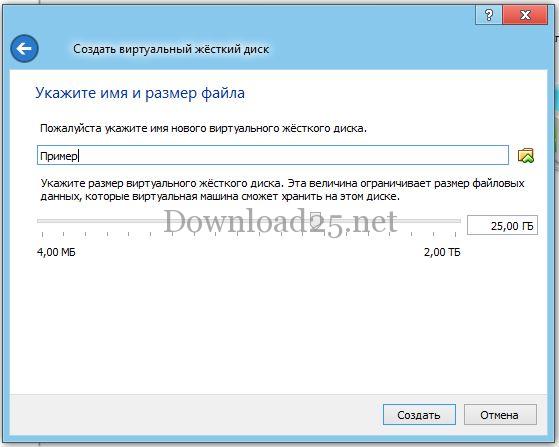
In the window that appears, specify the size of the virtual hard drive and click the "Create" button:
The virtual computer has been created, and the program window will open, where you can see the already created virtual computer:
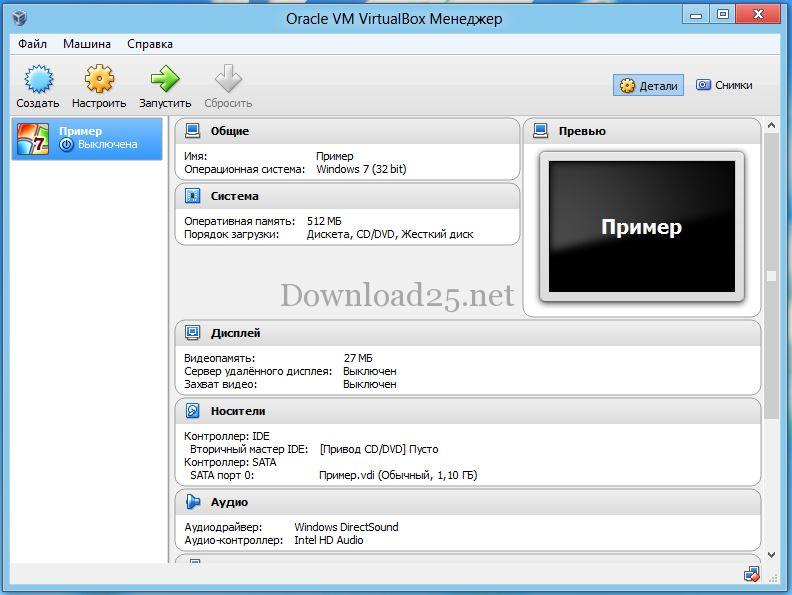
To the right of the virtual computer icon, information about it is displayed, and by clicking the "Start" button, you can launch the virtual system, install an operating system on the virtual computer (the installation process is similar to installing an OS on a regular computer), the necessary programs, etc.
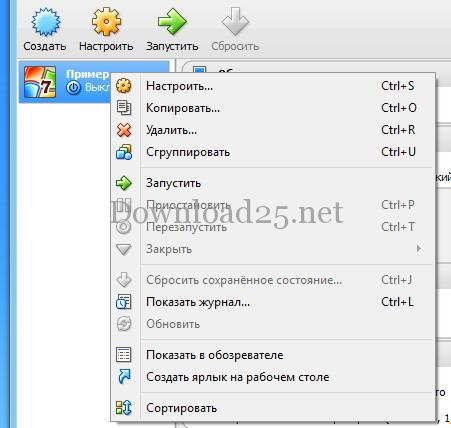
By right-clicking on the virtual computer, a context menu will open, which you can use to manage the virtual computer, call the settings menu, or delete it if necessary: