Nowadays, virtually every person has their own email inbox, which can be used to send electronic documents and various files.
It is worth noting right away that registering an email with Google also provides access to other company services, including Google Drive. And for data synchronization in the browser Google Chrome, an email will also be needed.
How to create an email for free on Google.ru?
To create an email on Google.ru, you need to go to the main page of the search engine www.google.ru and click on the "Mail" button, which is located in the upper right corner of the window.
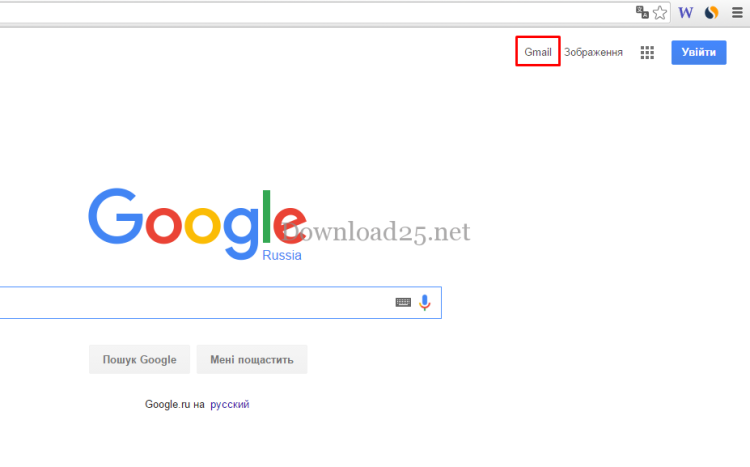
After that, the mail window itself will open Google – Gmail. Next, you need to click on the "Create account" button, which is located in the upper right corner of the window. This same button is also duplicated in the central part of the window:
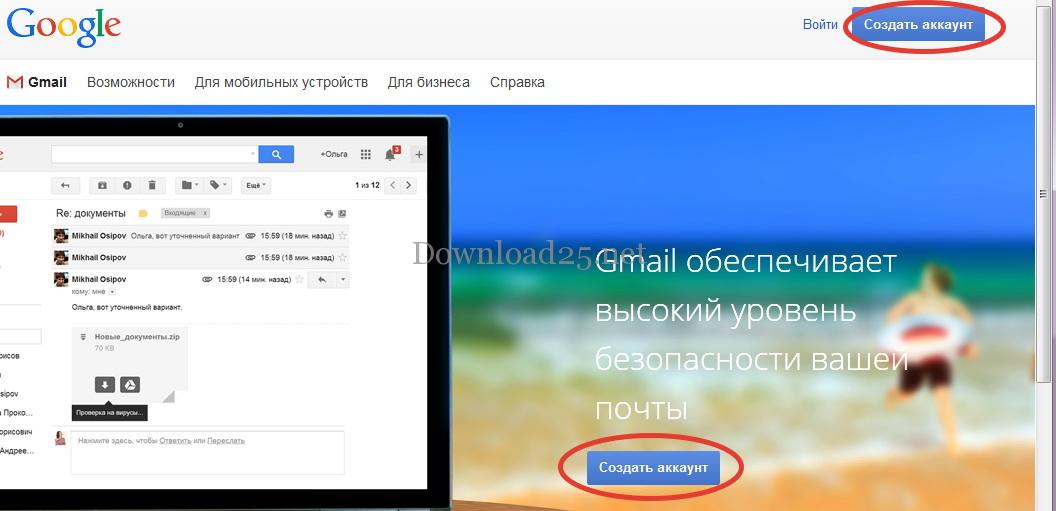
After clicking this button, a new window for registering an email in Google will open. All fields of this form will be empty and need to be filled in. As an example, let's register a certain Roman Romanov:
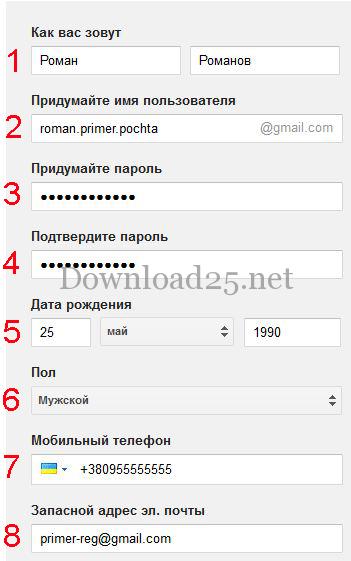
In the two fields of item 1, you need to enter your First name and Last name. Of course, no one will check anything, and you can enter made-up data, but it is better to enter your real first and last name, since they will now appear in Google's company services. In our case, it is Roman Romanov.
- Next, you need to come up with a username (item 2), and you can only use Latin alphabet letters, numbers, and dots, and the number of characters should be between 6-30. If the entered name is already taken, the service will immediately notify you, and you will either have to make adjustments or come up with a new name.
- Next, you need to come up with a password and enter it in the field (3).
- In field (4), you need to enter it again for confirmation.
- In the fields of items 5 and 6, you need to specify your date of birth and gender. Further below, the service will offer to enter your phone number (item 7) and an alternate email address (item 8).
These fields are not mandatory to fill in, but this data may be needed to recover your email inbox if you forget your password or if someone tries to steal it from you.
The lower part of the registration window looks like this:
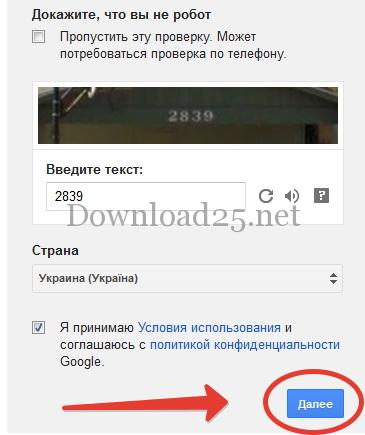
In the field above the image, you need to enter the numbers written on it (in our case — 2839). This is necessary for the service to verify that you are a human, not a program (robot).
After that, specify the country you live in and check the box agreeing to the terms of use of Google services (there are links to documents here, clicking on which you can read the terms themselves).
After filling in all the fields, click on the "Next" button.
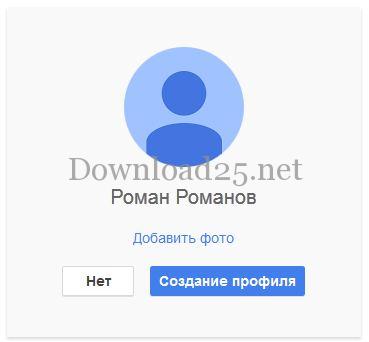
In the window that opens, the service will offer to create a Google+ profile, but this can be done later if necessary, so click the "No" button:
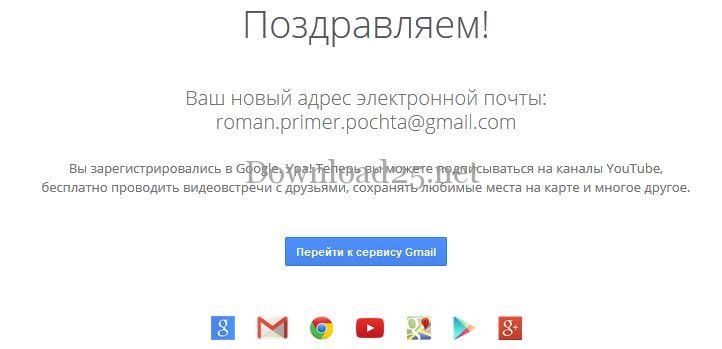
In the new window, a congratulations on registering a new email address will appear, and at the bottom there will be a "Go to Gmail service" button:
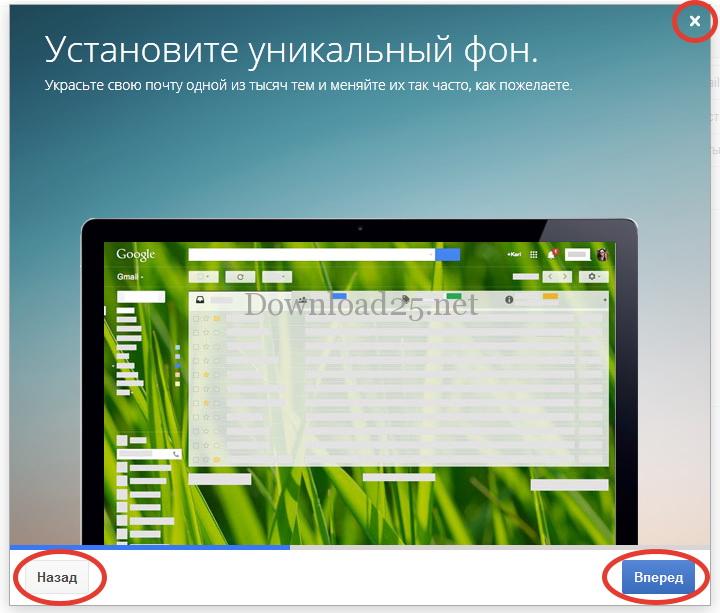
Click on it, and the window of your created email inbox in the Google service will open. Upon first launch, a presentation window will appear over the Gmail mail window, which will explain the capabilities of Gmail.
You can move from slide to slide by clicking the "Back" and "Forward" buttons. If the presentation is not of interest to you, click the cross in the upper right corner:
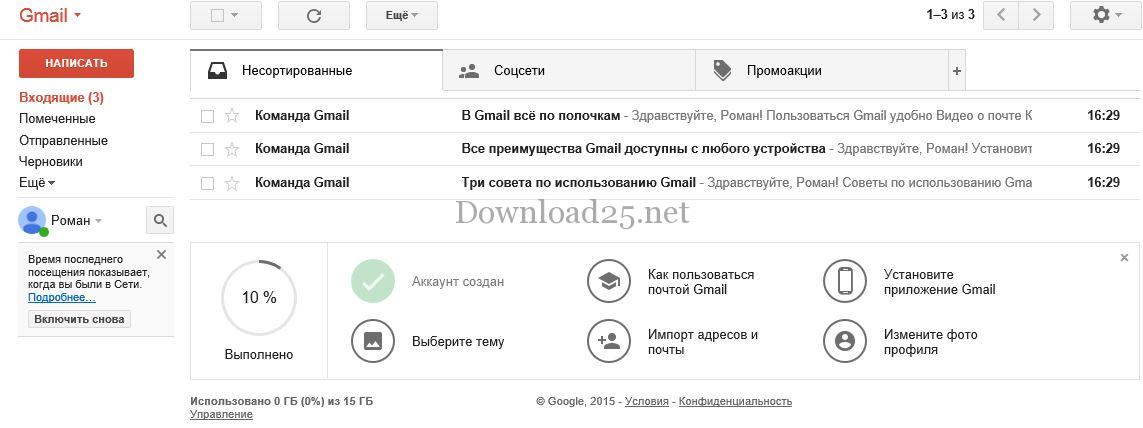
The main Gmail mail window will appear:
That's all, as you can see, creating a Gmail inbox is not that difficult; now you can send and receive email. Registration on other Google services proceeds in a similar manner, possibly with minor nuances.