Hard Drive on a PC — what is it and what is it for?
Let's look at the types of hard drives.
- Winchester, hard drive, HDD – a storage device Hard Disk Drive (HDD) with the option to rewrite data. This is an integral part of a PC, and the choice of this component must be taken very seriously.
How to partition a computer hard drive?
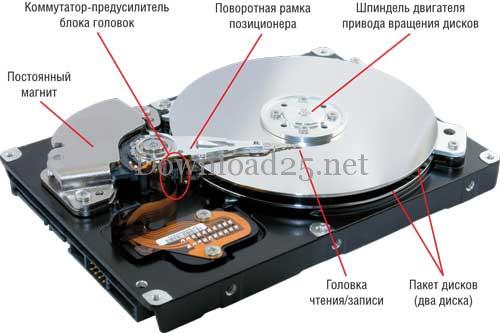
A magnetic HDD has platters on which all data is recorded, PC information is stored, the operating system is installed, and the OS boots from it. These drives were widely used until recently. They have large capacity and relatively low cost. However, they are susceptible to mechanical impact, noise, and overheating.
HDDs are:
Internal hard drives inside a PC are divided into:
- Standard drives — 3.5 inches for desktop PCs
- 2.5 inches for laptops.
The difference between them lies in size and resistance to mechanical impact.
There are also:
- User drives
- Server drives
Server drives are much more reliable because the production of enterprise drives is strictly controlled. They are resistant to overheating but are much more expensive. When home HDDs fail, important and necessary information is lost for users; losing all information and their clients, companies will suffer huge losses.
VS flash drive – external HDDs, connected to a PC via a USB cable.
2. SSD, Hybrid Hard Drive
Solid State Drive was created to replace the fragile magnetic HDD. These drives use flash memory modules, ensuring their durability; they are much more resistant to temperature and mechanical influences, and their read/write parameters are significantly higher with very short data seek times. Silence, low power consumption, and light weight make them ideal for mobile devices.SSD has two serious drawbacks: price (~ $300-900) and small capacity; in this regard, SSD, unfortunately, will not catch up with HDD soon.SSD is an alternative to HDD for business devices, as performance and reliability are most important. SSD is the future of PCs.
Developers found a compromise. They combined HDD and SSD into one. The result is a hybrid hard drive. This provides performance like an SSD, they are cheaper and have higher capacity. Combining technologies eliminated the drawbacks of HDD and SSD.
The principles of their operation are based on monitoring frequently used data on the HDD to transfer it later to SSD memory, in order to increase read speed for future requests. Hybrid drives have flash SSD solid-state memory – this is a buffer where data requested by the OS is stored. Magnetic HDDs rest meanwhile, reducing heat generation and noise levels, saving energy. Booting from a hybrid hard drive has positive aspects, as the OS loads from flash memory, speeding up startup. Frequently used software is also utilized.
Recording huge amounts of information is done on magnetic HDDs because flash memory does not have sufficient capacity.
The main feature – the hybrid drive itself decides on placing data in flash memory and does not trust the OS with this operation.
The weak point of hybrid hard drives is the small SSD cache, which cannot accommodate all files and applications currently in use.
The most popular hybrid hard drive is the Seagate Momentus XT.
We wish your HDD a long life; make backups or create a disk image to avoid possible losses.
To determine the exact name of the hard drive installed on your PC, click "My Computer" with the mouse, select "Properties".
Click "Device Manager":
and find "Disk Drives". Here the detailed model name of the HDD on your PC is written.
Let's look at internal drives.
Main characteristics of HDD for a desktop PC:
The hard drive on a computer is replaced for various individual reasons, mainly when there is a significant decrease in the loading speed of OS programs; overall when PC performance decreases; when there is insufficient space on the hard drive for recording necessary data. Whatever the reason for buying a new hard drive, before purchasing, everyone has something to think about. Let's look at how to choose a hard drive for a PC and what needs to be considered, since a thoughtless and hasty decision does not guarantee that the purchased HDD will meet your needs.
How to choose a hard drive for a desktop computer? There are main parameters that should be paid attention to when choosing an HDD. These are interface, capacity, manufacturer, speed.
| Hard Drive Speed | A drive with a large capacity does not guarantee high PC performance, providing more space for recording necessary information. The speed of loading programs and their performance depends on the speed of the hard drive. However, capacity also indirectly affects speed, because the larger the volume, the higher the recording density, and the less time is needed to read data. Hard drive performance is measured by read/write speed – MB/s and data access time. Today there are drives with speeds of 150-200 MB/s and higher.Before buying a hard drive, immediately determine sufficient speed, as working with a high-speed drive is very comfortable. For example, video and image editors are heavy for systems with low disk speed; they work slowly and have reduced responsiveness to commands for performing operations.The speed of an already installed drive can be checked independently – using HD Tune Pro, an application:Usually, read/write speed is not written in stores. This parameter can easily be found on the Internet. Enter the drive model and the words "review", "testing" into the search engine.Data access time is published, but we do not recommend trusting this data; it is more reliable to find a real review on the Internet.Some drive models operate using an interesting technology — NCQ (Native Command Queuing). This option does not directly increase disk speed. It supports "remembering" commands that the system addresses to the hard drive. When this command is issued again, the "memory" instantly recalls the path to where this information is located. However, to ensure this mode works, the SATA controller must operate in AHCI mode (BIOS setting). All other things being equal, it is better to give preference to a hard drive that supports NCQ.The speed of a hard drive directly depends on the spindle rotation speed (5.4-10.0 thousand rpm), buffer size (32, 16, 8 MB).
|
| Hard Drive Capacity | Do not think that the higher the capacity, the better. The ideal option is 2-3 HDDs of 750 GB each, rather than one 3 TB drive. This is explained by the specific nature of the work:
Today, hard drive capacity is measured in terabytes and gigabytes. What capacity drive should you choose? It all depends on the work performed on the PC and the required free space. The larger the capacity, the higher the cost. It is optimal to proceed from the real need with a margin of 20-50%. The sufficient minimum capacity for hard drives is 500 GB, as smaller ones are no longer available in stores. An average user, for work and pleasant leisure, when downloading a huge amount of information from the Internet (torrents, heavy games), needs a drive from 1 TB. Larger drives are needed by those who store archives.
However, all hard drive manufacturers consider not 1024, but 1000, so as not to confuse customers. At the same time, having installed a drive with a capacity of, for example, 500 GB, only 465 GB is available, because the PC counts gigabytes correctly. Such a confusion! We do not recommend purchasing a hard drive larger than 2 TB. If your motherboard is controlled by a regular BIOS, you will not get more than 2 TB anyway! They require UEFI instead of BIOS. This can be checked by entering the BIOS, carefully familiarizing yourself with the interface and its settings in "Boot". If you see the word "UEFI" there, you are lucky. Read the motherboard manual. |
| Interface | Determines the drive connection cable. Previously, IDE connectors were used, now they are only on old PCs. Then SATA became the favorite, today SAS and SAS/SATA. If you buy a hard drive with an unsuitable connector, you will not be able to install it! |
| Manufacturer | Decide personally which manufacturer deserves your purchase. Even the most famous manufacturers have low-quality drives. The company name should be considered without fanaticism, as the company's image is also paid for. Every hard drive from every company has a series. Even if some series were not good, you cannot speak badly about all products of that company.
We recommend companies Hitachi, Western Digital, Seagate. There are also hard drives from Samsung, whose division was bought by Seagate. If you have lost your parameters, try to recover them using the application GetDataBack.When choosing a hard drive, consider reviews. Enter the brand and "reviews" into the search engine. Having received many sites in response, try to make the right choice. Do not trust one site. Reviews are sometimes written specifically good or bad. Use information from several sources and forums. Do not fall for advertising hooks!To determine the reality of a review, consider the release date of the hard drive. There will be no reviews for a new product, and their price is always high. When a new product has many reviews, it is most likely a provocation. For reviews of a product to become real, it must be on the market for more than 6 months. |
| Noise and Crackling During Operation | An important parameter of hard drives is the noise effect during operation. Unlike flash drives and SSDs, HDDs are mechanical devices that make noise. The noise is usually not particularly noticeable when the noise effect is within normal limits. Sometimes crackling and noise are very annoying! And when the PC case is cheap or of poor design, it vibrates in sync with the drive! Unfortunately, it is impossible to know how a hard drive will behave before purchasing it.If this problem occurs, perform the following actions:
|
| Let's Start Choosing a Hard Drive | Let's open the hard drive parameters in Yandex.Market:Let's look at the characteristics of a high-end drive, as more parameters are shown here than in publications about budget models.
|
Tips to consider when buying a hard drive.
- Purchase a drive only from official dealers who provide a company warranty of at least 3 years. An HDD bought from a dubious company or second-hand may be used, repaired, or subjected to mechanical and/or temperature impact (the drive was simply dropped or something heavy was dropped on it). The hard drive will work for a while, and as a result, you will lose nerves, money, and information…
- Regarding hard drive reliability, there is only one recommendation – do not buy new products, as they may have firmware issues, high cost, and manufacturing defects. After a new model is released, it makes sense to wait six months for the device to be refined and the price to drop.
- Before buying, find reviews on the reliability of hard drives on the Internet.
- Here you can choose a drive with reduced power consumption, it makes less noise and heats up less.
- Do not buy drives with excessive capacity; they are subject to mechanical impact; it is better to buy two 500GB HDDs than one 1TB or 2TB drive.
- How to get maximum capabilities at minimal cost? Let's consider some combinations for different PCs.
- For a home PC, Seagate Barracuda ST3500641AS-RK or Western Digital Caviar Blue WD5000AAKX is better.
- For a gaming PC or video file processing, Western Digital Caviar Black, Seagate Barracuda, or Seagate Pipeline are better suited.
- When buying two HDDs, be sure to buy one SSD; this will significantly increase PC performance; install the OS and main software on it. Photos, documents, videos, etc., can be stored on the HDD.
- When buying a hard drive, the choice is not easy. You always have to sacrifice something: speed or memory capacity. When buying a hard drive for storing information, it is better to choose a larger capacity; to increase PC performance, focus on speed.
- The number of platters in a hard drive is also a clue. The more there are, the more noise the PC will make during operation. This especially applies to external hard drives.
- For laptops, storage devices are mostly universal, and the parameters are balanced. Their differences lie in the manufacturer, price, and capacity. When choosing an HDD, you need to consider the same characteristics as for desktop PCs, taking into account a few features. A laptop is a mobile device, therefore:
- you need to purchase a hard drive with low power consumption. The recommended HDD capacity should be no more than ~ 500 GB to ensure low power consumption and compactness.
- Be sure to pay attention to the type of interface.
- Drive performance. There is no point in buying an HDD with high characteristics when the laptop's devices are slow (RAM, video card, CPU). The hard drive does not affect the laptop's operating speed; you will only spend more money without improving anything.
- It is necessary to note modern hybrid drives. They combine two technologies: SSD and a regular hard drive, with the SSD having a capacity of ~ 4GB, used as a cache. Frequently read data is written to flash memory, so the read speed will noticeably increase. This, unfortunately, will not affect the write speed.