Playing IPTV for Daum PotPlayer is not the primary task; this powerful media combiner for Windows can play internet television among many other features.
Specialized players, specifically tailored for working with IPTV like "out-of-the-box" software, can certainly outperform PotPlayer or any other universal product with specific functions such as built-in IPTV playlists, channel surfing, TV guides, or background recording of TV shows.
However, the latter (take even the most popular one, IP-TV Player) usually offer little in terms of fine-tuning the player itself. What capabilities does the universal Daum PotPlayer provide for watching IPTV?
PotPlayer for playing IPTV
Since PotPlayer is a universal media player, it can be a very good option for those who like to work with media content in one application window.
For those who prefer to listen to music, watch videos, and sometimes want to browse TV channels in a single software interface – to see if they are finally showing something worthwhile.
PotPlayer is one of the most functional media players on the Windows software market, surpassing even its sibling KMPlayer, a player from the same developer.
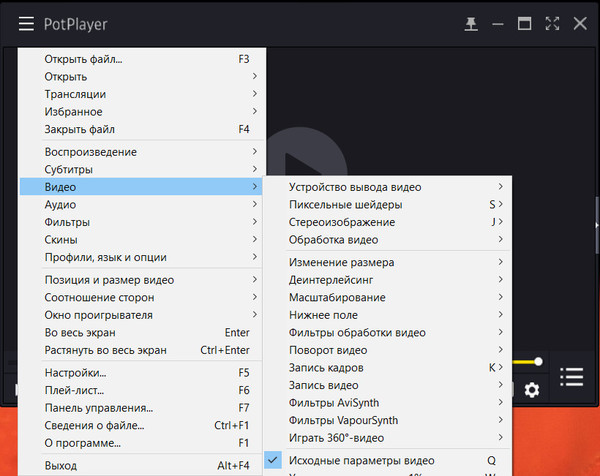
PotPlayer has an extensive list of codec support. It can even play damaged or incomplete video files.
It supports various video sources – local network, FTP, WebDAV, live internet streams, video hosting sites, etc.
It can play 3D and spherical 360° video. PotPlayer comes with a pre-installed stylish skin adapted for touch control. Skins can be changed to others if desired.
As for the functionality involved in playing IPTV, PotPlayer has a lot to offer:
- Convenient control, in particular, setting custom hotkeys, mouse clicks, touch gestures, and even Xbox joystick buttons in the program settings;
- Video image adjustment – brightness, contrast, saturation, hue, sharpness, etc.;
- Audio adjustment – frequencies, channels, filters, audio output device selection, etc.;
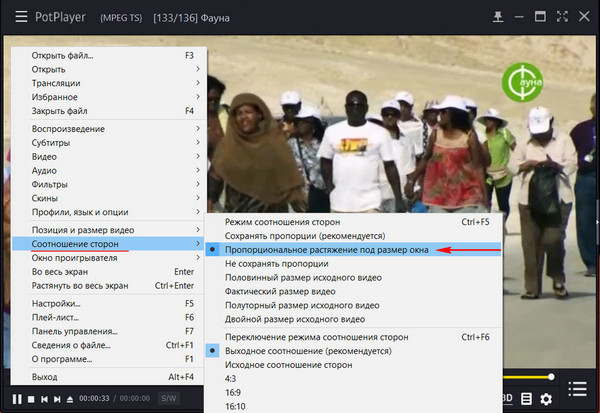
- Aspect ratio adjustment, in particular, automatic activation of the proportional stretch option to fit the window size for TV channels that start with black bars on the sides of the image;
- Access to multiple IPTV playlists (the same IP-TV Player can only play one playlist, changed in settings);
- Customization of IPTV playlist appearance;
- Ability to edit playlists directly in the program window.
Any settings made within PotPlayer, particularly those related to IPTV, can be exported to a special file and then imported on a reinstalled Windows or on a different device.
Opening IPTV playlists
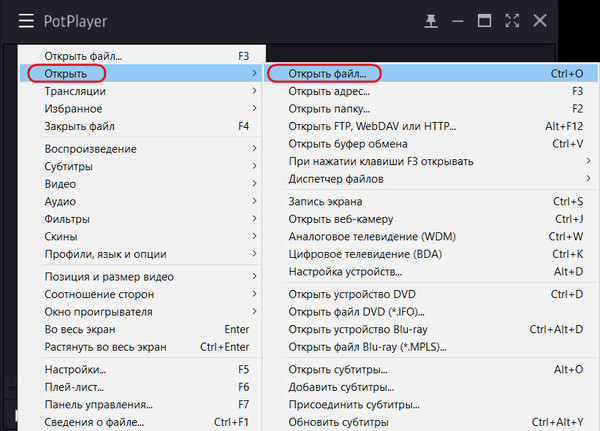
IPTV playlists inside PotPlayer are opened using options in its menu or via hotkeys. To open IPTV playlists existing as network addresses, select "Open" in the menu, then "Open URL" (or press the F3 key). And, actually, enter the address.
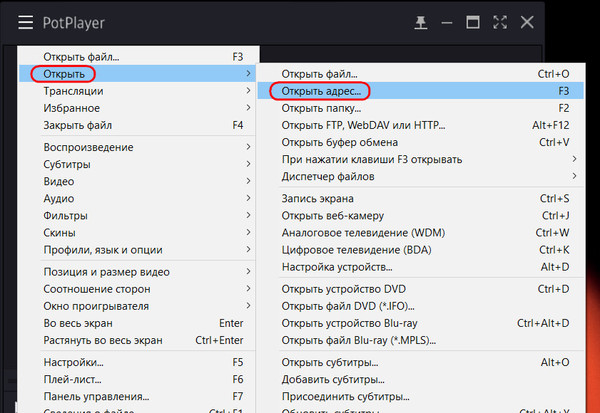
To open a playlist file in the ".m3u" format, call up the file explorer with the "Open" and "Open File" options (or the Ctrl+O shortcut). Then specify the path to this file.
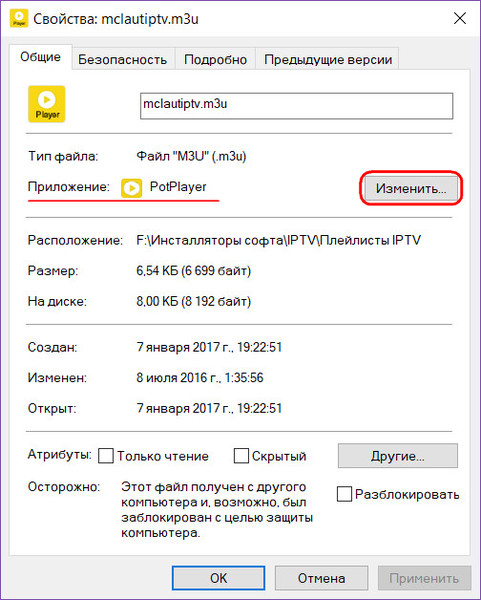
If there are many playlists, you can associate them with PotPlayer in the file properties and launch them from the file explorer.
TV channel list
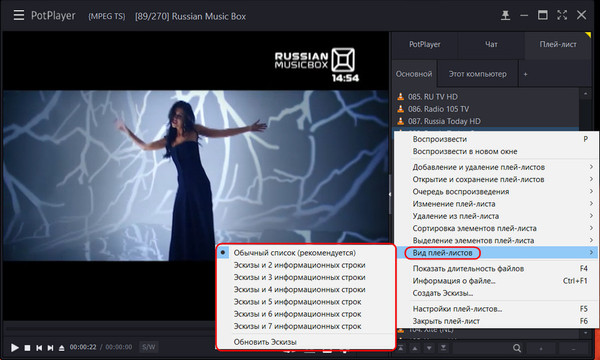
The TV channel list is displayed on a collapsible/expandable panel on the right. Using options in the context menu, you can choose the display style of TV channel icons.
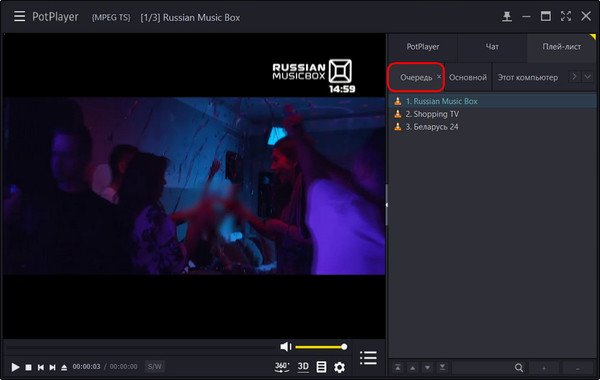
Individual channels can be added to the playback queue.
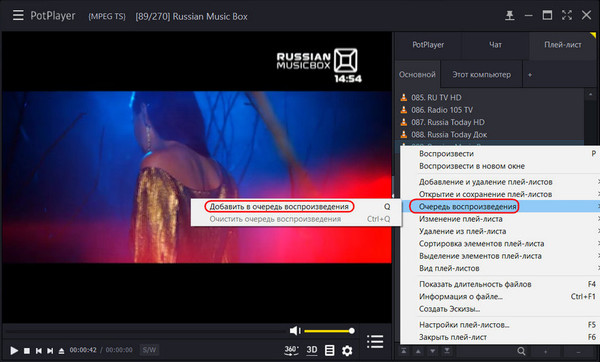
This is a separate tab on the right panel, similar to a favorites environment.
Editing playlists
But PotPlayer can offer much more than just sending favorite TV channels to a separate list for playback. With this player, you can edit IPTV playlists – remove unnecessary TV channels from them, add needed ones from other playlists. And thus form fully customized lists of TV content.
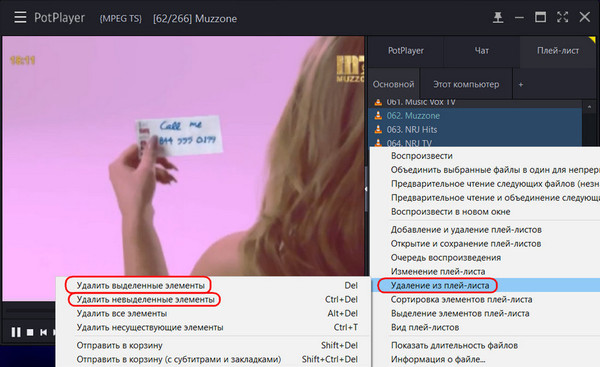
To clear the list of unnecessary or non-working channels, hold down the Ctrl key, select them, in the context menu on the right panel click "Remove from playlist", then "Remove selected items".
Or you can simply use the Del key. If only a small part of the playlist content is kept, you can do it differently: select only the needed channels and use the "Remove unselected items" option (or keys or Ctrl+Del).
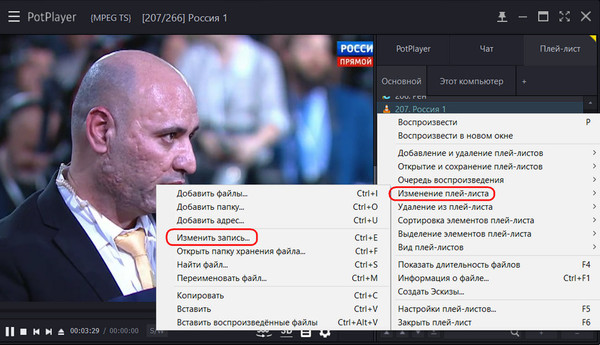
If you need to add a TV channel to the main IPTV playlist that is present in another playlist, open the latter in the PotPlayer window and select "Edit playlist" on the desired channel. Then – "Edit entry".
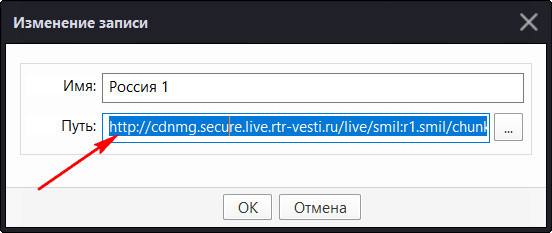
 Copy the path.
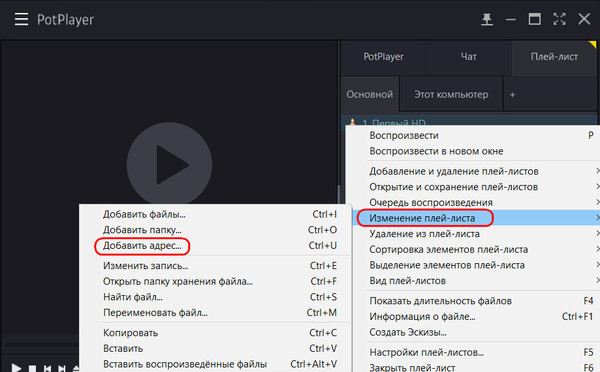
Then go to the main playlist, in the context menu select "Edit playlist" again. And open the "Add address" form.
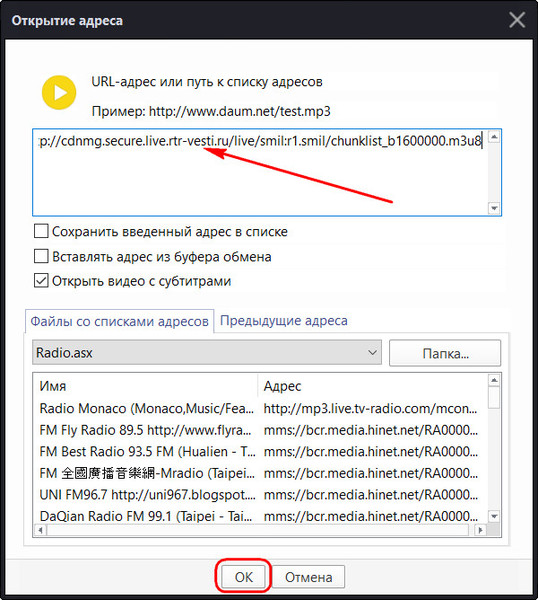
Paste the same path from the clipboard.
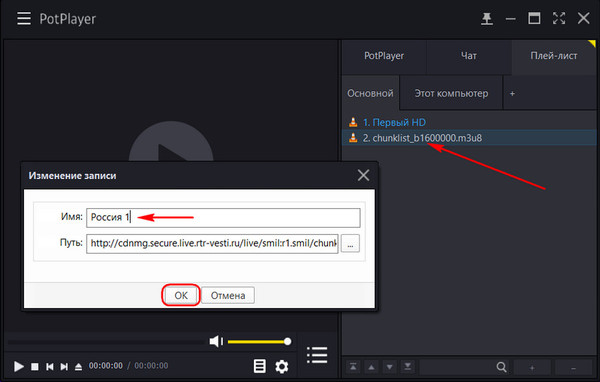
The new TV channel has been added to the playlist. Now all that remains is to give it a human-readable name. Do this in the same form used to copy the address. Select "Edit playlist", then "Edit entry". Change the channel name.
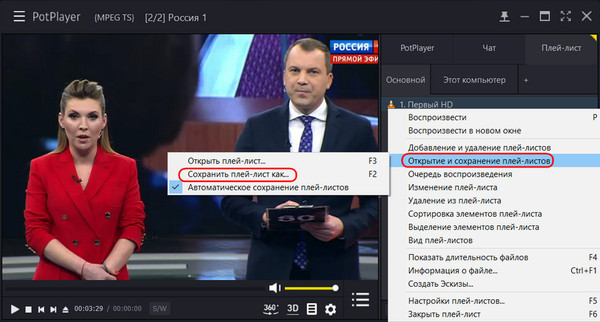
 The edited playlist can be saved to a file if necessary, in particular, to the popular ".pls" and ".m3u" formats.