
 This method is also used instead of, or before installing a new version of the operating system, or switching to another company. For an inexperienced user, it is much easier to perform a complete cleanup of the laptop from programs, files, and settings than to reinstall a key element in the visual operation of the device.
!IMPORTANT: to save some programs or files you need, you can move them to the memory of any external device before restoring factory settings.
This method is also used instead of, or before installing a new version of the operating system, or switching to another company. For an inexperienced user, it is much easier to perform a complete cleanup of the laptop from programs, files, and settings than to reinstall a key element in the visual operation of the device.
!IMPORTANT: to save some programs or files you need, you can move them to the memory of any external device before restoring factory settings.
Factory settings for Asus laptops
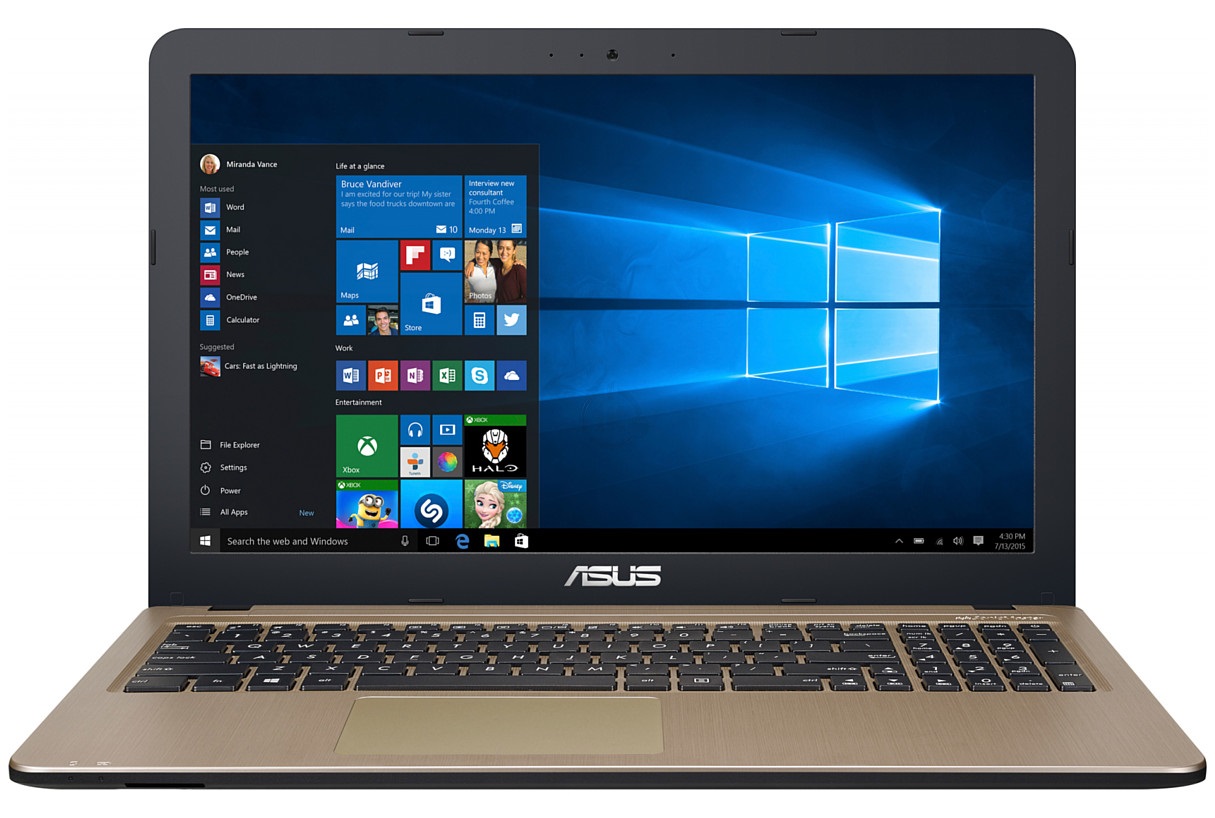 How to restore factory settings on an Asus laptop? A laptop of this brand is equipped with a special, pre-prepared utility for performing the factory reset operation. This is convenient and simplifies the process, both for professional-level laptop owners and for less informed people.
Steps to restore settings:
- You need to enter the BIOS menu: to do this, during computer startup, press the "F2" key repeatedly until the corresponding device settings section appears on the screen;
- By default, the menu will have fast computer boot enabled – this function must be disabled. You can navigate the menu only using the arrow keys on the keyboard. Follow this path: "Boot" - "Boot Booster" - "Disabled". To confirm actions or open items, use the "Enter" key;
- Find the "Save changes and exit" item in the last menu tab or use the "F12" hotkey. This will allow you to save the changed settings and exit the menu. The laptop will automatically start rebooting: wait for a full load and then turn off the device again;
- Start the laptop again and during the process, press the "F9" key once, which will open the utility for restoring factory settings. A loading bar should appear on the screen;
- The system will provide you with a notification requiring confirmation of the deletion of all your data and restoration of settings to factory defaults;
- The program will automatically start cleaning your device of programs, files, and settings. During this, the laptop will reboot multiple times.
Factory settings for Acer laptops
 How to restore factory settings on an Acer laptop? Restoring settings for this brand of laptop can be done directly from the running operating system. It will also require going to the menu when the device boots, so if the goal of restoring settings is to fix system crashes that prevent normal booting, this method will not be effective.
To restore factory settings, you need to:
- Follow the path "Start" - "Acer eRecovery Management". To simplify the search, you can use the computer search (the field opposite the "Start" menu, which appears when opening it);
- Go to the "Restore" menu section and select the parameter you are interested in. You can restore the system while preserving personal data, but this method is not recommended, as along with all files, you will also keep the glitches you plan to get rid of. It is better to select the "Restore factory settings of the operating system" item;
- Confirm your decision and click the "Start" button. Then, the laptop will reboot and begin the operation to restore factory settings.
Factory settings for HP laptops
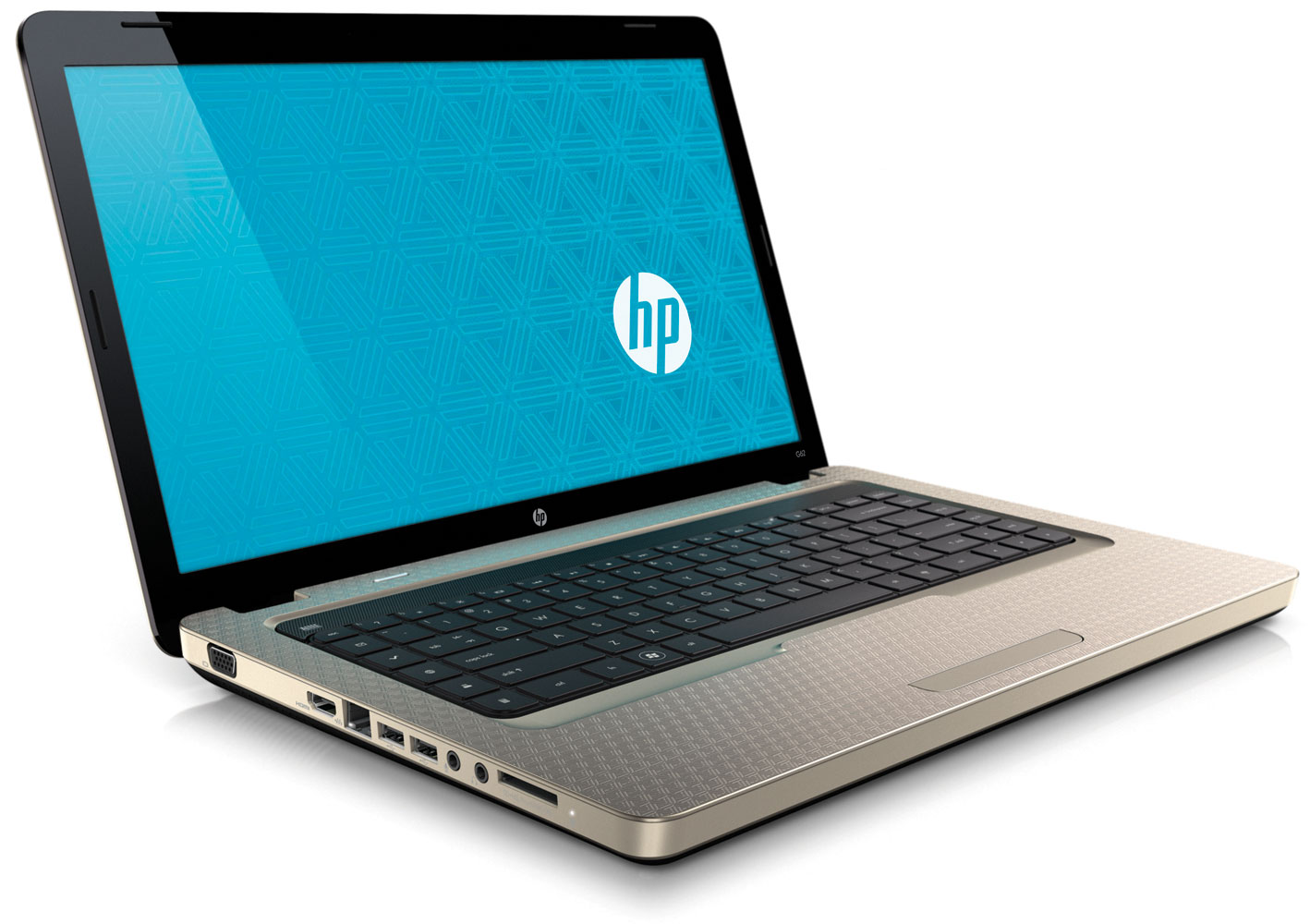 How to restore factory settings on an HP laptop? Restoring settings on a device of this brand can be done without leaving the operating system. The "Recovery" program is responsible for these actions, which needs to be found through computer search and opened.
Further actions:
- In the first column, titled "I need help urgently", select the very last item: "Windows Recovery Environment";
- Answer the program's question by clicking the "OK" button and wait for the device to reboot;
- In the "Choose an option" menu, click on the "Troubleshoot" section. In the new window, select the "Recovery Manager" section;
- In the opened section, in the first column titled "I need help urgently", select the second item: "System Restore";
- Set the parameter "Restore without creating a backup of files" and click "Next", then "Next" again and wait for the cleanup of settings to factory state to complete. Upon completion, click "Finish", set up the settings, and use the cleaned laptop.
Factory settings for Sony laptops
 How to restore factory settings on a Sony laptop? Regardless of the degree of virus infection and other factors, an alternative method will help restore settings.
Instructions for restoring factory settings:
- After turning off the device, press the "ASSIST" key to open the rescue mode;
- Select the item "Recover or maintain your system" and choose your language;
- Follow this path: "Troubleshoot" - "Recovery and maintenance" - "Windows 8" - "Run Recovery Wizard" - "Skip rescue";
- Confirm your desire to clean the laptop with the "Yes, I am sure" key and wait for the operation to finish. When the system notifies you of the completion of the restoration, click the "Restart device" key.
Factory settings for Lenovo laptops
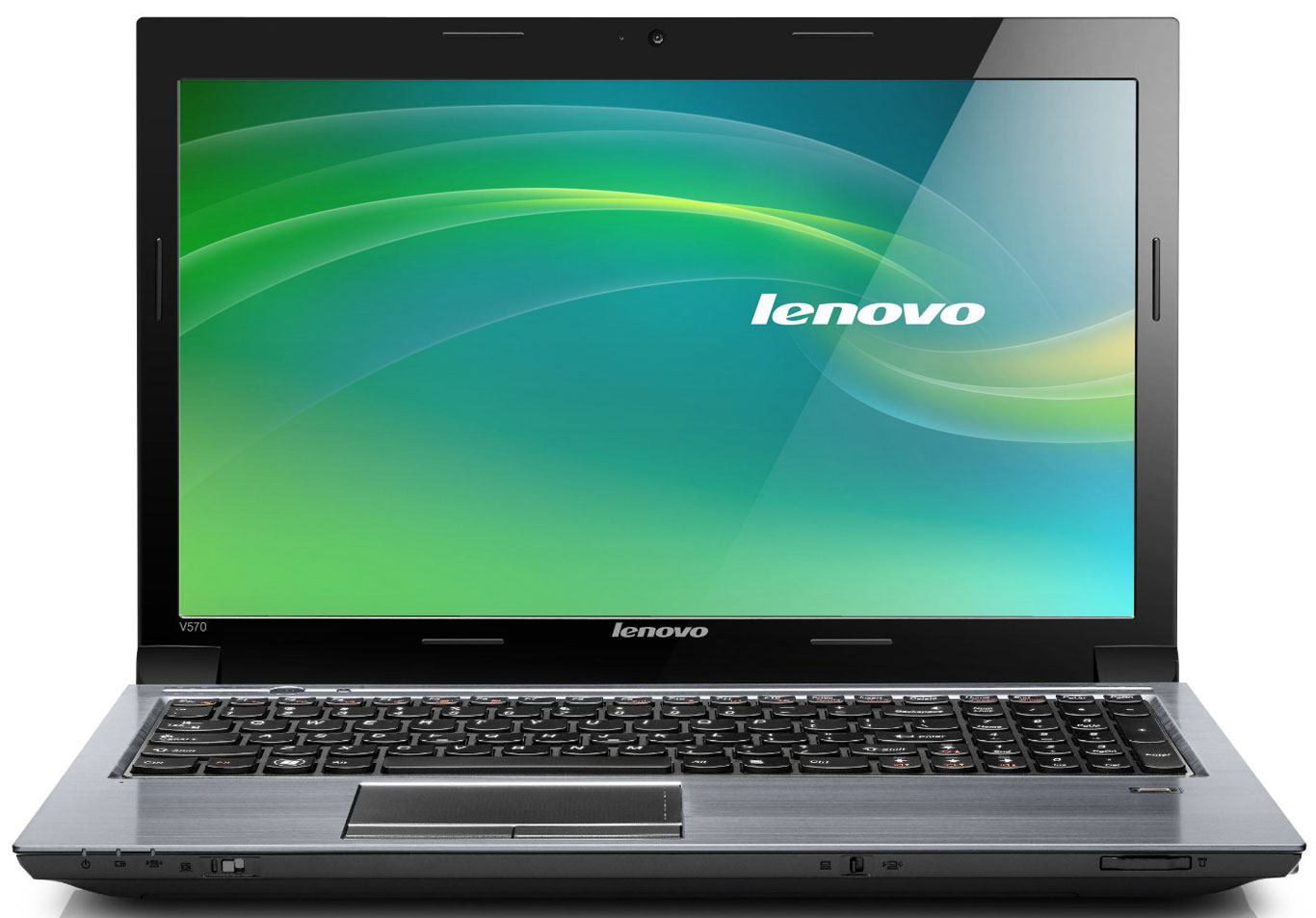 How to restore factory settings on a Lenovo laptop? The manufacturer has equipped a laptop of this brand with a special button for restoring settings, which makes the process much simpler and faster.
To restore factory settings, you need to:
- Turn off the device and press the "Novo Button" (in the shape of an arrow);
- Follow the path: "System Recovery" - "Next" - "Start" - "Yes" - "Yes";
- Wait for the operation to complete and click the "Finish" button.
Factory settings for Samsung laptops
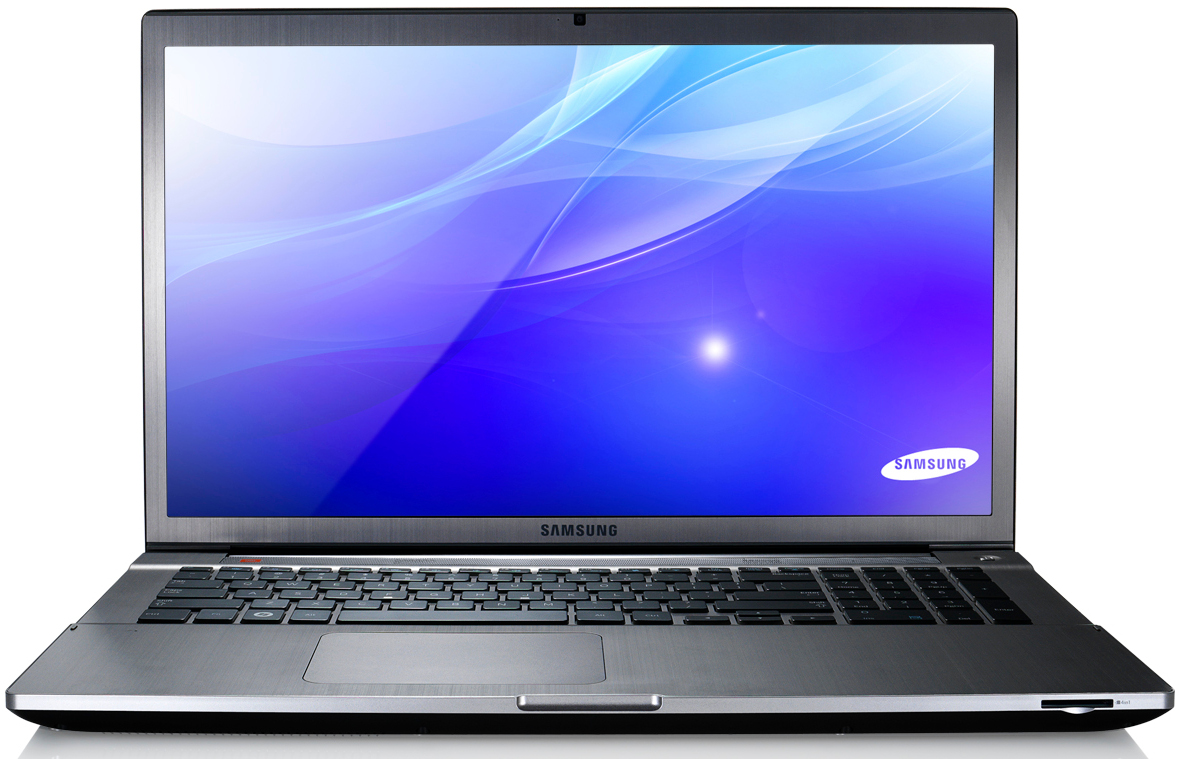 How to restore factory settings on a Samsung laptop? First of all, you need to turn off the laptop and start it again. Before any inscriptions or logos appear, press the "F4" key to enter the settings restoration utility.
Next, you need to:
- Select the "Restore" section;
- Check the "Full restore" item;
- Select the "Computer Initial Status" item;
- Agree to delete user data and follow further program instructions.
Factory settings for Dell laptops
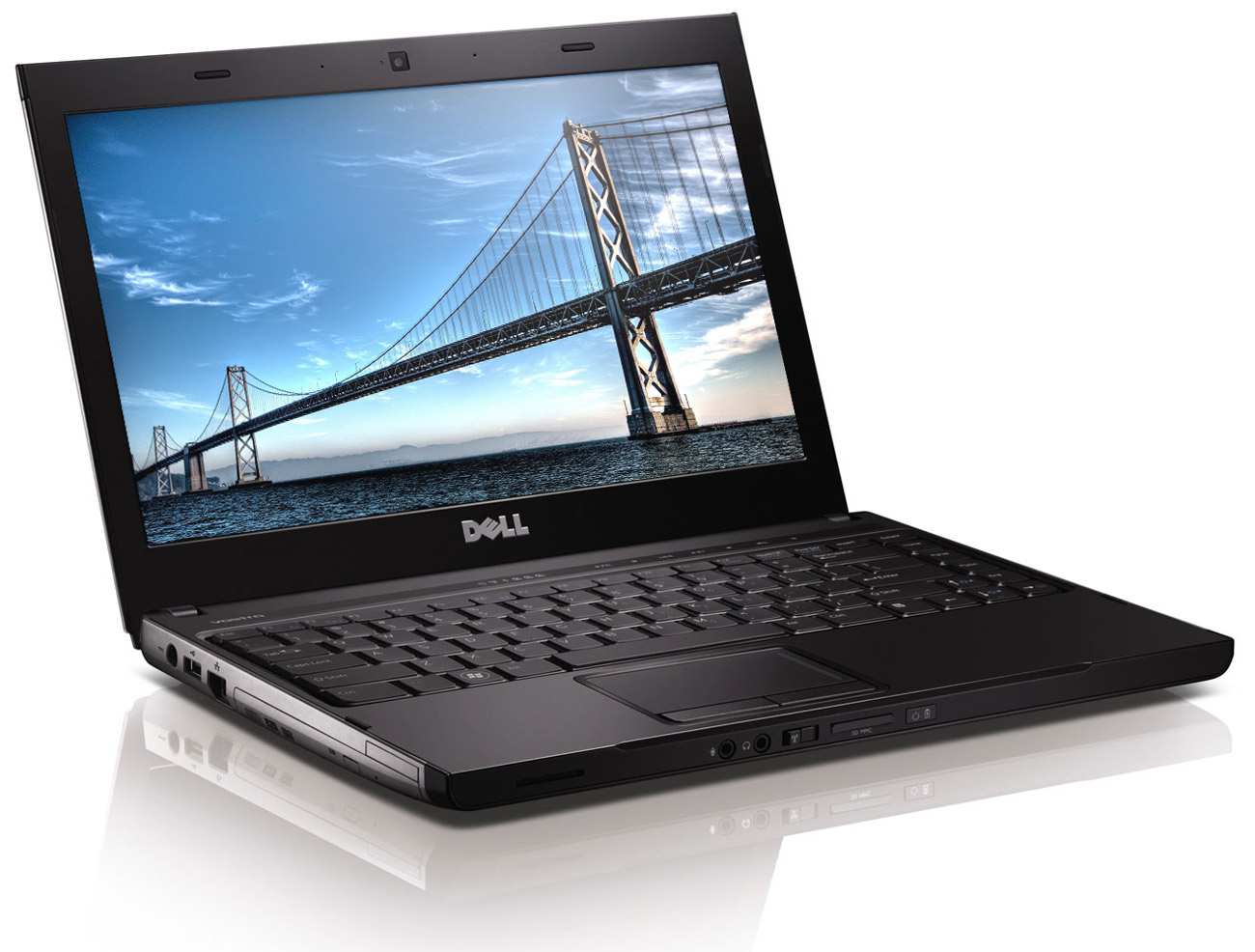 How to restore a Dell laptop to factory settings? During laptop startup, as soon as the brand logo appears on the screen, press the "F8" key and hold it until the "Advanced Boot Options" window opens;
- Use the arrows to select the "Repair your computer" option and press the "Enter" key;
- Select the interface language and proceed to the next section;
- Select a user and confirm the settings with the "OK" button;
- Select the "Dell DataSafe Restore and Emergency Backup" item;
- Select the "Choose a different system backup and additional options" item and click "Next";
- Select the "Restore my computer" item and click "Next";
- Select the "Factory image" item and click "Next";
- Select the "Restore without saving new or changed files" item and click "Next";
- Wait for the operation to complete and restart the laptop.
Factory settings for Toshiba laptops
 How to restore factory settings on a Toshiba laptop? To start the procedure, you will need to go to the "Advanced Boot Options" menu. To do this, turn off the device and start it again. When the brand logo appears on the screen, press and hold the "F8" key.
Further actions:
- Select the "Repair your computer" item;
- Select the system language;
- Select a user;
- Select the "Toshiba Recovery Wizard" utility;
- Confirm your desire to return the laptop settings to factory state, wait for the operation to complete, and click the "Finish" key.
Factory BIOS settings
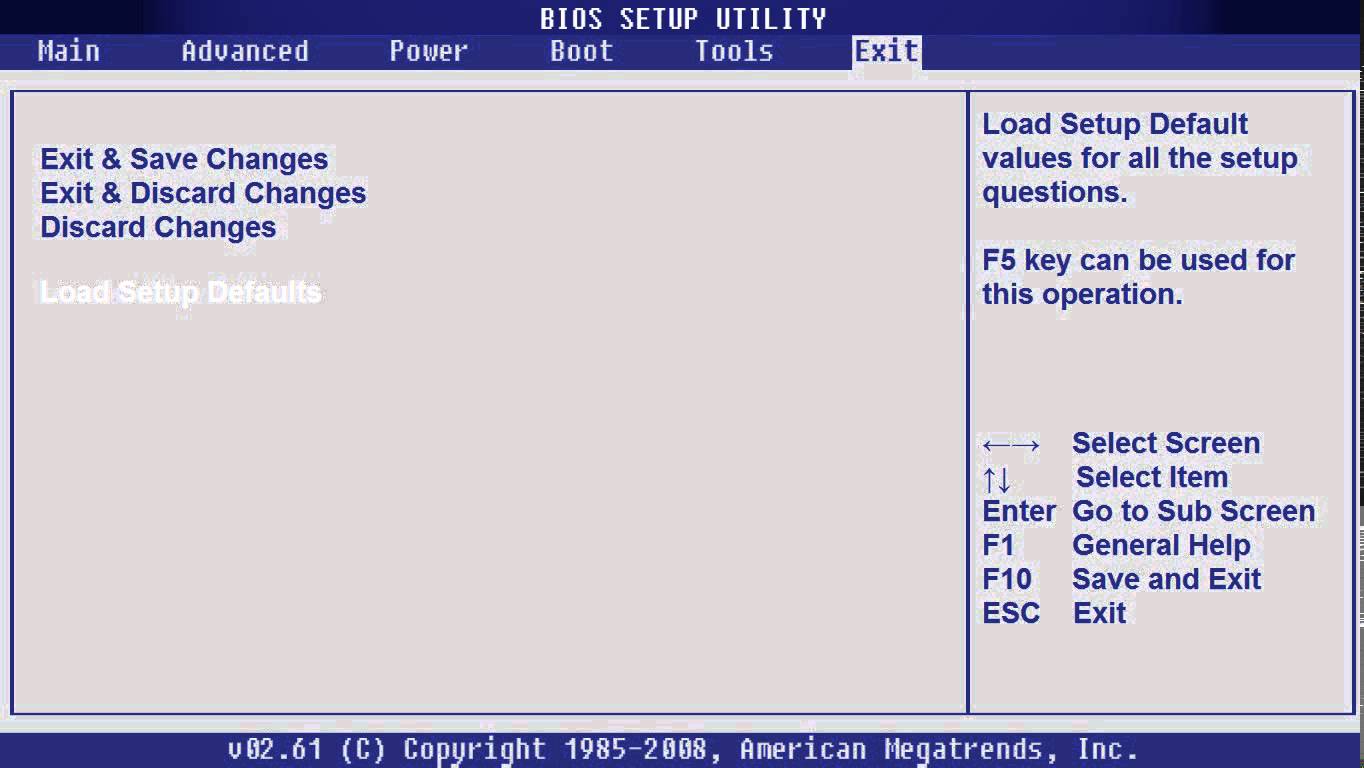 How to restore factory BIOS settings on a laptop? This is much easier than returning the entire device settings to factory state. To do this, you need to enter the BIOS menu: which hotkey leads to it will be indicated by the system at the bottom of the screen during normal device startup.
Next, you need to go to the "Exit" section: its location depends on the laptop brand. Select the "Load Setup Defaults" item, which restores default settings, confirm your action, and restart the device.
How to restore factory BIOS settings on a laptop? This is much easier than returning the entire device settings to factory state. To do this, you need to enter the BIOS menu: which hotkey leads to it will be indicated by the system at the bottom of the screen during normal device startup.
Next, you need to go to the "Exit" section: its location depends on the laptop brand. Select the "Load Setup Defaults" item, which restores default settings, confirm your action, and restart the device.