Many owners of netbooks or laptops have faced the need for a "clean" installation of the operating system or its reinstallation due to virus activity or other reasons. And here the main problem immediately arises – netbooks do not have a DVD drive, so installing Windows the usual way from a disk will not work. The optimal option in this case is to use a bootable flash drive, with which you can install the OS not only on a laptop but also on a desktop computer. To install Windows from a flash drive on a laptop, we will need a USB flash drive that can accommodate the OS image, the Windows image, and the laptop itself, which supports the OS you have chosen.
Now you can proceed to creating a bootable flash drive. This can be done in various ways and using different programs, so it is impossible to describe them all. Let's consider an option using a popular program like UltraISO. Download and install this program on your PC. The program is paid, but we can use the trial period, which is more than enough for our needs. Launch the program and in the "File" menu, select the "Open" item (or press the key combination Ctrl+O):
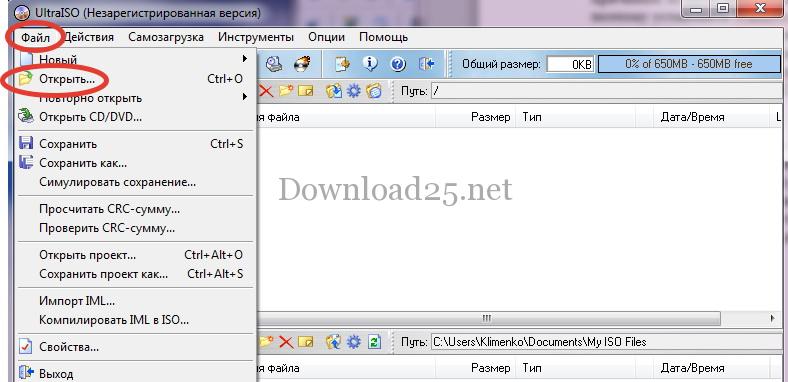
In the window that opens, specify the path to the OS image, select it, and click the "Open" button. Next, select the "Boot" menu and the "Write Disk Image" item:
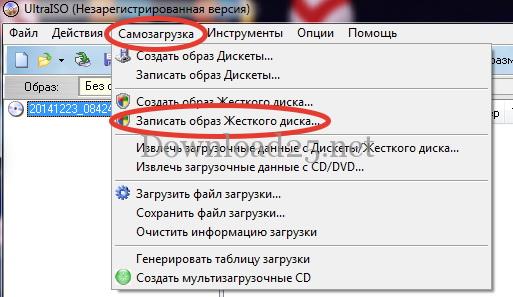
After you click on this item, a new window will open:
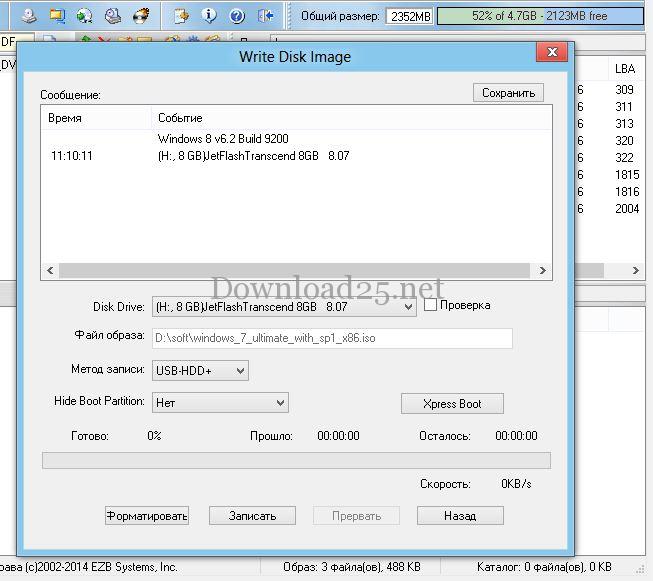
To create a bootable flash drive, it must be formatted. To do this, click the "Format" button. After that, the flash drive formatting window will open:
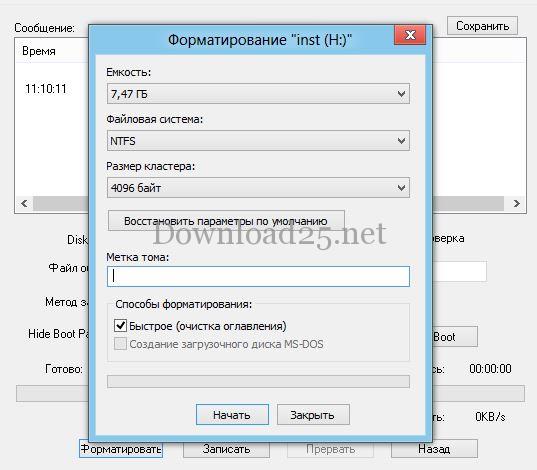
Click the "Start" button and the formatting process will begin. When the flash drive is formatted, click the "Write" button and the operating system image will be written to the flash drive, making it bootable.
When the bootable flash drive is ready, restart the laptop and enter the BIOS. On laptops from different manufacturers, the keys to enter the BIOS may differ; try ESC, F8, F10, F11, F12, Del. Once in the BIOS, select the "boot" tab and choose the USB flash drive as the first boot device:
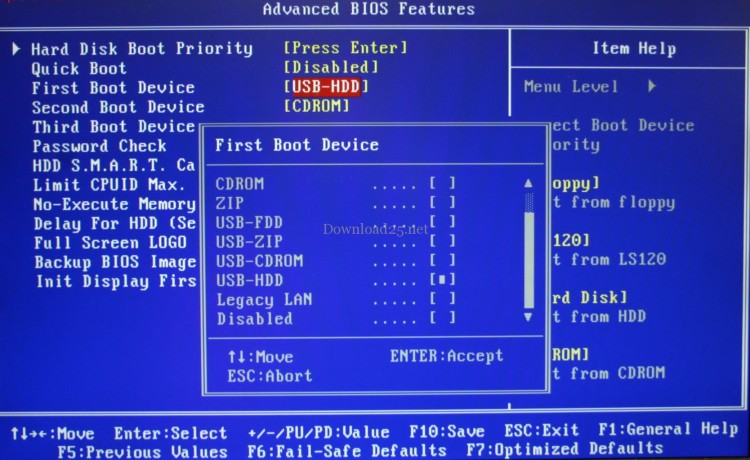
Save the changes (F10) and exit the BIOS (ESC). Then the process of installing the operating system is identical to a regular installation from a disk. After installing the OS, re-enter the BIOS and set the boot from the hard drive (HDD) in a manner similar to the previous step.