In the modern world, the internet is available almost everywhere, giving us the ability to communicate in real time with people located in different parts of the world.
There are several programs for online communication, but the recognized leader in this field is the free Skype messenger.
Registration in Skype: free instructions in English
To use this Skype program, you must first register in Skype and create your own account – a user account that can be used on different computers and mobile devices.
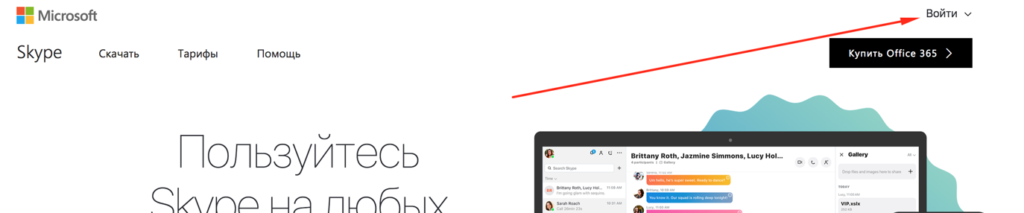
Creating a Skype account will take just a couple of minutes. To register for Skype, go to the official website of the program (https://www.skype.com) and click on the "Sign in" button, which is located in the upper right corner of the page.
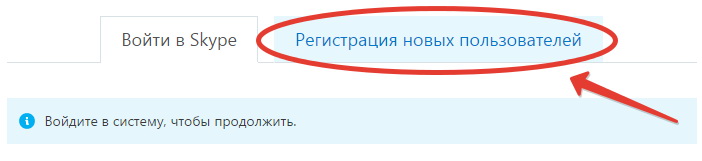
In the window that opens on the Skype website, click on the "Register new users" tab, and the account registration window we need will appear:
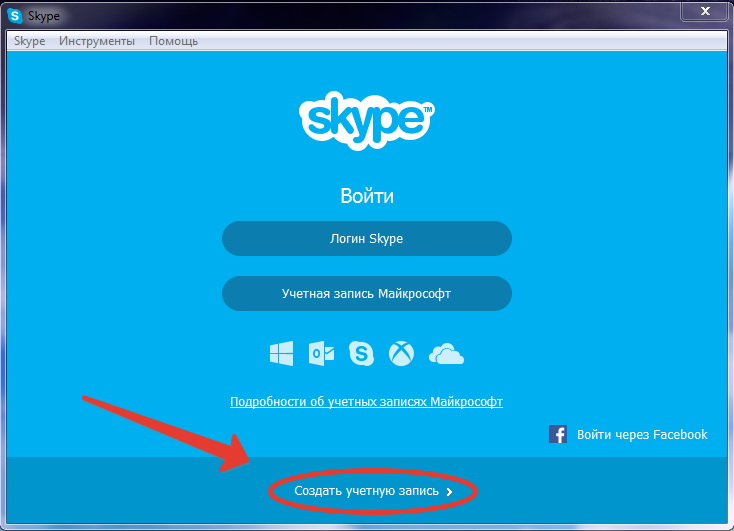
If you have already downloaded the Skype program and installed it on your computer, then after launching it, click on the "Create an account >" button, and the same Skype account registration window will open in your browser as in the first case:
If you have a Microsoft or Facebook account, you can sign in to Skype using the login and password from the aforementioned account. If you do not want to use them or are not registered there, scroll down the window a bit and proceed to direct registration in Skype.
Registration in Skype, Step #1
The Skype registration window is divided into 4 blocks, in which you will need to enter your personal information. In the first block, enter your First and Last Name in the empty fields, as well as your email address. It is extremely important to provide your real email address, as it may be needed to restore access to your account if you forget your login or password.
To minimize the chance of an error in the address, you will need to enter your email address again in the adjacent field.
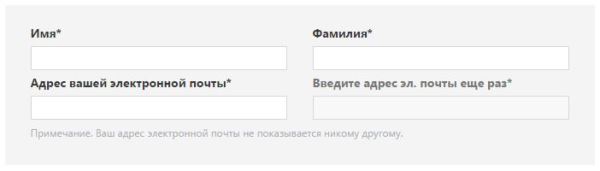
Next to the names of some fields, there is an asterisk "*", which indicates that this field must be filled in. If there is no such asterisk next to the item name, filling it in is recommended, but not mandatory for registration.
Below the email address, you will need to enter your date of birth, gender, country, city, language, and mobile phone number.
Step #2
Of course, no one will verify this data, and you can enter fictitious personal information, but for more convenient use of Skype and communication, it is better to enter your real data so that your friends, family, and acquaintances can find you.
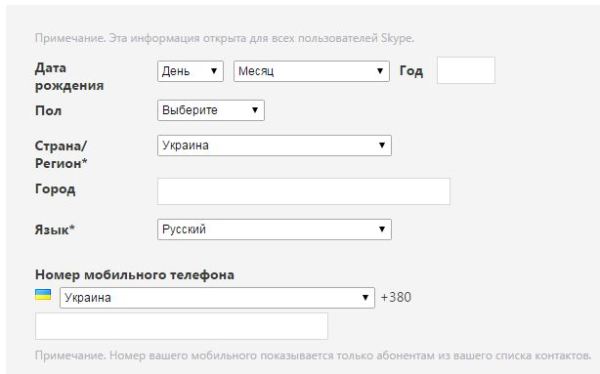
Next, you need to select an answer to the question "How do you plan to use Skype?" from the dropdown list, choosing from the options: "Mainly for private conversations", "Mainly for business". In the last block, you will need to specify your Skype login and password for the account being created.
Completing Registration in Skype
The login in Skype must be unique; you cannot register, for example, two "Kisas" or two "Kolyas" in the system. If Skype detects during registration that the login you entered is already in use, it will offer you several similar and still unoccupied options.
You can either choose one of them or come up with a new login. A Skype login must contain from 6 to 32 characters of the Latin alphabet and numbers, and special characters and/or spaces cannot be used in the login.
Below the login field, there are 2 more fields where you need to enter a password and confirm it. The password must also consist of Latin alphabet letters and numbers, with a character limit of 6 to 20.
Even lower, you will be offered to receive useful notifications about Skype services. Here you can check the box for the notification option that suits you best and confirm your choice by entering the text from the image in the field. If you do not check the boxes, notifications will not be sent. Below this block, there are two links, by following which you can familiarize yourself with the Skype Terms of Use and the Skype Privacy Statement.
At the bottom of the window on the left side, there is a button  clicking on which will register your account. Now you can open the Skype program, enter the Login and Password specified during registration, and log into the created account to communicate with friends, colleagues, partners, and new acquaintances.