Social networks occupy a significant place in the life of a modern person, so many are registered in several "chat apps" at once.
Among the large number of social networks, Twitter stands out, which can only be half-called a social network. Twitter is a microblogging service where you can write messages of up to 140 characters. At the same time, you can subscribe to any person on Twitter and read their microblogs, and other users can subscribe to you. There is also a standard option for direct communication. Thus, you can always stay updated on the events and "tweets" of your friends and interesting personalities.
Additionally, Twitter has many celebrities (verified accounts), so you can subscribe to your favorite athletes, politicians, and pop stars.
Registering on the network is very easy. To do this, go to the main Twitter page. On the right side of the page, you will see two windows: a login window and a registration form:
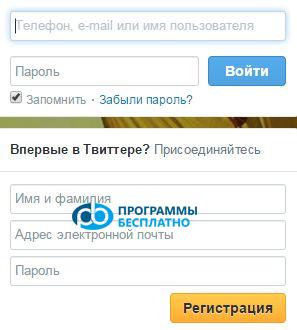
In the first form, you can enter your details if you are already registered on Twitter. The second form is needed to register a new user. To do this, enter your details in the empty fields. For example, let's register a certain Roman Romanov on Twitter:
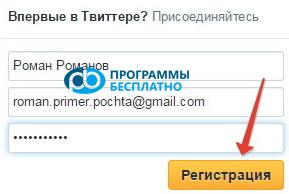
After filling out the form, click the "Register" button. A new window will appear:
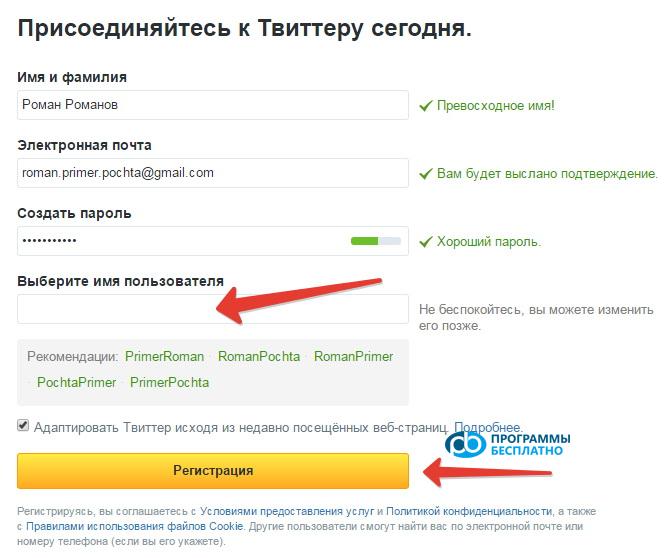
In the empty field, you need to enter a username or simply choose one of the suggested names. If the name you entered is already registered on Twitter, Twitter will tell you and suggest making corrections or coming up with a new name. For example, let's choose the name "TvitRoman", which turned out to be available, and click "Register".
In the next window, Twitter will congratulate you on your registration, and to continue getting acquainted with the network, click the "Let's go!" button.
Next, you will need to provide information about yourself and your interests:
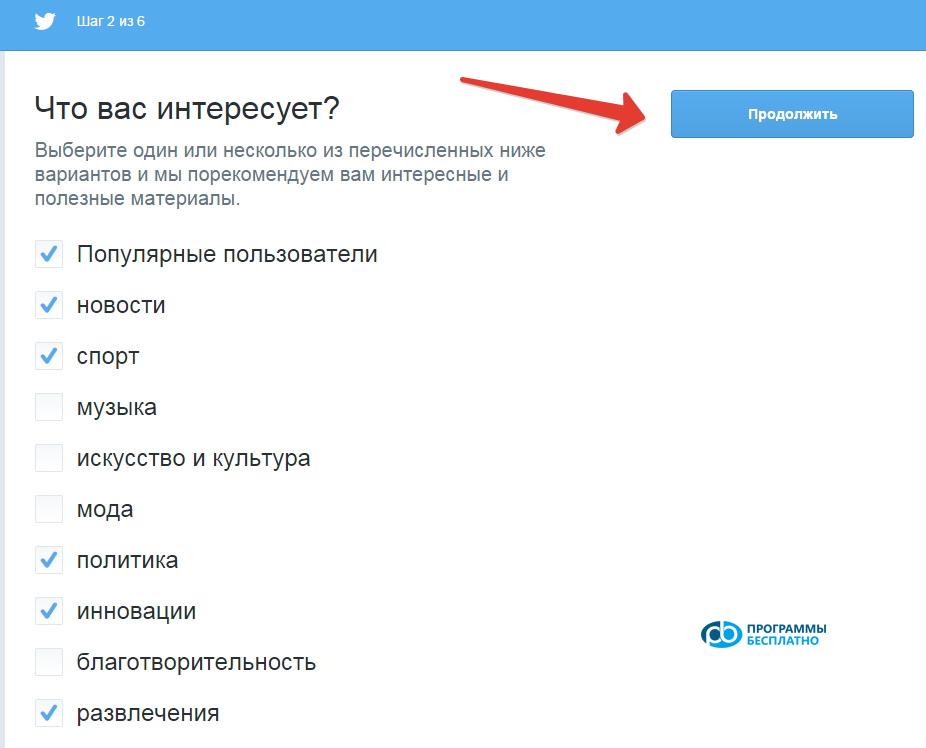
In the first window, select the topics (check them as in the example) that interest you and click the "Continue" button. Based on your preferences, the service will automatically select interesting people for you and suggest subscribing to them.
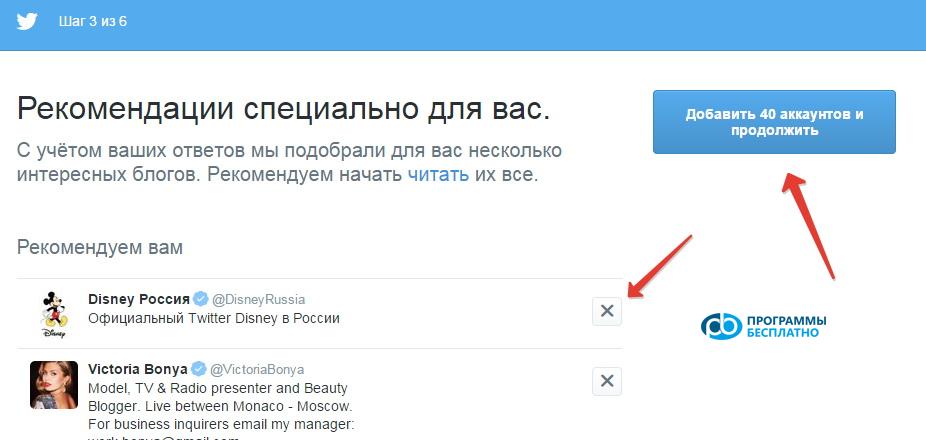
By clicking the "Add" button, you can subscribe to all suggested people or groups. To skip subscribing to some of them, simply click the cross next to them. Then click the "Add" button.
In the next window, the service will offer to decorate your account with a photo:
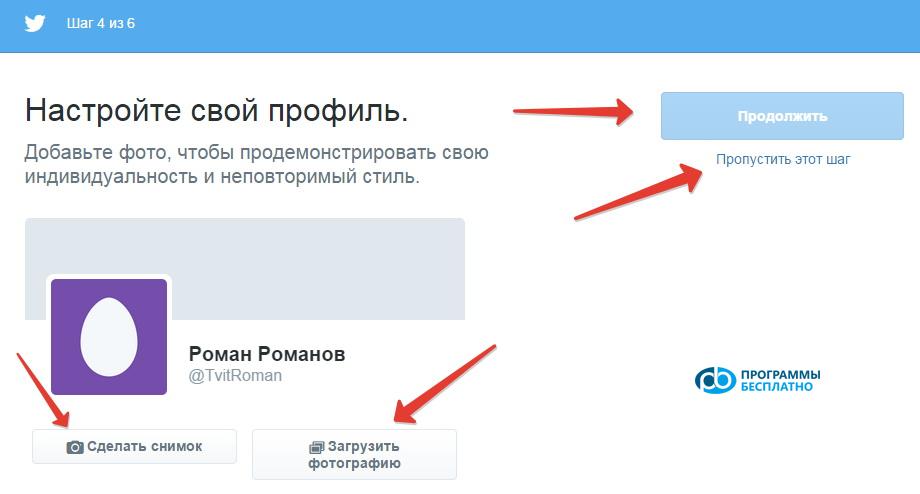
If you don't want to add a photo yet, simply click the "Skip this step" button and move to the next item. Otherwise, click the "Upload photo" button and select the desired photo in the file explorer. Or click "Take a photo" if you have a webcam connected to your computer or laptop, and the service will take a snapshot from it.
Then click the "Continue" button, which will become active after selecting a photo.
In the next window, the service will offer to upload contacts from the email account specified during registration. To do this, click the "Upload contacts..." button. A window with a list of contacts that can be added will open. If you don't want to add contacts from your email, click the "Skip this step" button.
You have registered on Twitter and made the initial settings:
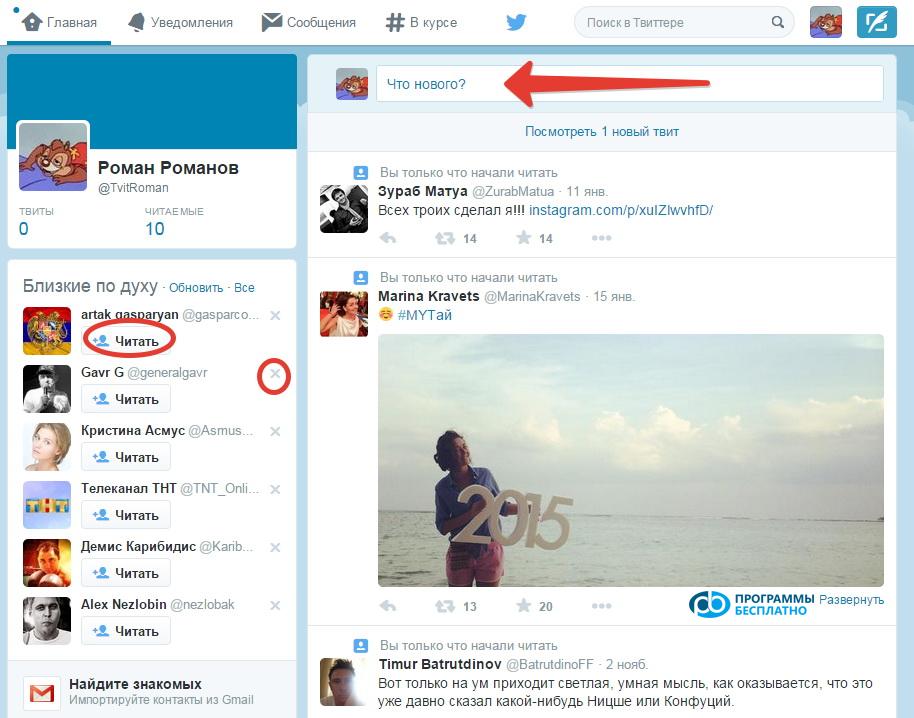
In the top window, you can write your thoughts or something else, and all your subscribers will see it. On the left side, the service will suggest interesting people for you, and to subscribe to them, simply click the "Follow" button.
If you click the cross, that person will disappear from the recommended list. In the central window, tweets from people you follow will appear. If you want to find a specific person, use the search form (Search on Twitter).
Under each tweet, there will be buttons:

Clicking the first arrow allows you to reply to the tweet. The second button lets you "retweet", i.e., post this tweet on your own page. The star adds a specific tweet to favorites. Clicking the three dots opens new options (mute, share tweet, etc.).
At the top of the Twitter window, a window for email confirmation will appear. Click the "Check email" button or simply go to your email inbox. Here you will see an email from Twitter:
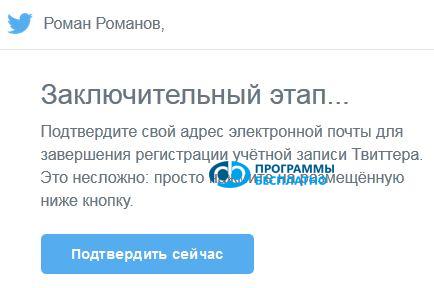
Click the "Confirm now" button, and the Twitter account you created will be confirmed, allowing you to use all Twitter features.
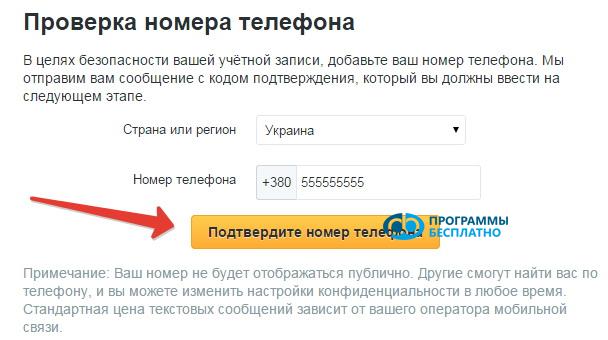
Sometimes the service may ask you to provide a phone number for security purposes. After entering the phone number, a confirmation code will be sent to it, which you will need to proceed with registration (to do this, select your country from the list and enter your phone number, then click the "Confirm..." button):
It's difficult to describe all the features of Twitter in detail, but we've talked about the main ones, and you can quickly figure out the other nuances by starting to use this interesting and very convenient social network.