 In fact, solving such problems is very simple, but you need to be prepared for them in advance. To avoid worrying and always remain confident in your abilities, create a bootable USB drive with the operating system.
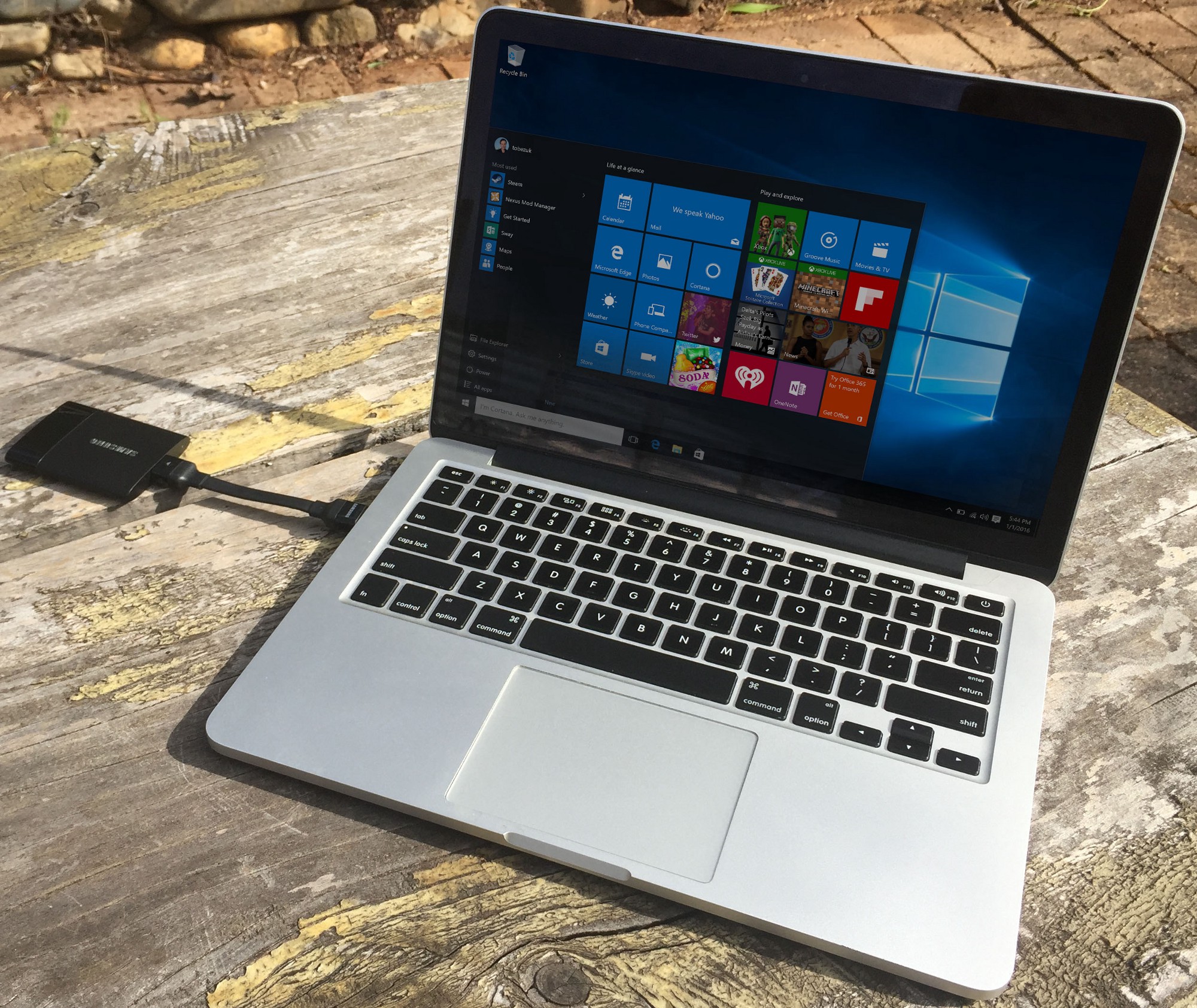
Running Windows 10 from a flash drive without installation on the hard drive is simple and convenient. You will be able to use a full-fledged Windows anywhere and anytime. Below are ways to create such a flash drive.
In fact, solving such problems is very simple, but you need to be prepared for them in advance. To avoid worrying and always remain confident in your abilities, create a bootable USB drive with the operating system.
Running Windows 10 from a flash drive without installation on the hard drive is simple and convenient. You will be able to use a full-fledged Windows anywhere and anytime. Below are ways to create such a flash drive.
Method #1: Built-in OS Tools
 The first method does not require searching for additional programs, as it allows you to do everything using utilities already available in the operating system, but it is also the most complex.
This involves creating a bootable drive via the command line. It is worth noting that besides the complexity of the method, there is a possibility that running Windows 10 from a flash drive created this way may fail due to the specific characteristics of the USB device itself.
Before starting to create a bootable flash drive, open the .iso image of the operating system using an archiver program (such as WinRar) and extract the install.wim file.
The extension might not be .wim but .esd. Official images usually contain the first option, so we are conditionally referring to the install.wim file, and all further manipulations are performed with it.
The first method does not require searching for additional programs, as it allows you to do everything using utilities already available in the operating system, but it is also the most complex.
This involves creating a bootable drive via the command line. It is worth noting that besides the complexity of the method, there is a possibility that running Windows 10 from a flash drive created this way may fail due to the specific characteristics of the USB device itself.
Before starting to create a bootable flash drive, open the .iso image of the operating system using an archiver program (such as WinRar) and extract the install.wim file.
The extension might not be .wim but .esd. Official images usually contain the first option, so we are conditionally referring to the install.wim file, and all further manipulations are performed with it.
This process looks like this step by step:
- Open "Start" and type cmd in the search bar.
- Run the command prompt as an administrator by selecting the appropriate menu item after right-clicking.
- To start disk management (including flash drives), enter the command diskpart and press Enter.
- Similarly, execute the command list disk to see which number the system has assigned to the flash drive.
- Knowing this number, enter select disk *, where the asterisk is replaced by the number of the USB drive you want to write Windows 10 to.
- Execute clean — a command to clean the flash drive (all data will be deleted!).
To run Windows 10 from a flash drive without installation, the bootable device must have the correct file system.
Create it with two commands:
- create partition primary
- fs=ntfs quick
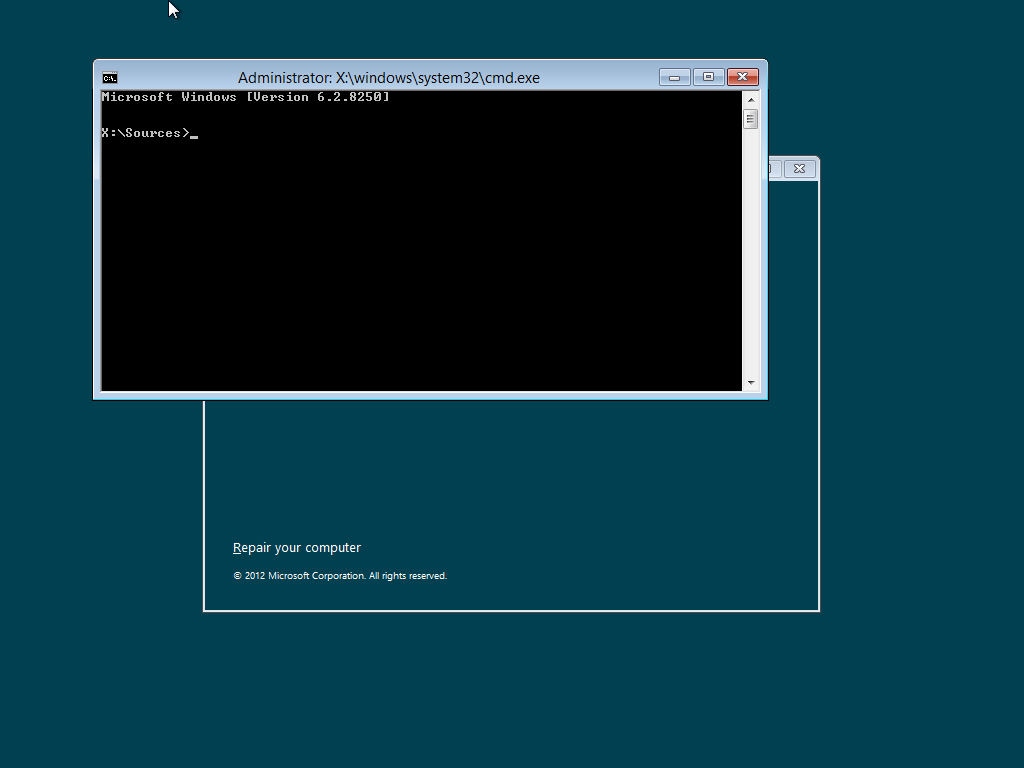 To complete all these operations, first execute active, then exit. This will exit the diskpart program. You can now proceed to write Windows itself.
Execute dism /Apply-Image /imagefile:***install.wim /index:1 /ApplyDir:*:\, where the three asterisks represent the full path to the install.wim file, and the last asterisk is the drive letter, which can be seen in "My Computer". The writing process will begin. It may be long and seem to freeze, but don't worry — that's normal.
The last step — how to run Windows 10 from a flash drive without a bootloader? Install it with the command bcdboot.exe E:\Windows /s *: /f all, where the asterisk is again replaced by the flash drive letter.
To complete all these operations, first execute active, then exit. This will exit the diskpart program. You can now proceed to write Windows itself.
Execute dism /Apply-Image /imagefile:***install.wim /index:1 /ApplyDir:*:\, where the three asterisks represent the full path to the install.wim file, and the last asterisk is the drive letter, which can be seen in "My Computer". The writing process will begin. It may be long and seem to freeze, but don't worry — that's normal.
The last step — how to run Windows 10 from a flash drive without a bootloader? Install it with the command bcdboot.exe E:\Windows /s *: /f all, where the asterisk is again replaced by the flash drive letter.
 That's it, you can try to boot. To do this (and for any other methods listed below), press and hold the F12 key during computer restart.
The boot menu will open, where you need to select your flash drive. If everything is fine, Windows will boot from it. If it doesn't work, check the BIOS and find the tab responsible for boot options (usually called Boot).
Try changing the boot mode from UEFI to Legacy. This should be done first, as it is with this BIOS setting that you should boot from a flash drive created by the WinToUSB program, which will be discussed below.
One common error where running Windows 10 from a flash drive written via the command line freezes is when the computer identifies the boot device as a removable drive, but ideally it should be a fixed disk, i.e., a local hard drive.
"Faking" the flash drive information is possible, but it is a very labor-intensive operation that does not fit within the scope of this article.
That's it, you can try to boot. To do this (and for any other methods listed below), press and hold the F12 key during computer restart.
The boot menu will open, where you need to select your flash drive. If everything is fine, Windows will boot from it. If it doesn't work, check the BIOS and find the tab responsible for boot options (usually called Boot).
Try changing the boot mode from UEFI to Legacy. This should be done first, as it is with this BIOS setting that you should boot from a flash drive created by the WinToUSB program, which will be discussed below.
One common error where running Windows 10 from a flash drive written via the command line freezes is when the computer identifies the boot device as a removable drive, but ideally it should be a fixed disk, i.e., a local hard drive.
"Faking" the flash drive information is possible, but it is a very labor-intensive operation that does not fit within the scope of this article.
Method #2: Third-Party Programs
Rufus
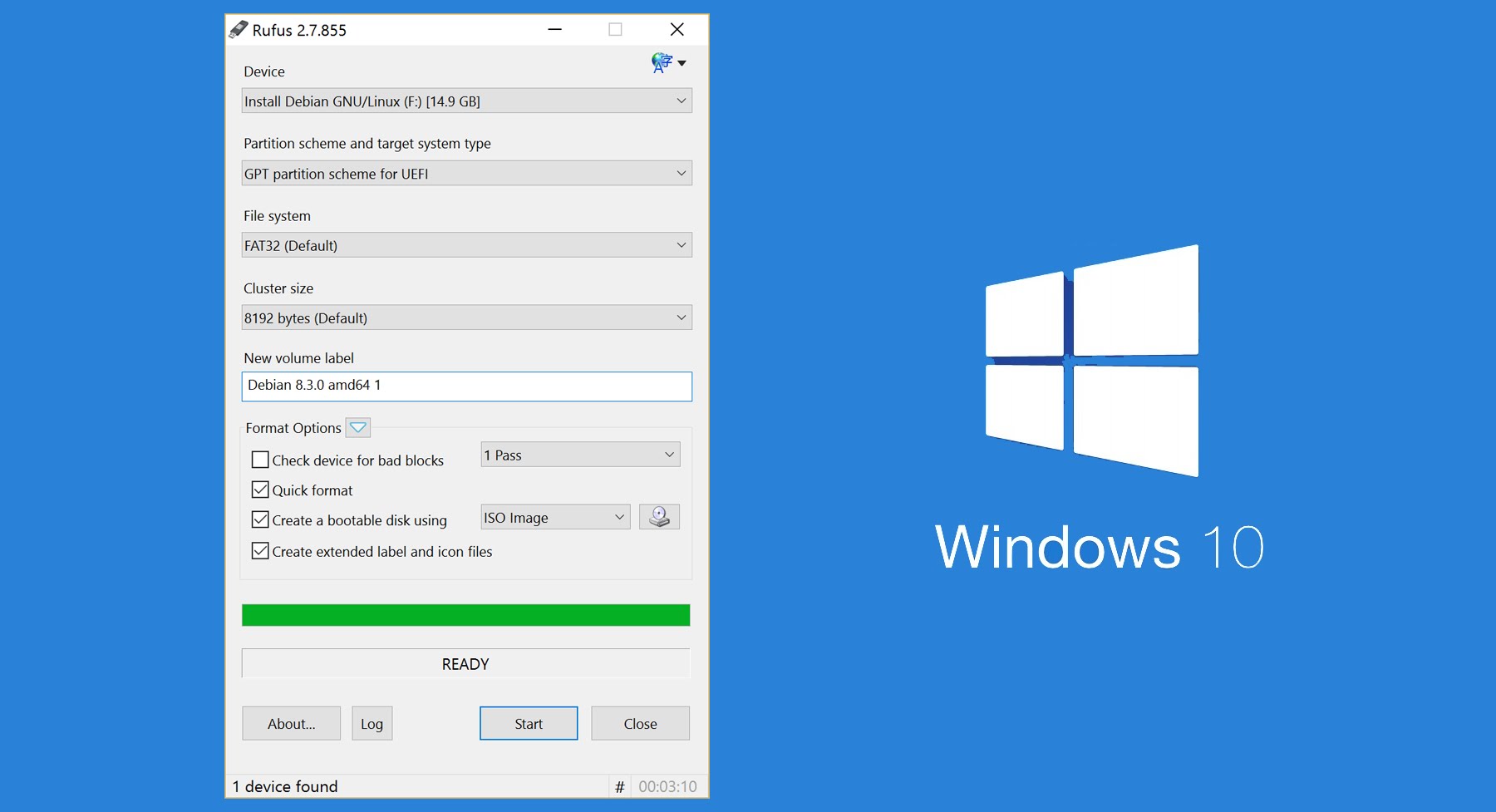 If you are looking for the simplest solution to the question of how to run Windows 10 from a flash drive, then a small utility called Rufus is the best choice. It is arguably one of the simplest and most convenient free programs for creating bootable USB drives.
The utility doesn't even require installation — download it and run it. The interface is in Russian.
If you are looking for the simplest solution to the question of how to run Windows 10 from a flash drive, then a small utility called Rufus is the best choice. It is arguably one of the simplest and most convenient free programs for creating bootable USB drives.
The utility doesn't even require installation — download it and run it. The interface is in Russian.
Just specify all the necessary parameters:
- Device — the flash drive to which Windows will be written;
- Partition scheme — usually MBR for BIOS or UEFI;
- File system — for Windows 10, choose NTFS;
- Cluster size — leave the default value;
- Volume label — the name of the flash drive, it can be anything.
WinToUSB
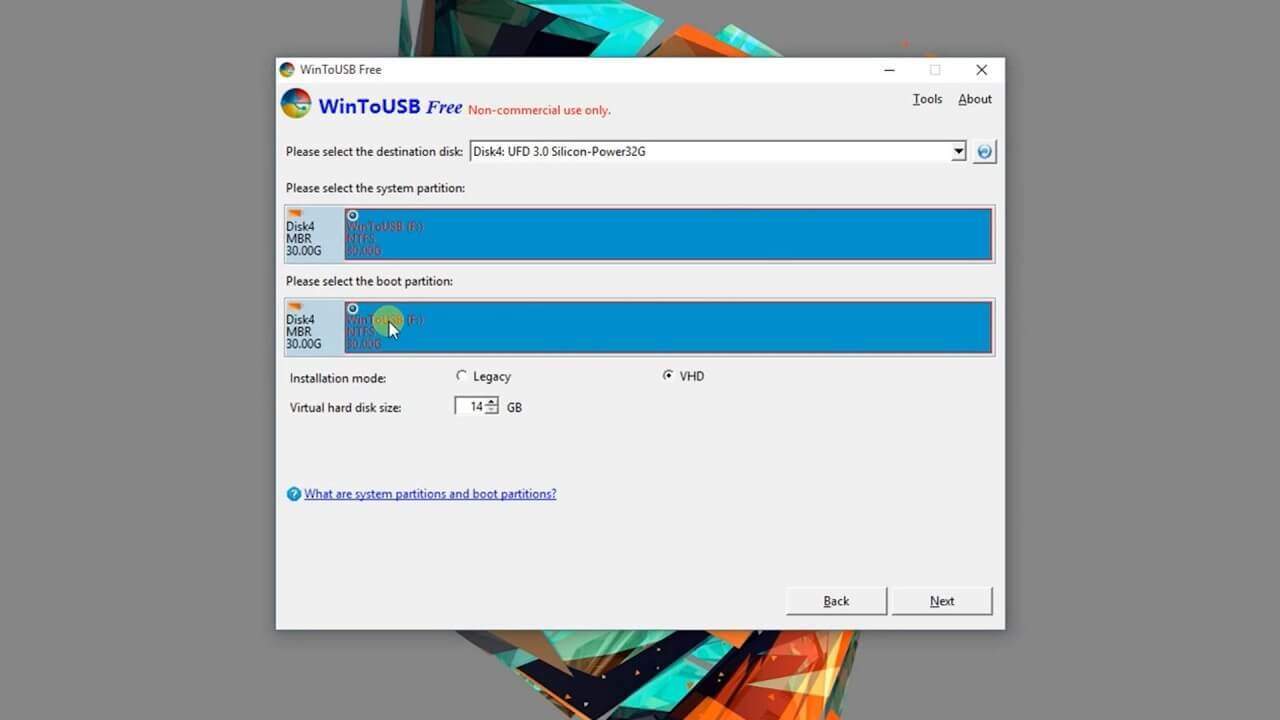 This program works similarly, but the selection of necessary options happens step by step, rather than in a single startup window.
- First, select the source — the disk image with the OS (top icon).
- Now click the browse button and specify the location of the ISO file.
- By clicking the "Next" button, you will proceed to the next step, where you need to select the USB drive to which the writing will be performed.
- In the "Installation mode" field, it is recommended to choose VHDX, and the "Virtual hard disk size" value determines the size of the virtual partition on the flash drive. Windows is written into this file. In case of an error, it can be increased.
- Click "Next" and wait for the bootable drive to be created.
FlashBoot
 Unfortunately, this program is paid, but it has a trial version that allows you to create bootable flash drives that will only work for 30 days. If you decide to use this program, on the initial screen you need to select the CD → USB option.
It allows you to create a bootable drive directly from a disk or from a system image. In the next window, select the image or disk with the operating system, then be sure to select the "Install fully-functional Windows to USB Thumbdrive" option to enable a full run of Windows 10 from a flash drive.
Otherwise, you will get a regular bootable drive for installing the system on the hard drive. Here you can also specify the option for UEFI boot. After that, the system is written to the device. Done!
Important: don't forget to save all necessary data from the flash drive, as during the process of writing Windows 10 to it using any of the methods described in this article, they will be destroyed!
Unfortunately, this program is paid, but it has a trial version that allows you to create bootable flash drives that will only work for 30 days. If you decide to use this program, on the initial screen you need to select the CD → USB option.
It allows you to create a bootable drive directly from a disk or from a system image. In the next window, select the image or disk with the operating system, then be sure to select the "Install fully-functional Windows to USB Thumbdrive" option to enable a full run of Windows 10 from a flash drive.
Otherwise, you will get a regular bootable drive for installing the system on the hard drive. Here you can also specify the option for UEFI boot. After that, the system is written to the device. Done!
Important: don't forget to save all necessary data from the flash drive, as during the process of writing Windows 10 to it using any of the methods described in this article, they will be destroyed!
AOMEI Partition Assistant
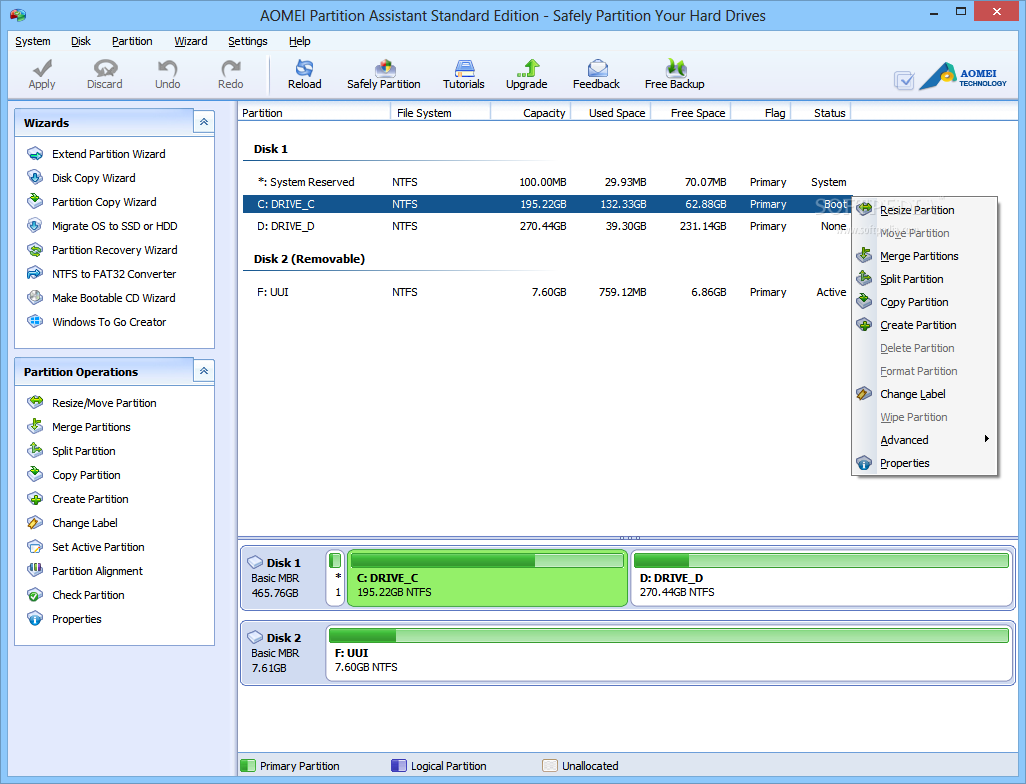 This refers to the Standard version. It is a free, multifunctional program for managing hard disk partitions. Among the main options, there is also an interesting one called "Windows To Go Creator".
With its help, you can do everything described above; just specify the desired flash drive and the path to the .iso image or .wim installation file.
This refers to the Standard version. It is a free, multifunctional program for managing hard disk partitions. Among the main options, there is also an interesting one called "Windows To Go Creator".
With its help, you can do everything described above; just specify the desired flash drive and the path to the .iso image or .wim installation file.
About Installing the OS from a Flash Drive
 If you are not interested in loading a full working system, but only in starting the installation of Windows 10 from a flash drive, then there is nothing simpler — this is the main way to install the OS today, as many modern laptops and PCs do not have disk drives.
Use the Rufus program for this, just as in the example above, but instead of the Windows To Go option, select "Standard Windows installation".
Finally
Now you know how to start the installation of Windows 10 from a flash drive or a fully working operating system. Besides the described methods for creating such a flash drive, one more remains unmentioned and is the simplest, if you have Windows 10 in the Enterprise edition.
It has a ready-made function for creating a bootable drive. This feature is located directly in the control panel and is called Windows To Go. If you don't have "Enterprise", you can install the Virtualbox program, download the necessary Windows image, create a virtual machine from it, pass the computer's USB devices into it, and use the system's built-in tools to create a bootable flash drive.
If you are not interested in loading a full working system, but only in starting the installation of Windows 10 from a flash drive, then there is nothing simpler — this is the main way to install the OS today, as many modern laptops and PCs do not have disk drives.
Use the Rufus program for this, just as in the example above, but instead of the Windows To Go option, select "Standard Windows installation".
Finally
Now you know how to start the installation of Windows 10 from a flash drive or a fully working operating system. Besides the described methods for creating such a flash drive, one more remains unmentioned and is the simplest, if you have Windows 10 in the Enterprise edition.
It has a ready-made function for creating a bootable drive. This feature is located directly in the control panel and is called Windows To Go. If you don't have "Enterprise", you can install the Virtualbox program, download the necessary Windows image, create a virtual machine from it, pass the computer's USB devices into it, and use the system's built-in tools to create a bootable flash drive.