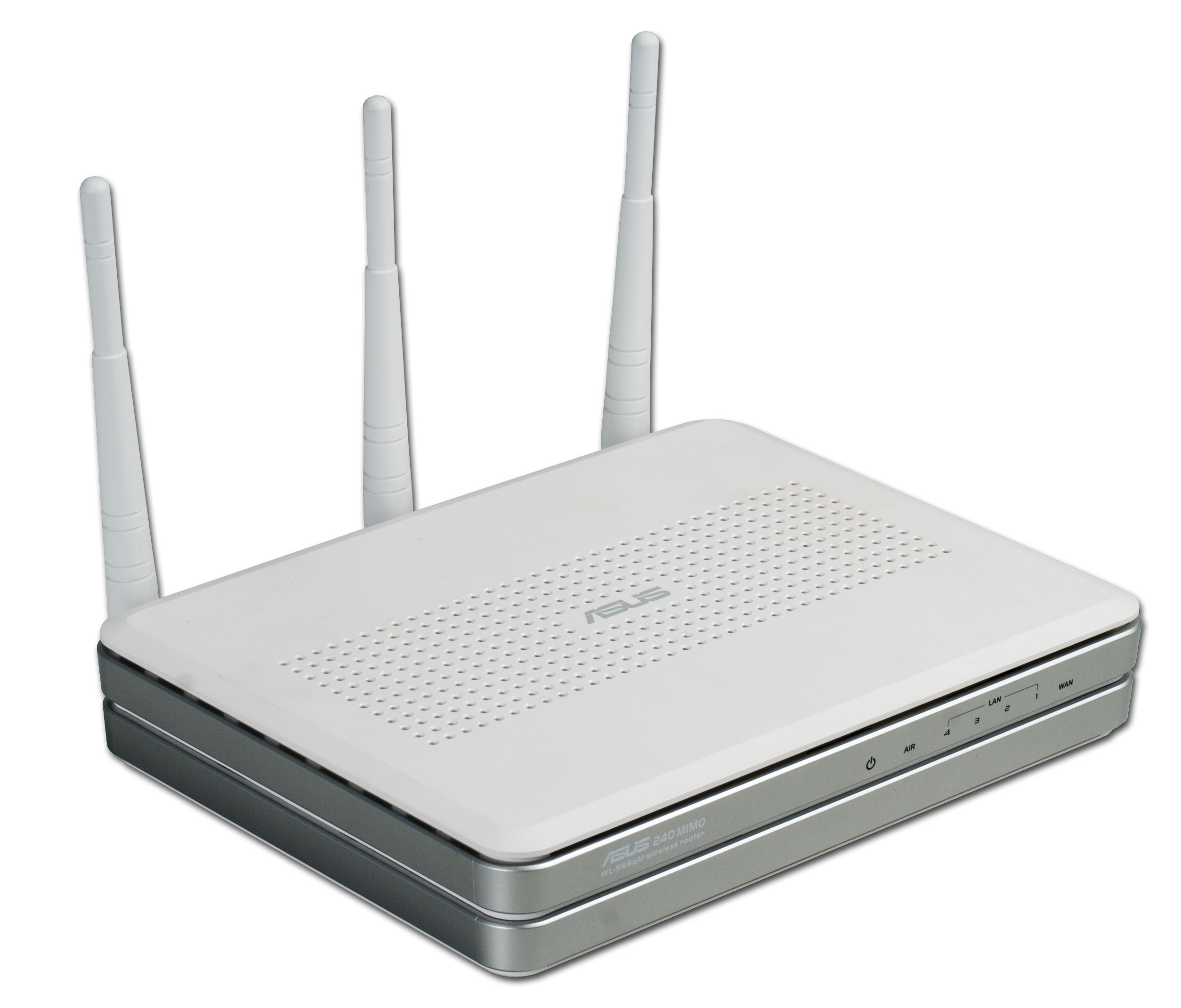
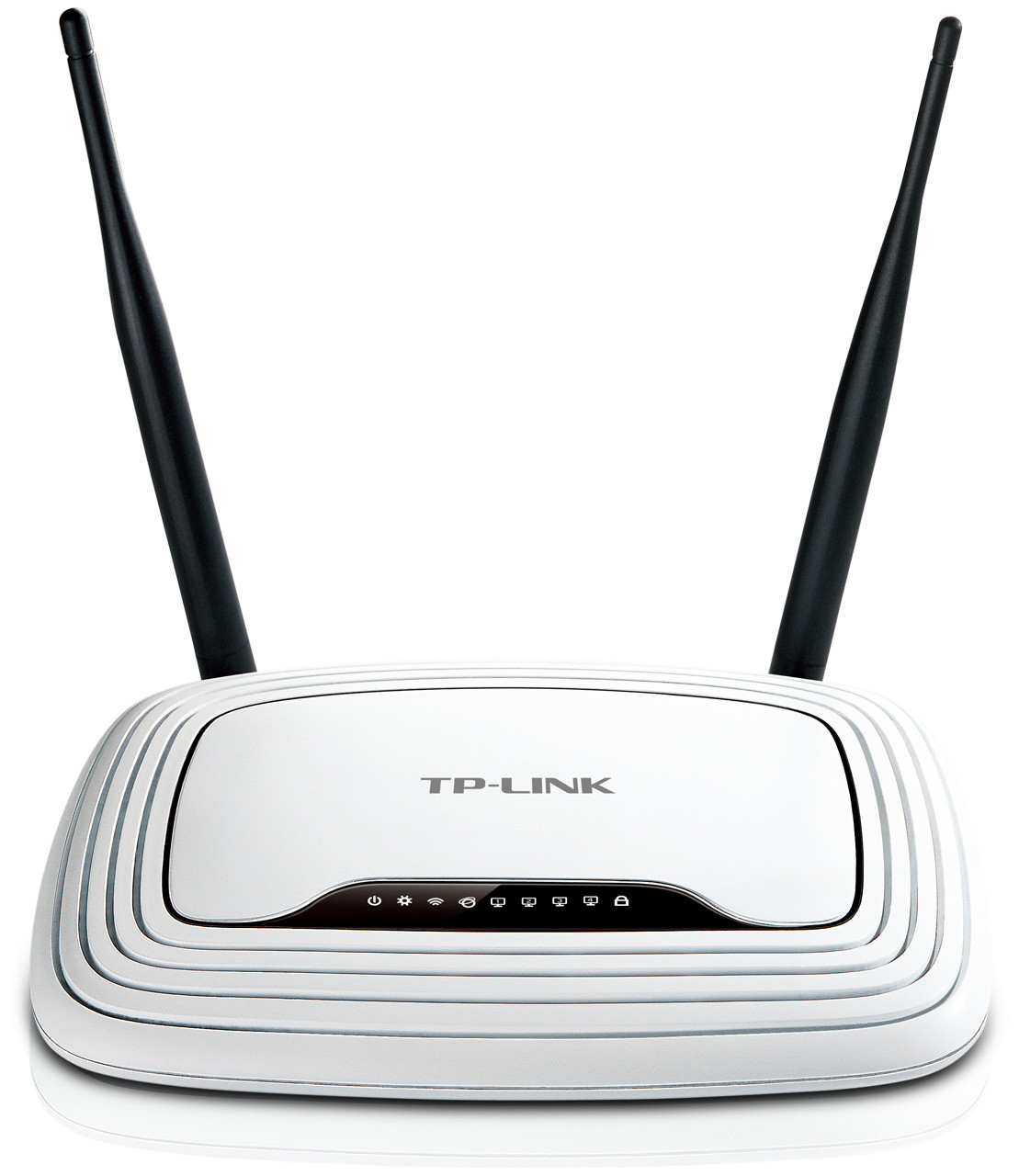
 With a router, you can combine various computer devices, tablets, and smartphones into one local network and connect them to an internet access point.
You can combine into a home network:
- desktop PCs;
- laptops;
- printers;
- scanners;
- Smart TVs;
- tablets;
- smartphones.
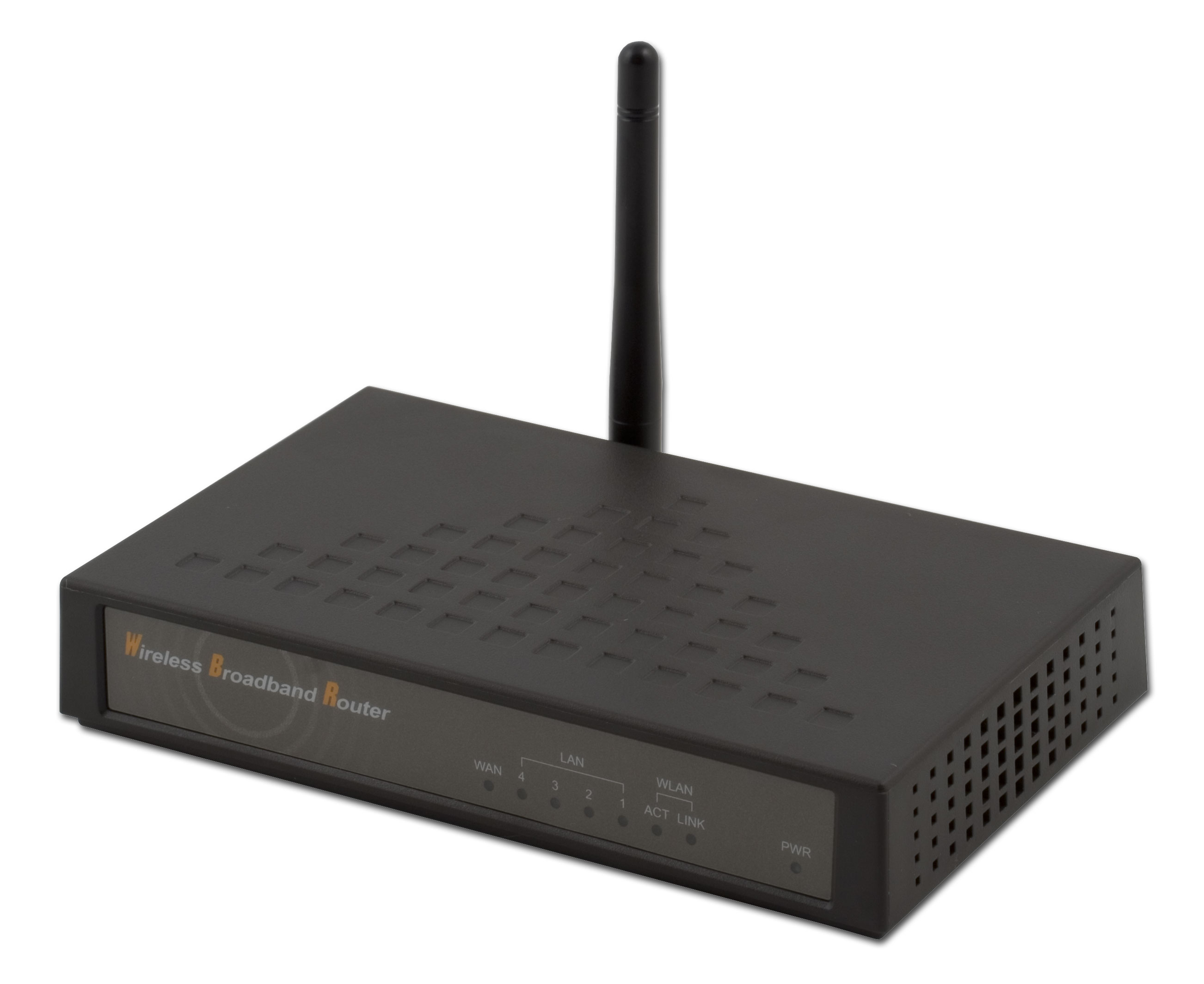 By installing a router, you forever get rid of internet usage problems; each family member can connect to the internet at any convenient time and for as long as needed. A router is not only convenience but also the absence of conflicts that inevitably arise in families with children, who also need the internet just like adults.
Router - Router
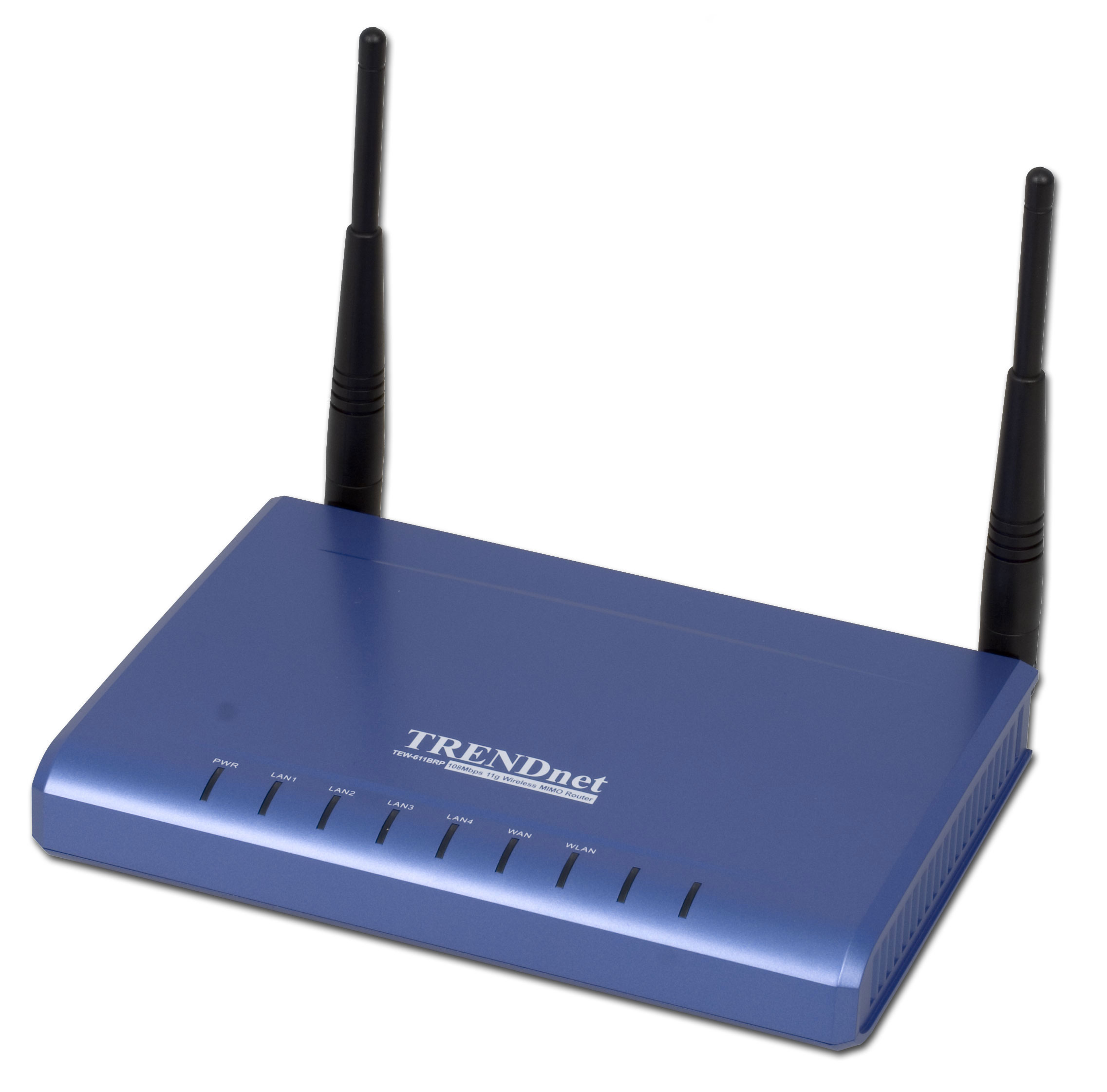 Many people confuse the concepts of a router and a router, try to find differences, or call the device a router router. This happens because manufacturers often call these devices differently, and in stores, you can see both names simultaneously. In fact, it is the same device: a router is the Russian translation of the English name router.
Connecting a router
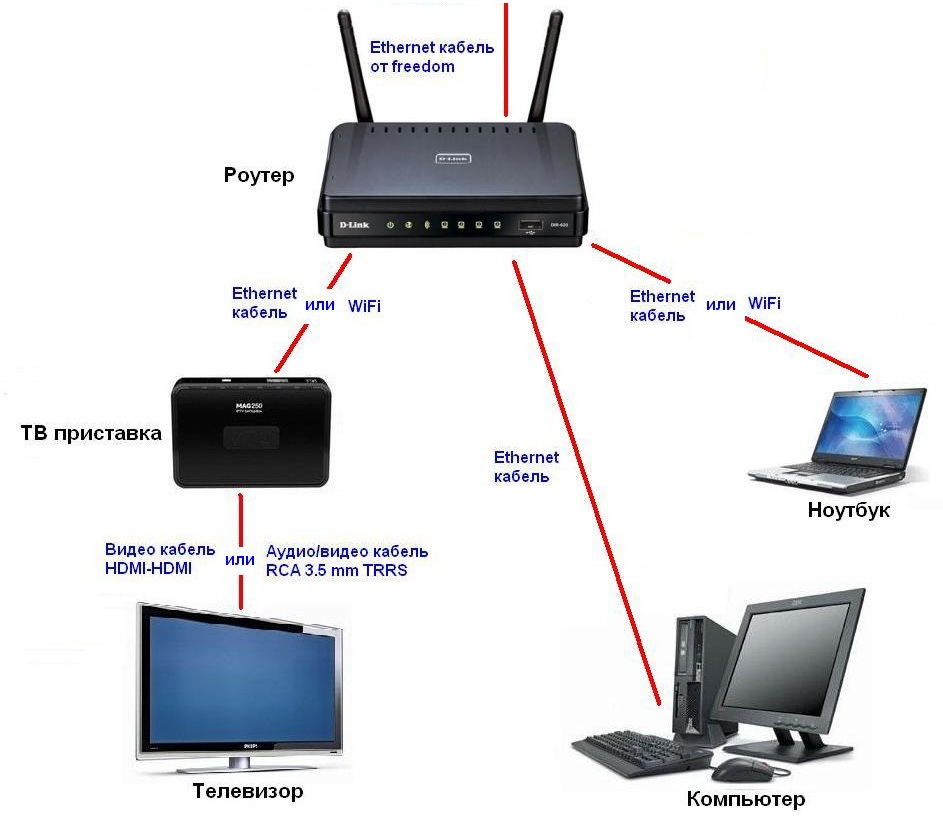
On the back panel of the device, there are connectors:
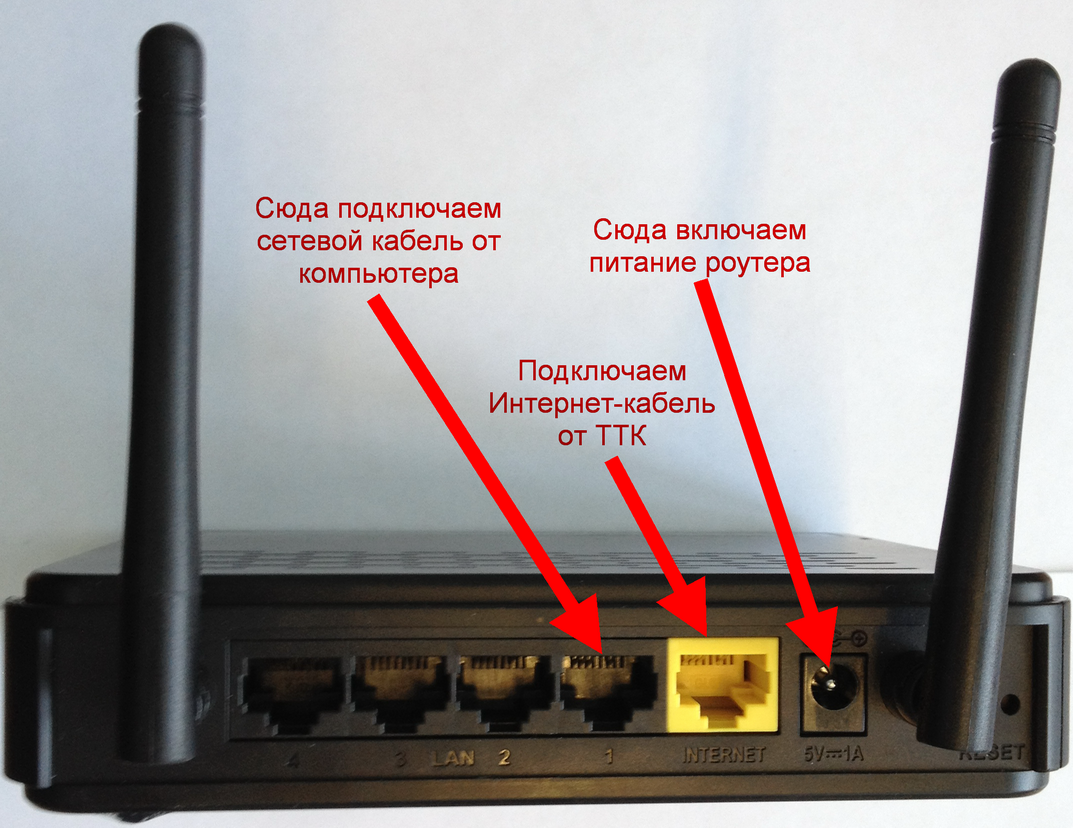
- power – power connection;
- WAN – connection of the provider's cable;
- LAN1-LAN4 – wired connection of PC, printer, etc.;
- reset – button to reset settings to factory defaults.
Modem router
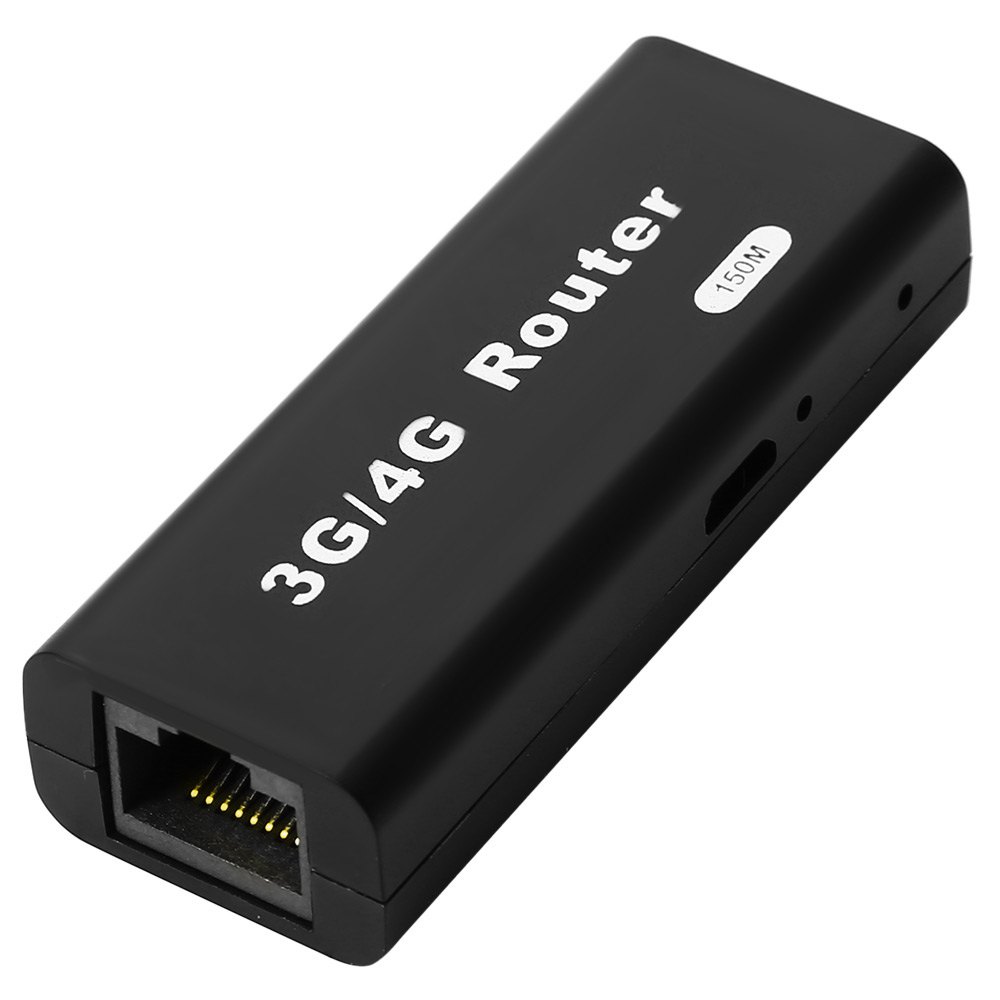 If your connection to the provider is via a telephone line or mobile communication, you will need a modem to convert the analog signal to digital.
There are models of routers that already have a modem built-in. Therefore, you will not have to buy a separate modem and router. Connection to the provider is made using an ADSL connector. No separate modem configuration is required.
If your connection to the provider is via a telephone line or mobile communication, you will need a modem to convert the analog signal to digital.
There are models of routers that already have a modem built-in. Therefore, you will not have to buy a separate modem and router. Connection to the provider is made using an ADSL connector. No separate modem configuration is required.
Router setup
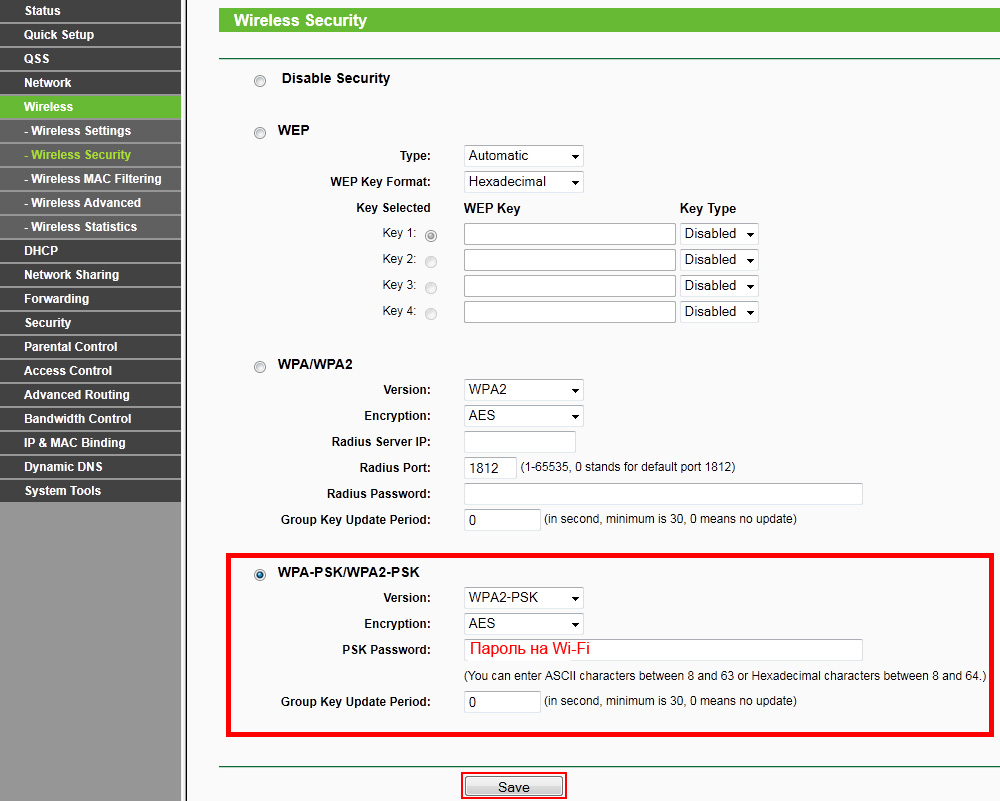 There are many models of routers, and each has its own setup instructions. Therefore, it is impossible to give general recommendations on how to set up a router.
The best option would be to contact the provider's technical support, whose specialists will perform all necessary work on installing and configuring the router, and during initial connection, they usually do the router setup for free.
Or do everything yourself according to the instructions provided with the router. For some providers, router setup is not required; the device will work with factory settings.
Just don't forget about security settings so that no unauthorized person can connect to your network.
There are many models of routers, and each has its own setup instructions. Therefore, it is impossible to give general recommendations on how to set up a router.
The best option would be to contact the provider's technical support, whose specialists will perform all necessary work on installing and configuring the router, and during initial connection, they usually do the router setup for free.
Or do everything yourself according to the instructions provided with the router. For some providers, router setup is not required; the device will work with factory settings.
Just don't forget about security settings so that no unauthorized person can connect to your network.
Wi-Fi router
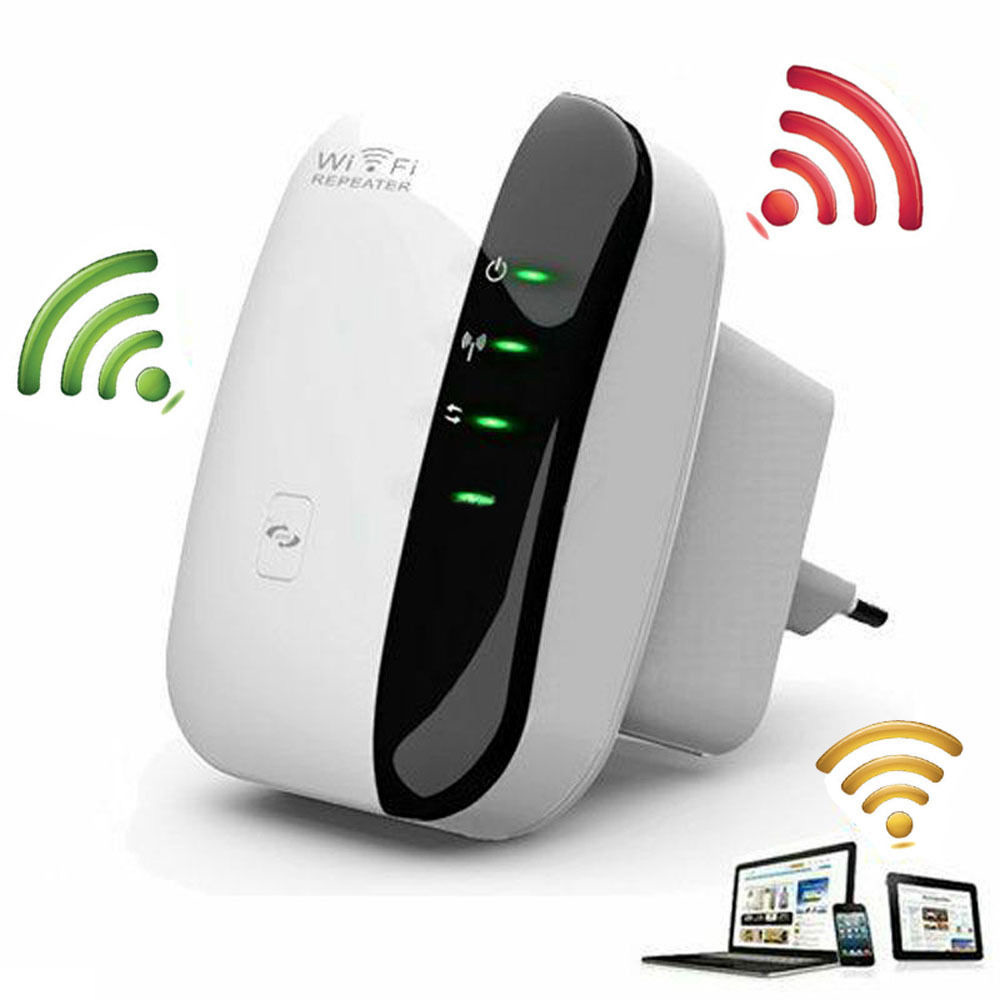 What is a Wi-Fi or wireless router? It is a device that connects to the internet via a provider's cable or to mobile operators and distributes it using radio waves.
It also combines all computer equipment equipped with Wi-Fi adapters into one local network. Thus, the user gains freedom of movement within the signal coverage area and gets rid of wires that could have entangled the entire room when using a regular wired router.
For ease of use, the Wi-Fi router is equipped with LAN ports – for connecting stationary equipment and devices without Wi-Fi adapters.
What is a Wi-Fi or wireless router? It is a device that connects to the internet via a provider's cable or to mobile operators and distributes it using radio waves.
It also combines all computer equipment equipped with Wi-Fi adapters into one local network. Thus, the user gains freedom of movement within the signal coverage area and gets rid of wires that could have entangled the entire room when using a regular wired router.
For ease of use, the Wi-Fi router is equipped with LAN ports – for connecting stationary equipment and devices without Wi-Fi adapters.
Network router
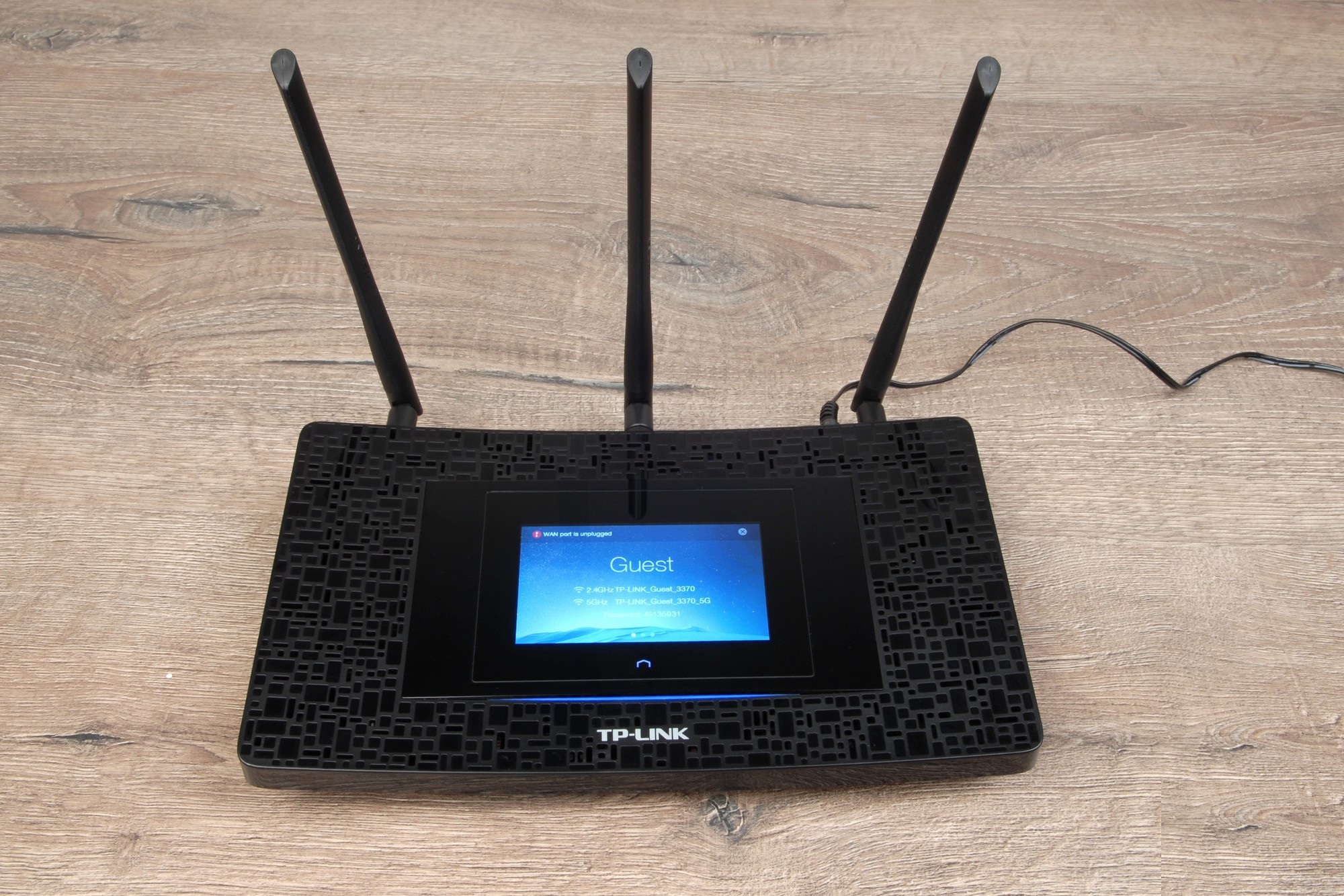 When creating a local home network, the router is a network router; it assigns an IP address to each device, periodically checks their status by sending test information, and maintains the network's routing table.
Communication between various devices and the internet is carried out using a routing table stored in the router's memory.
Now you know what a router is, how to connect and configure it; all that remains is to choose the right router.
When creating a local home network, the router is a network router; it assigns an IP address to each device, periodically checks their status by sending test information, and maintains the network's routing table.
Communication between various devices and the internet is carried out using a routing table stored in the router's memory.
Now you know what a router is, how to connect and configure it; all that remains is to choose the right router.
How to choose a router
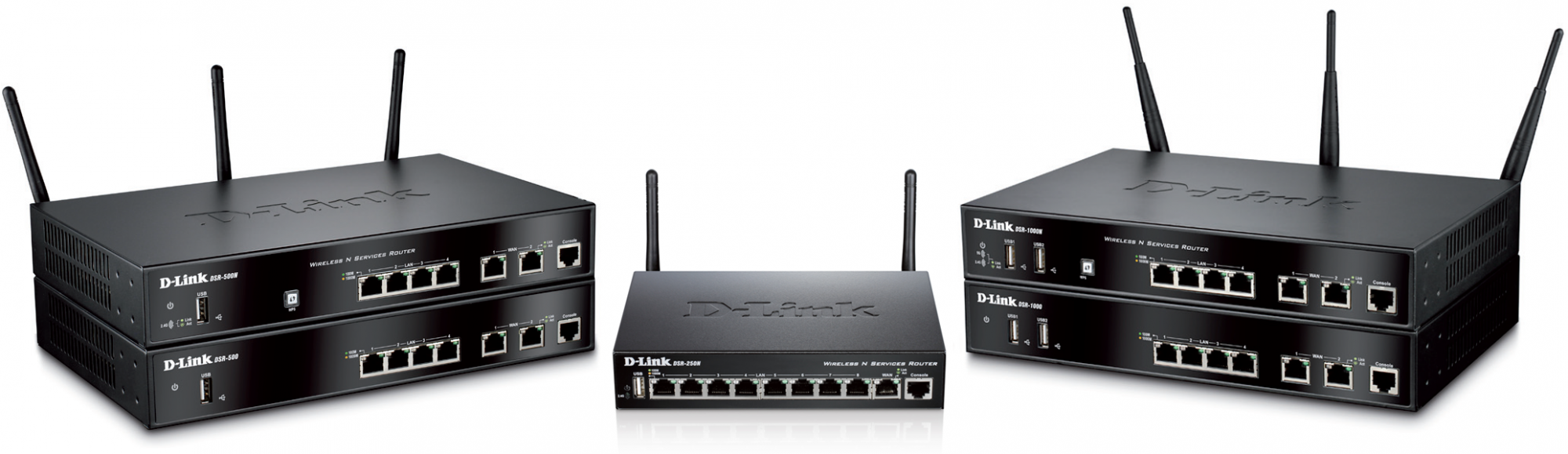 First of all, it depends on your budget and the purposes for which you are purchasing the router. Pay attention to the speed of the router's physical ports; it is desirable that they provide data transfer at a speed of at least 100 Mbps.
Avoid buying a Wi-Fi router with an internal antenna; the best option would be a router with two antennas, one works to receive the signal from the computer, the other to transmit, thus increasing the coverage area and the speed of the router.
It is necessary that the router supports internet access protocols with a minimum set - PPTP, L2TP, PPPoE. Modern Wi-Fi routers ensure this condition; it is better to clarify other parameters necessary for high-quality router operation with the provider's technical support service. Well, the color of the router's case depends on your preferences.
First of all, it depends on your budget and the purposes for which you are purchasing the router. Pay attention to the speed of the router's physical ports; it is desirable that they provide data transfer at a speed of at least 100 Mbps.
Avoid buying a Wi-Fi router with an internal antenna; the best option would be a router with two antennas, one works to receive the signal from the computer, the other to transmit, thus increasing the coverage area and the speed of the router.
It is necessary that the router supports internet access protocols with a minimum set - PPTP, L2TP, PPPoE. Modern Wi-Fi routers ensure this condition; it is better to clarify other parameters necessary for high-quality router operation with the provider's technical support service. Well, the color of the router's case depends on your preferences.
Where to install the router
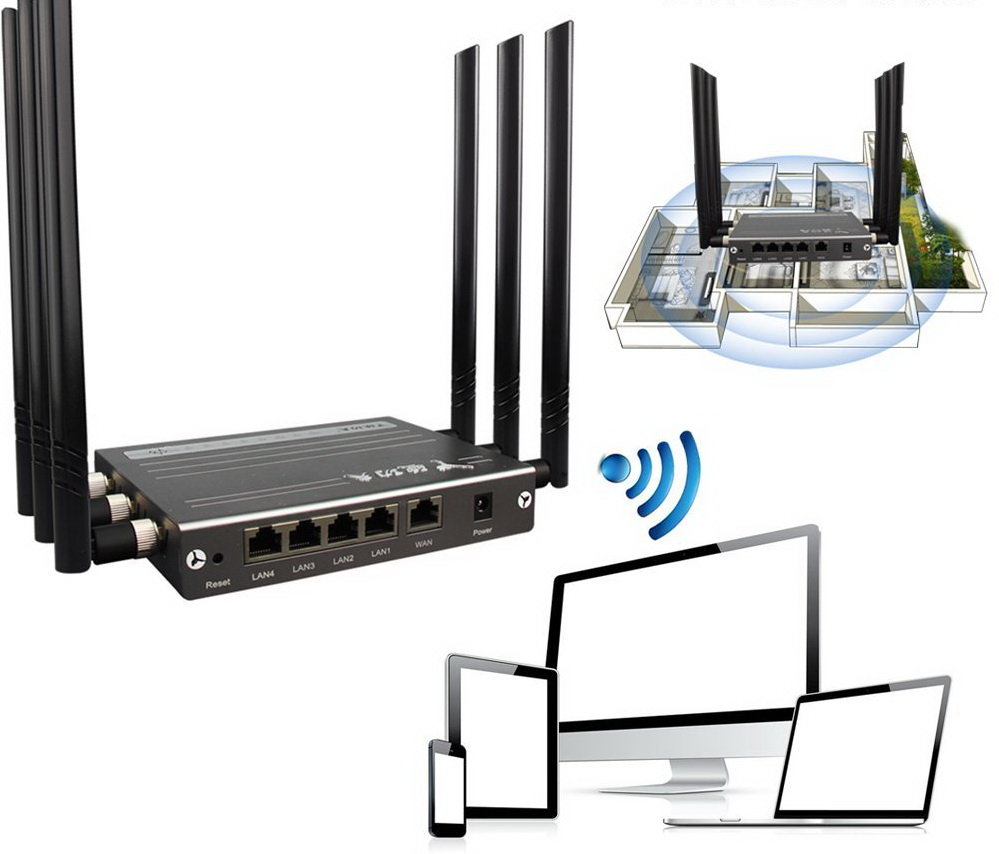 The quality of the router's operation largely depends on the correct location of its placement in the apartment and what devices are nearby. The router operates at frequencies of 2.4 and 5.0 GHz, so install it away from cordless phones, microwaves, and other equipment operating on the same frequencies.
It would be a mistake to install the router opposite a mirror or other surfaces that reflect the radio signal. A good option is to install the router on the wall in the hallway; for this, it has special grooves on the case. You will have to experiment by moving the router around the apartment and checking the signal quality in different rooms.
After choosing a location, secure the router if it will be placed on the wall, and carefully arrange the cables connected to the router to prevent accidental damage.
The quality of the router's operation largely depends on the correct location of its placement in the apartment and what devices are nearby. The router operates at frequencies of 2.4 and 5.0 GHz, so install it away from cordless phones, microwaves, and other equipment operating on the same frequencies.
It would be a mistake to install the router opposite a mirror or other surfaces that reflect the radio signal. A good option is to install the router on the wall in the hallway; for this, it has special grooves on the case. You will have to experiment by moving the router around the apartment and checking the signal quality in different rooms.
After choosing a location, secure the router if it will be placed on the wall, and carefully arrange the cables connected to the router to prevent accidental damage.