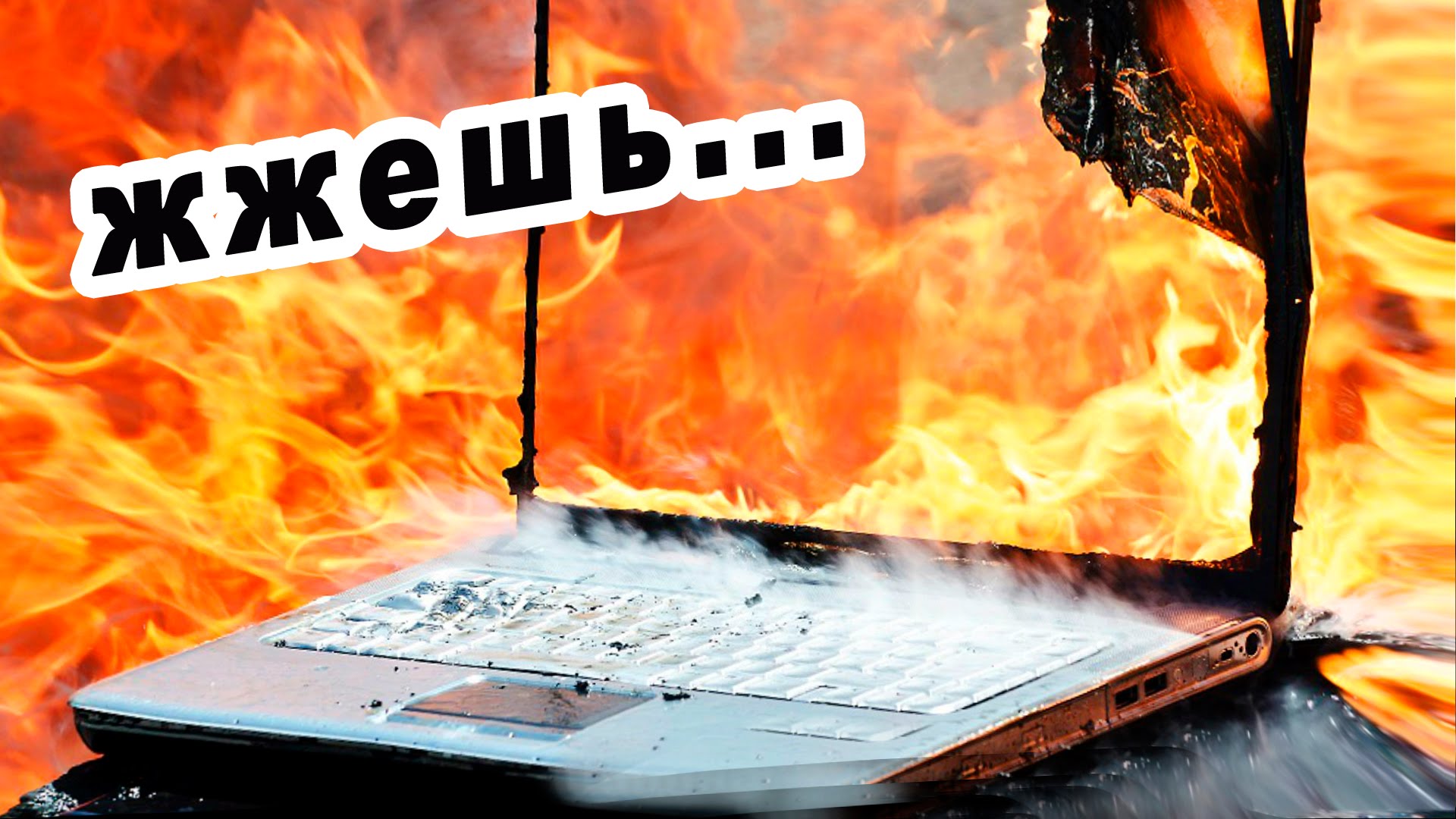
During operation, laptop components consume electricity, part of which is converted into heat, with the processor and graphics card heating up the most. There is a trend where the more powerful the laptop, the more heat it will generate.
Modern models, due to industry advancements, suffer from this issue to a lesser extent – they use non-thermally conductive materials, and the technology itself is thinner and more advanced.
Therefore, if you compare laptops of old and new models with the same power, the newer devices will heat up less.
Budget laptops, due to their low processing power, heat up weakly. More advanced, mid-range devices already emit a significant amount of heat, and the record holders in this regard are gaming laptops – their task is to deliver maximum performance.
For each type of laptop, a cooling system of appropriate power must be installed. Otherwise, overheating problems are unavoidable.
Main laptop components that generate the most heat
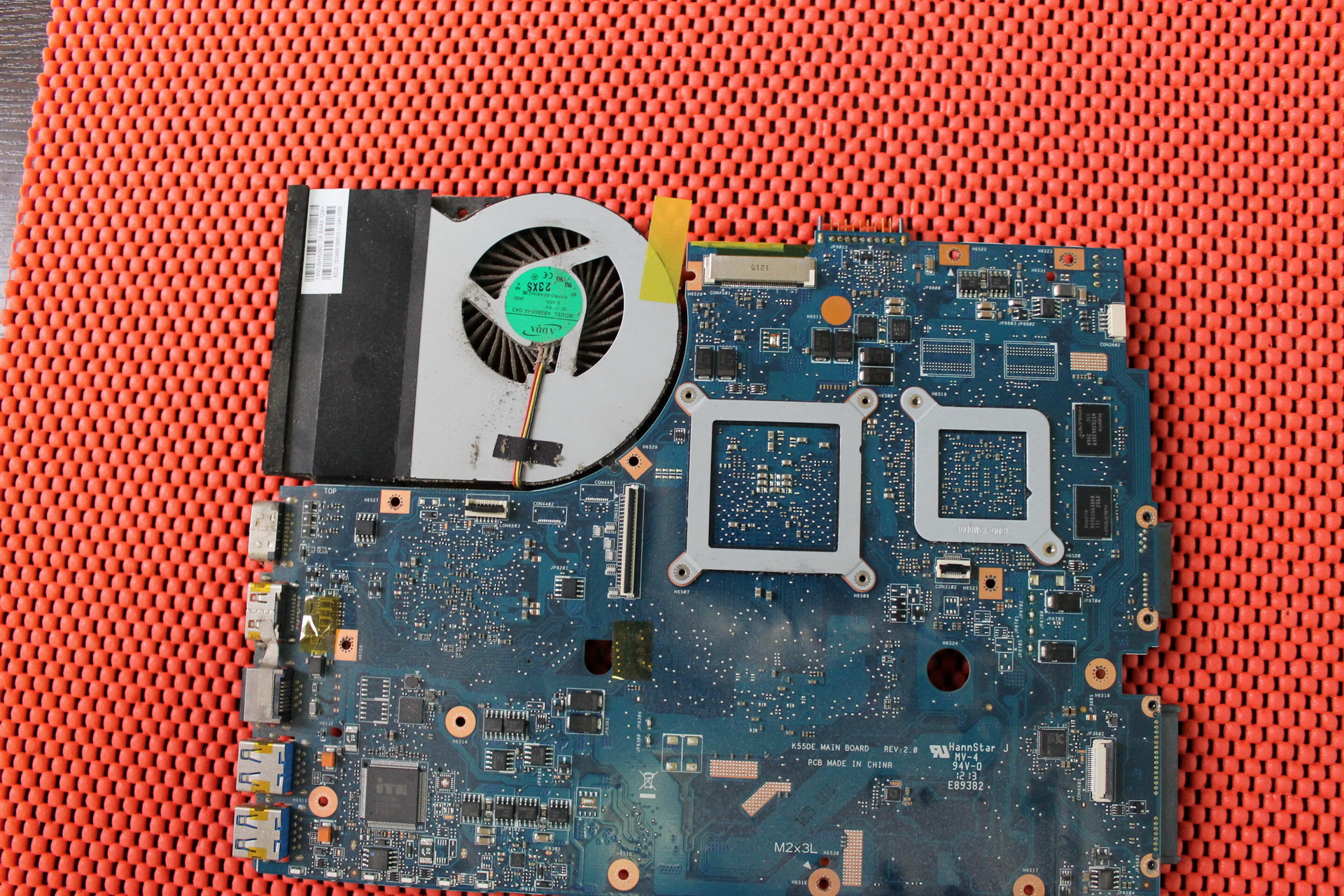
- Processor.
- Graphics card.
- Chipset.
During idle or light load, the laptop heats up weakly, but once you run "heavy" processes – games, conversion, opening many browser pages simultaneously – the temperature immediately jumps significantly.
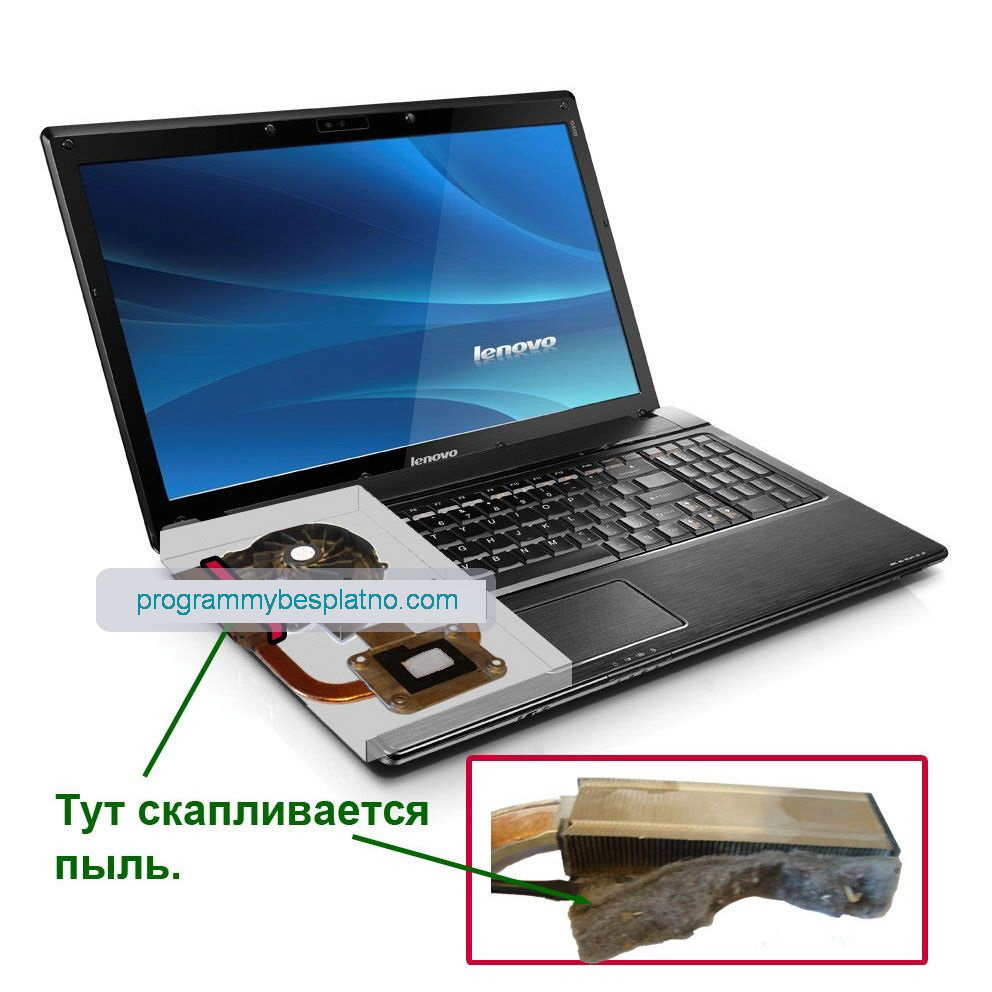
When the computer is new, the question "the laptop gets very hot, what to do" almost never arises, because the cooling system handles its task. But after some time, dust clogs the radiator fins or natural wear and tear of the mechanism begins, and the fans stop performing their functions at 100% efficiency.
Overheating of components causes the laptop to shut down automatically – this triggers the safety system designed to cut off power before the temperature reaches a critical point.
Many users wonder why the laptop heats up. Besides dust, there are several explanations, but first, one point needs to be clarified.
Determining what exactly is heating up in the laptop
 If the laptop heats up and shuts down, you need to find the source; the program "AIDA 64" is suitable for this. The utility collects complete information about the computer's hardware and operating system, including temperature data.
Special sensors are built into the important components of the laptop, which register the degree of heating of a particular element; "AIDA" reads this information.
To find out the temperature, the following steps are required:
- Launch the program.
- Go to the "Computer" section.
- Select the "Sensors" tab.
- aida64, check temperature, laptop overheating
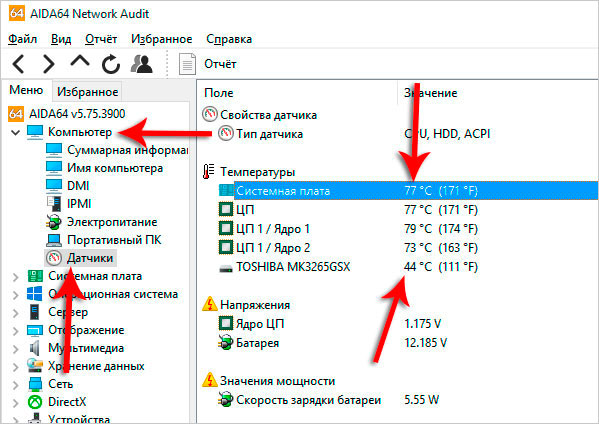
A panel will open showing the current temperature of each element – if this indicator is critical, the numbers will turn red.
It is recommended to check the acceptable temperature range for each component yourself. This information can be found in the technical documentation or on the manufacturer's official website.
Remove unnecessary programs from startup
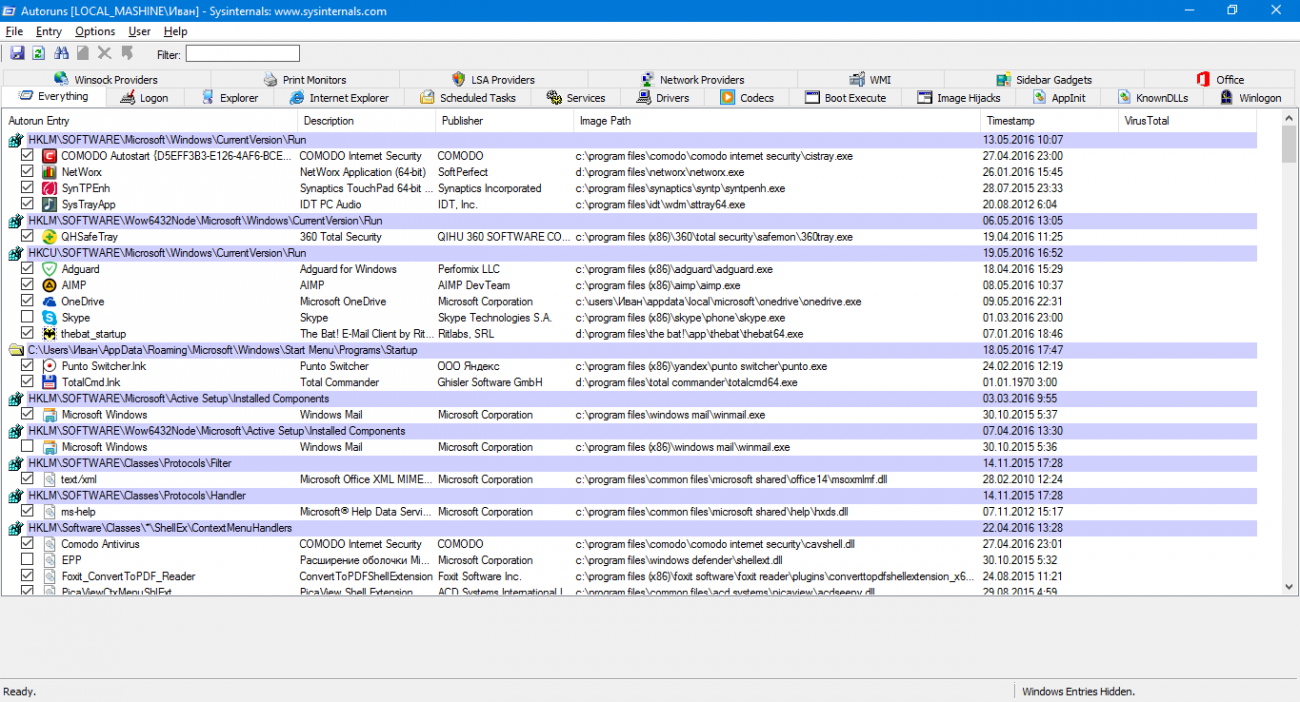
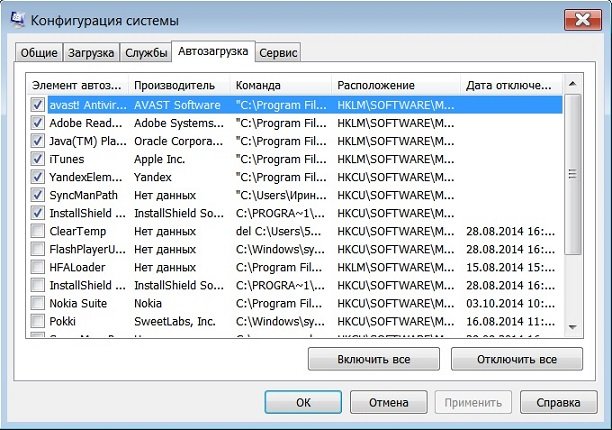 When the laptop gets very hot, the next step is to turn off programs that are not being used. During use, people install many applications – almost every one of them has extensions or independently installs its own auxiliary software.
A person may simply not know that a particular program is running on their computer. Each such utility puts a load on the system – energy consumption increases, heat output rises.
So, if the laptop gets very hot and you don't know what to do – remove unnecessary programs from startup
- Press the key combination Win+R.
- A window will open where you type the command "msconfig" (without quotes).
- The "System Configuration" window will appear. There, go to the "Startup" tab.
- Uncheck the programs that are not needed.
Additionally, pay attention to the system tray. It is located in the lower right corner, next to the notification area – there is a chance that many unnecessary programs are currently open, loading the computer.
Cleaning the cooler
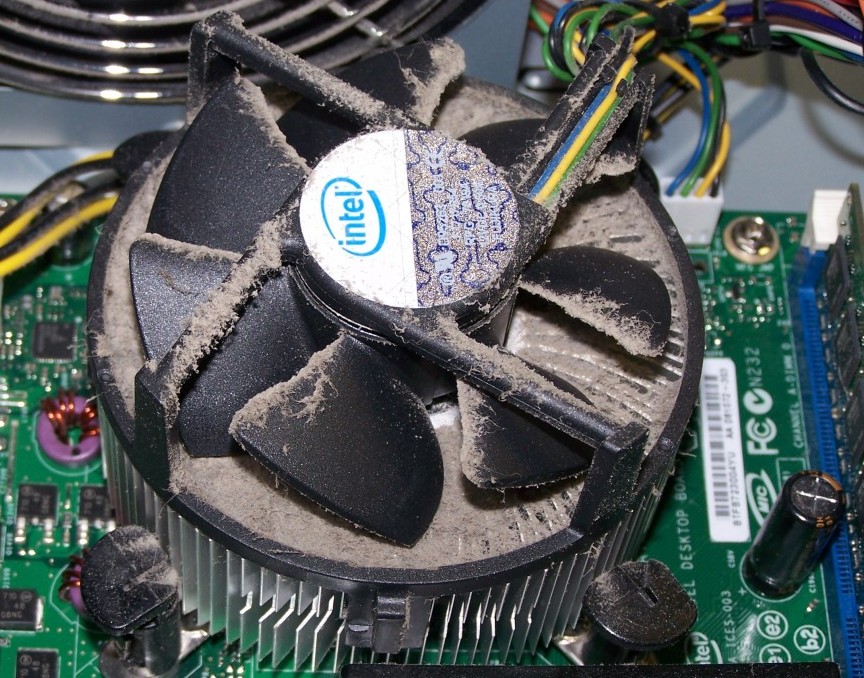 At times when the laptop heats up and makes noise, you should consider cleaning the radiator and fan – dust, along with water, is the main enemy of any equipment.
Every electronic device creates a static field around itself that attracts dust – it clogs the fan blades and radiator grille, preventing the laptop from cooling with the required efficiency. There are users who believe that cleaning the computer is not worth it. The result is known – the device either burns out completely, or components fail.
If you lack experience, cleaning the laptop yourself is not recommended; this is not a personal computer with a spacious system unit, everything is minimized, and with the slightest carelessness, you can damage the device. The right option is to contact specialists – the computer cleaning service is one of the cheapest.
Replacing thermal paste
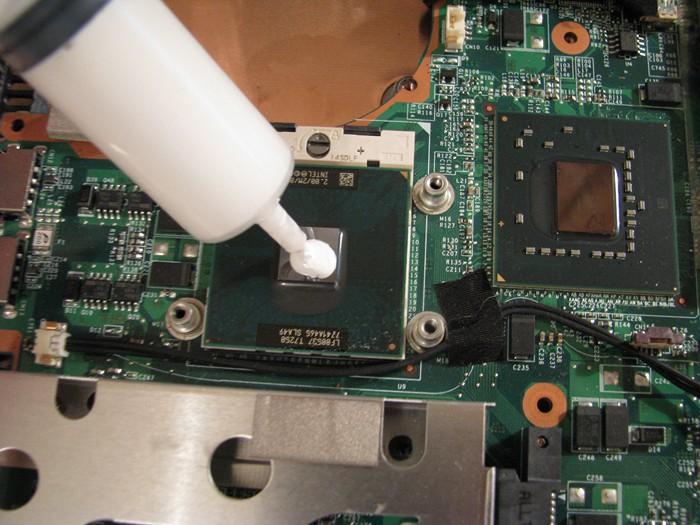 The processor always heats up more than other laptop components. This can be indicated by sensor readings recorded in "AIDA 64".
Thermal paste is responsible for transferring heat from the CPU to the radiator – if the processor on the laptop heats up, it's time to replace it. The service life of thermal paste is two years; replacement can be done at a service center.
Checking for viruses
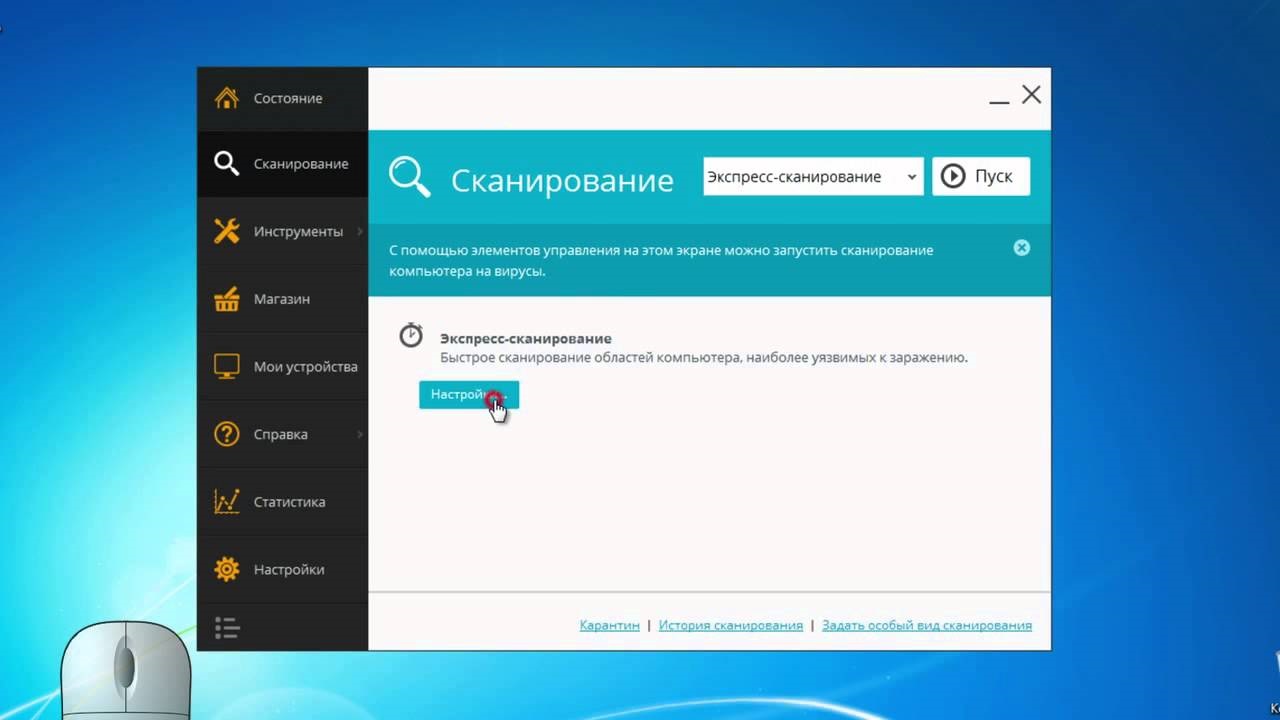 Virus programs serve different purposes – some steal data, others are designed to disrupt the normal operation of the operating system. A good method is to install a utility on the computer that constantly launches its copies, increasing the number of active processes, which leads to CPU load.
So, if the laptop heats up and shuts down, and you don't know what to do – check the system for malicious files – simply update your antivirus database and run a scan.
Precautionary measures
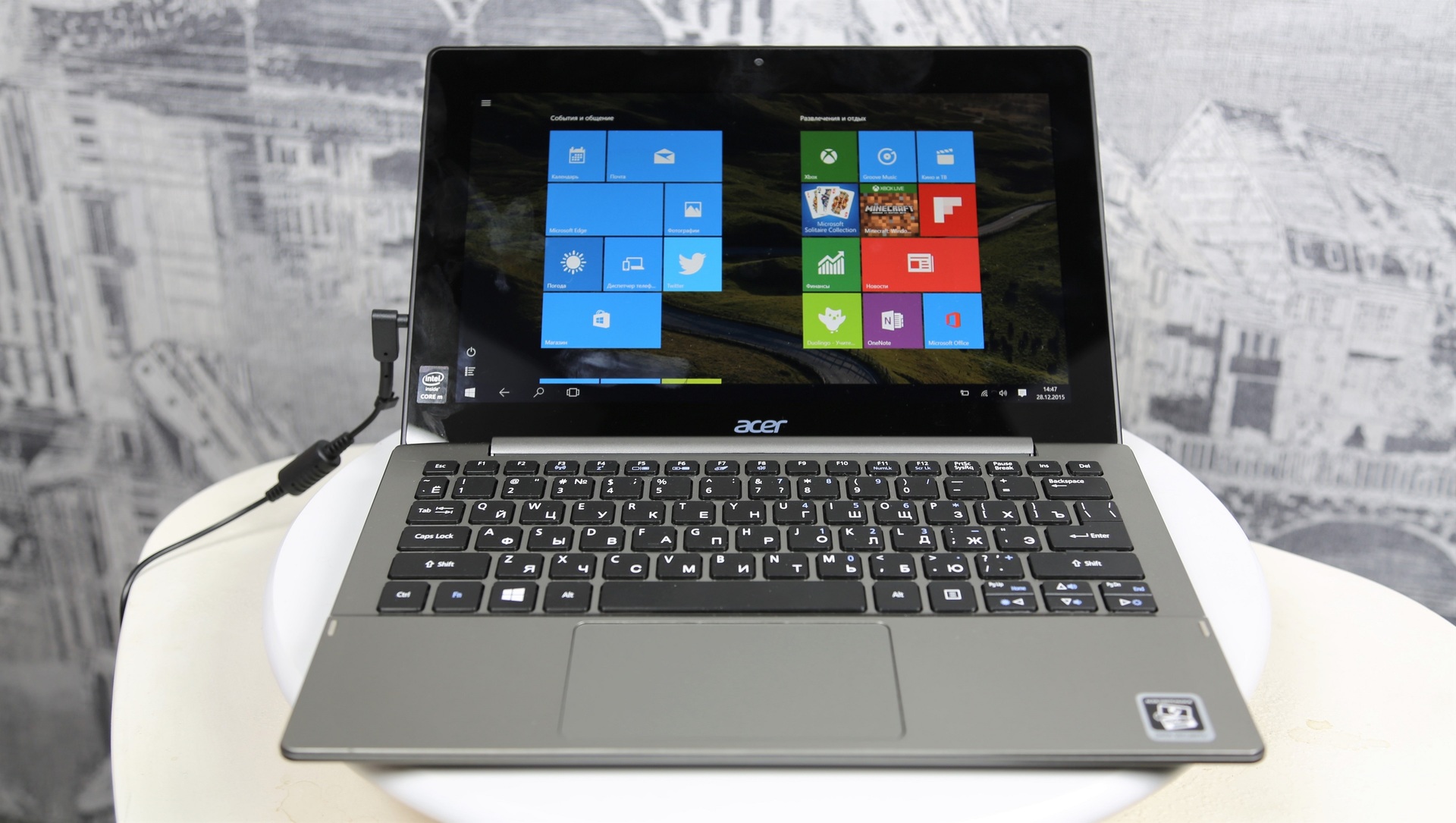 To avoid encountering a situation that leads to the question, why the laptop gets very hot, you should follow some precautionary measures – they will help avoid increased heat output from the computer's components.
Use a cooling pad
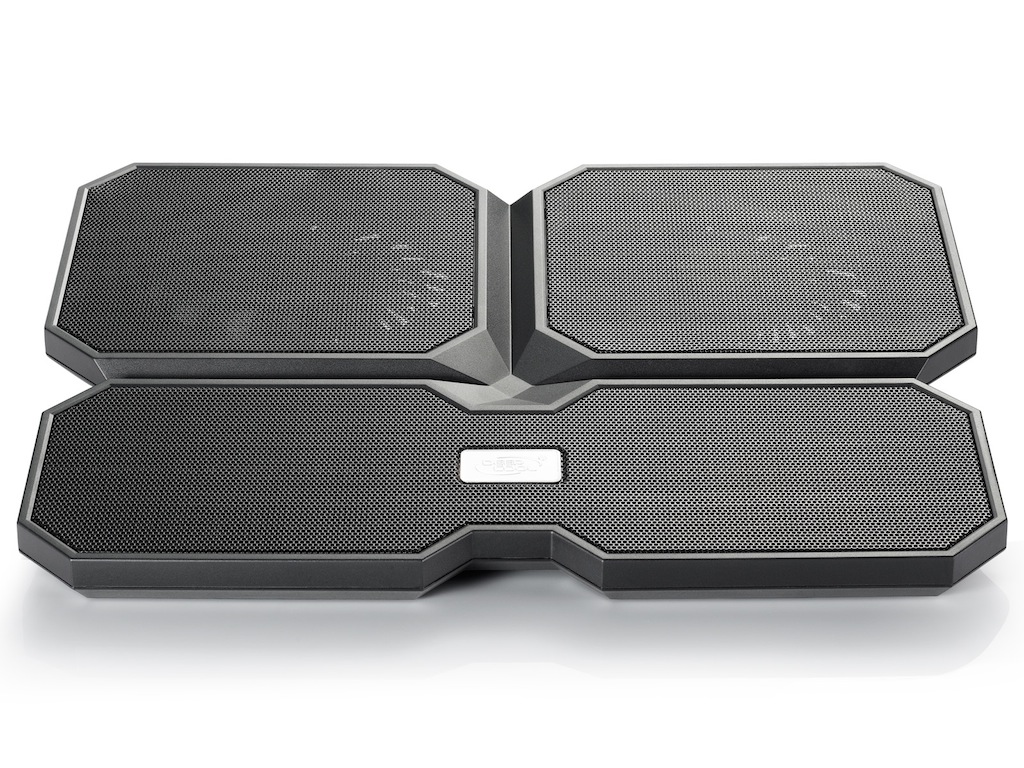
This is not a permanent measure – use the device only when the laptop is about to perform work involving a heavy load. If you are planning to play games, it is recommended to use a cooling pad.
Load distribution
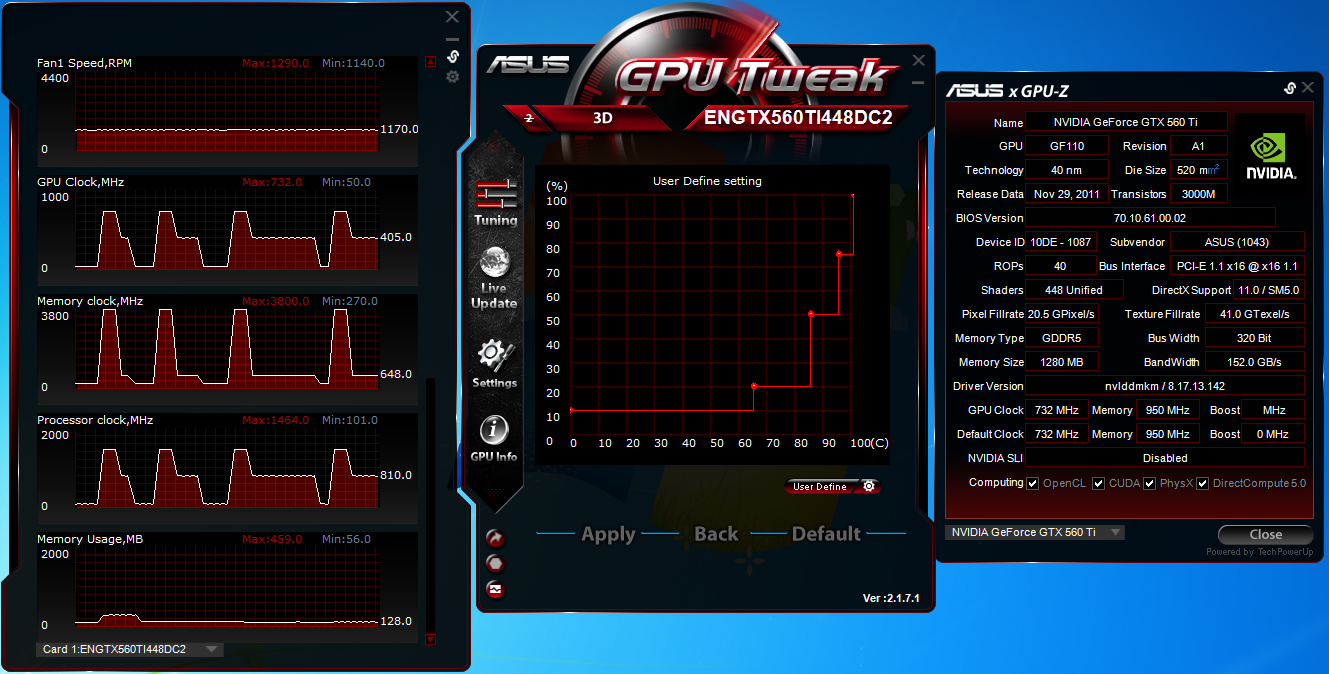
It is recommended not to use resource-demanding software simultaneously. If you are working in Photoshop, then forget about the browser; if you are converting video, turn off Skype. Launching several energy-intensive processes leads to overheating.
Limit power consumption
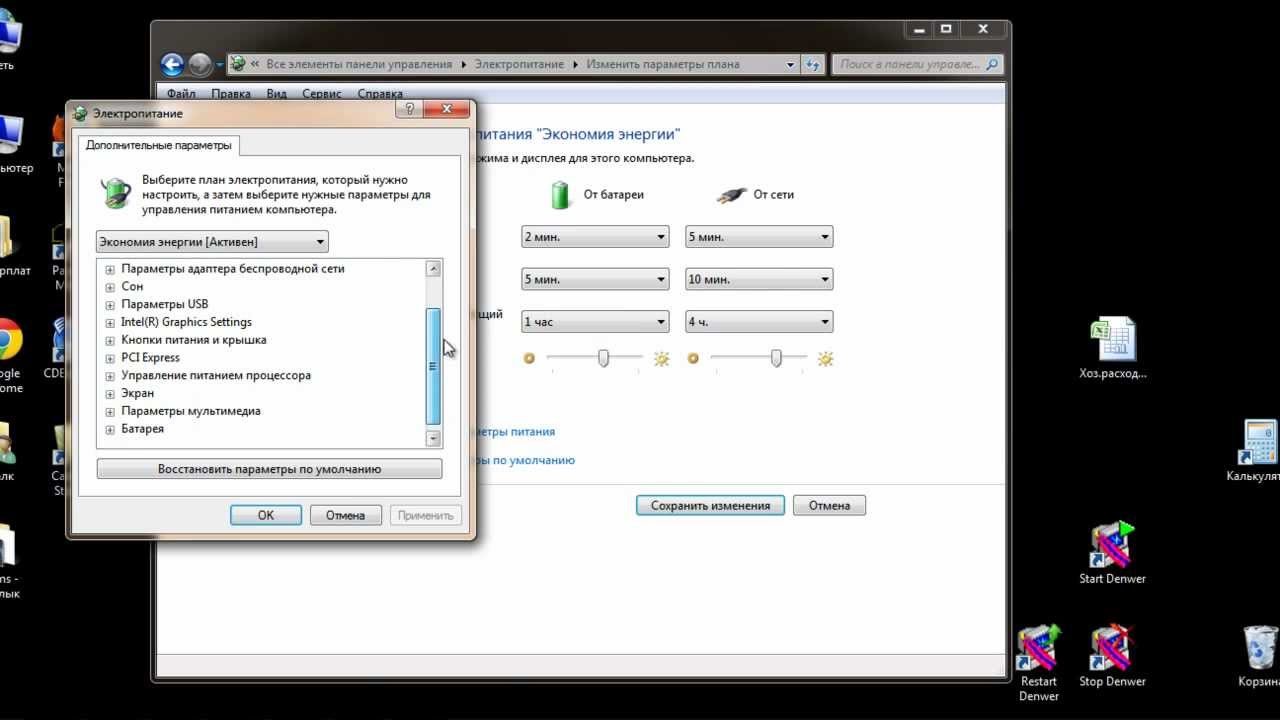
When all previous methods have not yielded results and the laptop still heats up and shuts down, and the user no longer knows what to do, reducing power consumption may fix the situation. Access the corresponding settings through the "Start" menu – "Control Panel" – "Power Options".
There, first, reduce the screen brightness to 50%, then check what type of power plan is being used – select "Balanced". Next, you will need the section "Change advanced power settings".
In it, go to "Processor power management", where you select the maximum state equal to 95% (on battery and plugged in). Save the changes made, restart the system.