It is not uncommon for Adobe Flash Player not to install on the system, there can be many reasons for this problem, however, most often the solution lies in some small detail.
To install Adobe Flash Player, you should download the latest version of Adobe Flash Player, detailed instructions for installing Adobe Flash Player. If you also failed to install the latest version, try restarting your computer and closing all running programs.
Pay special attention to browsers; they all must be closed. Also, we advise you to update all the browsers you use. In addition, cleaning your computer with the program CCleaner will be extremely useful (including registry fix).
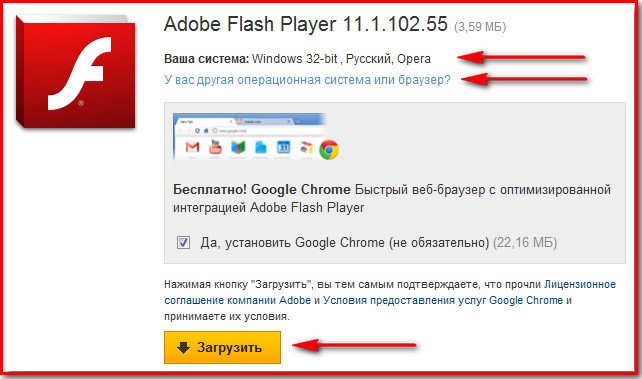
Generally, most often, the reason for the inability to install Adobe Flash Player is an outdated version of the browser or the player itself. Also, do not forget about the bitness of your system, because if you downloaded Adobe Flash Player that does not match your system's bitness/version, it will not install. Be sure to pay attention to the bitness of the Adobe Flash Player you are downloading.
You can find out your system's bitness in the computer properties: to do this - right-click on the "My Computer" icon on the desktop or in the "Start" menu, then select the "Properties" item.
A system information window will open, where the system's bitness will be indicated. In addition, we advise you, during the installation of Adobe Flash Player, to disable antivirus software, turn off the FireWall, and generally, all running programs and unnecessary processes. Also, sometimes it happens that the installation is launched several times in a row; in such a case, we advise you to restart your computer, close all unused programs, right-click on the Adobe Flash Player installation icon and select the "Open" item.
Good luck!