If Windows does not see the printer, the problem almost always lies in driver issues. However, we also recommend that you check the connection of the printer cables to the computer, as well as the functionality of the printer itself. If the connections are established and the printer is working, you should install/reinstall the printer driver in Windows OS.
This procedure is quite easy and will not take much time and effort.
1) Launch "Device Manager". To do this, open "Control Panel" from the "Start" menu and type "Device Manager" in the search, then select the corresponding item in the search results. 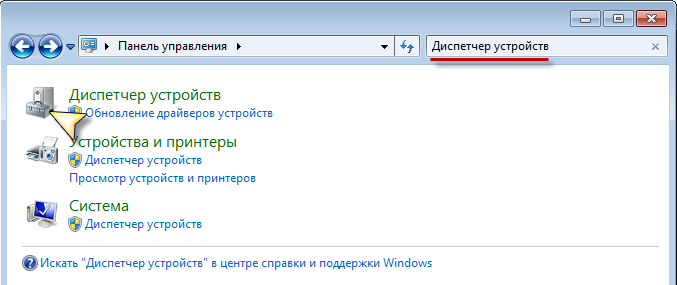
2) In the list that appears, find your printer. Most likely, near the printer name, a yellow icon with an exclamation mark inside will be displayed, meaning that Windows cannot interact normally with the device.
Right-click on the printer name and click the right mouse button, then select "Properties". Next, in the window that appears, go to the "Details" tab. In the "Property" list, select "Hardware Ids". In Windows XP, this item is called "Hardware ID". 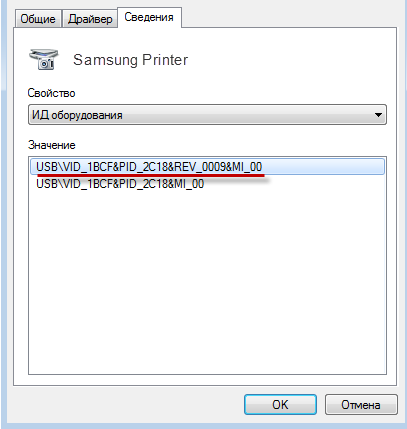
3) Copy the code that appears after selecting the "Property" item. If there are several codes, select and copy the first one, then you can close "Device Manager".
4) Go to https://www.devid.info. Paste the previously copied code into the search bar and click the "Search" button. 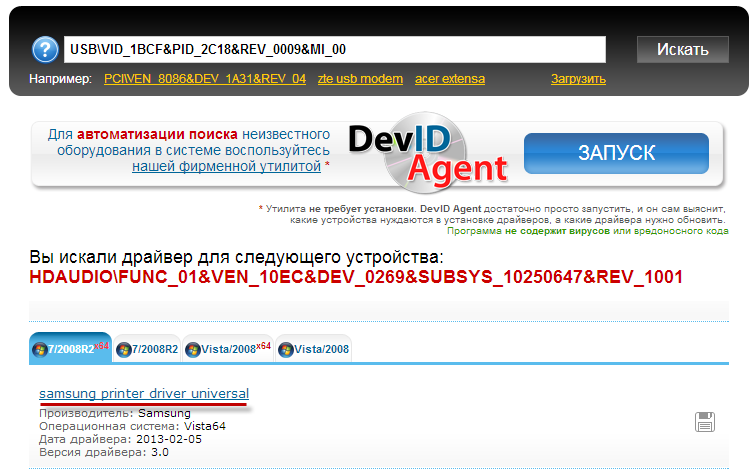

6) Then, after the driver download is complete, install the downloaded driver, restart your computer, and check how Windows sees the printer.
For all versions of Windows, the problem is usually solved only in this way - even for Windows 8.1.
You might be interested in programs on the site:
- Download alcohol 120 Russian free
- Download Virtual DJ free
- Download Skype free for Windows
- Download free Russian version of Nero
- Download free version of Kaspersky antivirus
- Download Windows Movie Maker free
Good luck!