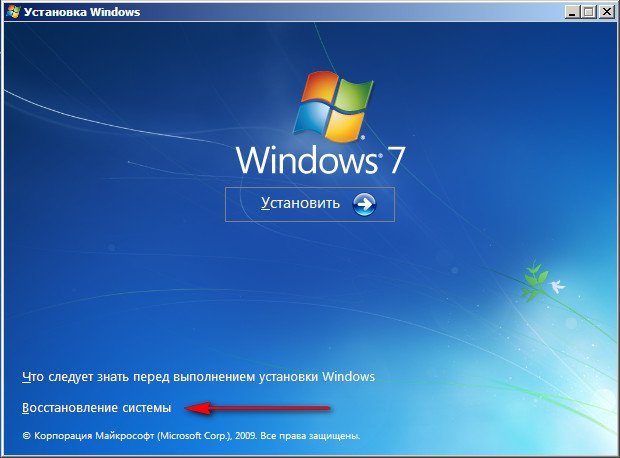
As a rule, the BOOTMGR is missing error in Windows 7 occurs when the Windows bootloader crashes or the BOOT settings in the BIOS are reset. This problem can be fixed quite simply. First, you should launch the Windows recovery console. To do this, during BIOS startup, press the F8 key, after which a window for selecting the computer boot option will appear.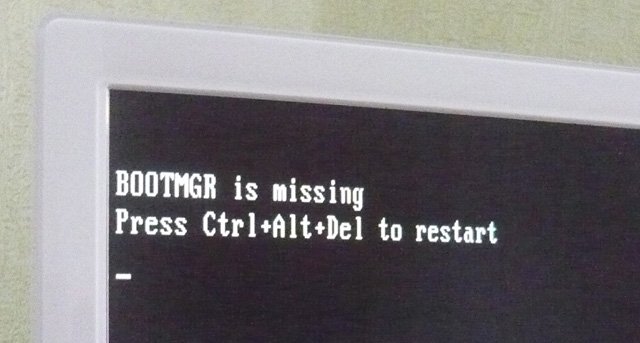
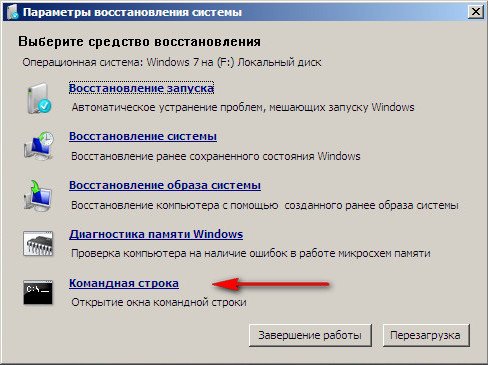
Select the boot option "Troubleshoot your computer".
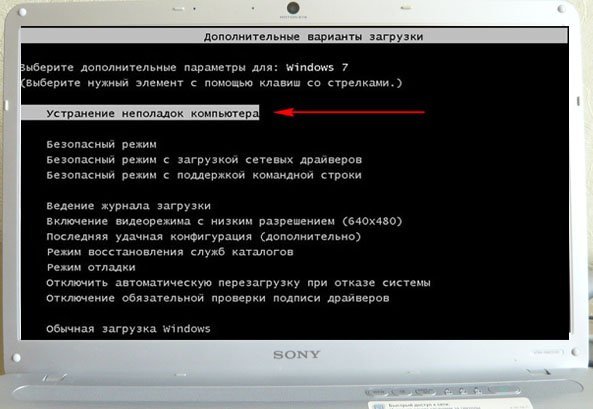 If this item is missing, try inserting a Windows 7 recovery disc or a Windows 7 installation disc, and when selecting startup options, click the "Repair your computer" button.
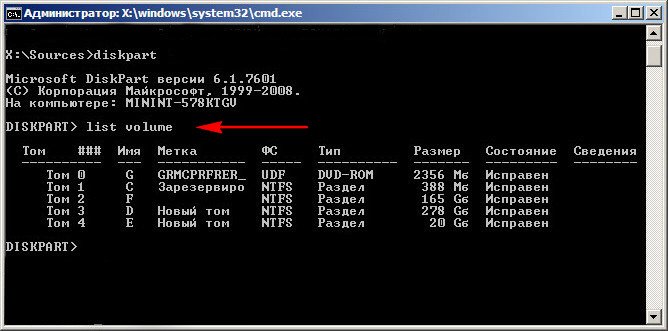
In the command line, type the command "diskpart", followed by the command "list volume" and see which volumes/drives are present. In this case, the OS is located in the F partition.
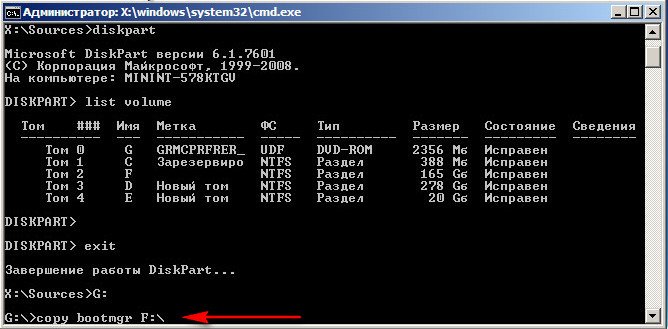
Now, exit diskpart with the command "exit", then navigate to the inserted DVD disc partition with the command "G:", and then enter the command "copy bootmgr F:\", thereby copying the bootmgr file from the disc to the system.
 Restart your computer, the problem should be resolved. However, if this error still appears, try opening the BIOS settings (press DEL during startup), then go to the "BOOT" tab and select the "Boot device priority" item.
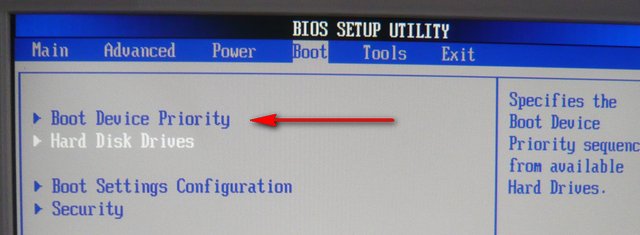
All that remains is to set the hard drive with the installed Windows OS as the first priority in the list.
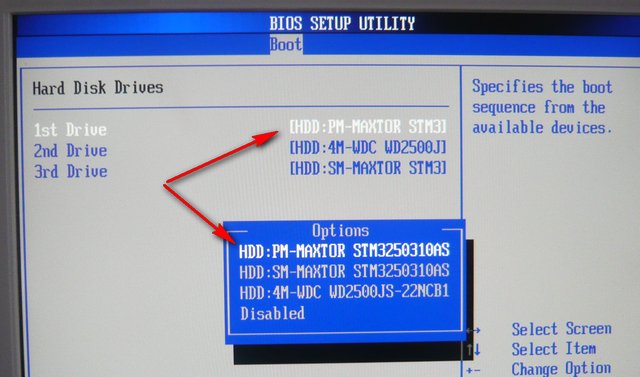
Save the settings with the F10 key and restart your computer. The problem with the BOOTMGR is missing error should be resolved.
You may also be interested in programs on the site:
- Download alcohol 120 Russian free
- Download Virtual DJ free
- Download Skype free for Windows
- Download free Russian version of Nero
- Download free version of Kaspersky antivirus
- Download Windows Movie Maker free
Good luck!