As a rule, the error "Unable to delete file" appears because the file is currently being used by some program. To delete this file, you should close the program that is using it. This can be done using the Task Manager, which is part of Windows programs.
In general, almost every operating system has a Task Manager, whatever it may be called. The Task Manager is a special program that allows you to monitor almost all currently active processes. The Task Manager not only allows you to view the list of processes but also to manage these processes.
Solution: how to delete a file that refuses to be deleted
Specifically, it allows you to end a process (turn it off), change its priority in the system, and also start new processes (tasks). To open the Task Manager in Windows, you need to press the key combination CTRL+ALT+DEL, after which, depending on your OS version, either the Task Manager will appear immediately or a system menu where you can select the Task Manager.
The Task Manager looks like this:
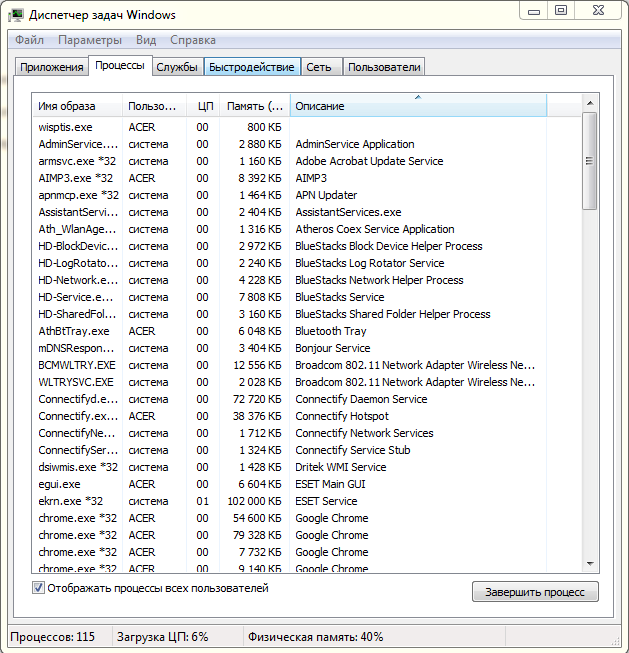
It displays 6 tabs, but only 2 are important. Specifically, the "Applications" tab and the "Processes" tab are of interest. The "Applications" tab shows currently active programs.
Attention!
Do not confuse the term "Process" with the term "Application", as there is a difference between them. An application is a program that is currently running and displayed on the screen or in the system tray. A process is a program that is currently running but not necessarily displayed on the screen at that moment. An application is a process, just as a process is an application, but processes refer to those applications (programs) that are currently active in the system, while applications refer to those programs that are currently active and displayed on the screen, i.e., not running in the background.
Background mode is when a program runs in such a way that it is not displayed on the screen. Programs that minimize to the system tray are also considered background programs.
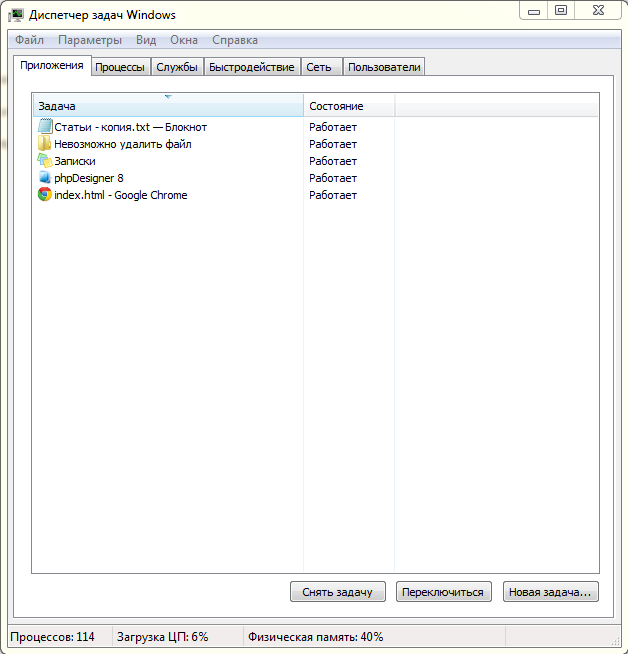
Now you understand the difference between the term "Application" and the term "Process". The Task Manager separates processes precisely based on this feature. So, to find out which program has the file you want to delete open, you should go to the "Applications" tab, find the desired program there, then close the file in it, or simply end the process of that program.
If that doesn't help, we recommend closing all programs, after which the file should be deleted. If it still doesn't help, try restarting Windows; this will likely solve the issue. If the file still cannot be deleted, then you are probably trying to delete a system file or an infected file that a virus prevents you from deleting.
Possible other issues
In this case, there are 2 possible solutions: either clean your computer of viruses or install specialized programs, i.e., those that delete the specified file during the operating system boot, when processes have not yet loaded.
It is also worth explaining the difference between closing a program (process) from the "Applications" tab and from the "Processes" tab. When you try to close (end) a process from the "Applications" tab, the Task Manager does not actually close the application. When you click the "End Task" button, the Task Manager sends a message to the specified process telling it to close.
In this case, sometimes programs close, sometimes they don't, and this method is especially often ineffective when the specified application is frozen.
If you still need to close this program by any means, you should use the "Processes" tab, because a process closed via the "Processes" tab is closed in a slightly different way than in the "Applications" tab. In this case, the Task Manager does not notify the process of anything; it simply removes it from memory, meaning the process closes instantly without any issues.
However, it can sometimes be difficult to find the desired process in the large list of processes in the "Processes" tab, especially when you are looking for a specific process from the "Applications" tab. In this case, you can use a simple solution. Find the desired program in the "Applications" tab, right-click on it, and then select "Go to Process". After that, you will automatically be taken to the "Processes" tab, and the desired program (process) will be automatically highlighted.
You might also be interested in programs on the site:
- Download alcohol 120 Russian free
- Download Virtual DJ free
- Download Skype free for Windows
- Download free Russian version of Nero
- Download free version of Kaspersky antivirus
- Download Windows Movie Maker free
Good luck!