Keeping up with the development of computer technology is almost impossible, as the market segment of computer technology is overflowing with offers of mobile gadgets capable of providing a connection to the World Wide Web.
It is easy to connect to the internet when you have a network router installed at home, but what to do if you only have internet with a 3G connection or an ISP connector, and you need to use the internet from a smartphone or another mobile internet device?
How to share Wi Fi from a laptop and is it possible using the functional capabilities of the operating system, or will the laptop become a router only after installing special programs?
How to make a portable PC a virtual router?
 Yes, connecting to a wireless network via a laptop is possible. Malfunctions of a stationary router will not prevent you from using the achievements of humanity; you can turn your laptop into a virtual router.
Connection to the network is provided by Windows system tools, and many users also use utility programs. These options have their own pros and cons, try them and choose the method convenient for you.
Operating system capabilities
 How to share Wi Fi via a laptop using the capabilities of the operating system? A connection to the wireless adapter is a mandatory condition for sharing an internet connection using Windows functionality tools.
How to make a laptop share Wi Fi?
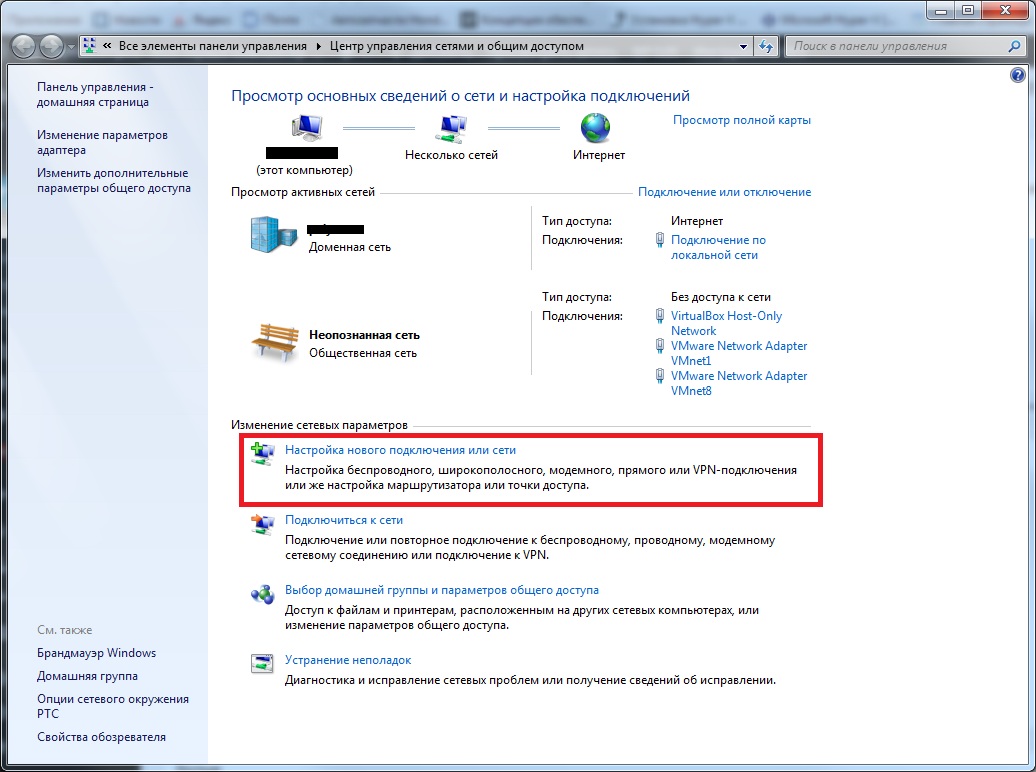
Click the mouse to enter "Network and Sharing Center", use the "Set up a new connection or network" function to select the setting for an additional network connection.
In the pop-up dialog box, select the wireless network setup type "Computer to computer", after which Windows will require entering some information. After entering the wireless network parameters (network name, security type, and password), the system will provide the user with wireless access to the global network.
The connection will become operational after changing the settings parameters. Here is the sequence of actions: return to the "Network and Sharing Center", in the advanced sharing settings subsection set the selectors and save the entered data.
Wireless internet access via system tools is available: we share internet from a laptop via Wi Fi to compatible non-stationary gadgets.
Creating internet access is possible without operating system tools. Does a laptop share Wi Fi if the network setup was performed using the terminal?
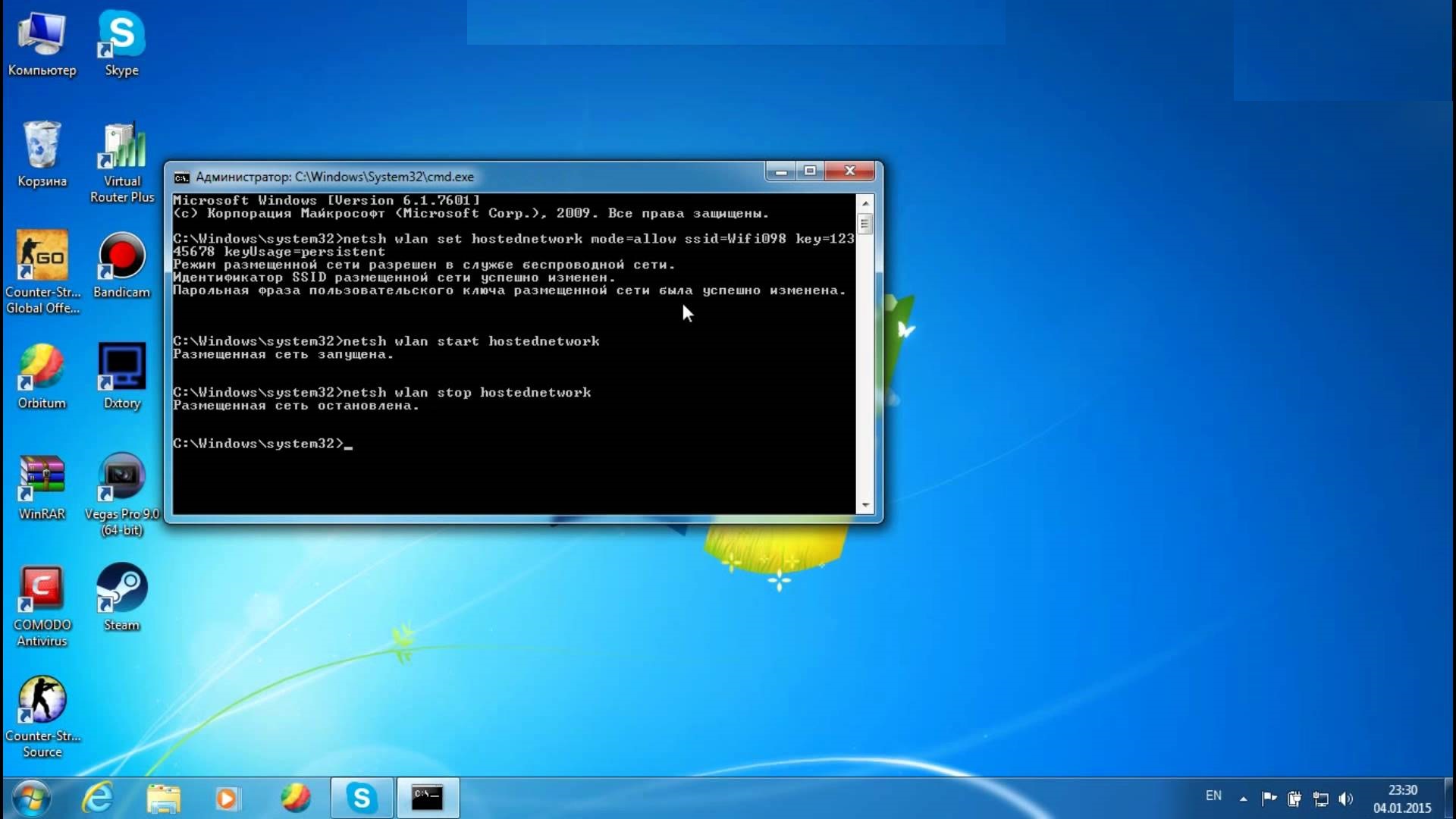
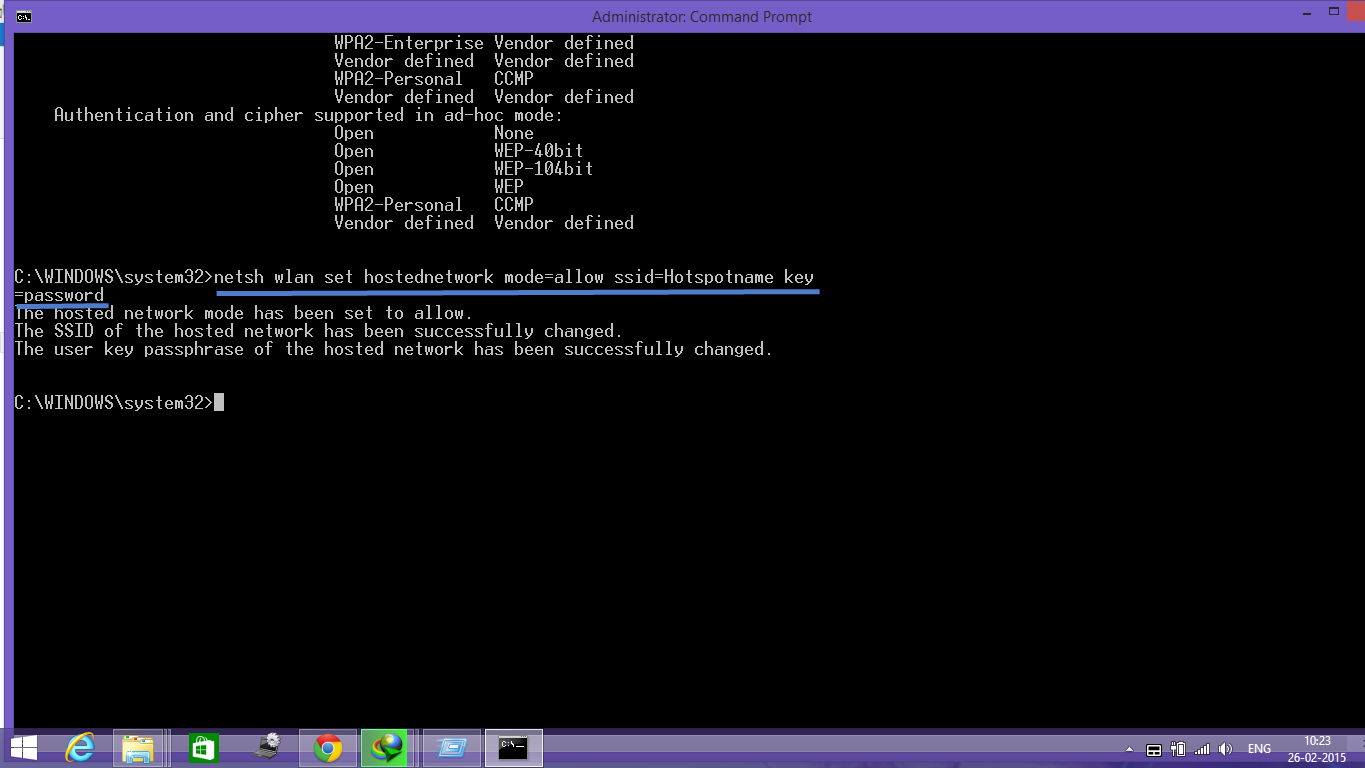
And again the answer is "YES"! Go to "Start" and run the command prompt as administrator, in the pop-up CMD type the command "netsh wlan set hostednetwork mode=allow ssid=network name (user creates it themselves) key=xxxxxxxx", where xxxxxxxx is the password created by the user, and the more complex it is, the lower the chance of it being hacked.
After pressing the "Enter" key, the system will inform you about the change of network name and password, which will allow creating a connection, and to start the network you need to enter the command "netsh wlan start hostednetwork".
To give the created connection access to the World Wide Web, you will need to change a few settings as follows: from the "Network and Sharing Center" go to the "Properties" section, then in the "Sharing" subsection allow other users access to the World Wide Web.
How to manage an available network using Windows
 Installing some programs requires a system reboot, and creating an available Wi Fi connection via a laptop is no exception.
When the system reboots, to further manage the network you need to use the following commands in the terminal:
- netsh wlan start hostednetwork – start the network;
- netsh wlan stop hostednetwork – stop the network;
- netsh wlan show hostednetwork – view the connection status.
This method of creating Wi Fi access is suitable for Windows versions 7, 8, and even 10, but the above-described method of sharing internet access has a drawback: standard tools included with the operating system use only a small part of the PC's total computing power.
Utility programs, or how to share Wi Fi via a laptop
 Is it possible to share Wi Fi from a laptop using the capabilities of special programs?
Developers have created many programs whose main task is to create a wireless internet access point, among which the Connectify Hotspot utility can be highlighted.
You can install a paid or free version of the utility. In a couple of moments and a couple of clicks, it will turn your laptop into a wireless internet access point. The Connectify Hotspot program will only work for Windows 7 and 8 operating systems.
How Connectify Hotspot works
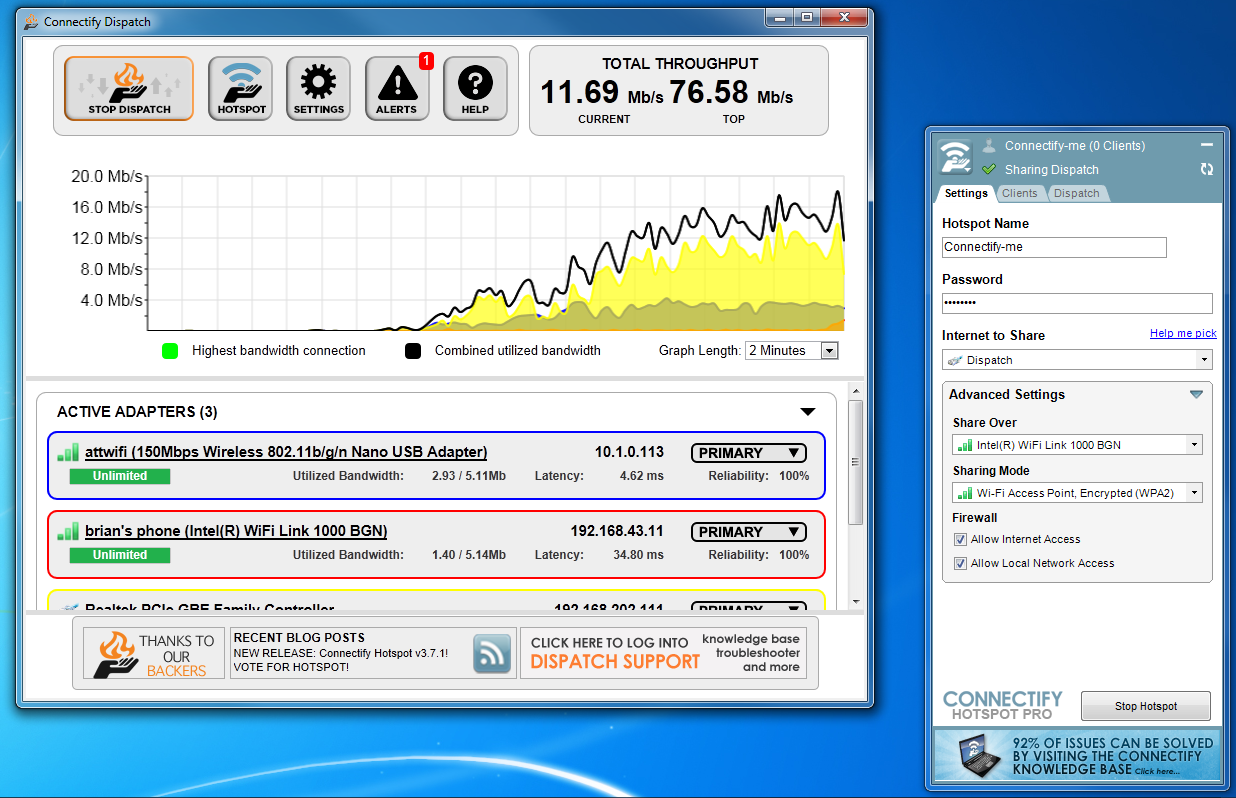 First, you need to download the version of the utility you like, then after launching it, come up with a name for the future hotspot and a password. The latter must contain at least 8 characters for security purposes.
Then you will need to select a donor connection from the proposed list and the operating mode, as well as the encryption type that protects your signal. The settings parameters can be entered manually, but it is best to use the setup wizard: there are hints for each parameter aimed at making the choice easier.
Up to 10 smartphones or tablets can connect to such internet simultaneously. The paid version differs from the free one in that, when using the free version, the user cannot change the virtual router name proposed by the program - Connectify-me. Connectify Hotspot differs from other utilities in that it must be installed on the PC and then the system must be rebooted.
Many good reviews are left by users of the MyPublicWiFi program, which will work on both Windows 7 and even 10, immediately after downloading; installation is not required.
During normal launch, it may give an error, in which case the program should be run as administrator. MyPublicWiFi does not load the system with unnecessary additional elements and also requires a system reboot. The program launch is standard, performed as administrator: you need to enter the SSID network name, set a password, and select the type of connection shared by the laptop via Wi Fi.
The MyPublicWiFi utility allows you to track who connects to the network and set traffic usage limits, but it is better not to agree to updates.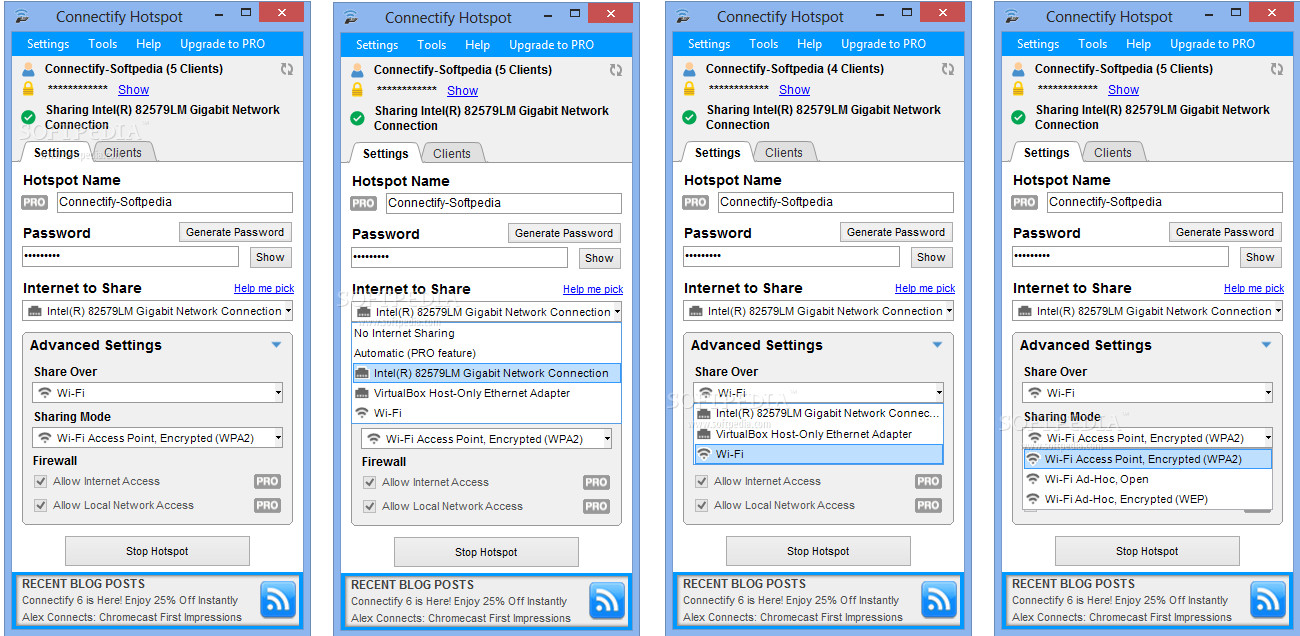
Even for a beginner, the Virtual Router program will be simple. By clicking on "Download", the user will start downloading the utility.
Installing Virtual Router is similar to installing Connectify Hotspot: download, install, set the network name and connection password, only in Virtual Router you do not need to set the connection point.
Here you need to select the "Shared Connection": from it the laptop connects to the internet and from it the signal will go to Virtual Router, however, it is worth saying that the program is not in Russian, but installing it is not difficult, and the signal is stable.
It is preferable to use the Virtual Router utility rather than Virtual Router Plus, as it contains unnecessary modules, and its operation requires the laptop to connect to the internet via a cable or wired modem. Exchanging information on a network connected via Virtual Router is safe because data exchange occurs using WPA2 technology.
Among the free utilities that share a connection from a laptop, we should also mention WiFi Creator, if only because it is also available in Russian, contains no ads or malicious applications.
The launch start is similar to the utilities described above: setting the network name and password, selecting the connection type. After configuring all parameters, press the "Start" button and your portable PC becomes an access point to the global network.
Bugs that occur when sharing Wi Fi from a laptop
 When sharing network access from a laptop, the user periodically encounters several difficulties, because it happens that your virtual router does not start, or your device does not support this type of connection.
Run an update of the "drivers" for the network adapter on your PC, and if a smartphone connected to the router is denied internet access, you need to check the network connection with an antivirus.
Is it safe to open network access from a laptop?
 Anyone can connect to an account with standard parameters, and to make this connection protected from unauthorized access, enter the IP address 192.168.0.1 in the address bar of any web browser.
In the pop-up window, you will need to enter a new password, and to protect the access point, you will need to enable the Manual Wireless Connection Setup function.