Okay Google on PC: installation, activation

Okay Google on PC: installation, activation

3.9 (9 ratings) Hover and click a star to rate
Views
758
Rating
3.9 / 5
Reviews
1

Okay Google on your computer – this is a quite convenient solution not only for Android OS devices, but also for computers. For some time, this feature was available to all owners of the Google Chrome browser, but since October 2015, the manufacturing company made it an additional feature. Let's figure out how to install Okay Google on your computer and consider the main capabilities.

Installing Okay Google on a Windows 7 computer

First, you will need to get the Google Chrome browser itself, which you can find by going to the official website: chrome.google.com, then install it and perform basic setup.

It is advisable to simultaneously register an account so that when reinstalling the browser or OS, you won't have to set up Okay Google voice search on your computer again from scratch, as well as various extensions. The preparation at this stage can be considered complete and you can confidently launch the browser.

Activating "Okay, Google"

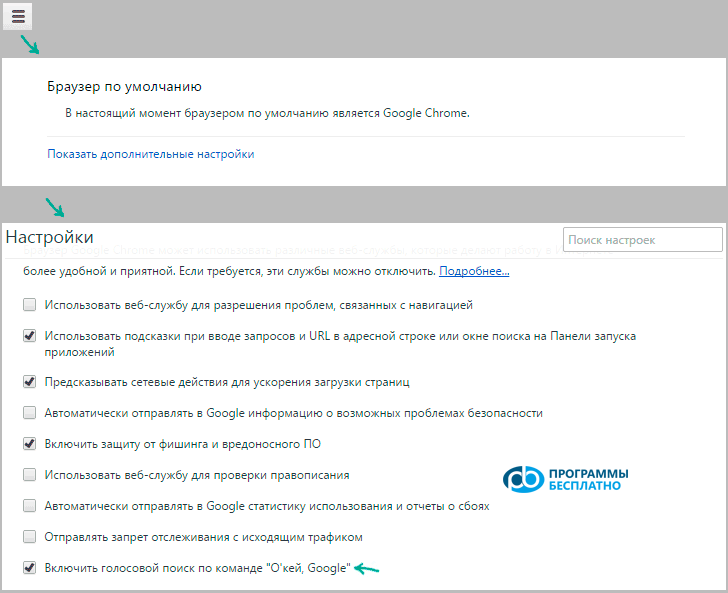
After starting the browser, you need to perform additional configuration. To do this, go to the browser settings, select "show advanced settings" or use the search bar, where you need to enter the item name "voice search Ok, Google".

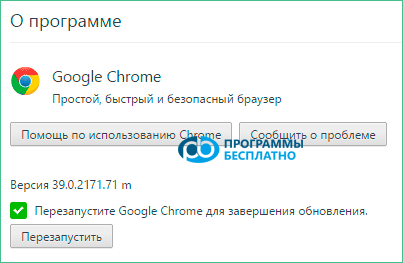
If there is no such item in the settings, then you need to make sure that you have the latest version of the browser installed. Go to settings again, find the item "About browser", select it, after which, if a newer version of the program is available, Chrome will offer to download it automatically.

After you update, go back to settings and the voice search item and check the box, otherwise all attempts to start voice search will be futile.

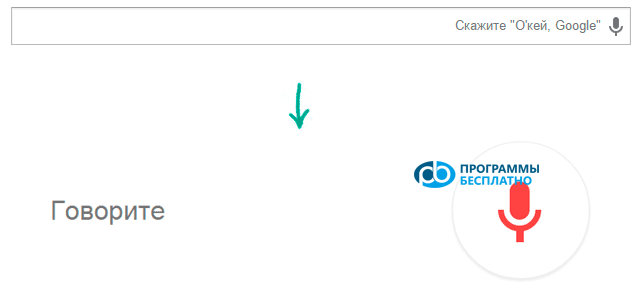
After you have managed to download Okay Google on your computer along with the new browser version, it's time to move on to testing its capabilities. To do this, open a new tab or go to the home page and click on the microphone icon in the search bar, after which a prompt to say a search query will appear on the screen.

It is worth paying attention that the image icon is colored, otherwise the function simply won't work. A gray icon indicates that no microphone is installed in the system or there are some conflicts.

After the prompt to say a phrase for search appears, you need to speak the query of interest aloud. You can also access voice search with the phrase "Okay, Google", but it will only work on the main screen, or on the main page of the search engine. Please note that the program will not respond to this command when minimized, so you will have to activate the window each time anyway.

What does voice search offer?

Okay Google on your computer for free will allow you to use all the capabilities of modern search engines. In addition to partially freeing your hands while surfing the web, the search engine will give you the most relevant results for your query in a separate informational block.

This will significantly speed up and simplify the search process. You can download voice Okay Google on your computer completely free, as it is distributed together with the Google Chrome browser. While using this function, remember that the service is still in active testing and may not recognize many commands, especially those containing profanity.

A bit of history

Voice search and control have been available on various mobile devices for several years, so Google and other companies are trying in every possible way to create a unified system capable of processing user queries.

On mobile devices, the phrase "Okay, Google" can be processed almost at any moment, and the user does not even need to make additional settings. This approach turned out to be convenient and over time paid off, which cannot be said about desktop operating systems, where the user is accustomed to using a standard mouse and keyboard.

Despite all this, you can download Okay Google on a Windows computer along with the proprietary browser from Google. You need to have a little patience and the most ordinary microphone.
Screenshots

Specifications

Views758

Reviews

1 reviews

  • SeoKiborg 30.11.2016

    Функция интегрирована в систему в качестве своеобразного помощника, который активируется автоматически после произнесения фразы Окей, Гугл . Она связана с голосовым ассистентом Google Now, позволяющим легко управлять системой Андроид.

Site.articles.relatedCategory

Show more

The default welcome page of the Google Chrome browser looks, perhaps, empty and unclear. Now we'll figure out what a welcome page is and what it is for. [toc] When you start the browser, the first thing you see is the start page! It is also called the quick access page, or the welcome page. Welcome page - what is it? Actually, these are slightly different concepts, especially when it comes to the default welcome page of the Google Chrome browser. So, now we know what

151 556
Read
Configuring Flash for Google Chrome

Configuring Flash for Google Chrome

Google Chrome Setup
3.8

Sometimes in the Google Chrome browser, Flash Player crashes or overloads the browser itself. For this, we have detailed 3 steps on how to optimize Flash Player's performance for maximum speed in the browser. By the way, those who have not yet downloaded the Google Chrome browser can download it from our website on this page. For the fastest performance of Flash applications in the Google Chrome browser, it is very important to configure it correctly. The speed of operation largely depends not on the player used in the browser, but on

26 768
Read
Customizing Google Chrome Tabs

Customizing Google Chrome Tabs

Google Chrome Setup
4.0

As practice shows, users prefer an "enhanced" tab page, i.e., one where tabs can be managed. Unfortunately, the standard version of Google Chrome lacks this feature :( However! Let's not forget the wonderful option of installing third-party add-ons! :) We're talking about Google Chrome extensions available in the Google Web Store. So, our goal is to upgrade the tab page to introduce this much-needed management capability.

15 328
Read
Saving settings in Google Chrome

Saving settings in Google Chrome

Google Chrome Setup
3.9

Users of the Google Chrome browser often ask a question related to saving settings. Since you are asking this question, we will now try to answer it in detail and with screenshots. To download the Russian free Google Chrome browser, use this link. First of all, you should tell where the Google Chrome browser settings are located? To go to the browser settings page, you need to click on the icon with 3 bars, as shown in the picture: In the appeared context menu

8 303
Read

Site.articles.relatedPopular

Show more

By becoming a member of the Friend Around social network, you will ensure the opportunity for new acquaintances and find many friends! Every participating user in the social network has many friends and girlfriends, just new acquaintances in this network! Thanks to the modest application, you can often communicate with friends on common topics! Using the features of this social network, you can find your soulmate, and other users can help with this! [toc] On the website, you can quickly download the program and become a user of the Friend Around program

368 990
Read

How to download a Windows 7 ISO image from the Microsoft website? Today it is possible, there is no longer a need to search for the OS on the Internet, risking infecting your own computer with a virus. There are many different builds of this operating system on the web. It is best to download the original Windows 7 ISO image, as it is considered the best. You don't need to download it from torrent trackers, it is available on the Microsoft website. However, there are certain nuances. At the link https://www.microsoft.com/ru-ru/

107 053
Read

Social networks - they are used by absolutely everyone who uses the Internet, just as the phone once gained incredible popularity - today social networks enjoy incredible universal popularity. [toc] Perhaps in the near future every inhabitant of the Earth will have their own account in one or another social network. As a rule, it is impossible or quite difficult to delete an account in social networks; it still remains in the system, no matter what you do. The Social Network Friend Around is no exception - in which

103 258
Read