
Users of the Google Chrome browser often ask about saving settings. Since you are wondering about this, we will now try to answer in detail with screenshots. To download the free Russian Google Chrome browser, use this link.
First of all, we should tell you where the Google Chrome settings are located?
To go to the browser settings page, you need to click on the icon with 3 stripes, as shown in the picture:
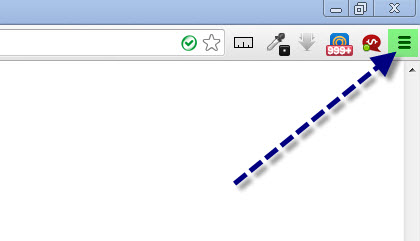
In the context menu that appears, select "Settings", after which the settings page will open, where you can configure Chrome.
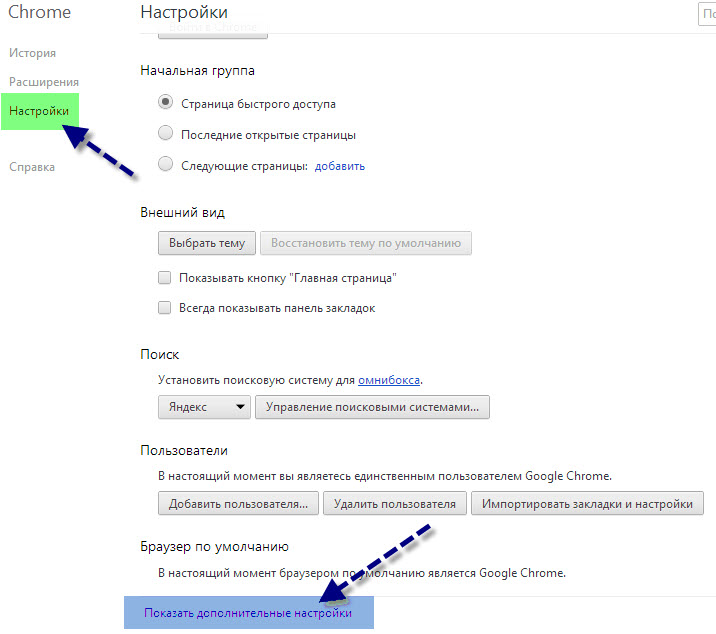
There are quite a few options available for configuration in Chrome, from appearance settings to security settings and the full browser system.
So, now let's talk about how the saving system in Google Chrome works, and what you actually need to do to save settings?
Since Google Chrome uses advanced technologies, in particular Chromium based on WebKit, settings are saved on the "On Change" principle, i.e., at the moment of changing a particular parameter.
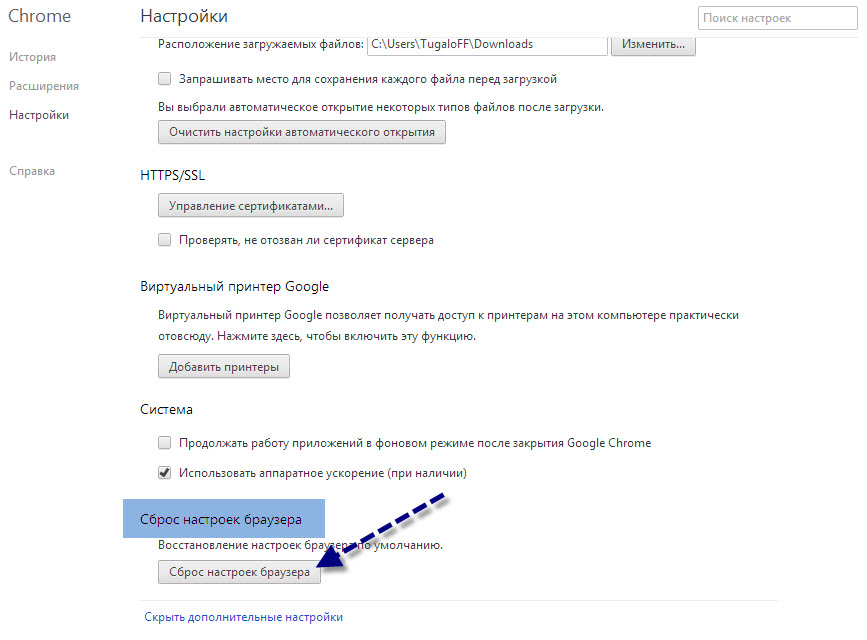
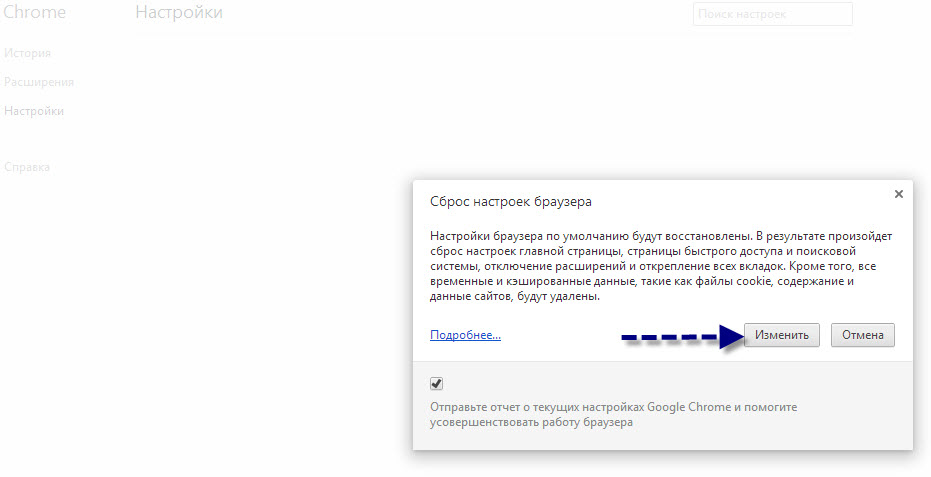
So, to save the browser settings, you just need to change them, without clicking a save button, because settings are saved automatically after your changes. You can also reset browser settings to default – to do this, just click the "Reset settings" button on the settings page, as shown in the screenshots below.
We hope we have given a complete and detailed answer to your question "how to save settings in Google Chrome". If you still have questions about saving settings, please write them in your comments and we will fully supplement the article based on them.