It is not uncommon for Windows 7 users to wonder about optimizing Windows 7, since it is no secret that Windows operating systems, and indeed all operating systems in general, have a common property of losing performance over time. However, this issue can be resolved by optimizing Windows 7 using special methods.
If we go into this issue in detail, we should understand things like ReadyBoost, Registry, Fragmentation, Aero, Visual Effects, Cache, etc. However, everything can be much simpler! In this article, we will tell you how to properly carry out the process of optimizing Windows 7 to improve system performance.
Computer takes a long time to boot
If your computer takes a long time to boot, the problem lies in the fact that it is loaded with many programs that are set to autostart. To fix this problem, click the "Start" button, select "Run", then enter the word "msconfig" in the window that appears. A system configuration window will appear, go to the "Startup" tab and remove all unnecessary programs from autostart. It is best to first click the "Disable all" button, and then check the boxes for the most necessary programs, as a rule, these are antiviruses, etc.
Do not forget to check the box next to "Create virtual drive for Denwer" if you have the Denwer package installed, otherwise the virtual disk will not be created automatically. Also, if you have Eset antivirus installed, check the box next to "Eset Smart Security", or next to "Kaspersky Antivirus" if you have Kaspersky antivirus installed, do the same for other antiviruses or programs.
As a result, only the most important programs should be highlighted. After that, click the "OK" button. Now the computer will boot faster.
Computer is slow
If your computer processes tasks slowly, try turning off unnecessary visual effects. To do this, open computer properties (Right-click on the computer icon on the desktop), then in the left menu select "Advanced system settings". In the window that appears, select the "Advanced" tab and in the "Performance" section, click the "Settings" button, then in the opened window select the "Visual Effects" tab. A large list of visual effects will open before you, disable them all and select only those shown in the screenshot (3 items in total).
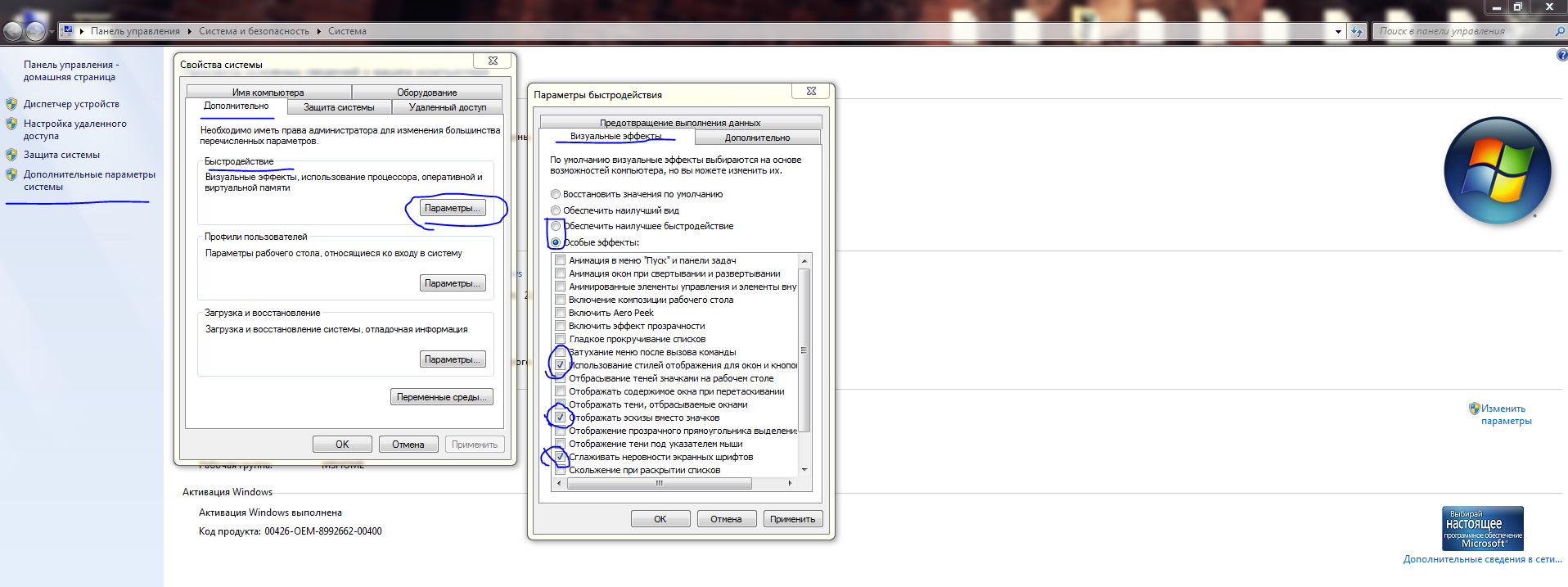

After that, click the "OK" button, then "OK" again, and close the unnecessary windows. Now the computer will work much faster.
Third-party software
In addition, we recommend installing the program TuneItUp, or Comodo PC SpeedUP, etc. These programs will help you effectively care for your computer, namely defragment the hard drive using special technology, configure modules and disable unnecessary services. But the most effective program is cCleaner, it can clean up hard drive space, as well as find and fix errors in the registry. Using such programs, your computer will run very fast!
Programs for optimizing and securing your computer
- Which antivirus is best to choose for Windows 8
- Download Comodo Internet Security for free
- Download Avast Antivirus for free
- Download Kaspersky Antivirus for free
- Download Avira Free Antivirus for free
- Download AVG AntiVirus
- Download Comodo Antivirus
Good luck!