
Lately, people often ask the question, how to set up security in Google Chrome. A knowledgeable person knows that security in the Chrome browser is perhaps the best possible at the moment.
Explaining it is simple.
Google Chrome browser is based on Chromium, which in turn is based on the free and world's best WebKit engine, which in turn runs at the maximum possible speed and provides the maximum possible security. This fact is also proven by the developers of Opera browser, who recently decided to stop developing their Presto engine and switch to the WebKit engine.This does not mean that Google Chrome and Opera are one and the same, not at all! First, the configuration and settings of the engine are different in each browser. Second, the shell is no less important than what is "under the hood". In addition, the interception methods, data transfer between processes, and the organization of multiprocessing itself differ in all browsers that use WebKit as a base. So, let's get back to ensuring security in Chrome and its configuration, and figure out what needs to be done to set up security in Chrome.
Google Chrome Security Settings
To go to the browser's security settings panel, you need to go to the settings panel itself. It's easy and simple. Click on the "Customize and control Google Chrome" button, as shown in the picture below.
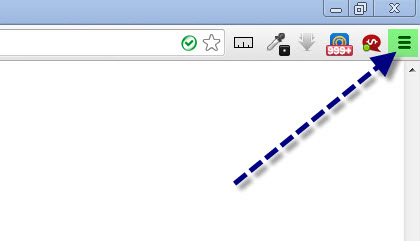
After that, in the context menu that appears, select "Settings".
Next, go to the "Settings" tab, and then to the advanced settings section.
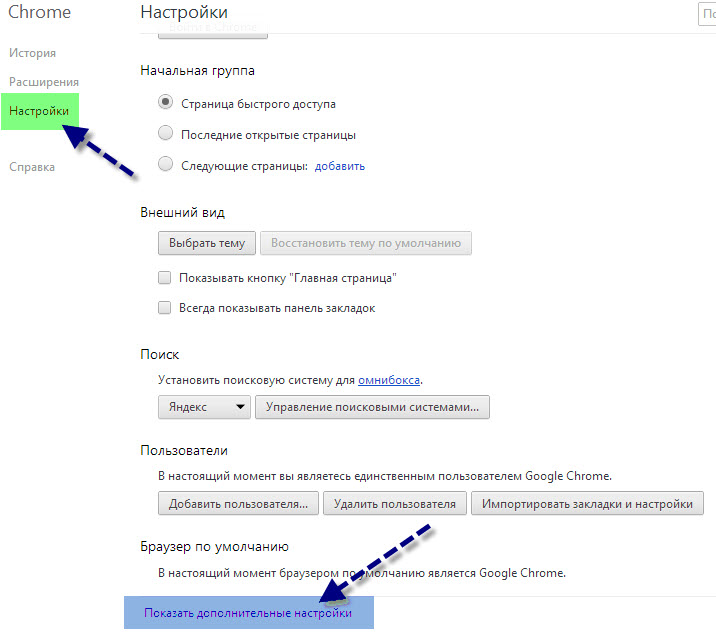
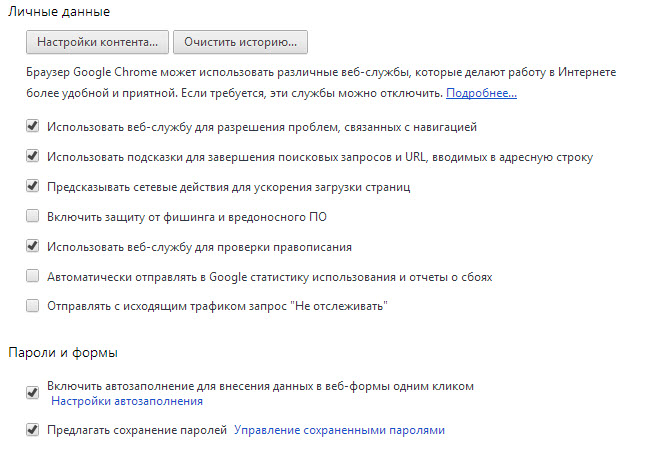
Pay attention to the "Personal data" and "Passwords and forms" sections.
Also, you will be interested in the "Network", "Downloads" and "HTTPS/SSL" sections.
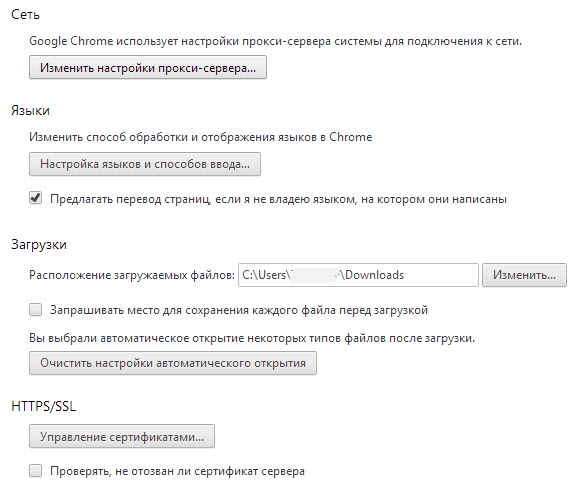
These are perhaps the main security settings in the Google Chrome browser available to the user.
Tips for Setting Up Security in Google Chrome
Try to avoid some common mistakes that users often make.
For example, avoid "sandbox" sites, or as they are also called "ghosts", where viruses or similar are most likely located. It's easy to recognize such a site; you can only get to it from a search engine, and you will land on a forum where they "supposedly" discuss the topic you're interested in, and somewhere in the comments there will be a link to a file containing the information you need.
After clicking the link, you'll be taken to a file download page where you will be asked to send an SMS (paid), or download an infected file. In addition, we recommend checking connection protocols, and also checking the hosts file if you have security doubts.
For example, recently a virus called Hosts has been widely circulating on the network, which changes Windows settings so that when you type a site, for example, www.example.com, into the address bar, you end up not on www.example.com but on its exact copy, and yet in the address bar you still see the correct domain www.example.com.
On trusted sites, such as google.com, the connection protocol will always be HTTPS, namely https://www.google.com The HTTPS protocol means that the site is genuine because it has a trust certificate.
Most often, trusted protocols are used on serious sites, such as online stores, search engines, etc.