Users very often ask the question - how to speed up Windows 7, since by default the OS uses many system modules, services, and effects that burden the system. This negatively affects the speed of Windows, namely, the speed of launching programs, executing commands, and the like. This happens because the processor stops processing incoming commands quickly, as there are too many commands.
How the processor works
Imagine that your processor in its standard state processes, say, 20 processes simultaneously, and this is its limit. Moreover, processes can be different, some are small, the processor processes them very quickly, while others, which are larger, the processor processes much longer. Now imagine that you have been using the computer for more than a month, and during this time a bunch of programs have accumulated in it. As a rule, most programs also clog the processor with their tasks, not to mention that you yourself can load the processor with tasks.
Now, the processor has to process, say, 50 processes simultaneously, however, as mentioned earlier, the processor we took as an example can only process 20 processes simultaneously (let's say it passes 20 per second), but now we have 50 processes, what happens?
That's right, the processor queues tasks and executes them in order. Thus, an interval appears between task executions, i.e., a delay. The given numbers are chosen randomly to show you in an easy way how the processor works. That is why, over time, the computer starts to work slowly, because the processor already has many more tasks than before. And if you add fragmentation, free space, registry problems, etc., it is not surprising that the computer starts to slow down terribly. But, there is still a solution to this problem, and the question of speeding up Windows 7 will no longer be a problem for you.
Improving Windows 7 performance
First of all, it is worth thinking about which programs you do not need, i.e., those that you do not use - it is better to remove them. Moreover, we advise you to use not the standard Windows Add/Remove Programs center, but a program specially designed for this, such as Your Uninstaller or similar. Such programs not only remove unnecessary software, but also remove all its traces, which additionally speeds up the computer.
By removing about 15-20 unnecessary programs, you will already feel an increase in speed, but it will be insignificant. To add more speed, let's talk about such a function as - effects. By default, Windows 7 has many effects, for example, Aero, which consumes a huge amount of RAM, which significantly slows down Windows 7.
In addition to Aero, Windows 7 has about 25 other less necessary effects, including smooth scrolling, animated window minimization, transparency, etc. All this, of course, improves the appearance of Windows, but greatly impacts performance. By disabling these effects, you will get approximately 30-50% speed increase, plus removing unnecessary programs gave another 5-10% increase, so at this point, you have gained 35-60% increase in Windows 7 speed.
If you don't know how to disable Windows 7 effects, this instruction will help you:
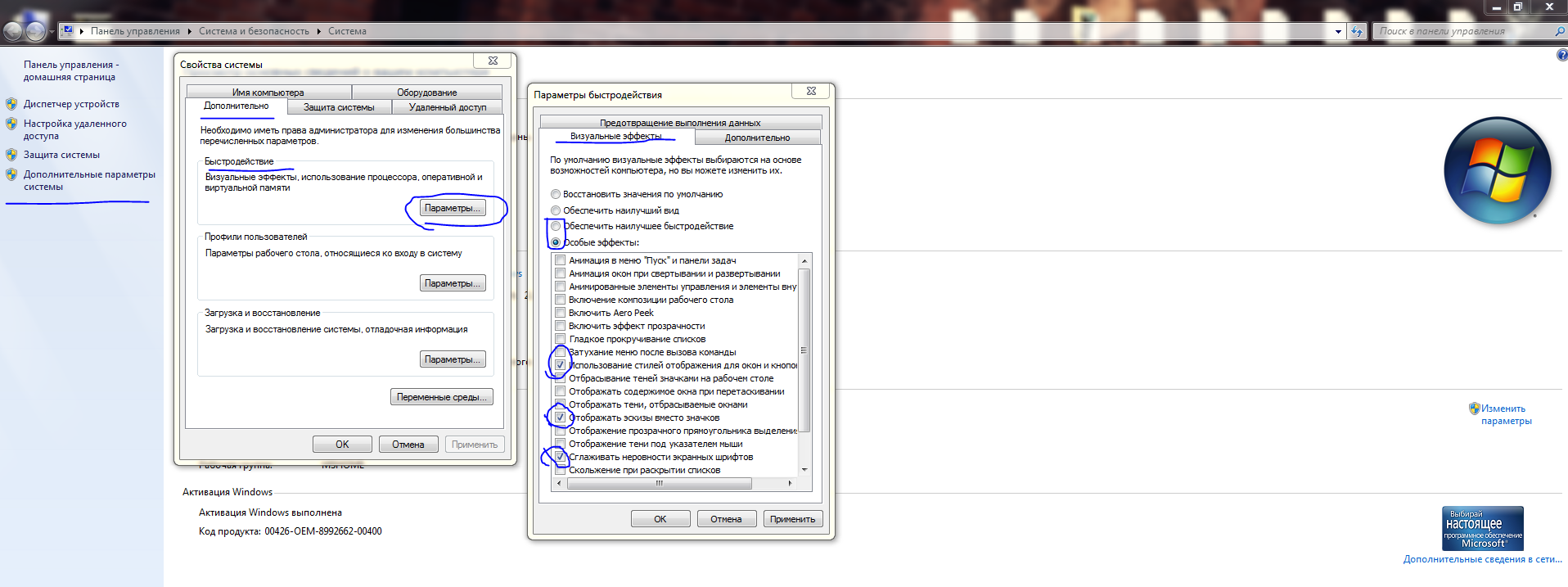
Right-click on the "My Computer" shortcut, which is usually located on the desktop, then select "Properties", in the menu on the left there will be an item "Advanced system settings", click on it. In the window that opens, select the "Advanced" tab, then in the "Performance" section, click the "Settings" button.
In the window that appears, go to the "Visual Effects" tab, there click the radio button "Adjust for best performance", then in the list of effects find and enable effects such as "Show thumbnails instead of icons", "Smooth edges of screen fonts", and also a very important item "Use visual styles for windows and buttons".
Next, click the "OK" button, then click the "OK" button again, and then close the unnecessary windows. Now, Windows 7 will use only standard effects, and will also display everything beautifully, while significantly improving performance.
So, we've dealt with visual effects and unnecessary programs, all of which together gave about +60% performance. Now, we need to do an equally important thing that will give another 20-30% performance.
Click the "Start" button, select "Run", then type the word "msconfig" in the window that appears and click "OK". If you don't have the "Run" item, right-click on the Start menu bar, and select "Properties", then in the window that appears, go to the "Start Menu" tab and click the "Customize" button there, in the list that opens find the "Run command" item, check this item, and click the "OK" button, then click the "OK" button again.
Now you will have a "Run" button in the Start menu panel.
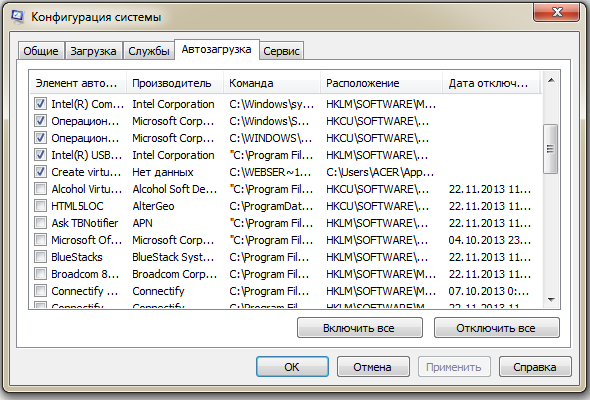
So, now you should have the "System Configuration" window. Go to the "Startup" tab, click the "Disable all" button. Now, in the list of programs, select the ones you need. That is, these are the programs that will load with Windows. Most often, only programs like "ESET Smart Security", "Create virtual drive for Denwer", "Java(TM) Platform SE Auto Updater", "Synaptics Pointing Device", etc. are selected.
After you have marked the programs you need, click the "OK" button. Now, you will get another 20-30% to system performance.
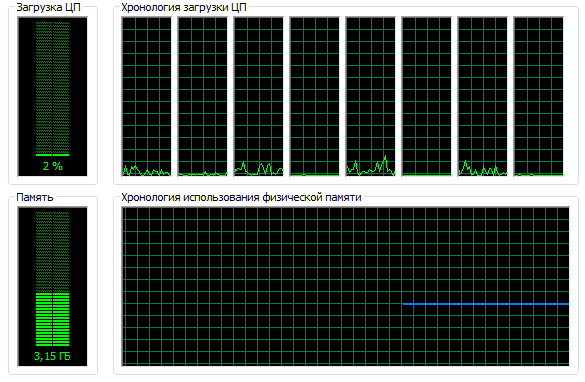
Thus, with completely simple manipulations of the system, you have gained an additional 45-90% performance. Now just restart your computer so that some changes take effect and enjoy the increased speed!
You may be interested in programs on the site:
- Download alcohol 120 Russian free
- Download Virtual DJ free
- Download Skype free for windows
- Download free Russian version of nero
- Download free version of kaspersky antivirus
- Download Windows movie maker free
Good luck!