If sound has disappeared in the Windows operating system, there may be 3 reasons for this. First, you should figure out what is causing the sound to disappear.
If there is no sound at all in the entire system, we recommend that you install/reinstall the sound driver for your sound card. Also, we recommend that you enable the audio playback device, as well as enable the sound card in Windows settings.
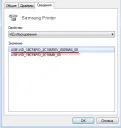
To do this, right-click on the "My Computer" icon on the desktop, then select "Properties", then in the menu on the left, there will be an item "Device Manager", open it and in the list of devices under the "Sound and etc." tab, find your sound card.
If it is disabled, enable it by right-clicking on its name and selecting "Enable" from the context menu that appears. If the sound card is enabled but there is still no sound, we recommend that you install the sound card driver. If there is still no sound even after installing the driver, check the volume in Windows volume settings.
In this case, we recommend that you contact a professional who will diagnose and fix the sound problem as quickly as possible. If sound is missing only when playing music files or video files, then the reason is most likely the lack of appropriate codecs.
Codecs are special scripts that allow encoding/decoding audio. To install a basic set of codecs, download the latest version of the K-Lite Codec Pack from the internet and install it, then restart your computer and the sound should appear.
If sound is missing in any application/game, we recommend that you check the settings of that application/game, or install all drivers/programs/libraries required by that software.
In particular, we recommend that you update DirectX and .NET Framework, as well as install XNA Framework, all of which are available on the official Microsoft Windows website.
Good luck!