Recently, a virus called WinLocker has become very common; it blocks the computer (Windows) and asks you to send an SMS to a specified number, after which Windows supposedly unlocks. Sometimes Windows does activate after sending the SMS, but most often this does not happen.
Also, in such viruses, a message often pops up saying "Do not try to reinstall Windows, this will lead to data loss and computer malfunction." It should be said right away that this will not actually happen. Some information may be lost, but only if you reinstall Windows incorrectly — however, reinstalling Windows is not necessary.
[caption id="attachment_1435" align="aligncenter" width="505"]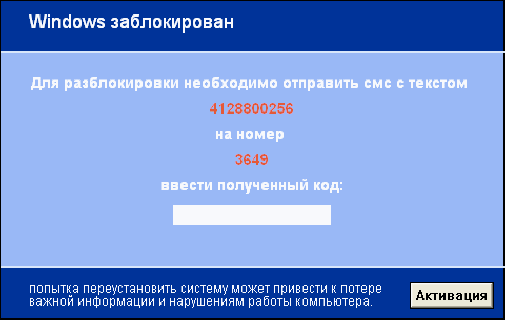 Windows blocked send SMS. Winlocker.[/caption]
WinLocker is designed for people who are not very computer-savvy and simply cannot do anything about this virus. That is, if you are knowledgeable about computers, this virus is not a threat to you. If you don't understand much about computers, we will now tell you about the basic steps you should take to remove WinLocker.
WinLocker usually blocks the Task Manager, and if it doesn't, you can easily remove this virus. To check whether Winlocker has blocked the Task Manager or not, press the key combination CTRL+ALT+DEL, and try pressing these keys in different combinations. If an error like "Task Manager is blocked" appears, then WinLocker has managed to block it.
If not, and the Task Manager appears, go to the "Processes" tab and remove this locker from the processes. Even better, first find the location of this locker through the Task Manager, then terminate it so you can simply delete it later. Also, we advise you to clean the startup afterwards so that WinLocker does not start again.
Unlocking Windows - if Task Manager is blocked!
If WinLocker has blocked the Task Manager, you will need to put in a bit of effort to remove it. Restart your computer and during startup, go to the boot method selection menu and choose the "Safe Mode" method. In this mode, Windows will load with basic drivers and processes, without touching the startup. Now simply clean the startup and delete WinLocker if you know its location.
Restart your computer and that's it, WinLocker should no longer bother you.
If this doesn't help, you can reinstall Windows and avoid falling for such viruses in the future. Additionally, we advise you to always update your antivirus, preferably every day. The antivirus automatically blocks such programs and prevents you from running them.
You might be interested in programs for PC setup:
- Which antivirus is best to choose for Windows 8
- Download Comodo Internet Security for free
- Download Avast Antivirus for free
- Download Kaspersky Antivirus for free
- Download Avira Free Antivirus for free
- Download AVG AntiVirus
- Download Comodo Antivirus
Good luck!