Many users, after connecting their PC to the Internet and discovering that the actual connection speed is significantly lower than the guaranteed tariff values, seek advice from their provider to solve this problem. But is this always necessary?
Read: Why does the internet disappear?
As practice shows - no, because the cause of unstable network connection, in most cases, lies in:
- incorrect operation of the PC's operating system (OS), usually due to accumulated errors in the registry;
- incorrect settings of Windows system software;
- the presence of temporary cache files that impede data transfer.
Focusing on the first point of the list, it is worth noting that OS optimization is a separate topic, including not only methods for restoring damaged system files but also a general system check using external and built-in utilities.
System optimization is especially necessary with prolonged OS use. However, the methods described in this article will help increase Internet speed even with minor errors in the system registry.
Configuring Serial Interface Parameters
Serial interface (COM port) in Windows OS is a data transmission channel. By default, each parameter in the signal conversion nodes has standard settings.
To increase the data transfer rate in the serial port, you should, accordingly, increase the data flow volume per second.
To do this, you need to:
- go to the "Start" menu;
- open the "Computer" tab;
- right-click anywhere on the main white background of the window to bring up an additional menu and click "Properties";
- select "Device Manager" (first item on the left under the control panel);
- go to the "Ports" section, open the "Serial Port (COM1)" tab;
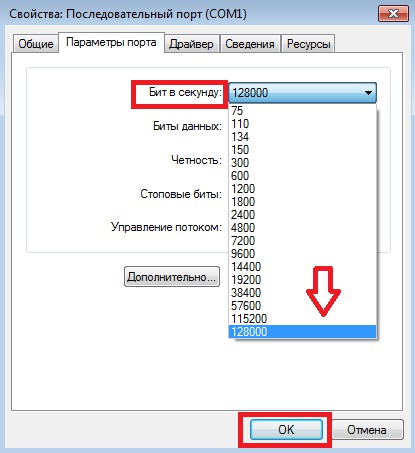
- in the menu that opens, click the "Port Settings" button and set the maximum value opposite the "Bits per second" line;
- click the "Ok" button to confirm the new setting and close all tabs.
Configuring the QoS Packet Scheduler
QoS, being a network service of the system that ensures the quality of packet transmission in the network, in its standard setting reserves a certain percentage of the channel's bandwidth resource for the OS, which prevents the possibility of maximum signal transmission.
To remove the planned OS restrictions in the scheduler settings, you need to do the following:
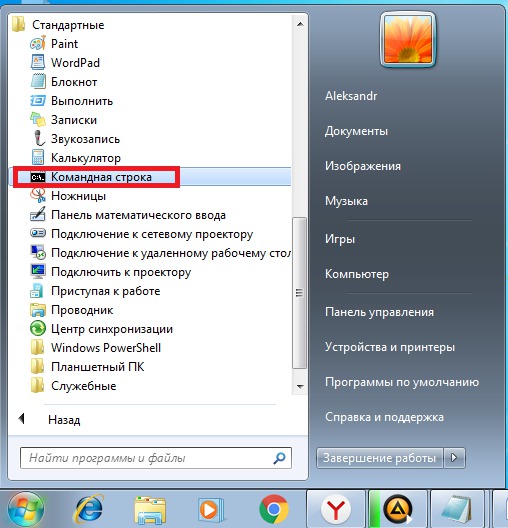
- open the "Start" menu, click - "All Programs";
- in the "Accessories" item, find the "Command Prompt" line, click on it;
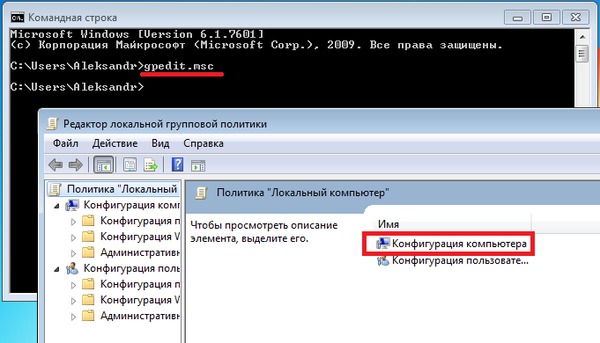
- in the new window, enter the command gpedit.msc and press the Enter key on the keyboard;
- open - "Computer Configuration";
- in the "Administrative Templates" item, go to the "Network" folder;
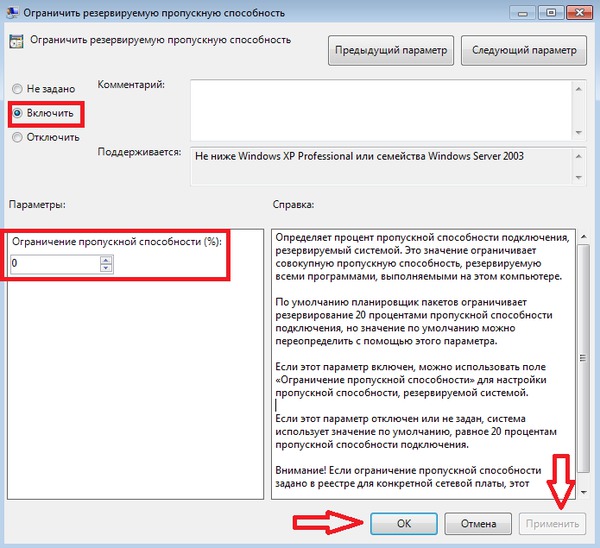
- in the "QoS Packet Scheduler" directory, go to the "Limit reservable bandwidth" menu;
- set the parameter to - "Enabled" and under the heading "Bandwidth limit (%):" replace the value with the number 0;
- click the "Apply" button, close all tabs, restart the system to process the new settings.
Speeding Up the Internet with Auslogics BoostSpeed Utility
Using software like Auslogics BoostSpeed, you can not only increase Internet speed but also optimize the operation of the entire system as a whole. To work with the program, it is enough to find its free version on the network, download and install it on your computer, which will not take much time from the user, and will take up no more than 8 MB of hard disk space.
Opening the program, you will find a simple interface with functionality for scanning the OS, as well as information about the basic details of the PC.
In Auslogics BoostSpeed, having previously connected to the network, you need to perform the following sequence of actions:
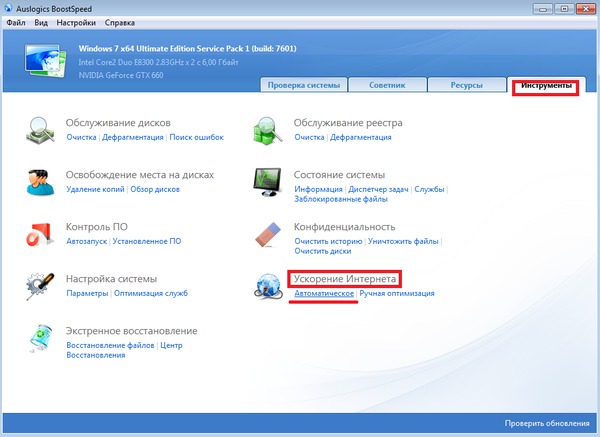
- select the "Tools" section;
- click the "Automatic" button located under the far-right item "Internet Acceleration";
- select the Internet connection speed according to the type of network connection and click the "Analyze" button;
- wait for the process of finding the best settings to finish and click - "Optimize";
- upon completion of optimization, click the "Restart" button.
Speeding Up the Internet by Deleting Temporary Files from the AppData Directory
The AppData folder contains hidden system directories, including: the main part of information about connecting external modules and software to the PC, including those running in protected mode; archiving of data received and transmitted from the network, also ensuring the safety of browser configuration settings.
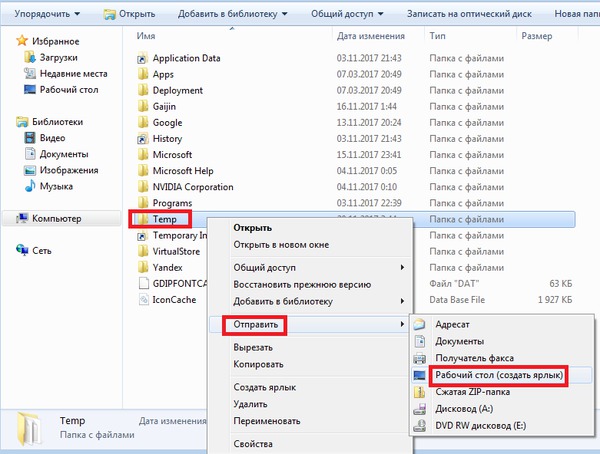
In the AppData directory, there is a Temp folder, which displays both Windows service shortcuts and local data of running software (for example: files indicating modem connection; data of interaction with specific servers on the network).
Also, when navigating the Internet, temporary files accumulate in the Temp folder: information on browser updates, downloads or data transfers, reports on possible packet loss (ping) - all this negatively affects the channel's bandwidth. All temporary files that create congestion when working on the network can be easily deleted by selecting the entire contents of the Temp folder (local service data will not be deleted), which will significantly increase Internet speed.
To find AppData, you need to perform the following steps:
- through the "Start" menu, open the "Computer" tab;
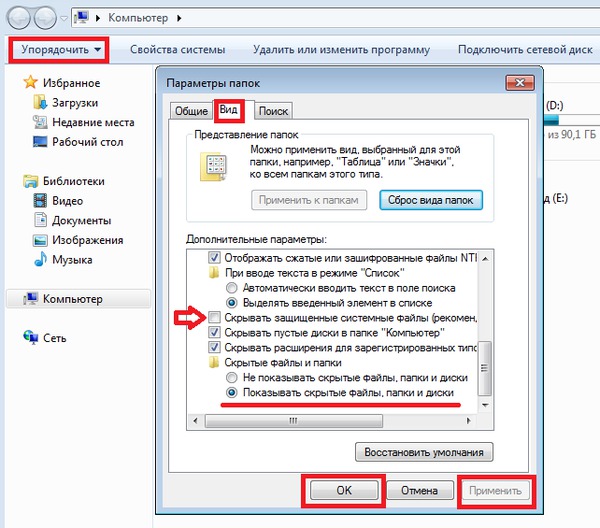
- click on the "Organize" tab;
- select the "Folder and search options" item;
- go to the "View" function;
- at the bottom of the list, move the marker next to the "Show hidden files, folders, and drives" line and remove the checkmark opposite the "Hide protected operating system files (Recommended)" line;
- confirm the priority changes using the "Apply" and "Ok" buttons;
- then, opening the contents of the system drive C, click on the "Users" directory;
- select the folder with the computer name;
- open - "AppData" and go to the "Local" folder;
- find the Temp folder in the list and send it to the Desktop to ensure faster access to it in the future.
After deleting files from the Temp folder, you should immediately empty the Recycle Bin. For those using mobile Internet, it is also recommended after these steps, without interrupting the modem's operation, minimizing all windows, to check the registry for errors with the CCleaner program, while ignoring registry cleaning and immediately going directly to the "Search for problems" function. Then, after fixing possible registry errors, close the program and refresh the page in the browser.