If your computer frequently freezes, there can be many factors causing this. Accordingly, by identifying what exactly affects the computer freezing, you can solve this problem.
But how do you determine what causes the computer to freeze?
It is very simple, since computer freezing is usually caused by common typical problems.
You should understand that the speed of the computer is directly affected by its load, both the HDD load and the RAM load. The first factor affects the speed of computer startup/shutdown, the second factor mainly affects the speed of computer operation, i.e., it impacts computer freezing.
To free up more space in RAM, you should first remove unnecessary programs, as they often launch their services, hidden processes, etc., all of which take up space in RAM.
Also, you should disable unnecessary services, as they also run in the background and consume a certain amount of RAM, which also affects performance.
In addition, we recommend defragmenting your hard drive and optimizing the registry (Glary Utilities, CCleaner), and it would also be good to clean the HDD of unnecessary files and check the registry. All of this together will provide a fairly significant increase in speed, i.e., greatly reduce the likelihood of computer freezing.
However, this was a solution to the problem of temporary computer freezing. There is also permanent freezing, when the computer freezes and does not unfreeze or recover.
How to fix computer freezing?
In this case, you have to manually restart the computer using the power/restart button or unplug the power cord. If you have a laptop, to turn it off manually, hold down the power button for 5-10 seconds, after which the laptop will turn off.
The cause of permanent freezes can be some programs or devices. For example, ADSL modems can often cause permanent freezes during connection, especially this problem is noticed with ADSL ZTE ZXDSL 831 Series models.
Also, permanent freezes can be initiated by programs/games, etc. However, do not confuse permanent freezes with the inability to kill a process, as it often happens that a user launches a program/game and a black screen appears. When the user tries to close the program by pressing the Alt+F4 key combination, nothing happens.
Switching the window by pressing Alt+Tab also does not help. But this is not yet a sign of permanent freezing; in this case, you should call the task manager or wait a bit. Press the Ctrl+Alt+Del key combination to call the task manager, then close the frozen process and calmly continue working on the computer.
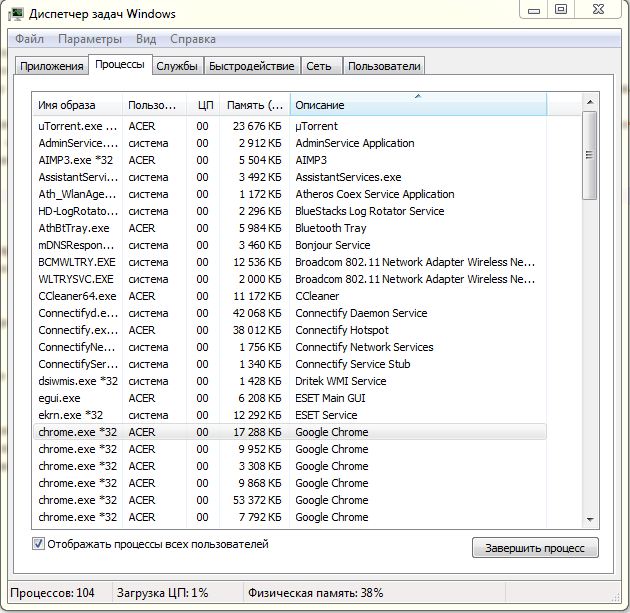

If the task manager does not respond, then most likely a permanent freeze has occurred, and the computer will need to be restarted.
Related articles on speeding up loading and optimizing Windows:
- Speeding up Windows 7 on computer and laptop
- Setting up and optimizing Windows 7
- Computer started running slowly
- Windows freezing
Good luck!