Customizing the FireFox Toolbar

Customizing the FireFox Toolbar

3.6 (5 ratings) Hover and click a star to rate
Views
9 195
Rating
3.6 / 5
Reviews
5

The Firefox toolbar provides easy and quick access to all sorts of typical browser functions. This is a very convenient panel, thanks to which the user can easily access one or another feature of the Firefox browser. Today we will talk about how to customize this toolbar in Firefox.

How to show or hide toolbars in the Firefox browser

The vast majority of toolbars in Firefox can be either hidden or shown. What will be displayed and what will not is up to you. To hide or show a desired toolbar, right-click on the tab bar, in the context menu that appears, click on the desired toolbar, after which it will appear or disappear.

There are 5 toolbars in total, namely:

  • Menu Bar - The standard Firefox browser bar with standard functions such as File, Edit, Help, etc. By default in Windows 7 and Windows Vista, as well as in Windows 8, this bar is hidden. To temporarily show it if it is hidden, press Alt.
  • Tab Bar - A standard bar that cannot be hidden at all; all your tabs are located here.
  • Navigation Toolbar - This toolbar contains navigation tools, namely Home, Back, Forward, Address Bar, etc. This toolbar can be hidden if desired, but by default it is enabled.
  • Bookmarks Toolbar - A default hidden bar that stores all your bookmarks.
  • Add-ons Bar - Located at the bottom of the browser, a default hidden bar that stores your installed and running extensions. This bar provides access to running extensions.

How to customize toolbars

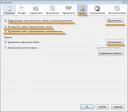
All toolbars are customizable, and to customize them, you need to open the toolbar customization window. To do this, right-click on the tab bar. In the context menu that appears, select "Customize", after which the toolbar customization window will open.
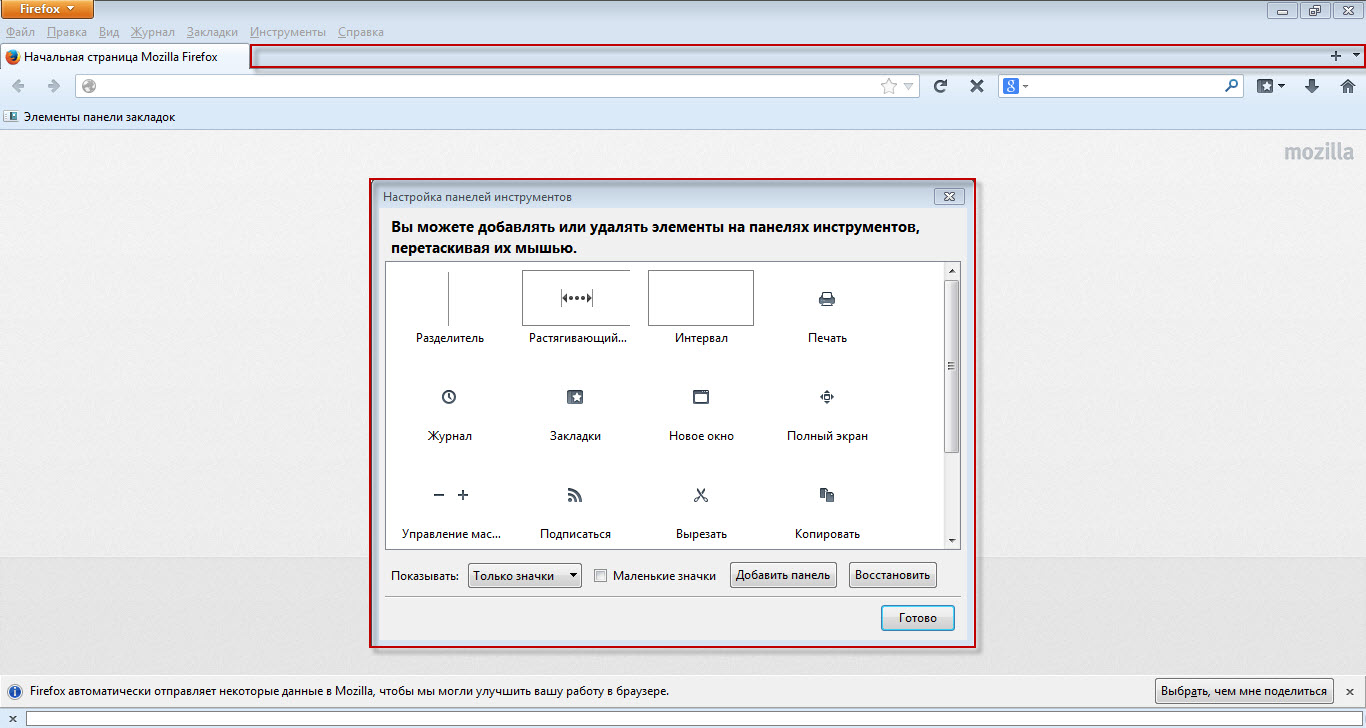
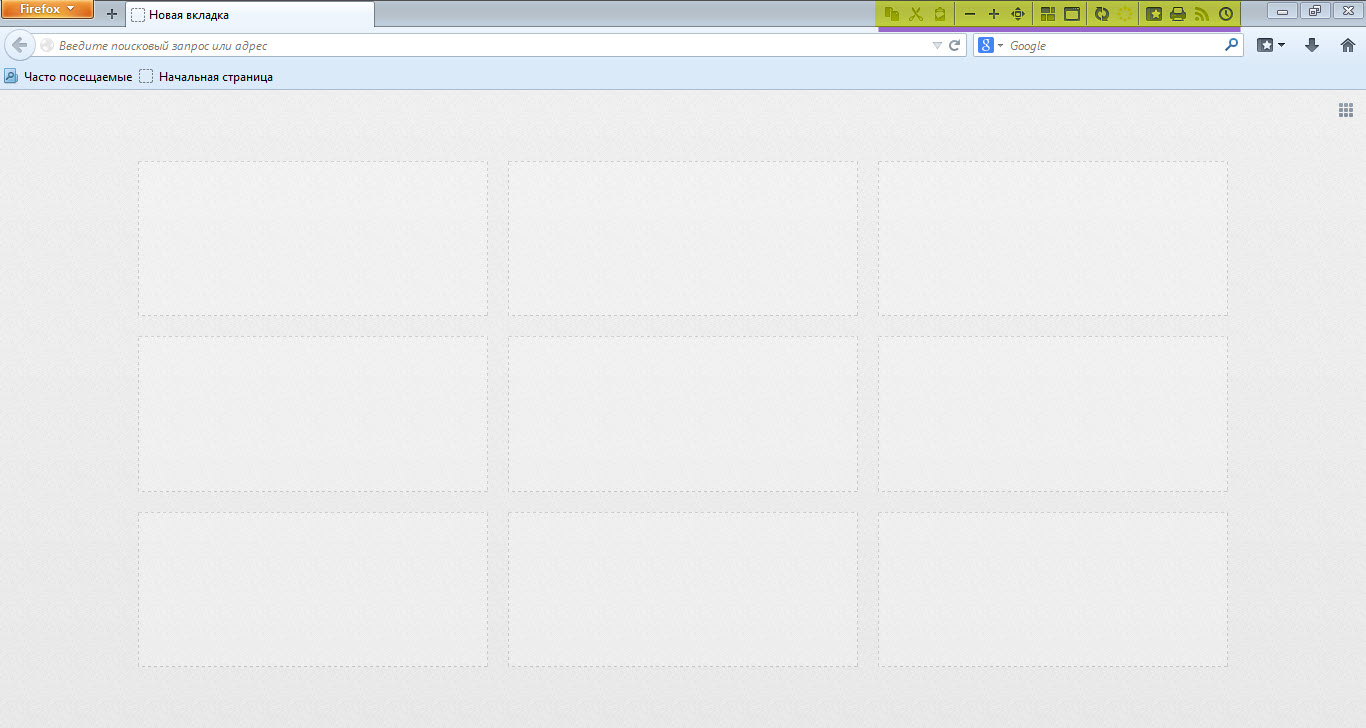
nastroyka-paneli-instrumentov-firefox1 By dragging icons you can place them where you want and how you want. It is very easy to do. In the list of icons, select the one you need and drag it to the desired toolbar. Also, you can separate groups of icons using a special icon - a separator. nastroyka-paneli-instrumentov-firefox2 Also, you can customize the display type of all icons. Namely, you can keep only icons, only text, or icons with text. In addition, you can make icons small. To do this, simply check the checkbox "Small icons".
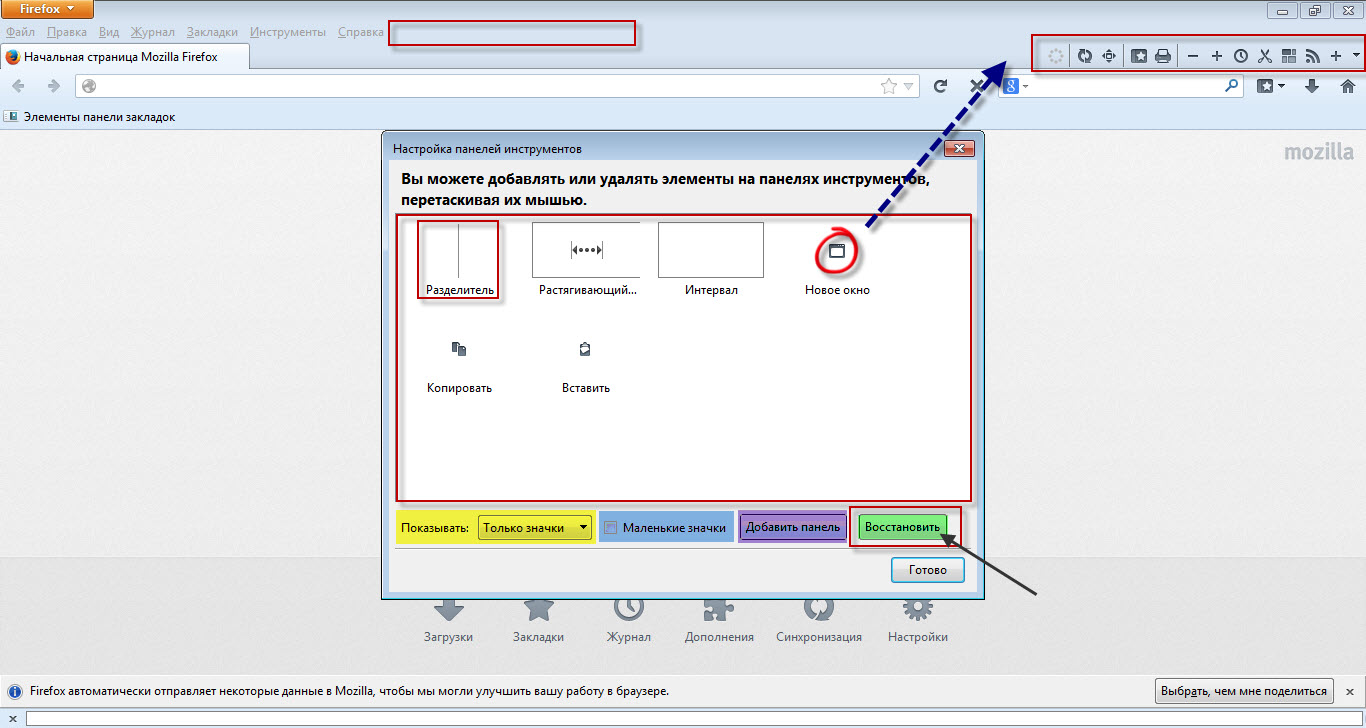
Firefox allows you to create your own toolbars, giving them your own names, and then place icons on them. Don't be afraid to experiment, do whatever you want, because to restore the original layout of icons and toolbars at any time, simply click the "Restore Defaults" button.
nastroyka-paneli-instrumentov-firefox3

Firefox offers extensive possibilities in terms of customizing icons and toolbars and that's just great.

Good luck!
Specifications

Views9 195

Reviews

5 reviews

  • Олег 16.05.2017

    где в андроиде у Фаерфокса панель инструментов?

  • pozdravhappy 29.12.2016

    Крайняя левая иконка Панели инструментов служит для включения инструмента выбора различных элементов.  Она позволяет кликом выбрать элемент кода, который Вам необходим для исследования. См. «Выбор элемента» .

  • Екатерина 22.01.2016

    аналогичная проблема, как у Александра: исчезли кнопки вконтакте, почта mail.ru и Яндекс-почта. Что делать?

  • Александр 02.01.2016

    Здравствуйте Роман Вячеславович! У меня так было раньше, но потом из окна настроек панели инструментов пропали большинство значков, например, почтовые (у меня их три), ВКонтакте, ну другие которыми я пользовался, это неудобно, раньше приход сообщений показывался, теперь чтобы посмотреть почту или приход других сообщений надо открывать все программы. Помогите, пожалуйста.

  • Галина Иванова 12.07.2015

    исчезла в интернете панель , где была моя "Яндекс почта" и в "Контакте " мои видео.фото и др. Как ее восстановить

Site.articles.relatedCategory

Show more

Sometimes the free FireFox browser establishes a so-called "secure connection" with a website, which means FireFox encrypts the connection and also checks the Certificate of the website being accessed. Such measures are necessary to protect the user from all sorts of fraudulent schemes, viruses, etc. However, these measures are sometimes unnecessary and simply prevent the user from visiting websites. In this case, you can disable such checks. If when visiting sites, you too often see the message "This is co"

20 679
Read
Setting up the Firefox start page

Setting up the Firefox start page

FireFox Settings
4.0

The first thing we see when we launch the Firefox browser is the start page. Every user has their own idea of what should be on the welcome page. Everyone customizes their start page the way they want. For example, you can use the standard Firefox browser start page customization tools. Also, you can set up your own custom option. You can install special add-ons that greatly enhance your welcome page.

17 645
Read
Firefox cannot find the server

Firefox cannot find the server

FireFox Settings
2.8

Sometimes it happens that Firefox, when requesting a particular site, responds with a message that the server cannot be found. There are quite a few reasons for this error, ranging from trivial to viruses. First of all, when such an error occurs, you should check whether the requested resource exists at all. Also, check if the internet connection is active. Sometimes it happens that no website opens at all; in that case, we recommend you check the Hosts file. Maybe a virus is at work,

7 726
Read
Configuring Hot Keys in FireFox

Configuring Hot Keys in FireFox

FireFox Settings
2.6

By default, the FireFox browser does not provide the ability to configure hot keys. However, this can be done by installing special add-ons. Specifically, there is an add-on called FireFox KeyConfig that allows you to configure hot keys. This extension, by the way, is available for both Mozilla Firefox and Mozilla Thunderbird. You can view the standard hot keys at http://support.mozilla.com/ru/kb/Keyboard+shortcuts Extension for burning keys in the Mozilla FireFox browser Download extens

6 648
Read

Site.articles.relatedPopular

Show more

By becoming a member of the Friend Around social network, you will ensure the opportunity for new acquaintances and find many friends! Every participating user in the social network has many friends and girlfriends, just new acquaintances in this network! Thanks to the modest application, you can often communicate with friends on common topics! Using the features of this social network, you can find your soulmate, and other users can help with this! [toc] On the website, you can quickly download the program and become a user of the Friend Around program

368 990
Read

The default welcome page of the Google Chrome browser looks, perhaps, empty and unclear. Now we'll figure out what a welcome page is and what it is for. [toc] When you start the browser, the first thing you see is the start page! It is also called the quick access page, or the welcome page. Welcome page - what is it? Actually, these are slightly different concepts, especially when it comes to the default welcome page of the Google Chrome browser. So, now we know what

151 556
Read

How to download a Windows 7 ISO image from the Microsoft website? Today it is possible, there is no longer a need to search for the OS on the Internet, risking infecting your own computer with a virus. There are many different builds of this operating system on the web. It is best to download the original Windows 7 ISO image, as it is considered the best. You don't need to download it from torrent trackers, it is available on the Microsoft website. However, there are certain nuances. At the link https://www.microsoft.com/ru-ru/

107 053
Read

Social networks - they are used by absolutely everyone who uses the Internet, just as the phone once gained incredible popularity - today social networks enjoy incredible universal popularity. [toc] Perhaps in the near future every inhabitant of the Earth will have their own account in one or another social network. As a rule, it is impossible or quite difficult to delete an account in social networks; it still remains in the system, no matter what you do. The Social Network Friend Around is no exception - in which

103 258
Read