To create a disk image, you will need some programs, namely UltraISO or Alcohol 120%. Both programs are good, but UltraISO is better suited for slightly scratched disks, as it has the ability to try many times to read that spot, or eventually skip the bad sector.
As for Alcohol 120%, it also does its job perfectly like UltraISO, but it is not designed to work with damaged disks. In case there are too many bad sectors, Alcohol 120% will stop creating the disk image, while UltraISO will try several times, skip that sector, and continue.
Now let's move more specifically to the question: "How to create a disk image using Alcohol 120", step by step with screenshots!
Let's create a disk image using Alcohol 120% as an example.
You can download the program without any problems on the internet. Installing it is also easy, except that on Windows XP you will need to install a special virtual disk driver, which is usually supplied with the Alcohol 120% program.[caption id="attachment_1472" align="aligncenter" width="600"]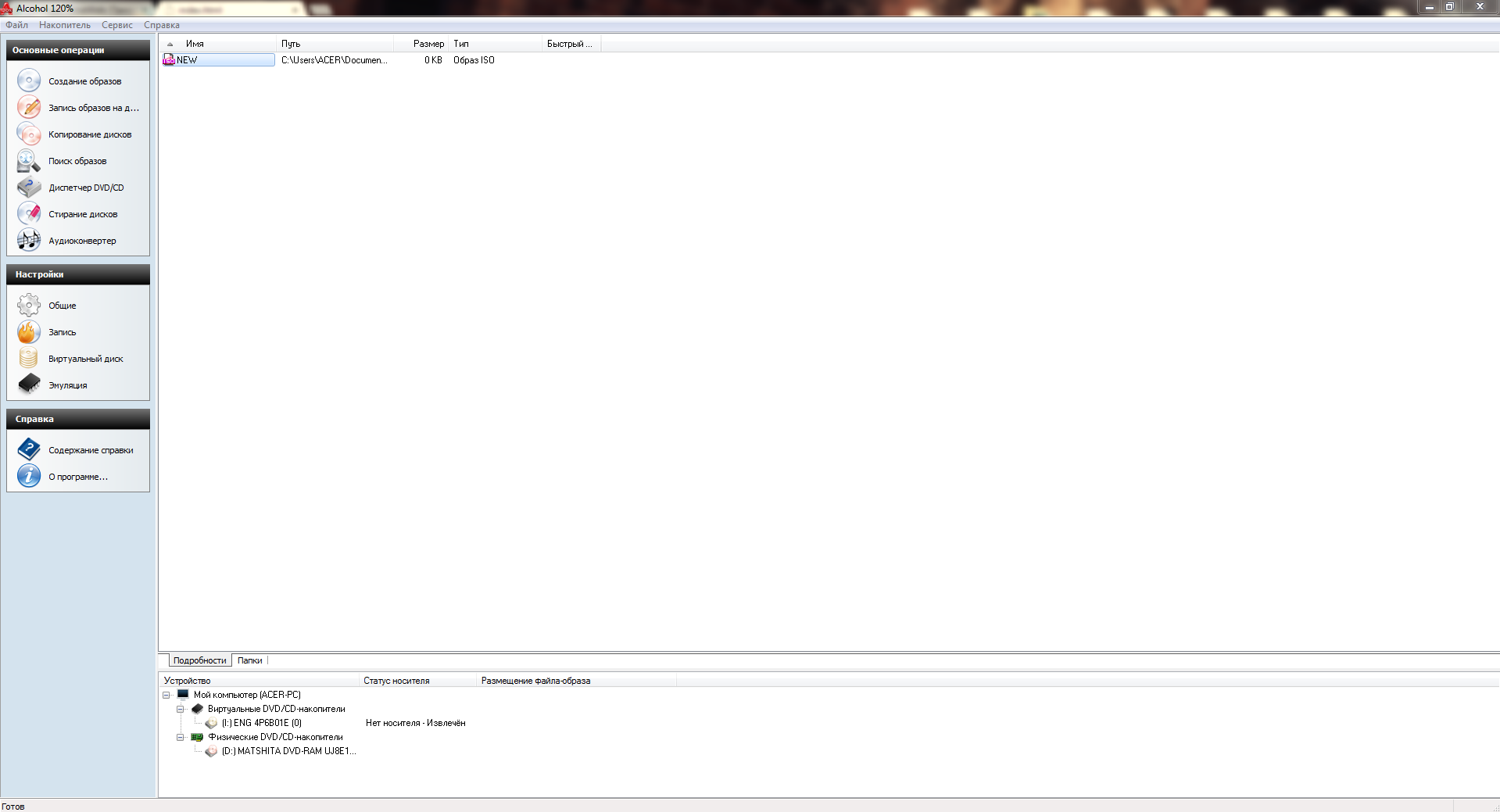 How to create a disk image[/caption]
So, insert the desired disk into the drive. Click the "Image Creation" button in the program.
[caption id="attachment_1473" align="aligncenter" width="186"]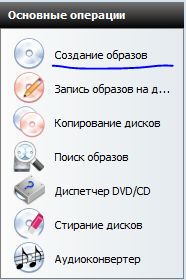 How to create a disk image[/caption]
The disk image creation window will open; here you need to configure some settings and start creating the image.
[caption id="attachment_1474" align="aligncenter" width="640"]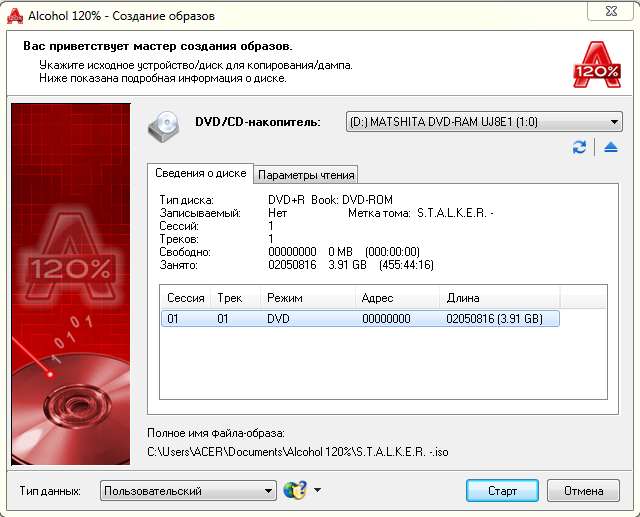 How to create a disk image[/caption]
In the DVD/CD drive section, select your drive where you inserted the disk from which you want to create an image. Pay attention to the "Data Type" settings item; there you can choose which disk you are working with. If you are creating a disk image for Playstation 2, select the corresponding item from the list.
[caption id="attachment_1475" align="aligncenter" width="272"] How to create a disk image[/caption]
Now click the "Start" button and the disk image will begin to be created. When the process finishes, the image will be ready for use; you can then remove the disk and see the created image in the Alcohol 120% image list.
[caption id="attachment_1476" align="aligncenter" width="642"]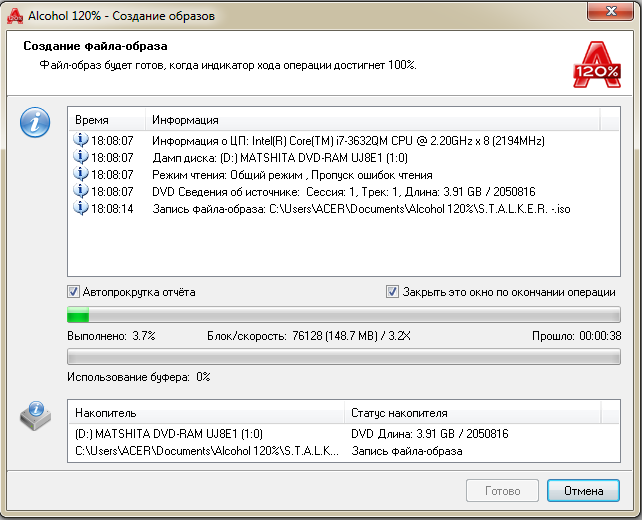 How to create a disk image[/caption]
To open the image in a folder, navigate to the path specified in the "Path" table cell. That's it - the created image is ready for use. If in the future you want to convert the created image from .mdf to .iso, use the UltraISO program.
How to burn an ISO image to a disk?
Burning and working with disks:
Good luck!