Today we’re going to talk about how to install the Mozilla FireFox browser. So, first you need the installation file/archive of the Mozilla FireFox program.
You can download this file from our website: Download Mozilla FireFox browser for free, or from other resources distributing similar software.
For example, let’s take the installation file Mozilla FireFox 23.0.1
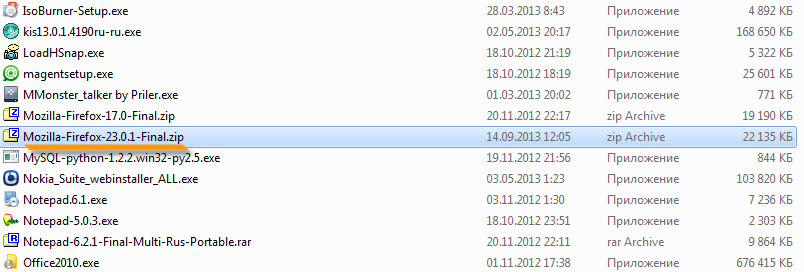 As you can see, this file is a ZIP archive, so extract it using WinRar or 7Zip into a separate folder. Inside, we see only 1 file.
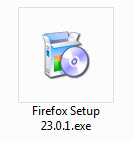
We run this file and see that the process of extracting installation files begins, only in this case they are extracted to a temporary Windows folder, which will be automatically deleted after installing FireFox.
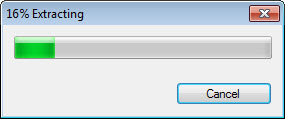
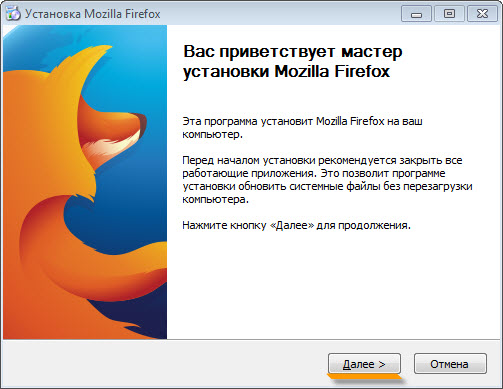
When the loading reaches the end, the program installation window itself opens directly. Click the "Next" button.
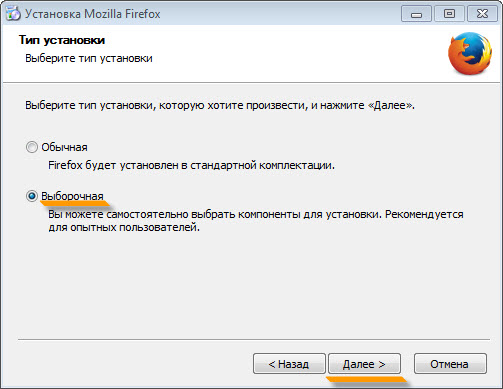
Select the "Custom installation" option and click the "Next" button.
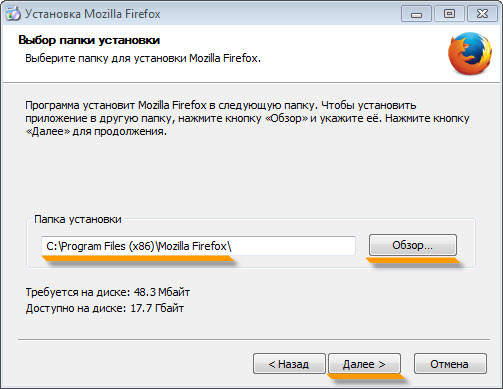
Choose the Firefox browser installation path and click the "Next" button.
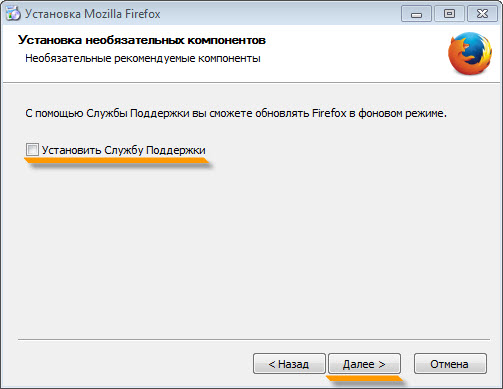
Optionally check the box to install the Firefox Maintenance Service and click the "Next" button.
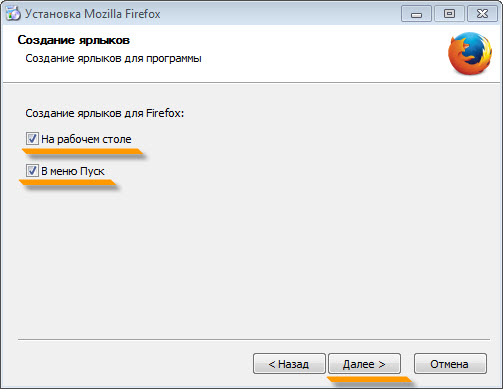
Optionally select the location of the FireFox shortcut and click "Next".
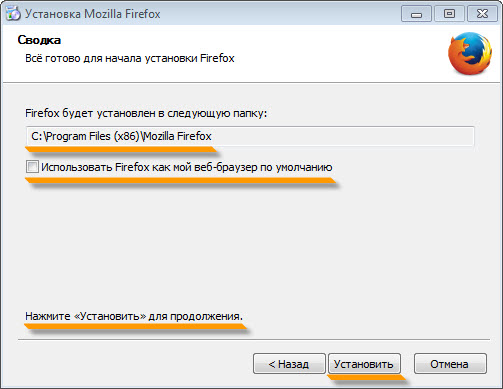
If needed, check the "Make default browser" option, then verify the installation path, and if everything is correct, click the "Install" button, after which the installation process will begin.
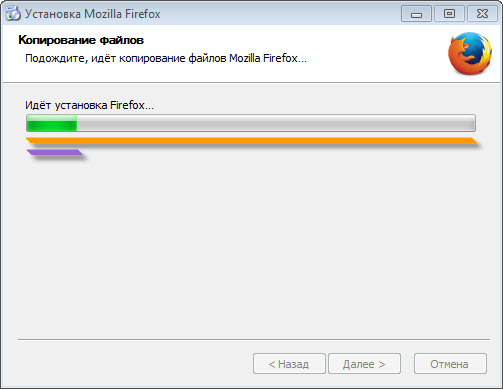
Upon completion of the installation process (from 5 to 15 seconds), the last installation window will appear, asking to launch the browser. Optionally, tick the box and the browser will start immediately after clicking the "Finish" button.
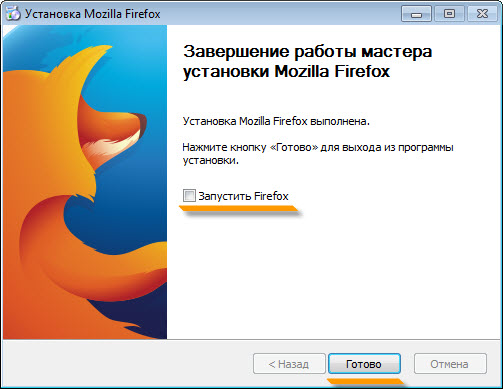
Click "Finish", that’s it, the browser is successfully installed and appeared on the desktop :)

Good luck!