How to open a closed tab in Google Chrome?

How to open a closed tab in Google Chrome?

3.8 (4 ratings) Hover and click a star to rate
Views
980
Rating
3.8 / 5

Almost every Google Chrome user has encountered a situation where they accidentally closed a tab in Google Chrome and urgently need to restore it, because there is interesting information there or, as often happens—they were looking for a good movie, started watching, liked it, and closed it :)))

For such cases, the Google Chrome browser has created a dedicated function, as well as a keyboard shortcut with which you can open the last closed tab in the browser.

To restore a closed tab in the Google Chrome browser, there are two methods:

  • First method: Press the key combination Ctrl+Shift+T and your last tab will be restored. This combination works in the Firefox and Opera browsers. If for some reason you were unable to restore the tab in the browser using the keyboard shortcut, then move on to method #2.
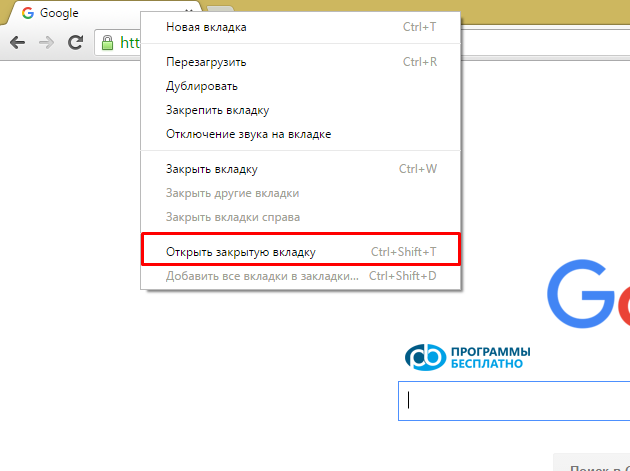
  • Second method: Right-click on any tab and click "Open closed tab"
how-to-open-a-closed-tab-in-google-chrome-1


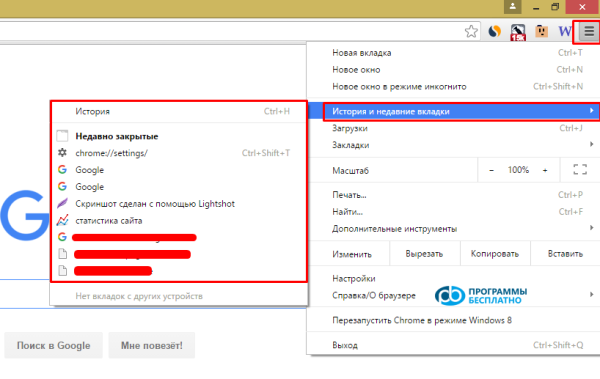
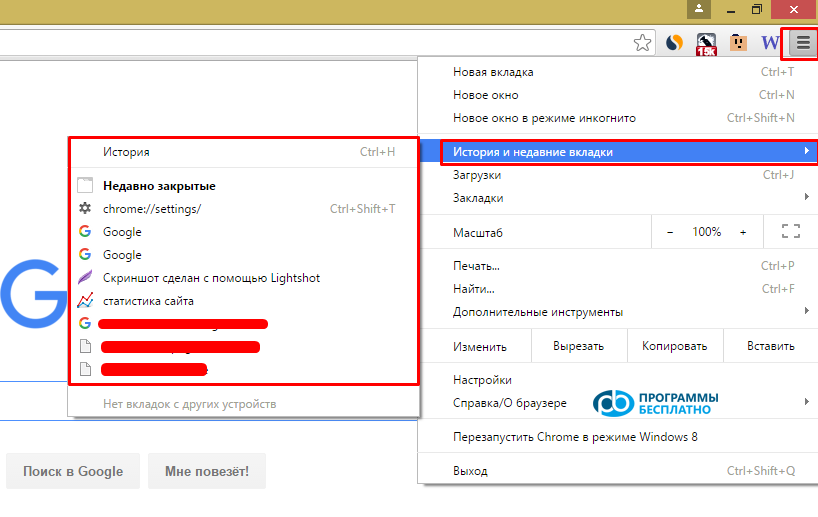
  • Third method: Go to the menu of closed sites and there you can restore any last site that you closed in the Google Chrome browser
how-to-open-a-closed-tab-in-google-chrome-2


  • Fourth method: I think everyone should know this, but sometimes they forget—this is to view the browser history by pressing the keys CTRL + H. Or go to the History menu, as in the screenshot in point 3.

Specifications

Views980

Site.articles.relatedCategory

Show more

The default welcome page of the Google Chrome browser looks, perhaps, empty and unclear. Now we'll figure out what a welcome page is and what it is for. [toc] When you start the browser, the first thing you see is the start page! It is also called the quick access page, or the welcome page. Welcome page - what is it? Actually, these are slightly different concepts, especially when it comes to the default welcome page of the Google Chrome browser. So, now we know what

151 556
Read
Configuring Flash for Google Chrome

Configuring Flash for Google Chrome

Google Chrome Setup
3.8

Sometimes in the Google Chrome browser, Flash Player crashes or overloads the browser itself. For this, we have detailed 3 steps on how to optimize Flash Player's performance for maximum speed in the browser. By the way, those who have not yet downloaded the Google Chrome browser can download it from our website on this page. For the fastest performance of Flash applications in the Google Chrome browser, it is very important to configure it correctly. The speed of operation largely depends not on the player used in the browser, but on

26 768
Read
Customizing Google Chrome Tabs

Customizing Google Chrome Tabs

Google Chrome Setup
4.0

As practice shows, users prefer an "enhanced" tab page, i.e., one where tabs can be managed. Unfortunately, the standard version of Google Chrome lacks this feature :( However! Let's not forget the wonderful option of installing third-party add-ons! :) We're talking about Google Chrome extensions available in the Google Web Store. So, our goal is to upgrade the tab page to introduce this much-needed management capability.

15 328
Read
Saving settings in Google Chrome

Saving settings in Google Chrome

Google Chrome Setup
3.9

Users of the Google Chrome browser often ask a question related to saving settings. Since you are asking this question, we will now try to answer it in detail and with screenshots. To download the Russian free Google Chrome browser, use this link. First of all, you should tell where the Google Chrome browser settings are located? To go to the browser settings page, you need to click on the icon with 3 bars, as shown in the picture: In the appeared context menu

8 303
Read

Site.articles.relatedPopular

Show more

By becoming a member of the Friend Around social network, you will ensure the opportunity for new acquaintances and find many friends! Every participating user in the social network has many friends and girlfriends, just new acquaintances in this network! Thanks to the modest application, you can often communicate with friends on common topics! Using the features of this social network, you can find your soulmate, and other users can help with this! [toc] On the website, you can quickly download the program and become a user of the Friend Around program

368 990
Read

How to download a Windows 7 ISO image from the Microsoft website? Today it is possible, there is no longer a need to search for the OS on the Internet, risking infecting your own computer with a virus. There are many different builds of this operating system on the web. It is best to download the original Windows 7 ISO image, as it is considered the best. You don't need to download it from torrent trackers, it is available on the Microsoft website. However, there are certain nuances. At the link https://www.microsoft.com/ru-ru/

107 053
Read

Social networks - they are used by absolutely everyone who uses the Internet, just as the phone once gained incredible popularity - today social networks enjoy incredible universal popularity. [toc] Perhaps in the near future every inhabitant of the Earth will have their own account in one or another social network. As a rule, it is impossible or quite difficult to delete an account in social networks; it still remains in the system, no matter what you do. The Social Network Friend Around is no exception - in which

103 258
Read

