
When you purchase a new personal computer or reinstall the Windows operating system on an existing one, initially there is only one local disk. This arrangement rarely satisfies owners, as it is inconvenient and fraught with certain consequences.
Therefore, the question often arises – how to partition a hard drive? Everyone can independently split one local HDD into several, choosing the digital capacity of each element.
How to achieve this is described below, but it is worth noting that the instructions and advice apply to people using an operating system from Microsoft, version no older than Vista - earlier versions are limited in terms of manipulations with the virtual structure of the hard drive.
Partition a hard drive during Windows operating system installation
How to split a hard drive into two partitions?
Windows does not see the hard drive, what to do?
Hard drive (HDD) is slow, what to do?
Why partition an HDD
Every PC contains a hard drive – a storage device for holding information. It stores a multitude of things, from the installed operating system to the most insignificant text document.
The hard drive is available as a local storage device, which a person can manipulate at their discretion by partitioning, merging, renaming, or deleting. There are several reasons to partition a Windows hard drive – ease of system use, security concerns, and performance.
Convenience
During the operation of a laptop or desktop computer, the HDD accumulates huge amounts of various types of information that need organization. Partitioning a hard drive into sections is the optimal way to sort all files "into shelves." It is possible to create several storage areas intended for different types of information: Movies/TV series. Audio. Software. Images.
It is acceptable not to bother with partitioning the local HDD, distributing all this data into separate segments (folders), but practice shows that this method leads to chaos - cluttering the operating system.
Performance
Initially, Windows has one local drive – "C", where the system is installed. For correct operation, it needs a certain amount of unoccupied disk space that will not be subject to constant system requests related to one process or another.
Therefore, it is necessary to partition the HDD, leaving an individual partition for Windows that is not used for anything else. If this recommendation is ignored, the single local drive will be subjected to excessive load, resulting in slow operating system performance.
Security
Anyone who has ever used digital technology is familiar with viruses. Sometimes, a malicious program causes the operating system to become inoperable.
Then it has to be reinstalled, which leads to the loss of data stored in the same location as Windows. When there is only one local HDD, this means the loss of all information. To prevent this from happening, you need to know how to partition a hard drive into parts.
Ways to structure the hard drive
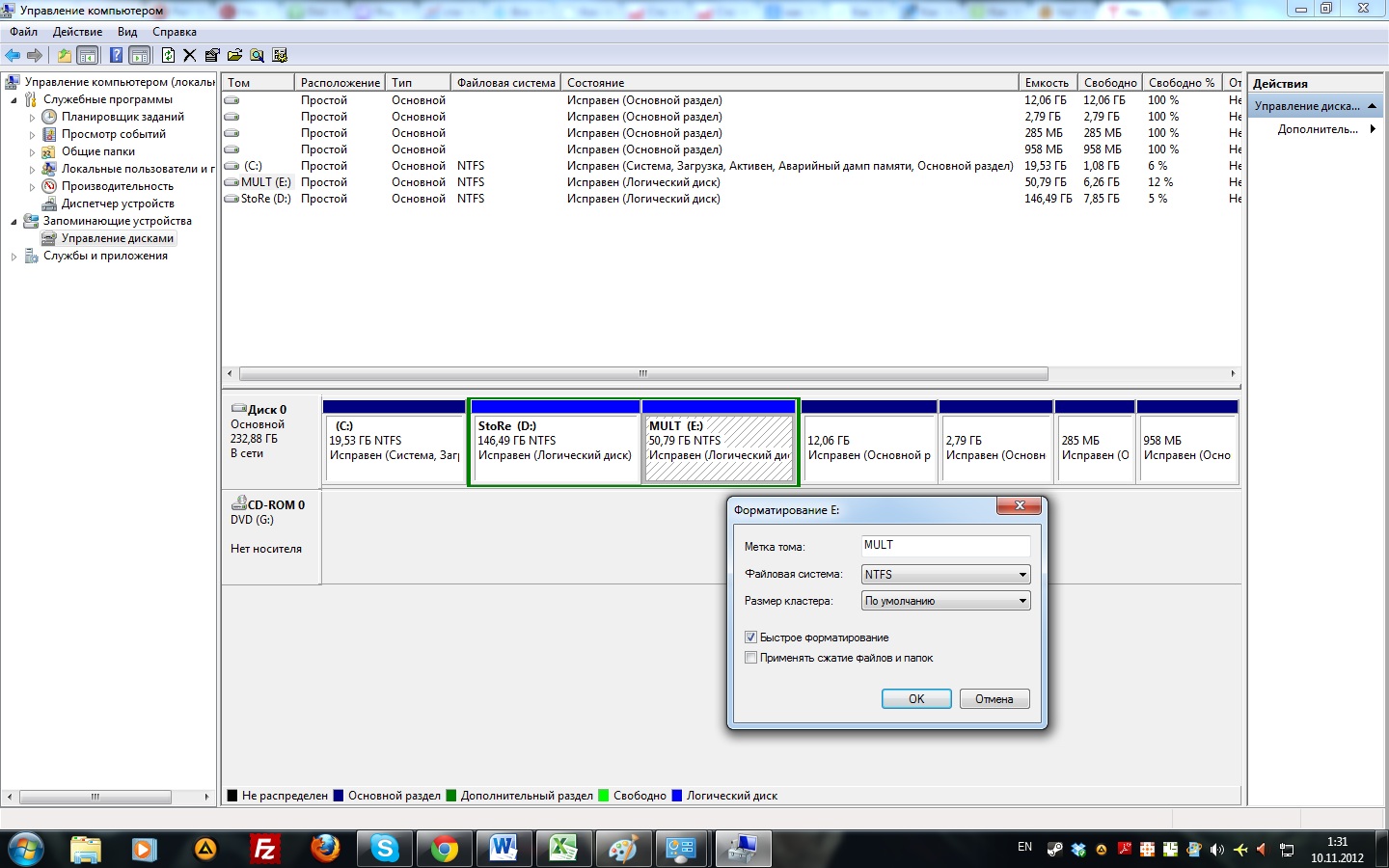
The built-in Windows manager has a disk management feature. There are specific ways to launch it:
- Through the "Run" window. To do this, press the Win+R key combination – a panel will open where you enter the command "diskmgmt.msc" and click "Ok".
- Move the cursor to the "Computer" icon, press the right mouse button – a list will open, in which select the "Manage" item. The "Computer Management" panel will activate, where you click "Disk Management".
- Using the "Start" menu, where you need to navigate through "Control Panel". Then "System and Security".
- The next item – "Administrative Tools". Then, as in the previous item, select "Computer Management" - "Disk Management".
As a result of performing any of the suggested manipulations of your choice, the local HDD management manager will open. Virtual tools for working with them are presented here, with which you can partition a hard drive without data loss.
The manager clearly shows unallocated space, where you need to move the cursor and press the right mouse button, after which a menu will open where you select the "Create Simple Volume" item - the Wizard will launch, which will help you partition the HDD step by step. Additionally, the manager allows you to perform several important manipulations on partitions.
Extend Volume
When a person has figured out how to partition a hard drive on Windows 7, they may need to extend the size of an additional virtual drive using free space on the HDD – the size by which we want to increase the volume is specified independently in megabytes.
Shrink Volume
The reverse operation, which reduces a logical HDD, provided there is space on it not occupied by digital information. If not, you will have to delete all unnecessary data, perform defragmentation, and if there is a paging file, move it to another location and repeat the shrink operation again.
Delete Volume
After successfully partitioning a hard drive on Windows 8, you may need to delete unnecessary logical drives. To do this, select the drive, press the right mouse button, and then the "Delete Volume" item. All information in the partition will be permanently destroyed.
Partition a disk during installation
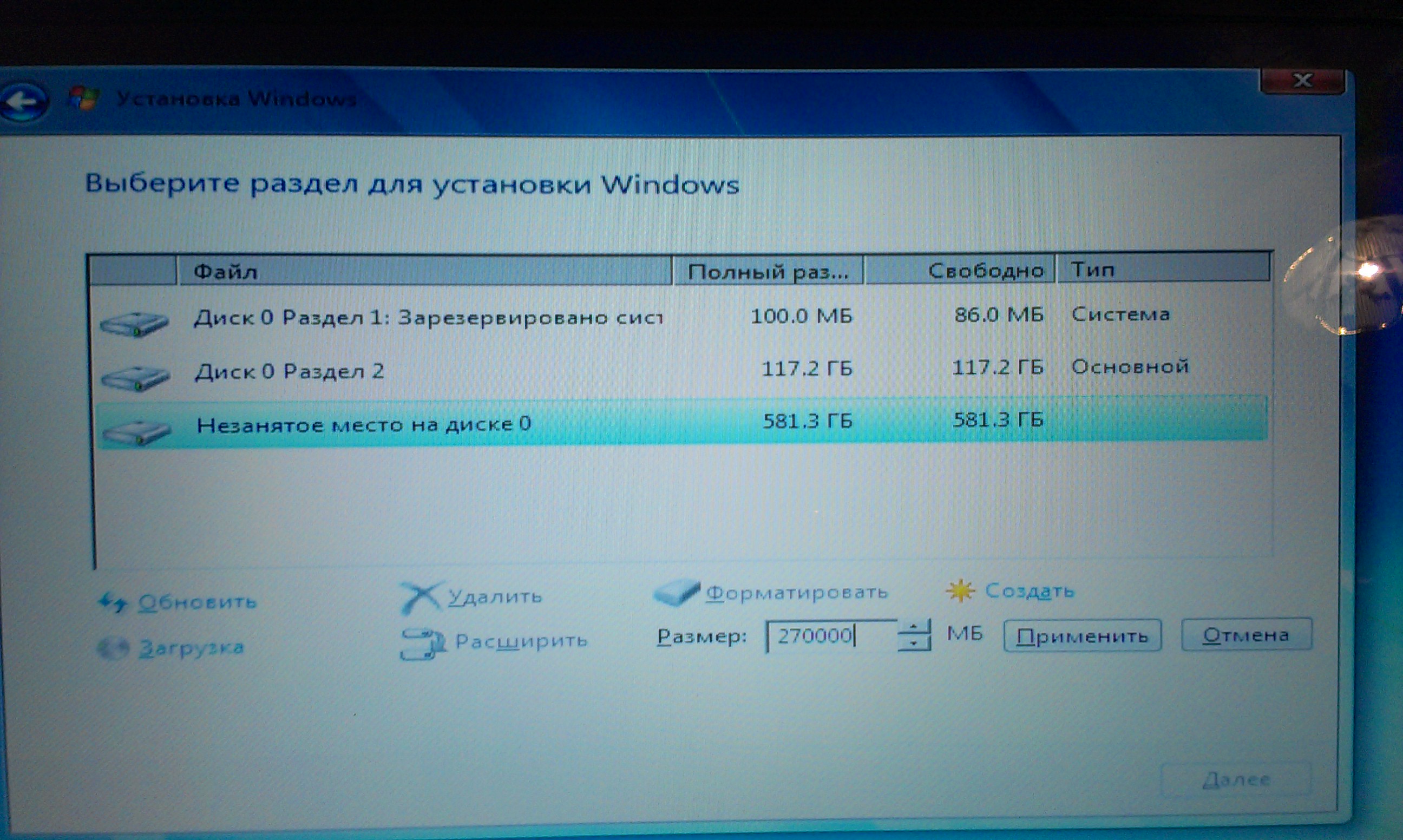
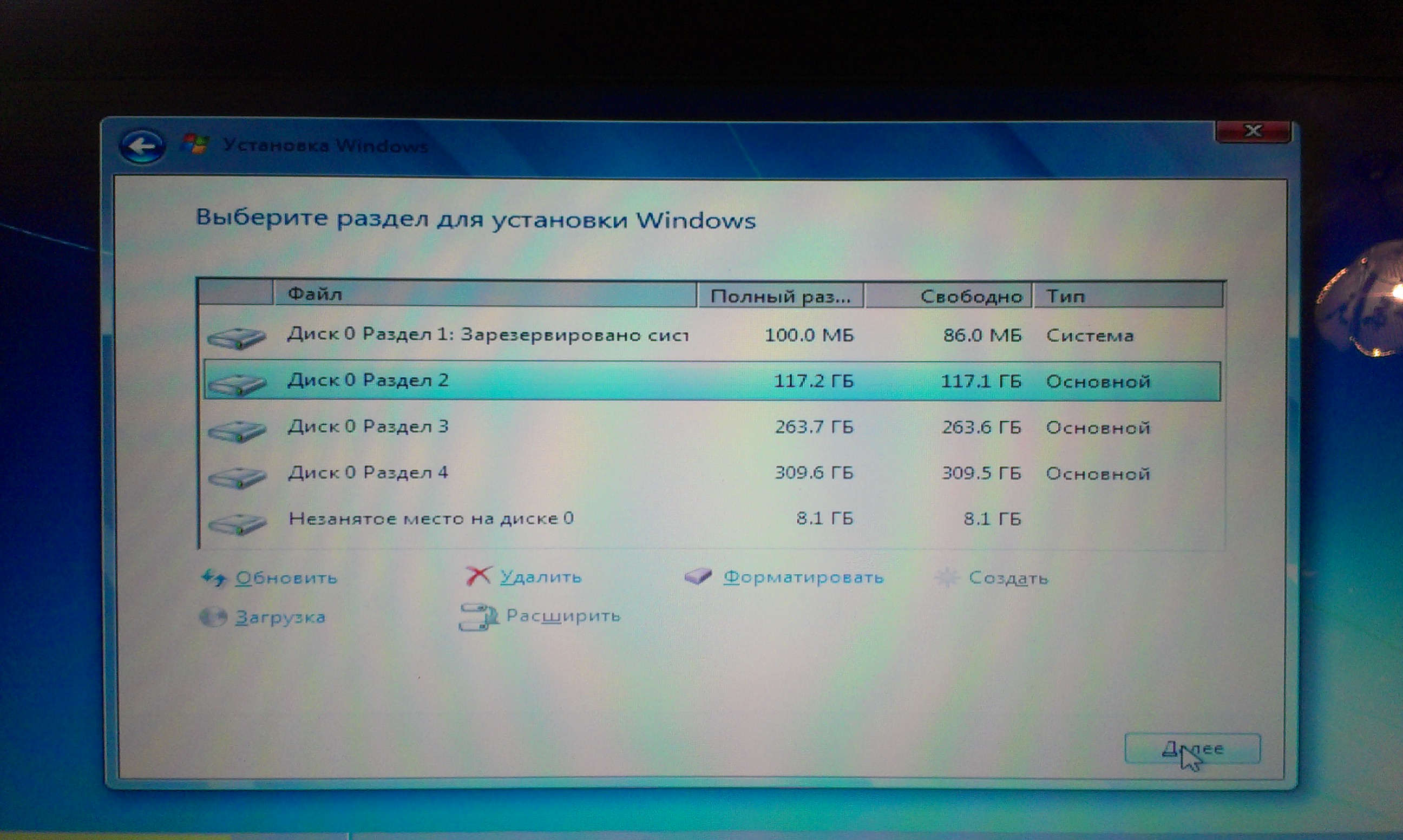
Another method is possible, how to partition a hard drive during installation. For many, it is optimal due to its simplicity and reliability – there is no need to resort to system settings that may seem overly complex. Windows installation has several stages, at one of which the user is offered to format the hard drive.
It is possible to choose the appropriate option: Format the HDD without partitioning. Formatting with the creation of a specific system partition (where the operating system will be installed) and logical volumes, the number of which the user chooses. Here, the whole question of how to partition a hard drive on Windows 10 and previous releases of this system comes down to choosing the second option.
To do this, click the "New" button (or any other that hints at creating a new volume – this varies depending on the OS build), and then specify the size. This way, you can create as many disks as needed. At the next stage, select the system partition – the location where Windows will be installed.
As a result, after installing the operating system, you will get several local drives.
Using third-party programs
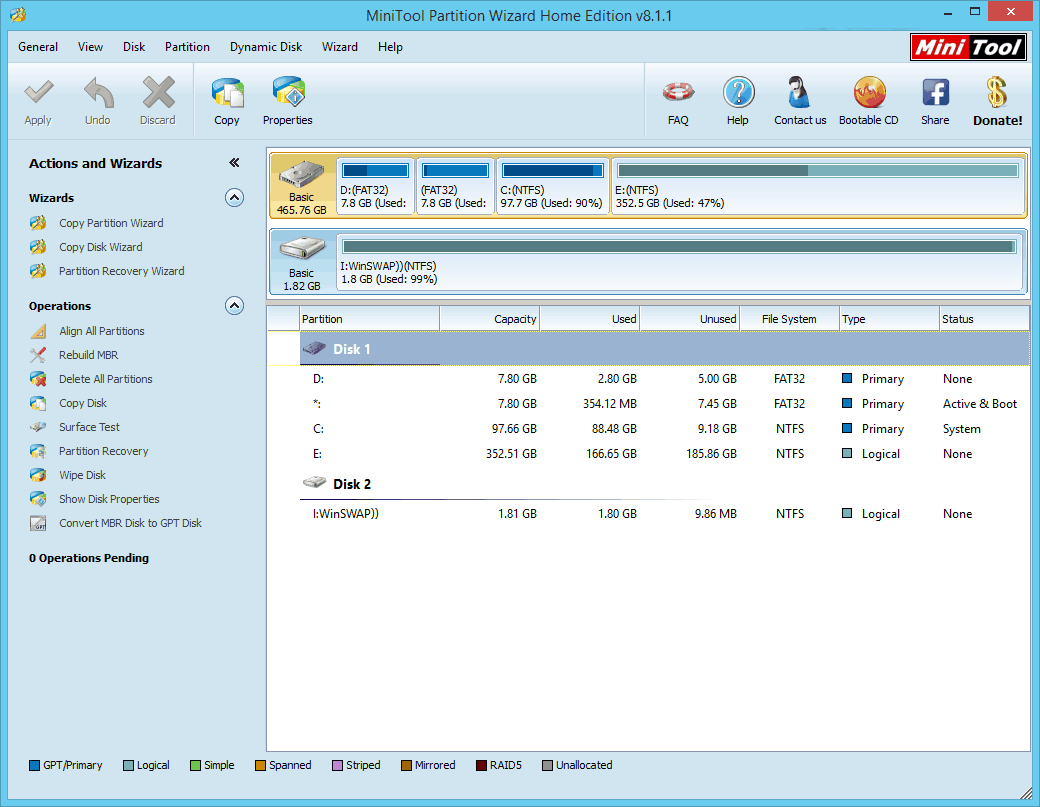
For those who are not satisfied with the built-in Windows management tools, there are programs that allow you to forget about the question of how to partition a hard drive on a laptop or personal computer.
The most popular specialized utilities are "Acronis Disk Director" and "Partition Magic". They are fully translated into English and have a built-in Wizard that will guide you step by step through partitioning the hard drive – just follow the instructions.
The process of partitioning a hard drive into volumes is simple – anyone can handle it. Inexperienced users should resort to special utilities that will walk them through the entire procedure step by step, while advanced users who understand computers can use the built-in management tools.
It is recommended to always partition the HDD – this guarantees stable operation of the operating system and the absence of failures in the first stage of use. Additionally, you can avoid the chaos that arises with a single local drive.