Renaming a hard drive can be done as many times as you like, since its actual name, by which programs in the system identify it, is its letter. Drive letters are uppercase Latin letters that serve as the actual name of a local disk. Drive letters also apply to virtual local disks.
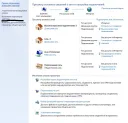
Additionally, devices connected to the computer, such as a flash card, DVD/CD drive, external HDD, etc., also have drive letters. Typically, the system always has a main local disk with the letter "C", which most often stores Windows and other system files. For example, here is a screenshot of what the list of devices in Windows Explorer usually looks like.
[caption id="attachment_1468" align="aligncenter" width="600"]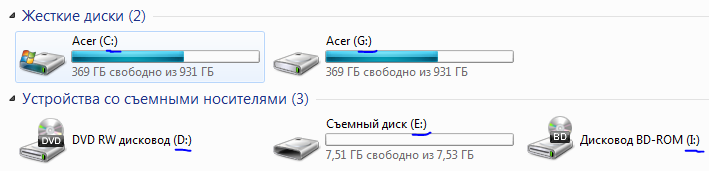 How to rename a local disk[/caption]
Here you can see the local disk "C", as well as the local disk "G". In this case, the local disk "G" is a virtual copy of the local disk "C", or more precisely, a copy of a folder located on the local disk "C". Windows allows you to easily create virtual local disks, most often done for convenience.
Also, in the screenshot you can see a device with the letter "D" - this is a real DVD drive. The device with the letter "E" is a flash card, and the device with the letter "I" is virtual and represents a virtual DVD/CD drive. Such virtual drives are typically created by programs that work with disk images.
For example, such programs include Alcohol 120%, Ultra ISO, and others.
Addressing the question of how to rename a local disk, it can be confidently said that there is absolutely nothing complicated about it. As already mentioned, the name of a local disk is just text and is rarely used anywhere. Therefore, you can change the name of a local disk without worrying that something will stop working somewhere.
Renaming a local disk
A hard drive is renamed in the most ordinary way, just like a regular Windows folder. You should right-click on the desired local disk and select the "Rename" option, then enter the desired name and press the "Enter" key.
Done - You have successfully renamed the local disk.
Recording and working with disks:
- Download alcohol 120% free in Russian
- Download DAEMON Tools free in Russian
- Download Nero Burning ROM free in Russian
Good luck!