How to reset Google Chrome browser settings?

How to reset Google Chrome browser settings?

5.0 (3 ratings) Hover and click a star to rate
Views
5 366
Rating
5.0 / 5

All users customize their free browser to their liking, everyone wants the browser to work the way they want. It's no secret that Google Chrome browser for Windows 7 is one of the best and most powerful browsers today, and therefore offers a multitude of possible settings compared to browsers like Opera, FireFox, Safari, Yandex Browser.

Starting from customizing the appearance, setting fonts, and ending with configuring the browser's behavior in various situations. Moreover, all possible browser settings are divided into those available to all users and those not available to all. What do we mean when we talk about this?

For example: the proxy server settings section - HTTPS/SSL, etc., is mainly accessed by Web Developers, as they understand these settings and know what each one does.

Sometimes, it is necessary to return the settings to their defaults; there can be many reasons for this decision, for example:

  • Low browser performance
  • Incorrect browser behavior.

Do not rush to reset browser settings, as you must clearly understand what will happen in the event of a reset and decide whether you should do it.

First: it should be said that resetting browser settings leads to a complete reset of absolutely "ALL" Google Chrome browser settings. By resetting the settings, you will essentially return the browser to the state it was in initially.

Second: think about whether it might be worth writing down or remembering some current settings, so that you can restore them after the reset. For example: You like the current font settings and would like to reset all settings except the font settings. In that case, remember or write down the current font settings in Google Chrome, then reset the settings and reconfigure the font settings section.

  • So, let's talk about how to reset browser settings?

Reset Browser Settings

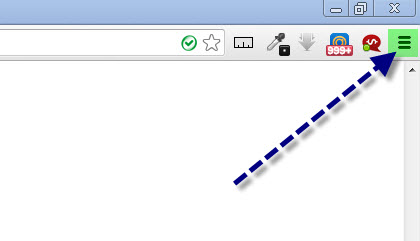
First, launch the Google Chrome browser (if it is not running), hover the cursor over the upper right area of the open browser window and select the appropriate item "Customize and control Google Chrome".
How to Reset Google Chrome Settings

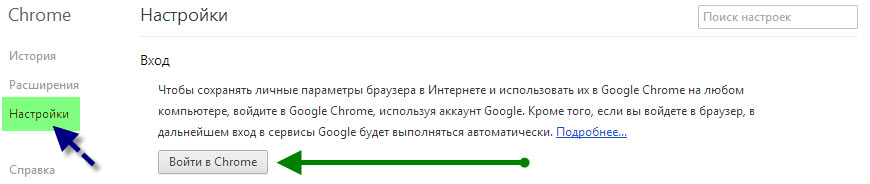
In the context menu that appears, select the item "Settings". On the page that opens, click the tab "Settings", then click the button "Show advanced settings".
How to Reset Google Chrome Settings

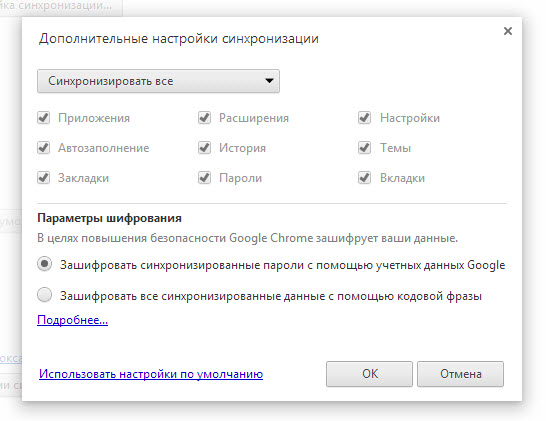
Next, scroll with the mouse wheel to the very bottom of the page, at the bottom you will see the button "Reset browser settings".
How to Reset Google Chrome Settings

Click this button. A confirmation dialog for the changes will appear on the screen:
How to Reset Google Chrome Settings

By clicking the "Change" button, you confirm the reset, after which the Google Chrome browser settings will be reset. That's it, now you know how to reset Google Chrome browser settings. :)

However, remember that by resetting all settings, you are resetting exactly "ALL" the browser settings. And once reset, you will not be able to get them back! That is why you should think twice, or better yet three times, before resetting the browser settings.


Specifications

Views5 366

Site.articles.relatedCategory

Show more

The default welcome page of the Google Chrome browser looks, perhaps, empty and unclear. Now we'll figure out what a welcome page is and what it is for. [toc] When you start the browser, the first thing you see is the start page! It is also called the quick access page, or the welcome page. Welcome page - what is it? Actually, these are slightly different concepts, especially when it comes to the default welcome page of the Google Chrome browser. So, now we know what

151 556
Read
Configuring Flash for Google Chrome

Configuring Flash for Google Chrome

Google Chrome Setup
3.8

Sometimes in the Google Chrome browser, Flash Player crashes or overloads the browser itself. For this, we have detailed 3 steps on how to optimize Flash Player's performance for maximum speed in the browser. By the way, those who have not yet downloaded the Google Chrome browser can download it from our website on this page. For the fastest performance of Flash applications in the Google Chrome browser, it is very important to configure it correctly. The speed of operation largely depends not on the player used in the browser, but on

26 768
Read
Customizing Google Chrome Tabs

Customizing Google Chrome Tabs

Google Chrome Setup
4.0

As practice shows, users prefer an "enhanced" tab page, i.e., one where tabs can be managed. Unfortunately, the standard version of Google Chrome lacks this feature :( However! Let's not forget the wonderful option of installing third-party add-ons! :) We're talking about Google Chrome extensions available in the Google Web Store. So, our goal is to upgrade the tab page to introduce this much-needed management capability.

15 328
Read
Saving settings in Google Chrome

Saving settings in Google Chrome

Google Chrome Setup
3.9

Users of the Google Chrome browser often ask a question related to saving settings. Since you are asking this question, we will now try to answer it in detail and with screenshots. To download the Russian free Google Chrome browser, use this link. First of all, you should tell where the Google Chrome browser settings are located? To go to the browser settings page, you need to click on the icon with 3 bars, as shown in the picture: In the appeared context menu

8 303
Read

Site.articles.relatedPopular

Show more

By becoming a member of the Friend Around social network, you will ensure the opportunity for new acquaintances and find many friends! Every participating user in the social network has many friends and girlfriends, just new acquaintances in this network! Thanks to the modest application, you can often communicate with friends on common topics! Using the features of this social network, you can find your soulmate, and other users can help with this! [toc] On the website, you can quickly download the program and become a user of the Friend Around program

368 990
Read

How to download a Windows 7 ISO image from the Microsoft website? Today it is possible, there is no longer a need to search for the OS on the Internet, risking infecting your own computer with a virus. There are many different builds of this operating system on the web. It is best to download the original Windows 7 ISO image, as it is considered the best. You don't need to download it from torrent trackers, it is available on the Microsoft website. However, there are certain nuances. At the link https://www.microsoft.com/ru-ru/

107 053
Read

Social networks - they are used by absolutely everyone who uses the Internet, just as the phone once gained incredible popularity - today social networks enjoy incredible universal popularity. [toc] Perhaps in the near future every inhabitant of the Earth will have their own account in one or another social network. As a rule, it is impossible or quite difficult to delete an account in social networks; it still remains in the system, no matter what you do. The Social Network Friend Around is no exception - in which

103 258
Read

