As in all other browsers, Firefox has a built-in settings system that operates on the principle of profiling. That is, all your settings are saved in profiles. More precisely, when you install Firefox, a standard profile called Default is created, which stores the settings. This system is very convenient, because once you configure the browser, you don't need to do it again.
That's why the Firefox developers created a profile system to make life easier for Firefox users. If you want to transfer Firefox settings, all you need to do is get the profile and import it into a new Firefox. However, you should keep in mind that it is advisable to import Firefox settings of the same version as yours. Otherwise, the imported settings may not work correctly.
This happens because with each new version of the Firefox browser, the file layout architecture, as well as the architecture of the files themselves, changes, since updates are innovations, which means additional settings and changes in the files.
Everything is easy and simple!
Importing Settings into Mozilla Firefox Browser
So, to import Firefox settings, you must have a special set of files from a Firefox profile, preferably of the same version as yours. Now that you have these files, you need to navigate to the Firefox profiles path on your computer.
- On Windows XP and similar: C:\Documents and Settings\YOUR_WINDOWS_NAME\Application Data\Mozilla\Firefox\Profiles\SOME-LETTERS-AND-NUMBERS.default\
On Windows 7, the path is slightly different, so to get to the Application Data folder, do this:
- Start > Run > %AppData%
- On Linux it's - ~/.mozilla/firefox/SOME-LETTERS-AND-NUMBERS.default/
Where the tilde is the home directory symbol.
So, this folder usually looks like this:
[caption id="attachment_1191" align="aligncenter" width="600"]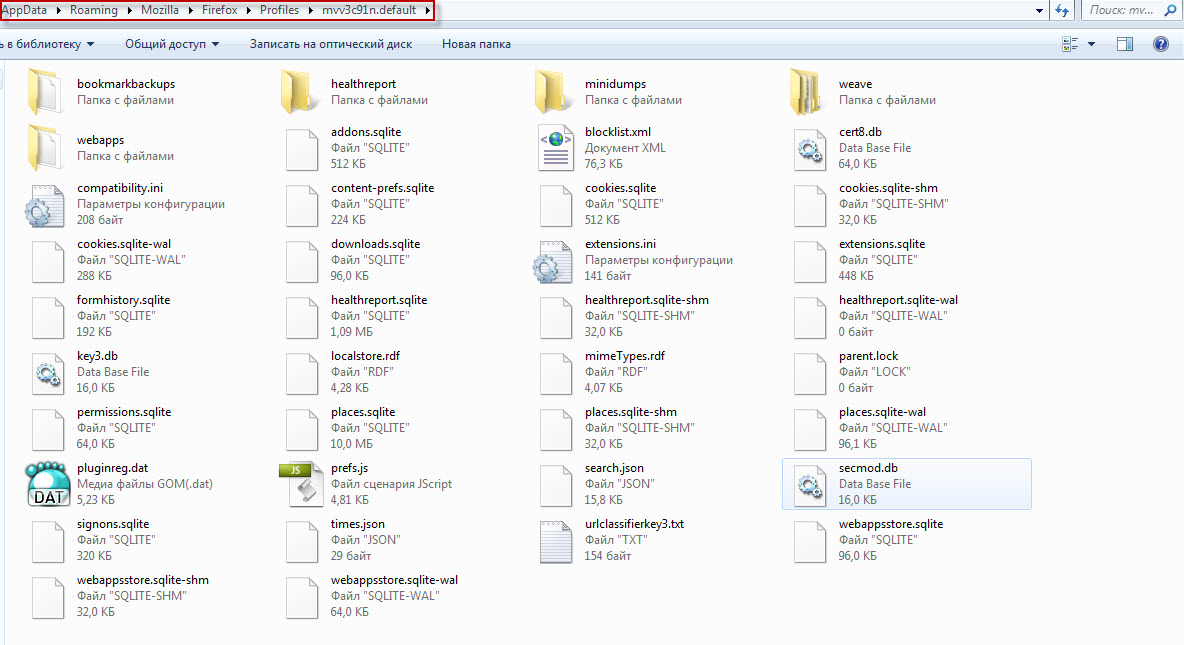 Importing Firefox settings[/caption]
Now, simply copy all your settings files here, and when prompted to replace files, agree. However, remember that all current Firefox settings will be reset, so if needed, make a backup to be safe in case anything happens.
That's it, restart Firefox if it is running, and the new settings will take effect.
Congratulations, you have imported Firefox settings!
Good luck!