Recently, FireFox users, and in general, all browser users, have been wondering how to work with the browser cache. To understand how to work with the cache, you need to know what the cache is.
So, cache is the data that the browser "caches", i.e. saves on the local computer so that it does not have to be loaded again in the future. Files that the browser usually caches include images, scripts, styles, flash elements, etc. Perhaps the caching system allows everything that uses it to work faster. The browser is no exception, as it also effectively uses the caching system.
As a rule, the cache is updated when the file storage period expires. In that case, old files are deleted and new ones are cached. This is done so that when a particular website is updated, the user opens the updated version, not the cached one.
The caching system is very important, as it significantly speeds up the browser's performance, both on weak computers and with a slow Internet connection. Also, the caching system is used wherever possible. Thus, the famous social network Facebook is the most active user of the MemCache system, which caches data requested from the database.
Thanks to this, the interval of queries to the database is significantly reduced, which reduces the load on Facebook servers, and the user gets the requested page faster. FireFox browser is no exception; it also uses the caching system to achieve the highest possible speed.
Clear cache in Mozilla Firefox
FireFox provides some tools for working with the cache, and that's what we'll talk about. To get to the FireFox cache control panel, you need to open the main settings panel.
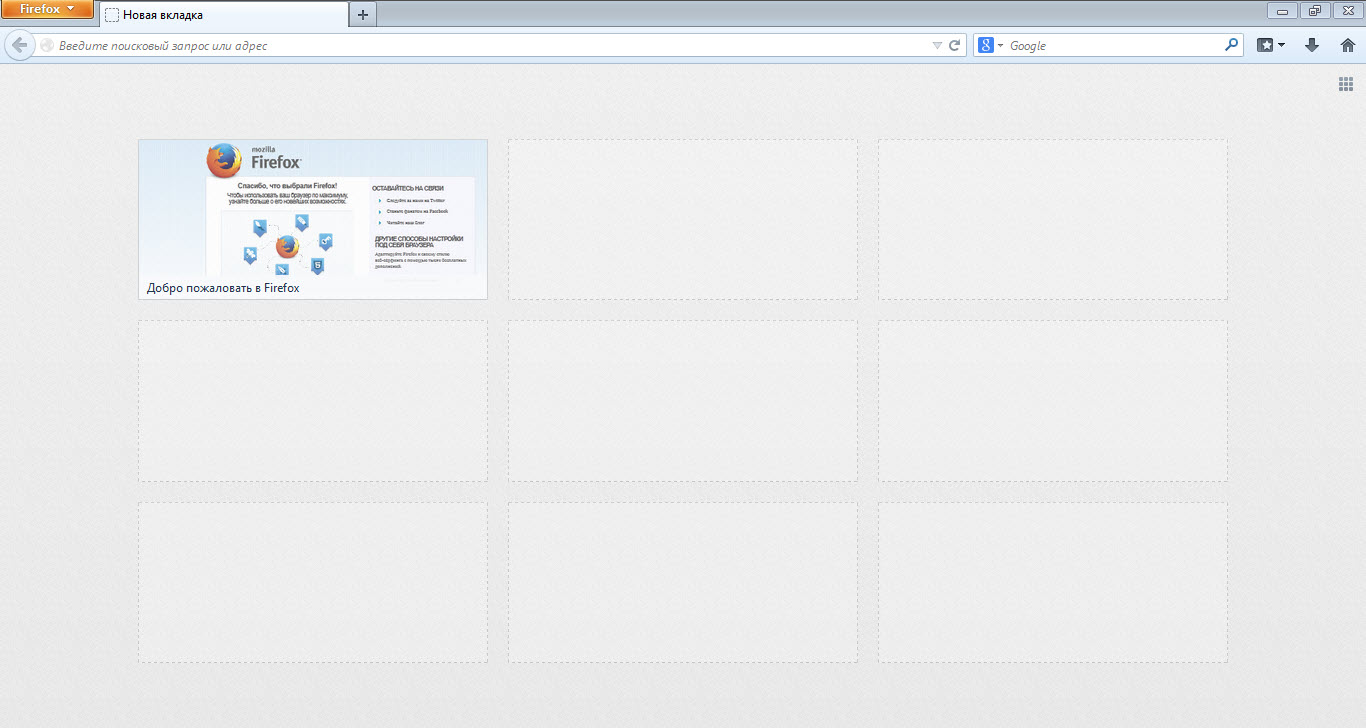
To do this, click the button  which is located at the top left. In the context menu that appears, select the "Settings" item, and then go to the "Advanced" settings tab.
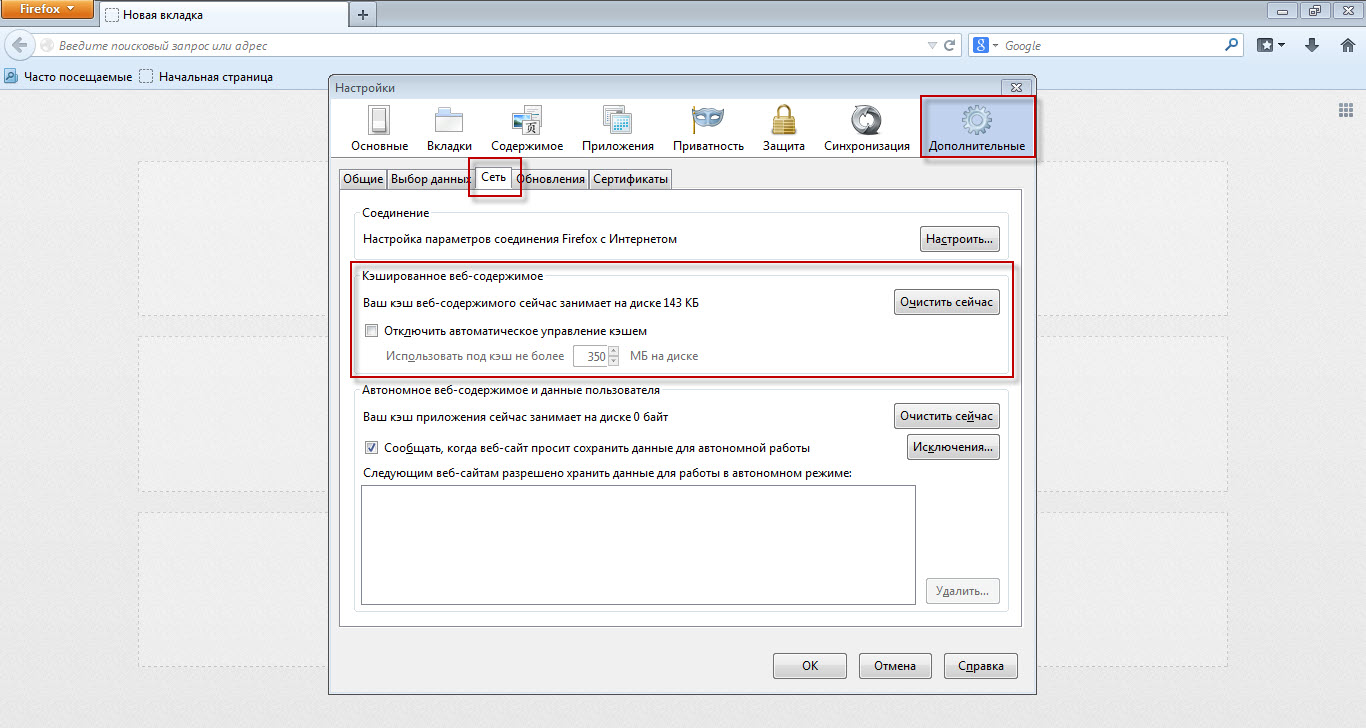
As we can see, it shows how much space the FireFox cache currently occupies. Sometimes the cache size exceeds 500-1000 MB, which indicates active caching of files by the browser. That is, in fact, if the cache takes up about 500 MB, it means that FireFox has cached 500 MB from various sites.
Now, when visiting the corresponding sites, the load on the computer and the Internet connection will be much lower, thanks to the use of cached data.
By clicking the 'Clear Cache' button, you will clear the entire FireFox browser cache. You can also configure the cache management method, namely the disk space allocation method. More specifically, you can limit FireFox's ability to use disk space, for example, by allocating only 350 MB for the cache.
Congratulations, now you know how to work with the cache in FireFox.
Good luck!