A fairly common problem - related to the fact that the computer does not see the HDD (hard drive), is solved very simply.
Firstly: you should check the cable connections that connect the hard drive to the motherboard; if you have a laptop, you do not need to check the cables :).
Secondly: a very common solution to this problem is to set the HDD (hard drive) as the first priority in the BIOS boot order. During BIOS boot, press the "DEL" key to enter the BIOS settings. Go to the "BIOS" tab, and then to the "BOOT Priority" tab, and there set your HDD as the first priority.
Press the F10 key -> save the settings and restart your computer: Windows should start. 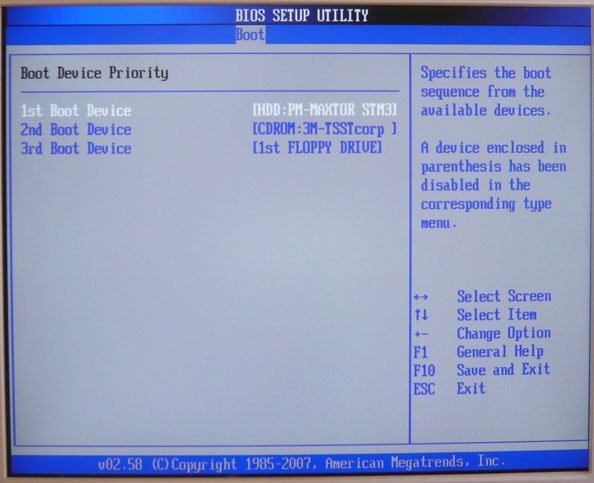 Additionally, you should check if your controller is enabled. If your hard drive interface is "IDE", be sure to enable "Marvell IDE controller" in the BIOS settings; your controller may have a different name. If that doesn't help, try connecting the hard drive cable to a different slot.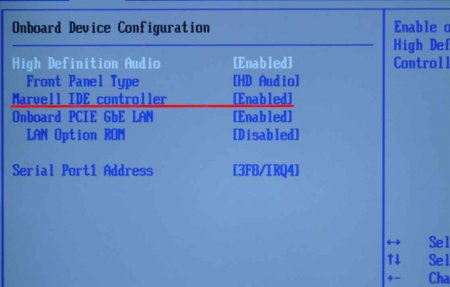
None of the methods help and Windows does not see the hard drive?
In that case, we advise you to contact a professional, as the problem may be a malfunction of the HDD itself. If you are well-versed in such matters yourself, we advise you to check the jumper settings, which should be set correctly, so that the BIOS displays the HDD and Windows boots.