Advanced Opera settings
Article Opera Setup

Advanced Opera settings

5.0 (1 ratings) Hover and click a star to rate
Views
4 175
Rating
5.0 / 5

Everyone knows that Opera recently switched to the new WebKit engine. Some liked it, while others stayed on version 12.x :) In the latest versions of the Opera browser, some new features and, accordingly, settings have appeared. Let's discuss some interesting Opera browser settings. For those who don't know yet, you can download the Opera browser for free in English here.

How to access Opera settings?

To go to the Opera browser settings page, you need to click the "Opera" icon.
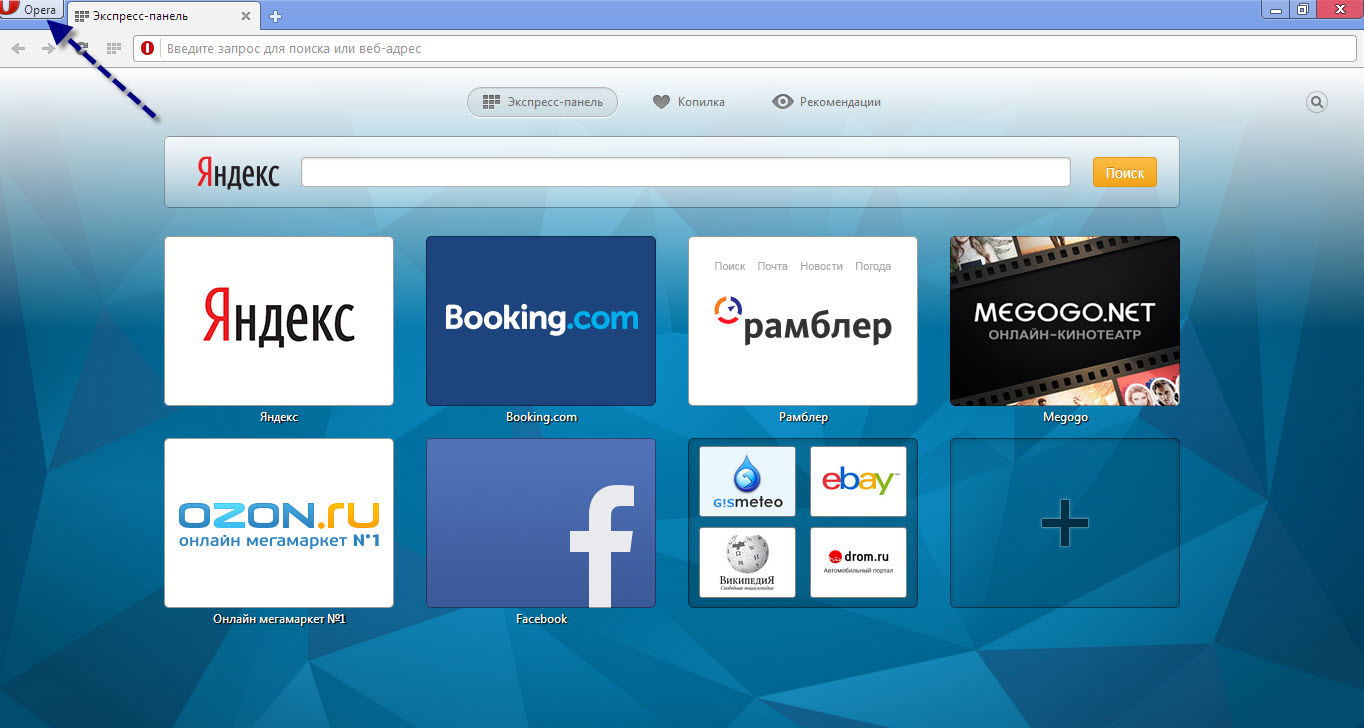
Opera Advanced Settings

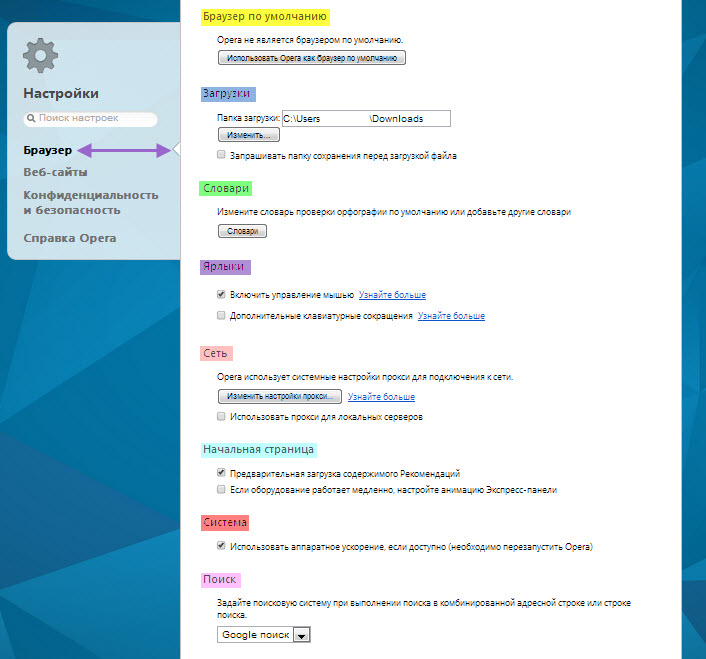
Next, in the context menu that appears, select "Settings", or you can simply press the Alt+P key combination. After that, the Opera browser settings page will open in front of you:
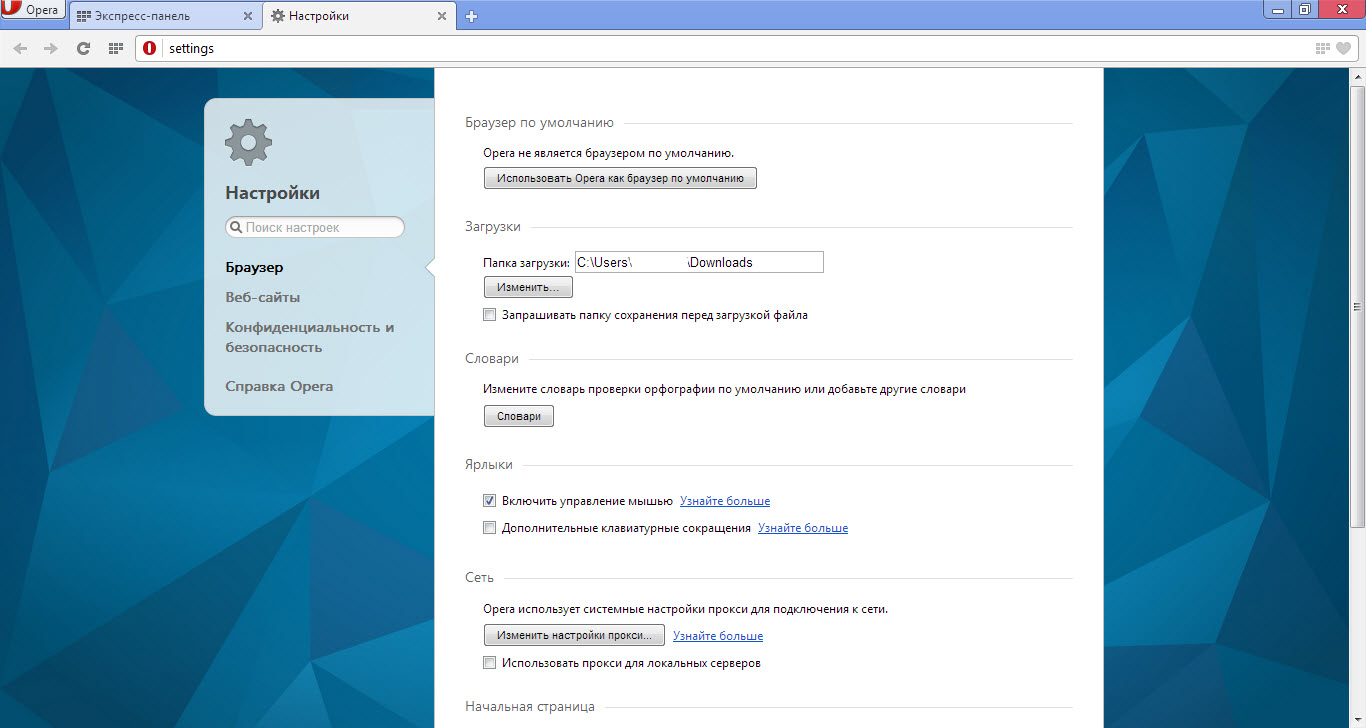
Opera Advanced Settings

List of Opera settings

Now let's look at all the Opera browser settings items we are interested in. First of all, it should be said that settings in Opera are divided into browser settings, website settings, and privacy & security settings.
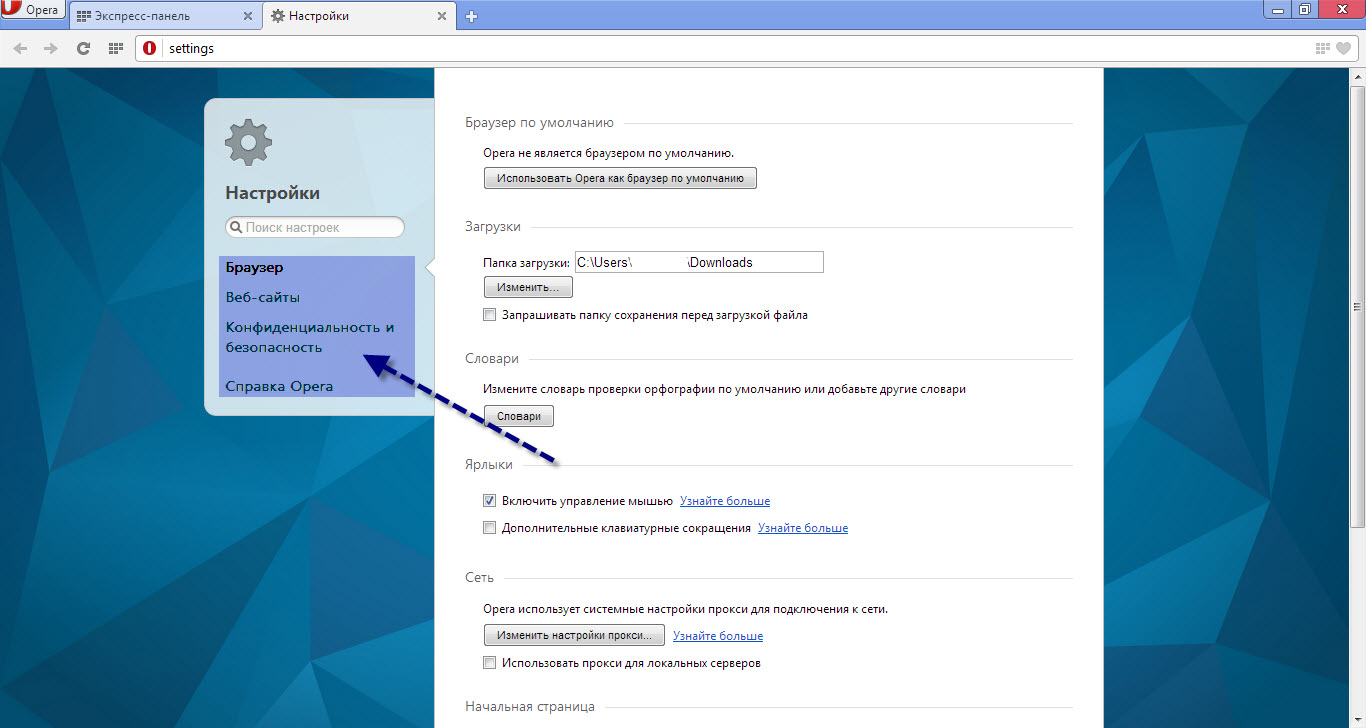
Opera Advanced Settings

Section "Browser" settings

Opera Advanced Settings

Default browser

Here you can set Opera as the default browser on the system. This is necessary so that all files with .html extensions, etc., open in the browser specified as the default. Also, all links and everything related will open using this browser.

Downloads

In this settings section, you can choose a download folder or set the option to ask for a download folder before each download.

Dictionaries

In this section, you set dictionaries for spell checking.

Shortcuts

You set the methods for managing shortcuts. Currently, 2 management methods are available, with the default being method 1 - Mouse, as this method is most optimal and convenient compared to the keyboard shortcuts method.

Network

Just like in all browsers, proxy settings are configured here. Typically, regular users do not use this feature. The start page settings in this section differ from standard ones because here only loading methods for the "Speed Dial" and the like are set.

System

There is only 1 option available for settings, and it is advisable to set it to ON.

Well, here, like in all browsers, there is 1 option to choose the browser's search engine.

Section "Websites" settings
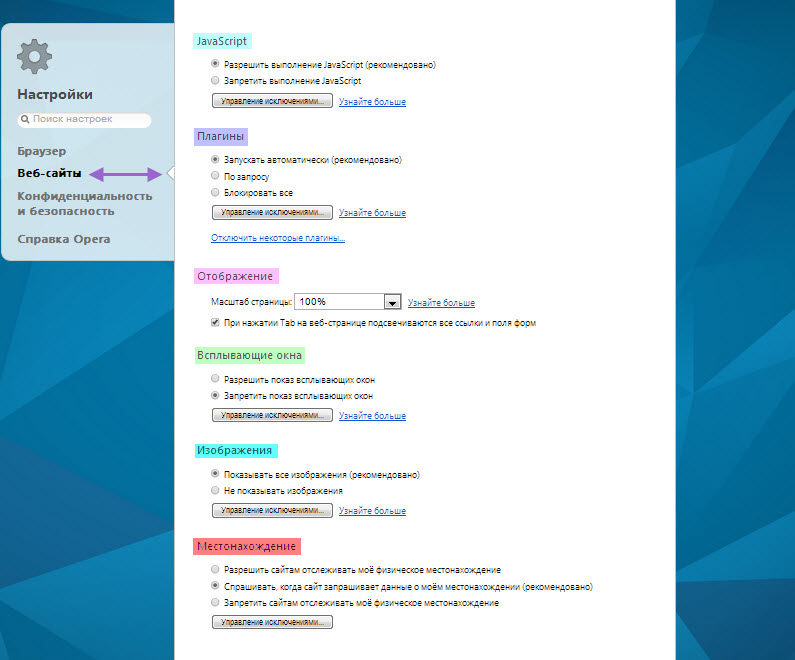
Opera Advanced Settings

JavaScript

Here you can enable or disable the execution of JavaScript codes on pages. Also, you can set up an exceptions list for different sites using patterns.

Plugins

In this section, you configure the method of working with plugins.

Display

Here you set the default zoom level for loaded pages, as well as the option to highlight all links and form fields when pressing the Tab key.

Pop-ups

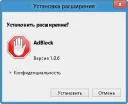
The method for handling pop-ups is configured. It is advisable to set the option to "Show", and to eliminate ad pop-ups, install the AdBlock extension.

Images

The method for handling images is configured.

Only 2 options are available for configuration:

  • Show
  • Do not show

Also, you can set up your own exceptions list, i.e., on which sites to load images and on which not.

Location

In this section, you can configure the browser's behavior when requesting your location. It's best to leave everything as is. Additionally, you can create an exceptions list.

Section "Privacy & Security" settings
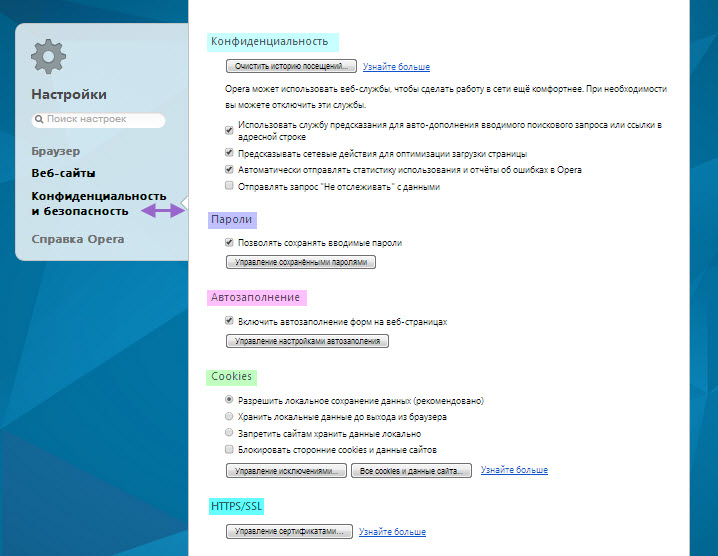
Opera Advanced Settings

Privacy

Here you can configure the privacy of your data.

Passwords

This setting option is more related to "Privacy", as it allows you to configure the ability to save entered passwords.

Auto-fill

A very convenient option available in the Opera browser, it remembers and automatically fills in form fields on web pages.

Cookies

A rather interesting option that allows you to configure how cookies work. If you don't know what cookies are, it's better not to touch anything here to avoid incorrect browser behavior.

HTTPS/SSL

Here you can configure available certificates.

Conclusion

In principle, these were the main available settings in the Opera browser that allow you to configure the browser as you wish. From the appearance to security and privacy methods, you can customize the browser to your liking.

Good luck!
Specifications

Views4 175

Site.articles.relatedCategory

Show more
Opera Plugin Settings

Opera Plugin Settings

Opera Setup
3.0

Perhaps most Opera users wonder about the settings of this browser, especially concerning its new versions. Today we'll talk about how to configure plugins in the Opera browser. Let's start with the definition of 'Plugin'. A plugin is an auxiliary element of the browser that expands its functionality and allows many elements on WEB pages to function. For example, Adobe Reader that reads online .PDF files is a plugin, since it is an auxiliary tool. Java(TM) is also a plugin,

48 009
Read

The developers of the Opera browser emphasize the built-in tab system in their browser, as not every browser has such functionality in its set. Also, the Express Panel in Opera is divided into "Own Tabs" and "Piggy Bank" (in other words "Favorites"). Very interesting features, don't you think? For the first time, the free Opera browser introduced a normal bookmark system, calling it "Piggy Bank", for which we should thank its developers! Besides that, an interesting thing is the "Recommendations" section, located also

13 841
Read
Setting up AdBlock in Opera

Setting up AdBlock in Opera

Opera Setup
5.0

Perhaps the main problem for internet users today is blocking ads in Opera, pop-up windows and all such things. It is difficult for an ordinary user to deal with such problems, especially a beginner - because advertising follows us absolutely everywhere! Pop-up windows/ads and all similar things - must be blocked with special free ad-blocking programs. How can pop-up windows and ads harm your computer? Let's start with the fact that advertising is everywhere, advertising there, advertising here, everywhere one ad

5 108
Read

Thanks to the fact that Opera switched to a new and perhaps the most powerful engine as of today, WebKit, its capabilities have expanded, and the browser's speed has increased. However, due to this event, some features and available options in the Opera browser have changed. That is why some Opera users have encountered some difficulties when setting up the browser. But this is for the best, since with the development of the Presto engine, Opera lost significant positions in the web browser market. And

2 307
Read

Site.articles.relatedPopular

Show more

By becoming a member of the Friend Around social network, you will ensure the opportunity for new acquaintances and find many friends! Every participating user in the social network has many friends and girlfriends, just new acquaintances in this network! Thanks to the modest application, you can often communicate with friends on common topics! Using the features of this social network, you can find your soulmate, and other users can help with this! [toc] On the website, you can quickly download the program and become a user of the Friend Around program

368 990
Read

The default welcome page of the Google Chrome browser looks, perhaps, empty and unclear. Now we'll figure out what a welcome page is and what it is for. [toc] When you start the browser, the first thing you see is the start page! It is also called the quick access page, or the welcome page. Welcome page - what is it? Actually, these are slightly different concepts, especially when it comes to the default welcome page of the Google Chrome browser. So, now we know what

151 556
Read

How to download a Windows 7 ISO image from the Microsoft website? Today it is possible, there is no longer a need to search for the OS on the Internet, risking infecting your own computer with a virus. There are many different builds of this operating system on the web. It is best to download the original Windows 7 ISO image, as it is considered the best. You don't need to download it from torrent trackers, it is available on the Microsoft website. However, there are certain nuances. At the link https://www.microsoft.com/ru-ru/

107 053
Read

Social networks - they are used by absolutely everyone who uses the Internet, just as the phone once gained incredible popularity - today social networks enjoy incredible universal popularity. [toc] Perhaps in the near future every inhabitant of the Earth will have their own account in one or another social network. As a rule, it is impossible or quite difficult to delete an account in social networks; it still remains in the system, no matter what you do. The Social Network Friend Around is no exception - in which

103 258
Read