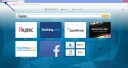
The developers of the Opera browser particularly emphasize the built-in tab system in their browser, since not every browser has such functionality in its set. Also, Opera's Express Panel is divided into "My Tabs" and "Piggy Bank" (in other words "Favorites").
Very interesting features, aren't they?
For the first time, the free Opera browser introduced a normal bookmark system, calling it "Piggy Bank", for which we should thank its developers! In addition, an interesting thing is the "Recommendations" section, also located, like "Piggy Bank", next to the tabs. There you can always access the most interesting news and much more from the internet.
Perhaps, it is thanks to such extended functionality of the "Express Panel", as well as the new WebKit engine, that the Opera browser has become even more popular and competitive! The Express Panel page is customized mainly through installed extensions, however, the Opera browser itself offers quite a sufficient number of settings related to tabs.
Tab settings in the Opera browser
To access the tab settings, you need to open the settings page. To do this, click on the browser icon in the top left:
[caption id="attachment_1166" align="aligncenter" width="600"]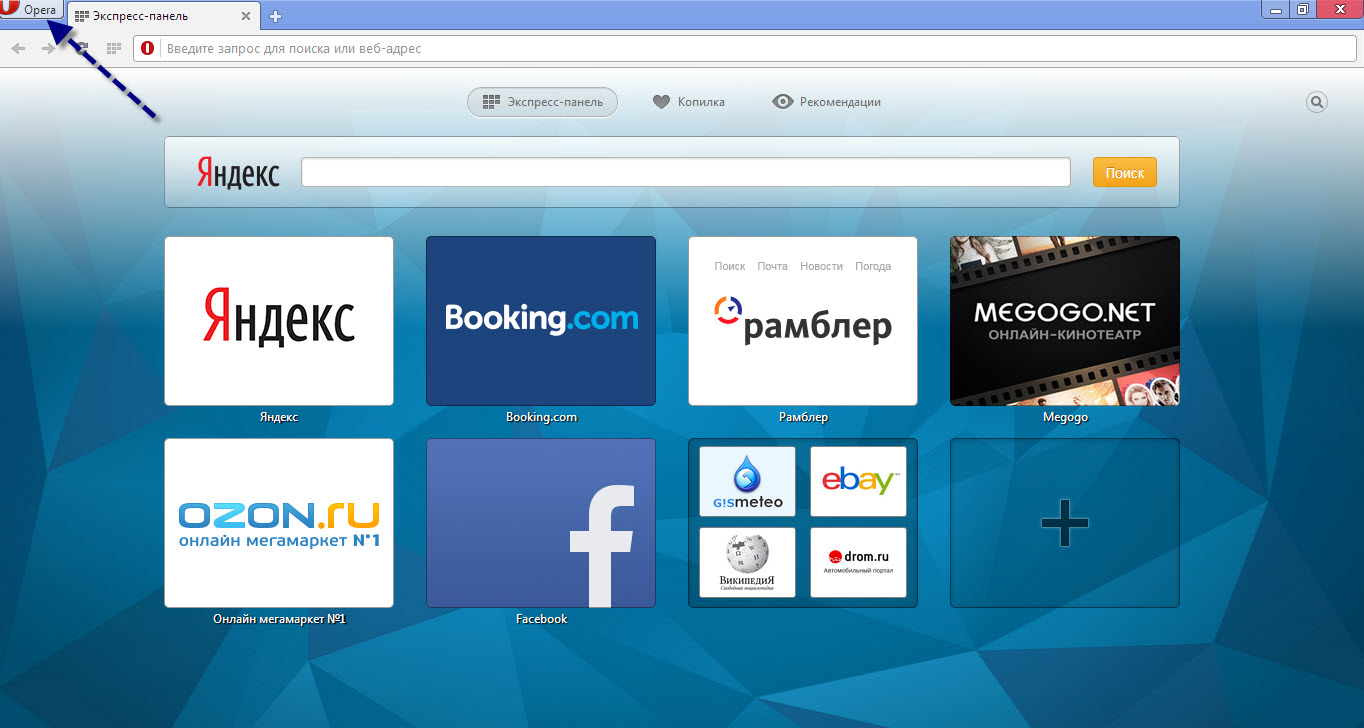 Opera Express Panel Settings[/caption]
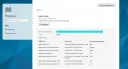
In the menu that appears, select "Settings", then go to the "Browser" tab.
[caption id="attachment_1167" align="aligncenter" width="600"]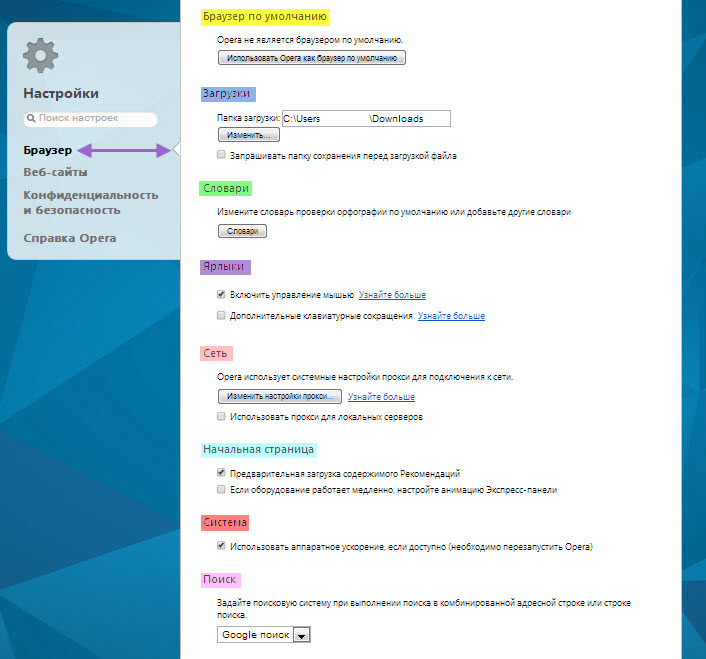 Opera Express Panel Settings[/caption]
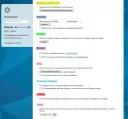
Pay attention to the settings item highlighted in blue, "Start page". Here you can configure the launch method and behavior of the Opera browser's start page.
In addition, the settings have additional items that are not directly related to the tab page, but one way or another affect its behavior and appearance.
However, we will focus only on the settings items that directly affect the Opera browser's tab page. Also, you can place extensions on the tab page, which can be downloaded from the official Opera add-ons page.
[caption id="attachment_1168" align="aligncenter" width="600"]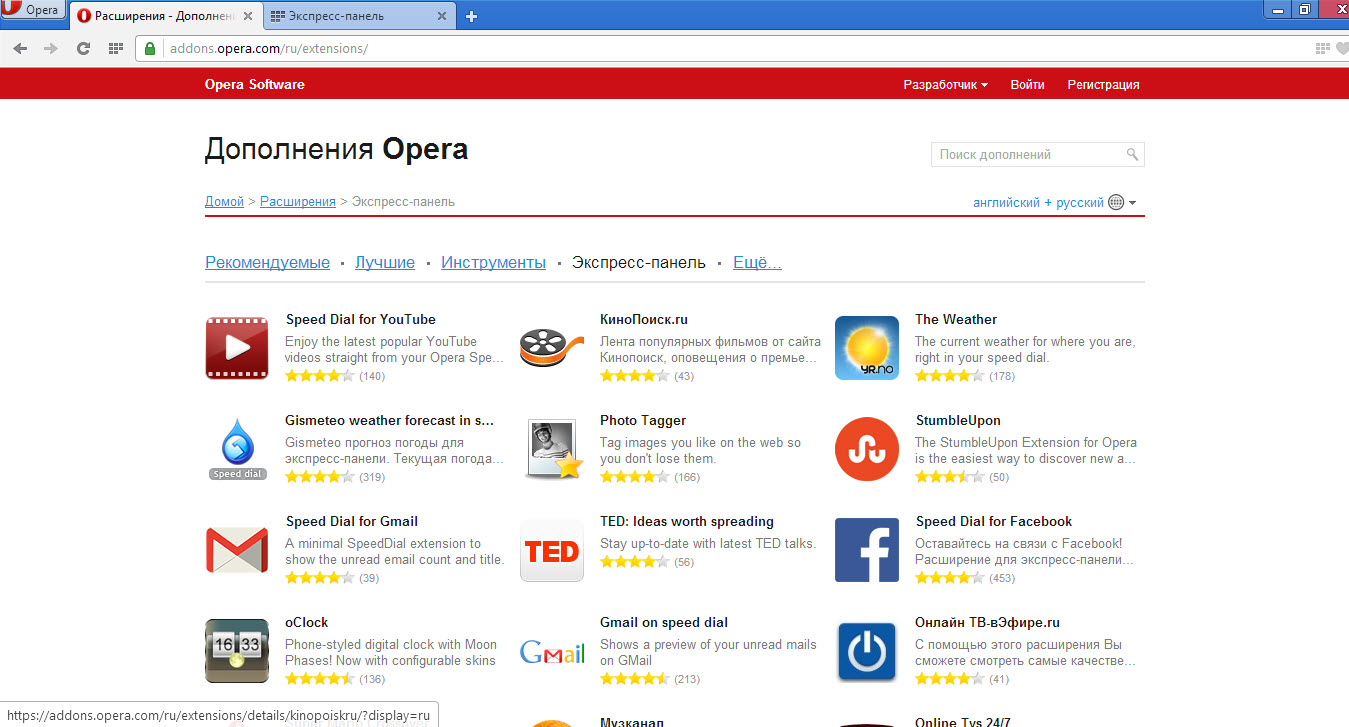 Opera Express Panel Settings in the Opera browser[/caption]
Moreover, Opera has a built-in system for styling tabs and the entire browser as a whole. To access them, you need to click on the Opera icon in the top left, then in the context menu that appears, select "Themes", where you can choose the visual style you like.
[caption id="attachment_1169" align="aligncenter" width="600"]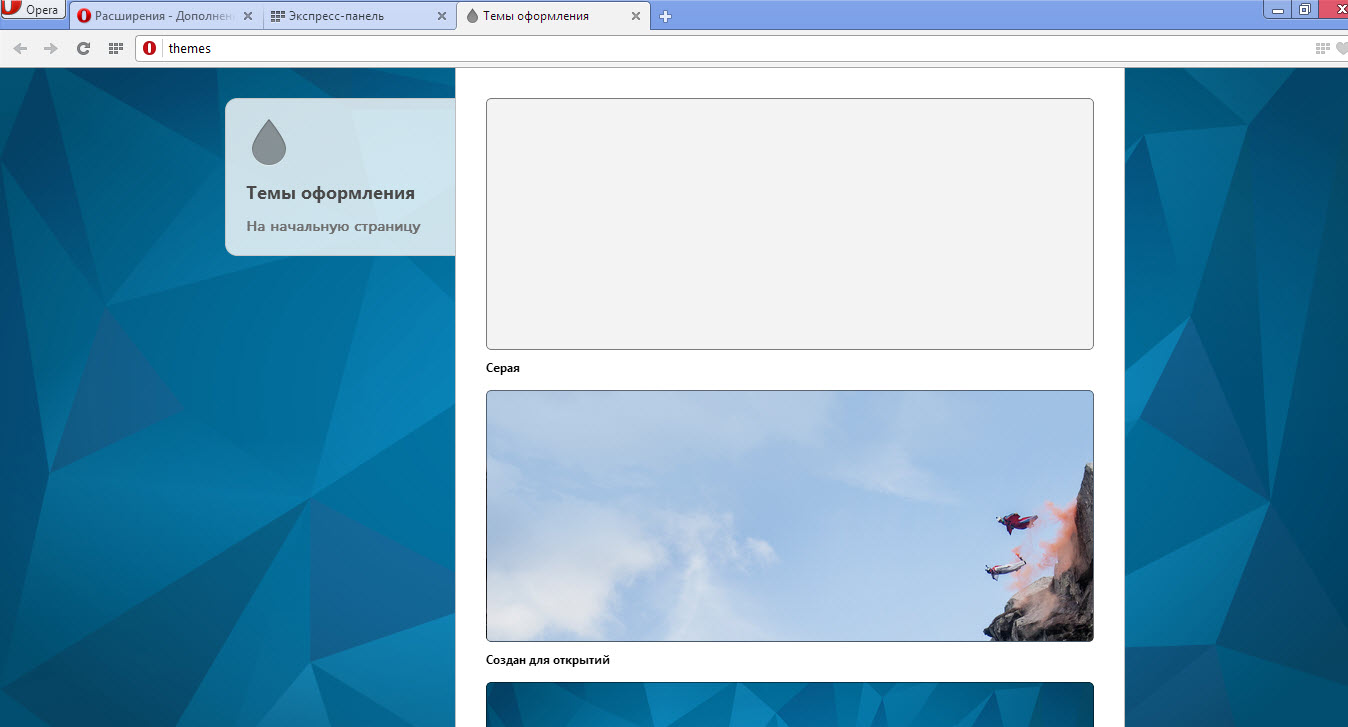 Opera Express Panel Settings in the Opera browser[/caption]
[caption id="attachment_1170" align="aligncenter" width="600"]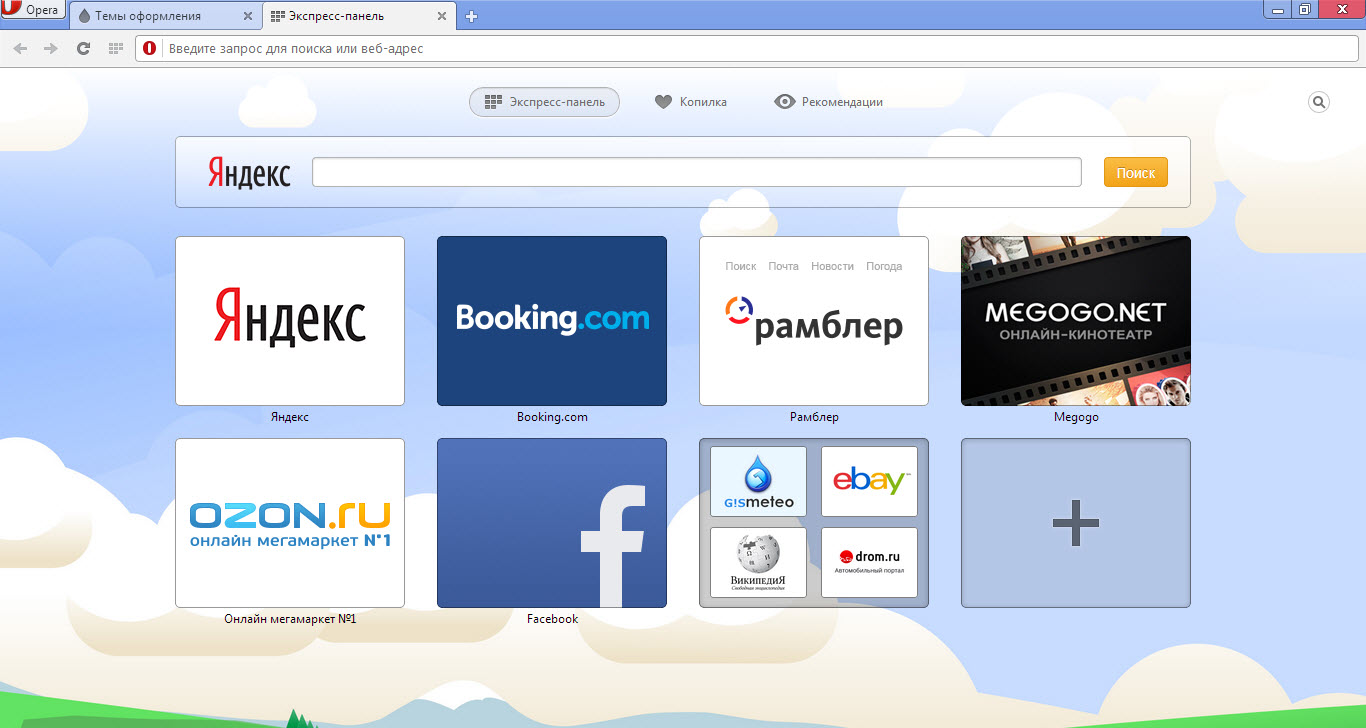 Opera Express Panel Settings in the Opera browser[/caption]
[caption id="attachment_1171" align="aligncenter" width="600"]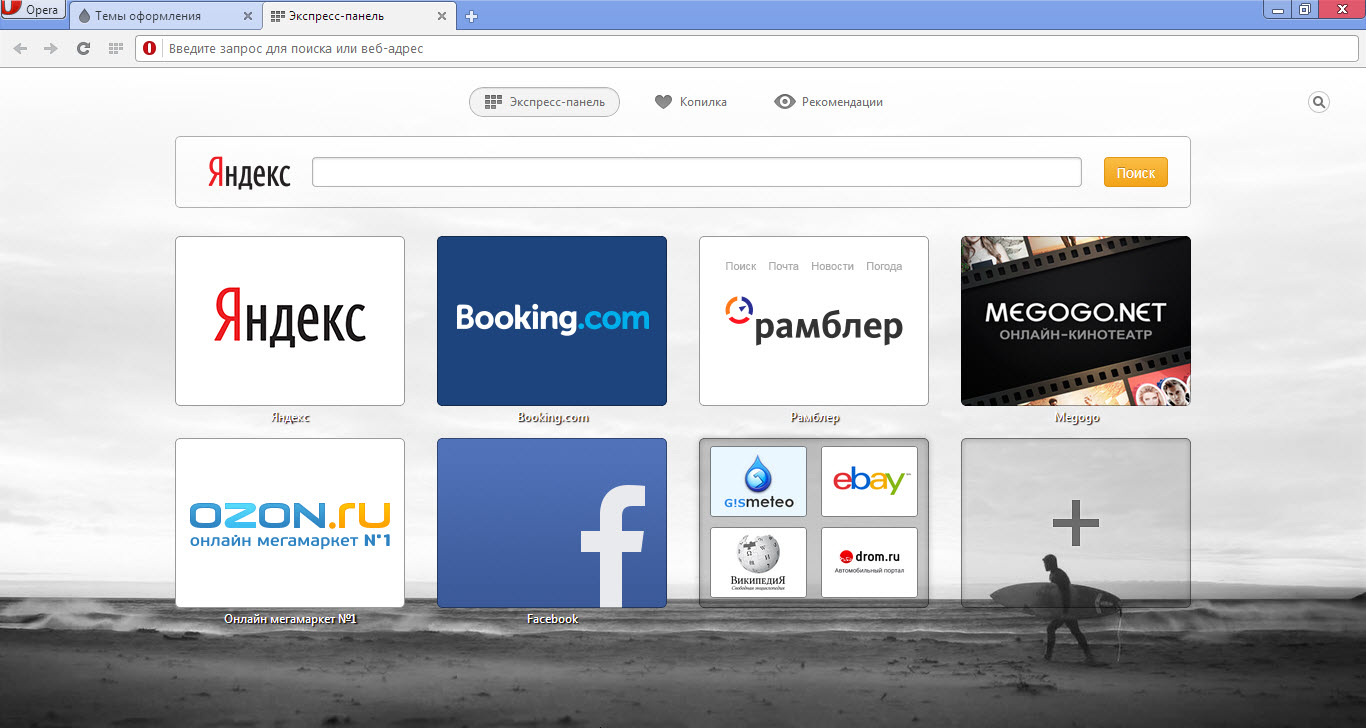 Opera Express Panel Settings in the Opera browser[/caption]
Summary of express panel settings in the Opera browser
Summarizing, it can be said that Opera's settings are sufficient for you to make it the way you want to see it! And where there are not enough capabilities, extensions will help in any case, which are freely available to every Opera browser user!
Good luck!