Probably, most Opera users wonder about the settings of this browser, particularly when it comes to new browser versions. Today we will talk about how to configure plugins in the Opera browser. Let's start with the definition of "Plugin".
A plugin is an auxiliary browser component that extends its functionality and allows many elements on web pages to work. For example, Adobe Reader, which reads online .PDF files, is a plugin because it is an auxiliary tool. Java(TM) is also a plugin, as it is an auxiliary tool and enables JAVA applications to run on web pages.
One of the most popular plugins is probably Adobe Flash Player, which allows Flash elements to be played on websites. For example, it enables video players on sites like YouTube, and also allows playing online games on the Facebook social network that are made with Flash.
It's impossible to imagine the Internet as we see it today without plugins! As everyone knows, Opera supports Netscape plugins, all except Live Connect, which allows languages to communicate with each other.
Typically, a Netscape-compatible plugin is essentially a dynamic-link library, namely .DLL. Plugins are located in the standard \opera\plugin folder or in the Netscape plugins folder if they are installed under Netscape.
For example, if you look at the Adobe Reader plugin, you can see that it is also a dynamic-link library:
[caption id="attachment_1157" align="aligncenter" width="600"]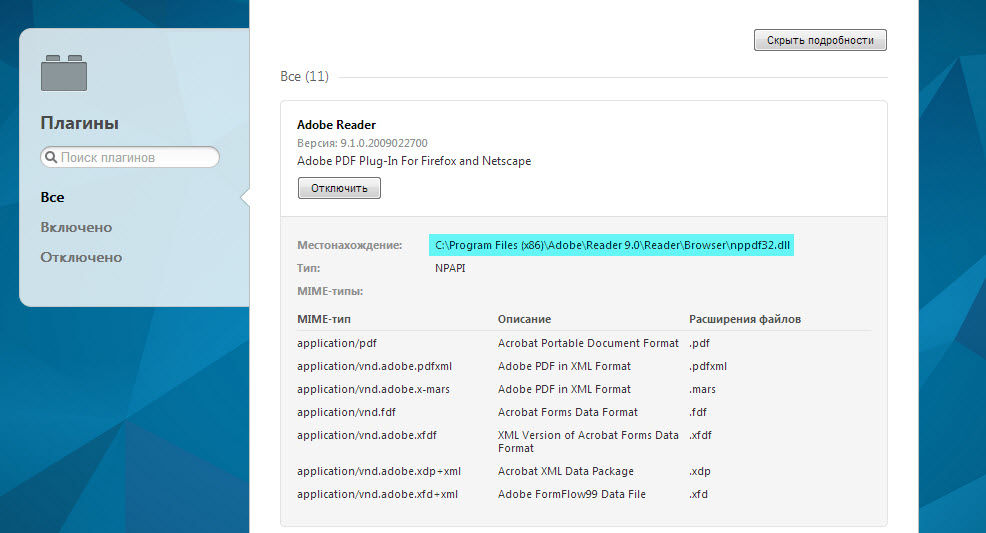 Opera plugin settings[/caption]
By the way, you can access the Opera browser plugins panel by typing the following address in the address bar: opera://plugins
Sometimes the plugin installer asks for the Netscape browser folder, and you try to install it in Opera, but it won't install because it cannot find the netscape.exe file. To avoid this, simply create any .txt file and rename it to netscape.exe, then move it to the Opera root folder. Now the plugin will think Netscape is located here and will install properly.
If something doesn't work, you can simply take the plugin from the Netscape plugins library and copy it to the Opera plugins folder. Typically, plugins have a format like np***.dll, indicating browser purpose or functional purpose. However, DLL files usually contain a description of the plugins and their installation method.
In that case, it is enough to copy the specified files to the Opera plugins folder, then find them using Find Plugins and enable them. However, the standard Opera plugin set contains all the necessary plugins, and they are enabled by default.
Additional plugins can be found on the official Opera browser website.
Good luck!