In order to import, as well as export, FireFox settings, you need to go to the Firefox profile folder.
In the Windows family of operating systems, FireFox stores its profiles in the path - C:\Documents and Settings\YOUR_WINDOWS_USERNAME\Application Data\Mozilla\Firefox\Profiles\SOME-LETTERS-AND-NUMBERS.default\
However, starting from Windows Vista/7 the Application Data folder has slightly changed, so to quickly access it, you need to run the command "%AppData%", in the command execution window, which is usually located in the Start menu.
As for the Linux family, the location of FireFox profiles is different, now it is - ~/.mozilla/firefox/SOME-LETTERS-AND-NUMBERS.default/
Here the ~(tilde) sign represents the home directory, that is, the home directory path.
So, when you get into the above folder, you will see a folder like this:
[caption id="attachment_1195" align="aligncenter" width="600"]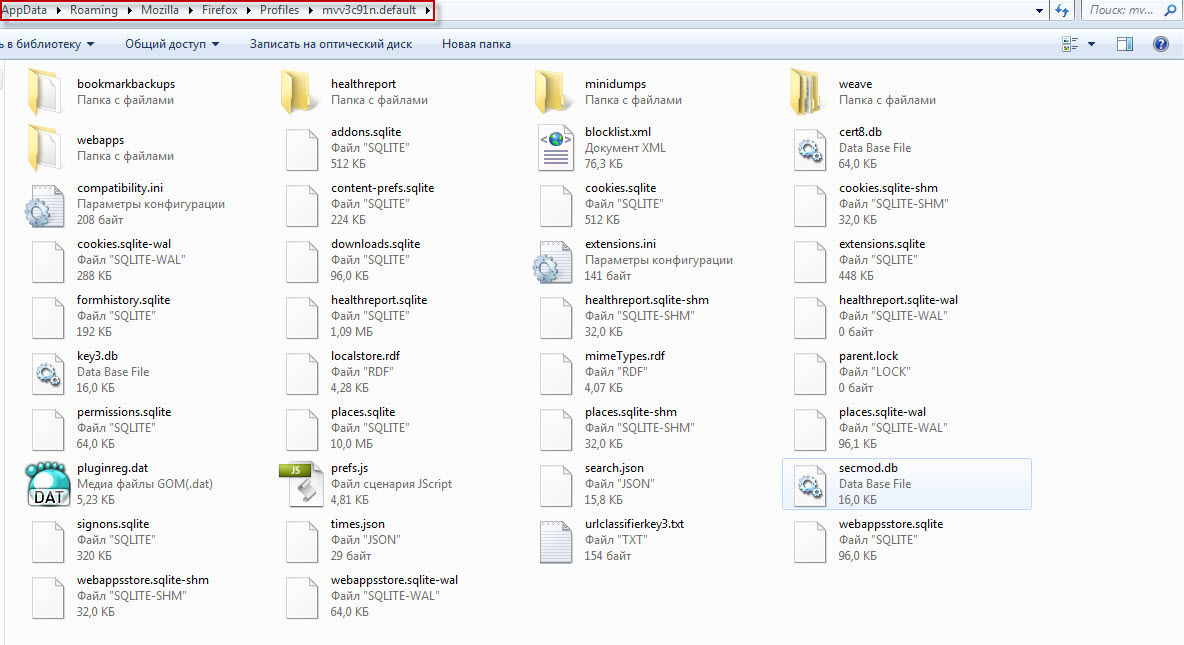 How to import bookmarks in FireFox[/caption]
There are quite a lot of different files here, each responsible for a particular area of FireFox settings. But we need exactly bookmarks, and they are stored in the file places.sqlite.
Now, to import FireFox bookmarks, you must have the places.sqlite file available :) Just copy it into the FireFox profile folder, confirming the replacement of the current bookmarks file.
Similarly for exporting bookmarks, in that case you copy the places.sqlite file to external media or somewhere else, and then transfer it to where the FireFox bookmarks need to be imported.
As you can see, the operation of importing/exporting FireFox bookmarks is extremely simple and does not require much time.
Good luck!