ReadyBoost in Windows 7
Article PC Setup

ReadyBoost in Windows 7

3.0 (6 ratings) Hover and click a star to rate
Views
1 899
Rating
3.0 / 5
Reviews
1

The ReadyBoost technology appeared in the Windows family starting with the Vista version; this technology allows you to increase your computer's performance using a removable device.

The removable device is typically a flash drive with a size of 4-8GB - ReadyBoost is a principle that allows you to boost your computer's RAM capacity using free space on a removable disk.

That is, by using ReadyBoost technology, the computer will use the specified removable device as additional RAM, which in principle should increase the computer's performance. This technology especially helps computers that struggle with tasks due to insufficient RAM. As a rule, ReadyBoost is used in cases where you need to boost RAM; for powerful computers with more than 4-5GB of RAM, ReadyBoost technology won't help much.

How to use ReadyBoost in Windows 7?

So, we've figured out what ReadyBoost is, now we need to talk about how to use ReadyBoost technology. First, you should purchase a flash card with a capacity of at least 4GB, preferably 8GB.

You should buy a flash drive from popular manufacturers, for example, from Toshiba or any other, insert the flash drive into your computer/laptop, and then find the inserted device in the list of devices in Windows Explorer. Typically, such devices are called "Removable Disk" or something like "Flash-Card".

Right-click on the flash card device and select "Properties". Go to the ReadyBoost tab and select "Use this device", then move the slider all the way to the right.

[caption id="" align="aligncenter" width="374"]ReadyBoost in Windows 7 ReadyBoost in Windows 7[/caption]
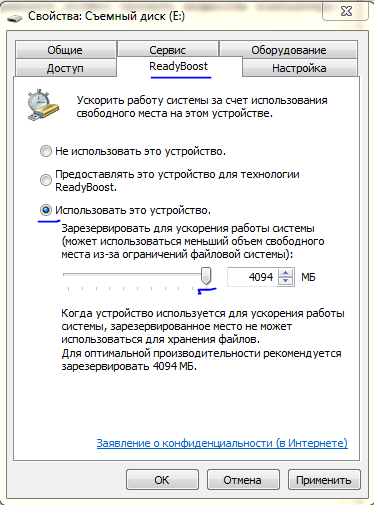
Now click the "OK" button, after which a window will appear saying "ReadyBoost is configuring the cache". That's it, now a large file named "ReadyBoost.sfcache" will appear on your flash drive; do not delete it. Do not remove the flash drive, and ReadyBoost will work stably, providing increased computer performance using free space on the removable disk.

How to disable ReadyBoost

If you decide to use the flash drive for its intended purpose rather than as an aid to your computer's RAM, simply go to the flash card's properties, then to the "ReadyBoost" tab, select "Do not use this device" and click "OK". ReadyBoost will reconfigure the cache and automatically delete the "ReadyBoost.sfcache" file. Now you can use the flash drive again.

Tips

Do not remove the flash drive from the computer while the ReadyBoost program is running in the usual way; always use Safe Removal! If you unsafely remove the flash drive from your computer/laptop, it may lead to some problems, both in the operation of ReadyBoost and in the operation of the computer.

You might be interested in the following programs:
Specifications

Views1 899

Reviews

1 reviews

  • WinSetupFromUSB 07.07.2016

    Использование технологии ReadyBoost не требует скачивания или установки дополнительных файлов и программ всё необходимо для её работы уже встроено в операционную систему.

Site.articles.relatedCategory

Show more

It is not uncommon for the internet to occasionally disappear, or even disappear completely. Most often, people immediately call technical specialists or contact their internet provider's support service. However, the problem often lies in some small detail that can be easily fixed on your own! First of all: you should determine the source of the problem. Does your internet disappear every half hour, or every hour? Perhaps the internet connects and Windows reports that everything is fine, but

76 846
Read

If your graphics card is overheating, you should not delay, because if you do nothing about it for a long time, the graphics card will at best burn out, and at worst, it may catch fire with a blue flame, damaging the entire computer. Overheating is very dangerous, remember that! Why is your graphics card overheating at all? Most often, the problem lies in a weak cooler that simply cannot handle the load. In this case, you should simply replace it, or even better, install

26 757
Read

If Windows does not see the printer, the problem almost always lies in driver issues. However, we also recommend checking the clarity of the printer cable connections to the computer, as well as the functionality of the printer itself. If the connections are established and the printer is working, you should install/reinstall the printer driver in the Windows OS. This procedure is quite easy and will not take much time and effort. 1) Launch "Device Manager", to do this, open "Control Panel"

25 758
Read
Windows XP won't load

Windows XP won't load

PC Setup
4.7

It is not uncommon for users to experience that the Windows XP operating system does not load. As a rule, this happens for no apparent reason, since the OS was loading normally not long ago, and then problems suddenly arose. There can be many reasons for this, and there are a number of the most common causes why the OS stops loading. Also, you should pay attention to how exactly the OS does not load—whether it does not load at all or stops loading after the Windows XP logo with a progress bar appears.

11 384
Read

Site.articles.relatedPopular

Show more

By becoming a member of the Friend Around social network, you will ensure the opportunity for new acquaintances and find many friends! Every participating user in the social network has many friends and girlfriends, just new acquaintances in this network! Thanks to the modest application, you can often communicate with friends on common topics! Using the features of this social network, you can find your soulmate, and other users can help with this! [toc] On the website, you can quickly download the program and become a user of the Friend Around program

368 990
Read

The default welcome page of the Google Chrome browser looks, perhaps, empty and unclear. Now we'll figure out what a welcome page is and what it is for. [toc] When you start the browser, the first thing you see is the start page! It is also called the quick access page, or the welcome page. Welcome page - what is it? Actually, these are slightly different concepts, especially when it comes to the default welcome page of the Google Chrome browser. So, now we know what

151 556
Read

How to download a Windows 7 ISO image from the Microsoft website? Today it is possible, there is no longer a need to search for the OS on the Internet, risking infecting your own computer with a virus. There are many different builds of this operating system on the web. It is best to download the original Windows 7 ISO image, as it is considered the best. You don't need to download it from torrent trackers, it is available on the Microsoft website. However, there are certain nuances. At the link https://www.microsoft.com/ru-ru/

107 053
Read

Social networks - they are used by absolutely everyone who uses the Internet, just as the phone once gained incredible popularity - today social networks enjoy incredible universal popularity. [toc] Perhaps in the near future every inhabitant of the Earth will have their own account in one or another social network. As a rule, it is impossible or quite difficult to delete an account in social networks; it still remains in the system, no matter what you do. The Social Network Friend Around is no exception - in which

103 258
Read