FireFox Settings

Download free software — compare versions, ratings and sizes.

19 programs found

In this article we will tell you how to install FireFox in operating systems of the GNU/Linux family. Most GNU/Linux distributions include FireFox by default in their set, also known in such systems as Iceweasel, BurningDog or GNU IceCat. Also, such distributions include a package management system that will automatically install everything required for FireFox to successfully launch and work on your computer. However, this method of installing FireFox also has its drawbacks, and they

0
Read
The FireFox browser uses profiling to save settings. That is, the settings are tied to a particular profile. As a rule, immediately after installation and the first launch of FireFox, standard settings are created automatically. The standard profile is called - Default. FireFox stores these profiles not in the browser's root folder, but in the Application Data folder. To access the FireFox profiles folder in Windows, you must go to the following path: C:\Documents and Settings\YOUR_WINDOWS_NAME\Appli

0
Read

As in all other browsers, Firefox has a built-in settings system that is organized on the principle of profiling. That is, all your settings are saved in profiles. To be more precise, when you install Firefox, a standard profile named Default is created, which stores the settings. This system is very convenient, because once you set up the browser, you don't need to repeat it. That is why Firefox developers made a profile system to make life easier for Firefox users. If you

0
Read

The Mozilla FireFox browser uses a profile system to store user settings, including bookmarks. Often the question of exporting/importing FireFox settings arises, and in particular importing and exporting bookmarks. In order to import, and incidentally also export, FireFox settings, you need to go to the FireFox profiles folder. In the Windows operating system family, FireFox stores its profiles at the path - C:\Documents and Settings\YOUR_WINDOWS_NAME\Application Data\Mozilla\Firefox\Profiles\SOME-

0
Read

One of the most important and necessary features of modern browsers is their friendliness to search engines. That is, built-in search systems, as well as various features to make working with search engines easier. One such improvement is the built-in search system in FireFox, which makes it easier for users to search for information on the web. Moreover, this system can also be customized, and that's what we'll talk about now. So, the search system in FireFox is implemented just like in all other browsers, via the addre

0
Read

The FireFox browser provides a powerful toolkit for developing and subsequently installing themes. As a rule, themes are divided into 2 types, namely: those that change only the background and themes that change almost all browser elements. Themes are sometimes very useful, because the standard look of the FireFox browser sometimes gets boring and simply becomes annoying. This is comparable to how you often change the wallpaper on your desktop to diversify the look of the operating system :) So, to install a FireFox theme, go to "Add-ons", on

0
Read

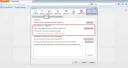
Sometimes the free FireFox browser establishes a so-called "secure connection" with a website, which means FireFox encrypts the connection and also checks the Certificate of the website being accessed. Such measures are necessary to protect the user from all sorts of fraudulent schemes, viruses, etc. However, these measures are sometimes unnecessary and simply prevent the user from visiting websites. In this case, you can disable such checks. If when visiting sites, you too often see the message "This is co"

0
Read

The first thing we see when we launch the Firefox browser is the start page. Every user has their own idea of what should be on the welcome page. Everyone customizes their start page the way they want. For example, you can use the standard Firefox browser start page customization tools. Also, you can set up your own custom option. You can install special add-ons that greatly enhance your welcome page.

0
Read

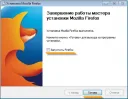
Today we will talk about how to install the Mozilla FireFox browser. So, first you need the installation file/archive of the Mozilla FireFox program. You can download this file on our website: Download the free Mozilla FireFox browser, or from other resources distributing similar software. For example, let's take the installation file Mozilla FireFox 23.0.1. As you can see, this file is a ZIP archive, so unzip it with WinRAR or 7Zip into a separate folder. Inside we see

0
Read

The FireFox toolbar provides easy and quick access to all sorts of typical browser functions. It's a very convenient bar, thanks to which the user can easily access one or another feature of the FireFox browser. Today we will talk about how to set up this toolbar in FireFox. How to show or hide toolbars in the FireFox browser. The vast majority of toolbars in FireFox can be either hidden or shown. What will be displayed and what won't.

0
Read

As in all browsers, FireFox has the ability to add sites to bookmarks, in other words to "Favorites". This is a very necessary feature, because it often happens that some interesting site needs to be saved somewhere. And here, the bookmark system comes to the rescue. By saving a site in bookmarks, you can use it in the future. Namely, to view the list of sites you have added to bookmarks, you need to click on the "Show Your Bookmarks " button. This button is located at the top right.

0
Read

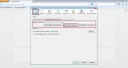
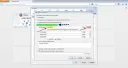
Sometimes the Internet connection is made through a Proxy Server, and in order to configure the Proxy in FireFox, you need to do a few simple steps. We will talk about how to set up a Proxy in FireFox. First of all - you need to open the FireFox settings panel. To do this, click on the button after which the main settings panel of the FireFox browser will open. Next, immediately go to the "Advanced" tab, then to the "Network" sub-tab, and then in the "Connection" section click on the "Settings" button. All this

0
Read

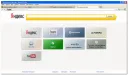
In addition to the standard FireFox browser, users have access to a modified version - FireFox with Yandex search. Namely, the browser's speed in this modification is optimized and improved, visual bookmarks have appeared, various notifications and news have appeared, a built-in translator is included, security has been enhanced, and naturally, Yandex search is built in. A special advantage of this browser is the significantly increased speed of surfing the web. In addition, a fast-working system in

0
Read

Lately, FireFox users, and indeed all browser users in general, have been asking about working with the browser cache. To understand how to work with the cache, you should understand what cache is. So, cache is data that the browser "caches", i.e., saves on the local computer so that in the future it does not have to be downloaded again. The files that the browser usually caches include images, scripts, styles, flash elements, etc. Perhaps, the caching system allows everything that uses i

0
Read

It is very important to keep your browser settings everywhere you go. And if you are a Firefox user, you should know how the settings of this browser are transferred. For example, you have 2-3 computers in different places, at work, at home, etc., and you want them all to keep the same settings. How would you do that? How to transfer browser settings from one computer to another safe and sound? As a rule, Firefox saves all your settings, including confidential data, an

0
Read

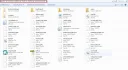
One of the most popular internet browsers today is the FireFox browser, which has long held leading positions in the browser market. And of course, this wonderful browser does not stand still but develops, with new versions bringing new features and changes. Today we will talk about how to set up a new tab in FireFox. By default, FireFox opens a page with tabs, namely, a page with the most visited sites. As we see, there are only tabs with the most

0
Read

Sometimes it happens that Firefox, when requesting a particular site, responds with a message that the server cannot be found. There are quite a few reasons for this error, ranging from trivial to viruses. First of all, when such an error occurs, you should check whether the requested resource exists at all. Also, check if the internet connection is active. Sometimes it happens that no website opens at all; in that case, we recommend you check the Hosts file. Maybe a virus is at work,

0
Read

The Mozilla Firefox browser offers an interesting feature for modifying its theme. Actually, all modern browsers provide this ability. To change the Firefox appearance, you need to download a desired theme from the internet and then install it. For example, here's an interesting option. Or here. And now, more about Firefox themes: A theme is a special Firefox add-on that lets you customize the browser. With themes, you can make Firefox completely different from the original.

0
Read

By default, the FireFox browser does not provide the ability to configure hot keys. However, this can be done by installing special add-ons. Specifically, there is an add-on called FireFox KeyConfig that allows you to configure hot keys. This extension, by the way, is available for both Mozilla Firefox and Mozilla Thunderbird. You can view the standard hot keys at http://support.mozilla.com/ru/kb/Keyboard+shortcuts Extension for burning keys in the Mozilla FireFox browser Download extens

0
Read